Creating a Custom Role (RBAC)
Purpose
Custom roles let you control which modules (pages) a user can see and whether they can edit them or only view them.
Steps to Create a Role
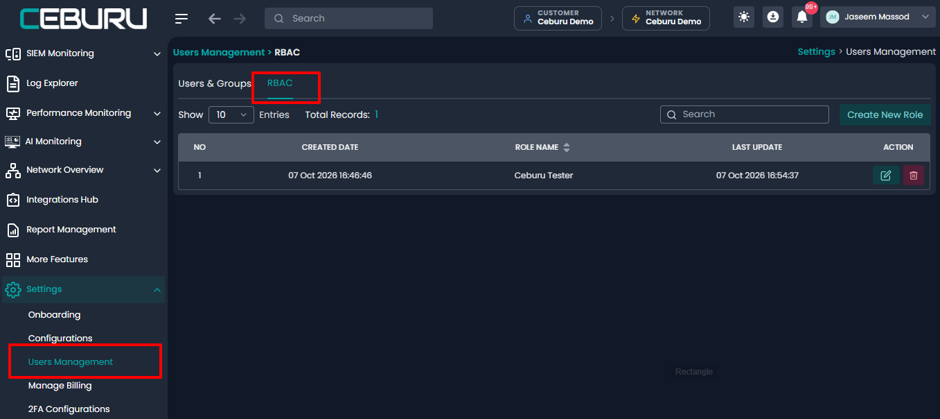
Go to Settings > Users Management and open the RBAC tab. Existing roles are listed with their created date, name, and last update.
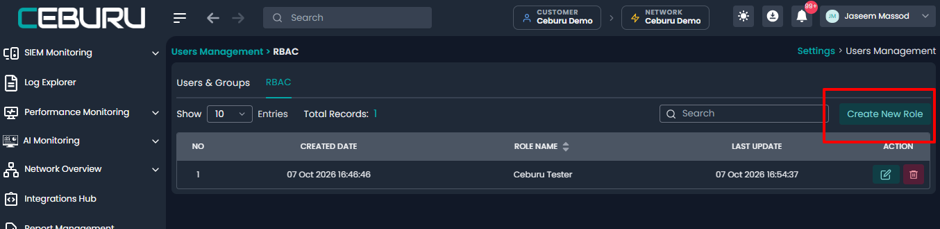
Click Create New Role (top right of the table). The Define Access Rules window opens.
Enter a Role Name (required), for example "Compliance Auditor".

Under Module Access, tick the checkbox next to each module the role should have.
- Use the arrow next to a module to expand it and see its sub-pages.
- Use the Search box to find a module quickly. Matching modules open automatically.
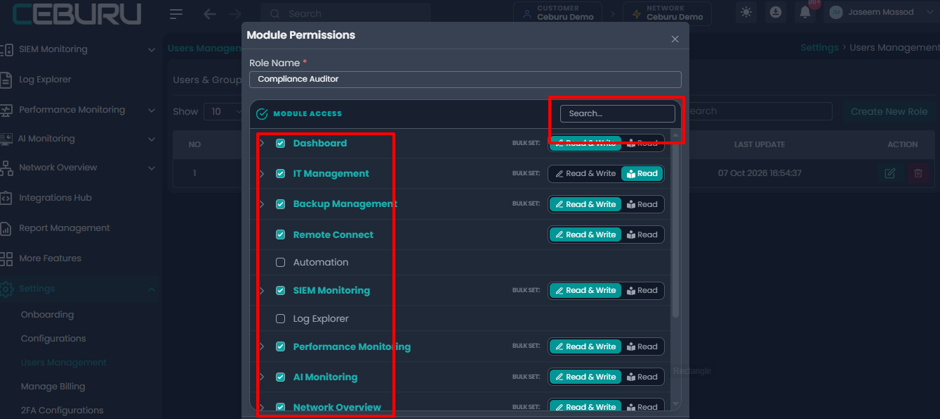
Choose the access level for each ticked module using the buttons on its right:
- Read & Write: the user can view and make changes (default).
- Read: the user can only view.
Click Save. A success message appears and the role shows in the list.
Assigning a Custom Role to a User
Once a role is created, you can assign it to a user when adding them or by editing an existing user.
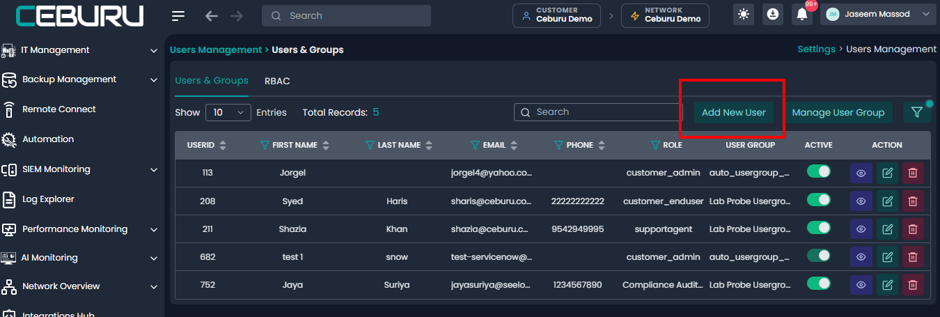
Option 1: Assign while adding a new userGo to Settings > Users Management and open the Users & Groups tab. The list shows each user's ID, name, email, phone, role, and user group.
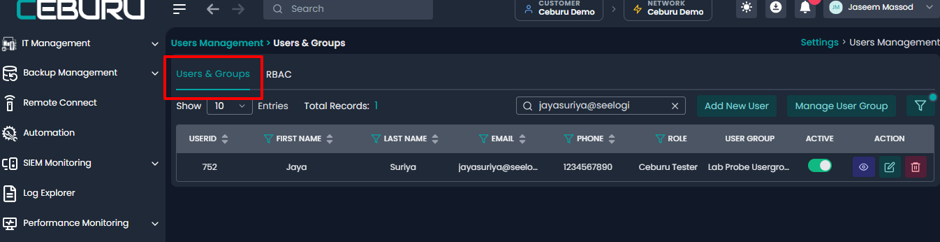
Click Add New User (top right of the table). The user form opens.
- Select the User Group the user belongs to.
- Set User Type to Add New User.
- Enter the First Name and Last Name (required).
- Open the Role dropdown and select the role. Custom roles you created (for example Compliance Auditor)
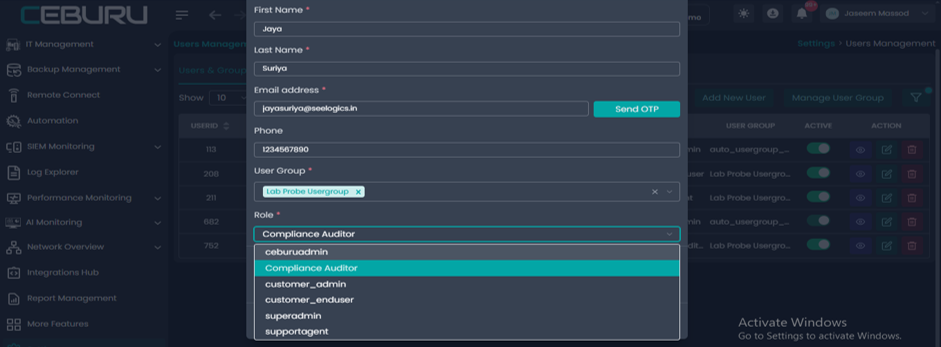
Click Save. The user appears in the list with the selected role in the Role column.
Option 2: Change the role of an existing user
- In the Users & Groups tab, click the edit (pencil) icon in the user's row.
- Open the Role dropdown and choose the new role.
- Click Update.
Things to know
- The user will only see the modules ticked in the role, with Read & Write or Read access as configured.
- If a role does not appear in the dropdown, check that it was saved in the RBAC tab for the same customer.
To change what a role can access, edit it in the RBAC tab. Users already assigned to it are affected
Was this article helpful?
That’s Great!
Thank you for your feedback
Sorry! We couldn't be helpful
Thank you for your feedback
Feedback sent
We appreciate your effort and will try to fix the article