ServiceNow Integration: Basic and Advanced Access
Ceburu creates and updates ServiceNow incidents from your alerts. How much Ceburu can show you
while you build a mapping depends on what the ServiceNow integration user is allowed to read.
This article explains the two access modes, what each needs in ServiceNow, what each offers, and
which one to choose.
In short: use Basic (or Auto) unless you need tables other than Incident, automatic
CI creation, or ServiceNow’s Required flags. Basic needs only the itil role and covers the
complete incident workflow.
1. The access modes:
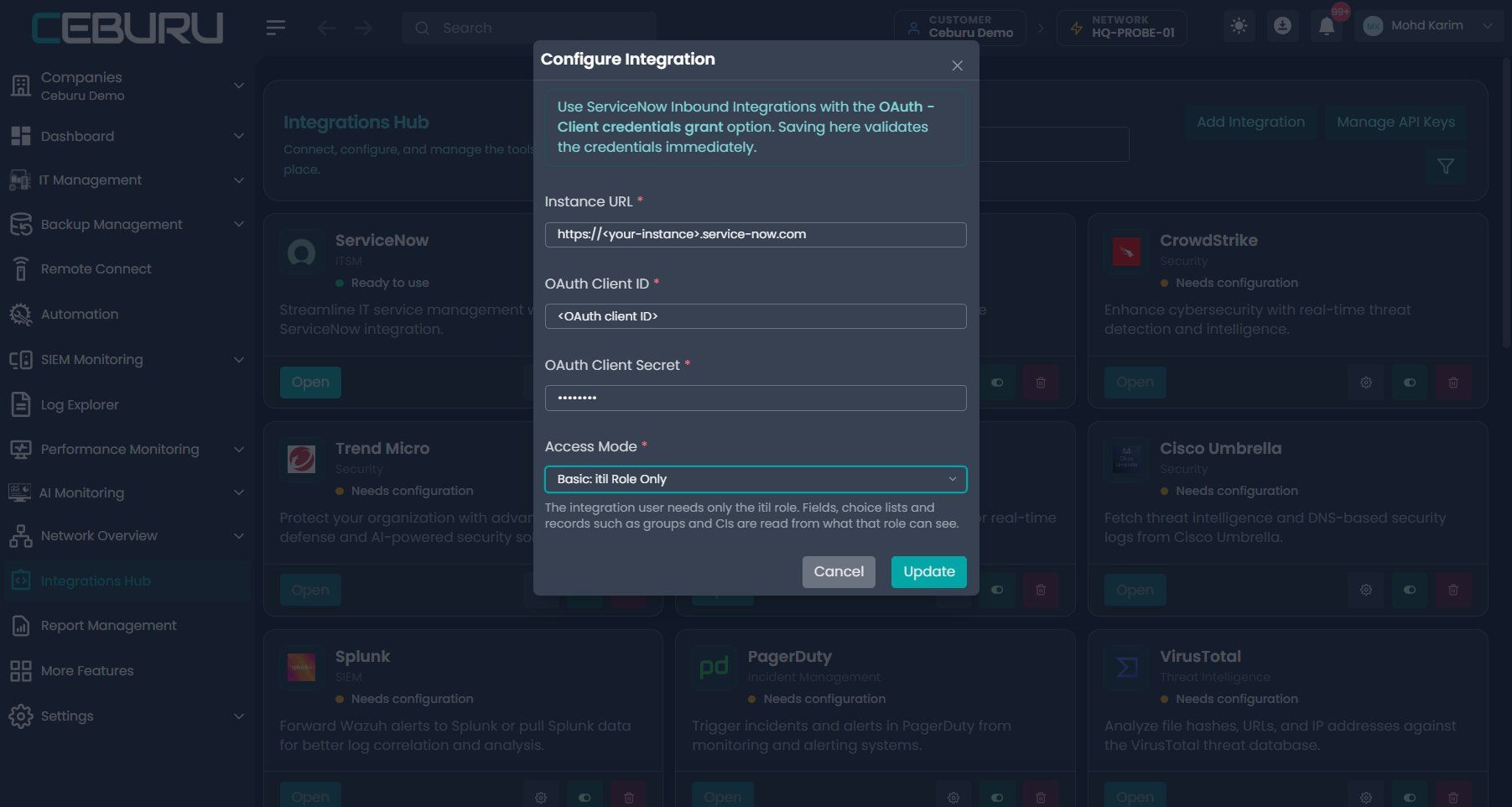
Choose the mode in Integrations Hub → ServiceNow → Configure integration → Access Mode.
Access Mode setting
| Mode | What it does |
|---|---|
| Auto (default for new integrations) | When you save, Ceburu checks what the integration user can read and uses Advanced if it can read ServiceNow’s field definitions, otherwise Basic. It checks again once a day, and as soon as Advanced access is found missing, so it follows changes to the user’s roles. |
| Basic: itil Role Only | Works with the standard itil role. Fields, choice lists and records (groups, users, CIs and so on) are read from what that role can see. |
| Advanced: Read Fields and Values From ServiceNow | Reads ServiceNow’s table and field definitions directly. Needs extra read access (see section 2). |
2. Privileges required:
Both modes
- A ServiceNow user for the integration, ideally with Web service access only ticked.
- An OAuth application (System OAuth → Application Registry → OAuth API endpoint for external
clients) with grant type Client credentials, the integration user as the OAuth
application user, and Auth scope set touseraccount. Without this scope ServiceNow
answers every request with 403 “Access to unscoped api is not allowed”, whatever roles the
user has.
Comparison
| | Basic | Advanced |
|---|---|---|
| Roles | itil | itil plus a read-only role for ServiceNow’s metadata tables (below) |
| Creates and updates | Incidents | Incidents, or records in the table the mapping uses |
Reads (all readable by itil out of the box) | Incidents, the incident form’s field list, users, groups, group members, CIs, services, service offerings, locations, companies, problems, change requests | The same |
| Extra reads | None | sys_db_object (tables), sys_dictionary (field definitions), sys_glide_object (field types), sys_choice (choice lists) |
| Optional | None | Create on cmdb_ci (and the service tables) if Ceburu should create missing CIs automatically |
| Admin work in ServiceNow | Create the user and OAuth application | Same, plus create a role and seven ACLs (needs security_admin) |
Search permissions (Washington release and later). If your instance enforces query ACLs,
the integration user also needsquery_matchandquery_rangeon the tables Ceburu searches
(users, groups, CIs, services). Without them, name searches in the mapping editor return no
results. Typed names still work.
Setting up an Advanced user
Create the user and give it the
itilrole. Advanced needsitilas well: without it the
user cannot read or create incidents.Create a role named, for example,
ceburu_metadata_read.Elevate to
security_admin, open System Security → Access Control (ACL) and create seven
rules: Type record, Operation read, Decision Allow If, required roleceburu_metadata_read:Name (table) Name (field) Table [sys_db_object] – None – Table [sys_db_object] * Dictionary Entry [sys_dictionary] – None – Dictionary Entry [sys_dictionary] * Choice [sys_choice] – None – Choice [sys_choice] * Field class [sys_glide_object] – None – The last rule is needed because a field’s type (
sys_dictionary.internal_type) is a
reference to the Field class table. If the user cannot read that table, ServiceNow hides the
type, and Ceburu cannot use Advanced.Do not use the
personalize_dictionaryorpersonalize_choicesroles instead; they also
allow editing those tables.Optional: allow create on
cmdb_cifor the role if Ceburu should create missing CIs.Add the role to the integration user.
3. Checking what the user can read:
Open Test Connection on the ServiceNow page and click Check Access. Ceburu reads one
record from each table and shows the result. Advanced needs the table list, field definitions
and choice values to be readable.
Check Access result for an itil-only user
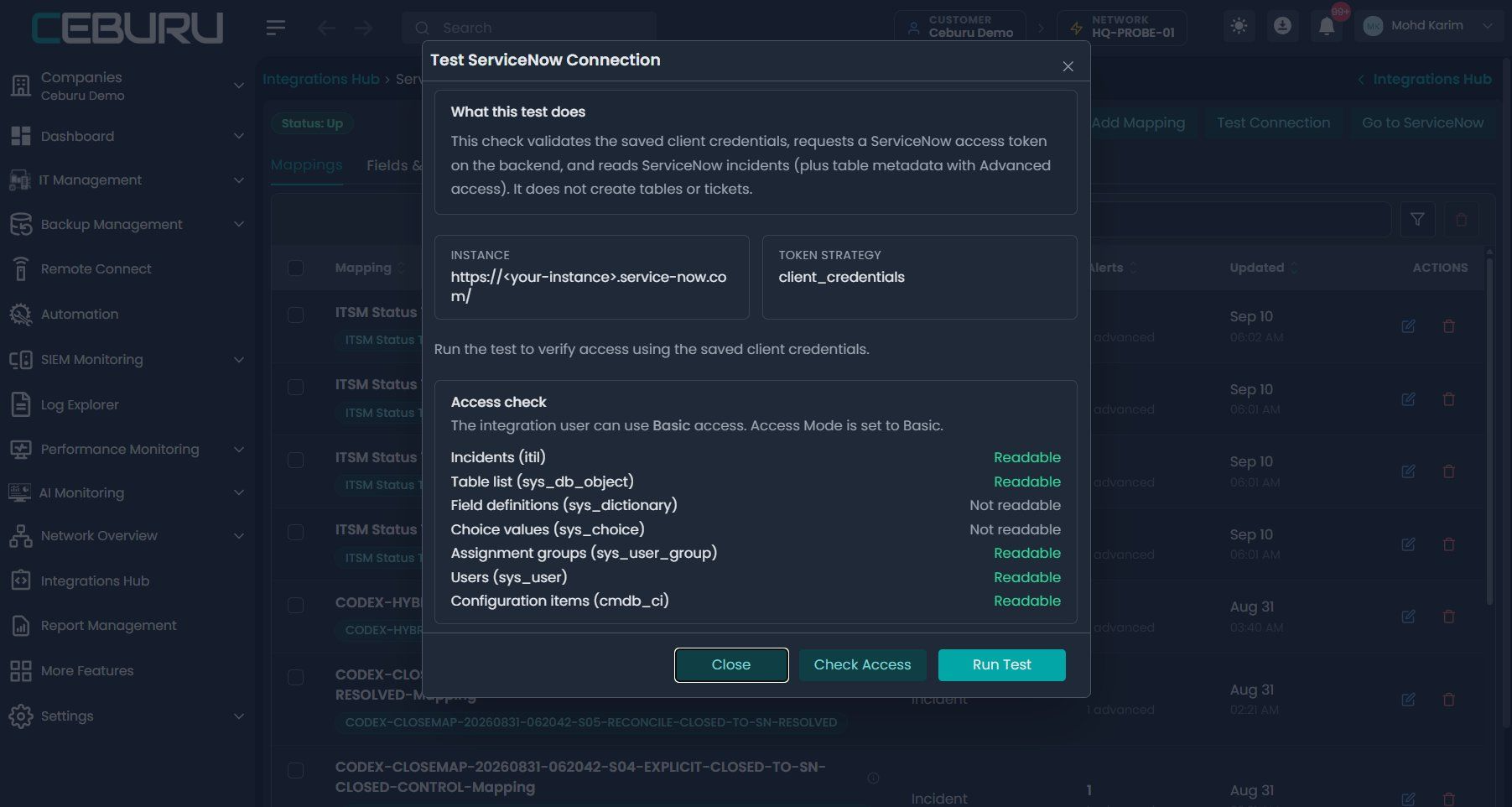
Ceburu only runs this check when you click the button or save in Auto mode, because denied
reads appear in your ServiceNow logs.
4. What each mode offers:
In both modes
- Incident creation, updates, comments, auto-resolve and close from Ceburu alerts.
- Ticket Rules with your instance’s final statuses (Resolved, Closed, Canceled and any
custom ones), severity filters and ticket reuse. - Impact and urgency set from the alert severity; ServiceNow derives priority.
- Choice fields (category, channel, resolution code and so on) show your instance’s own lists,
and saving checks the value is in the list. - Live search on lookup fields (Caller, Assignment group, CI, Service and so on). Only active
users and groups, and CIs that are not retired, are listed. - Your instance’s custom
u_fields, and further standard incident fields (location, company,
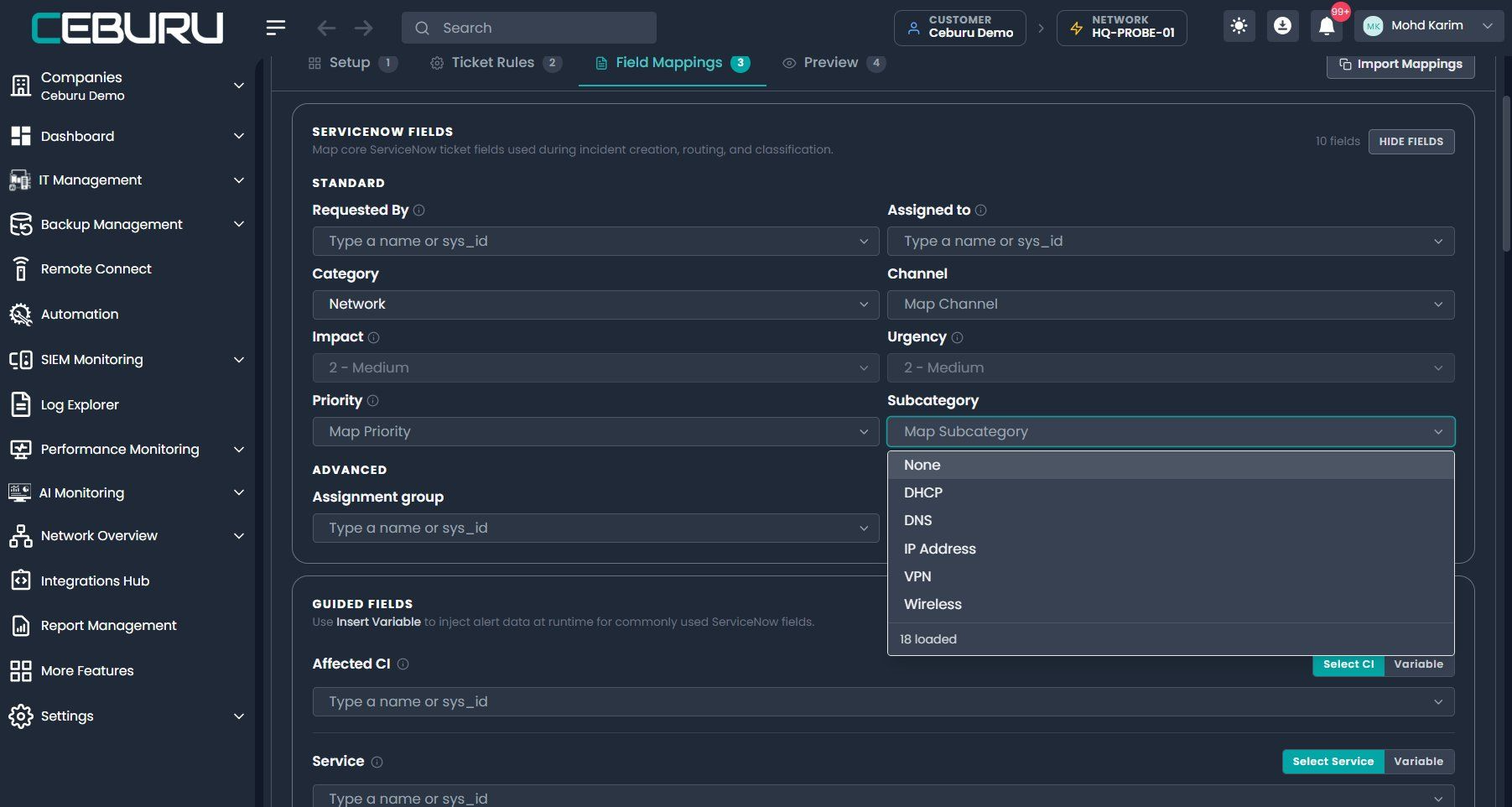
watch list, problem and so on). - Subcategory follows Category: only the chosen category’s subcategories are listed, and
saving rejects a mismatch. - Assigned to follows Assignment group: only members of the chosen group are listed.
- ServiceNow’s help text next to each incident field (the ⓘ icon).
- Ceburu variables (for example
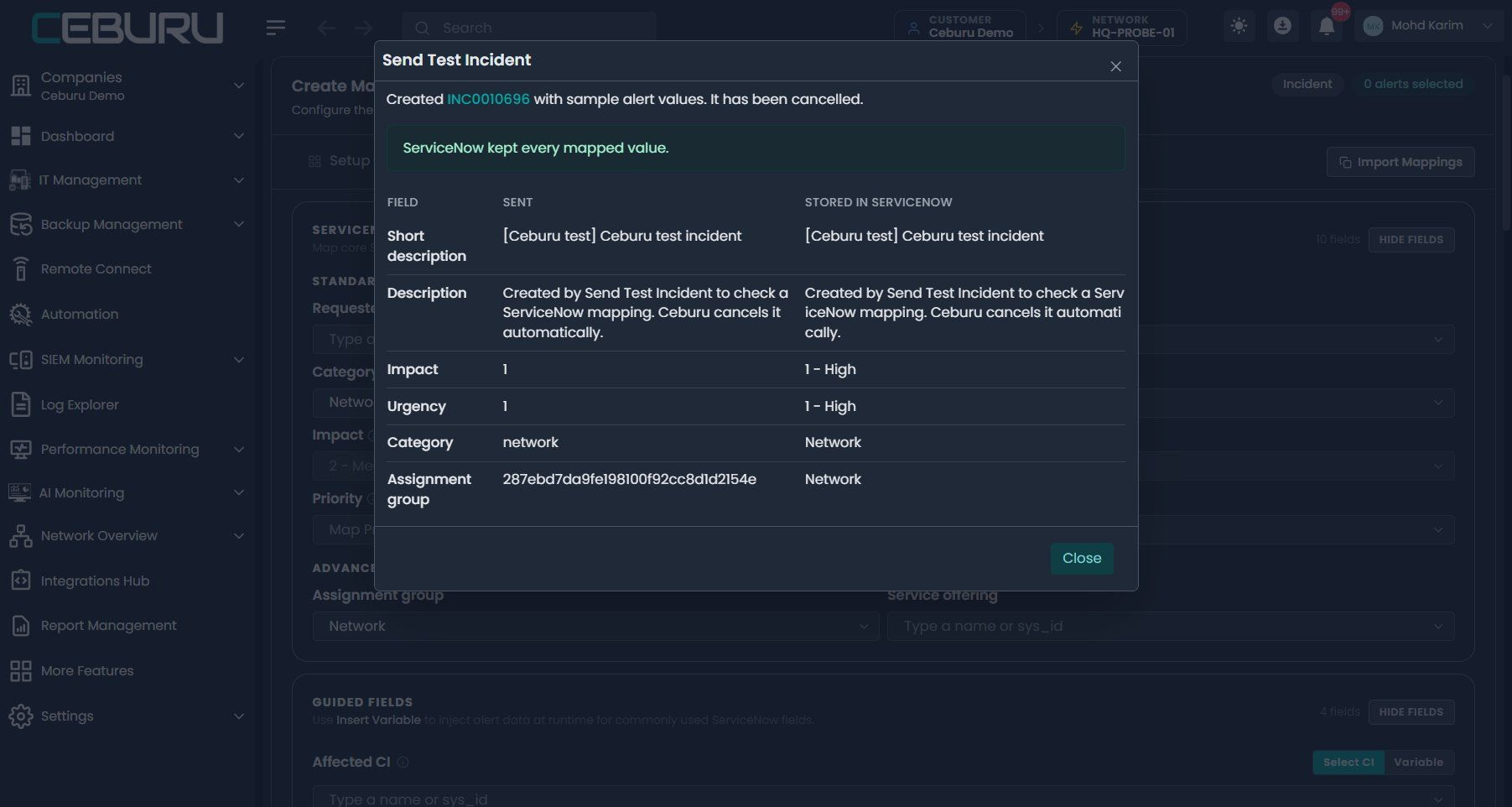
{{hostname}}) and Ceburu custom fields in any field. - Send Test Incident: creates an incident from the unsaved mapping, shows what ServiceNow
stored for each field, then cancels it. - Warnings after each ticket: Ceburu reads every new ticket back and shows a ⚠ next to the
ticket number in the alerts table if ServiceNow did not keep a value (for example an unknown
group name, or a CI name filled from an alert that does not exist in ServiceNow). - Fields & Values tab for values you want to keep in Ceburu (see section 6).
Only in Basic
- Names accepted for lookup fields: you can type a group, user or CI name; it is checked
against ServiceNow when you save, and ServiceNow links it when the incident is created.
Only in Advanced
- Any ServiceNow table, not just Incident (for example Problem, Change or your own tables).
- Fields ServiceNow marks Required on the table, with the Required flag shown, and save checks
values against ServiceNow’s field definitions. - Automatic record creation: when a CI, service or service offering is filled from a
variable and no matching record exists, Ceburu can create it (needs create access). - Lookup values are stored as record IDs chosen from the list.
Not available in either mode
- Required-field rules from ServiceNow forms (UI policies and data policies) are not
visible to Ceburu. Use Send Test Incident to confirm an incident is accepted. - In Basic, only the Incident table is supported.
5. Basic mode in the mapping editor:
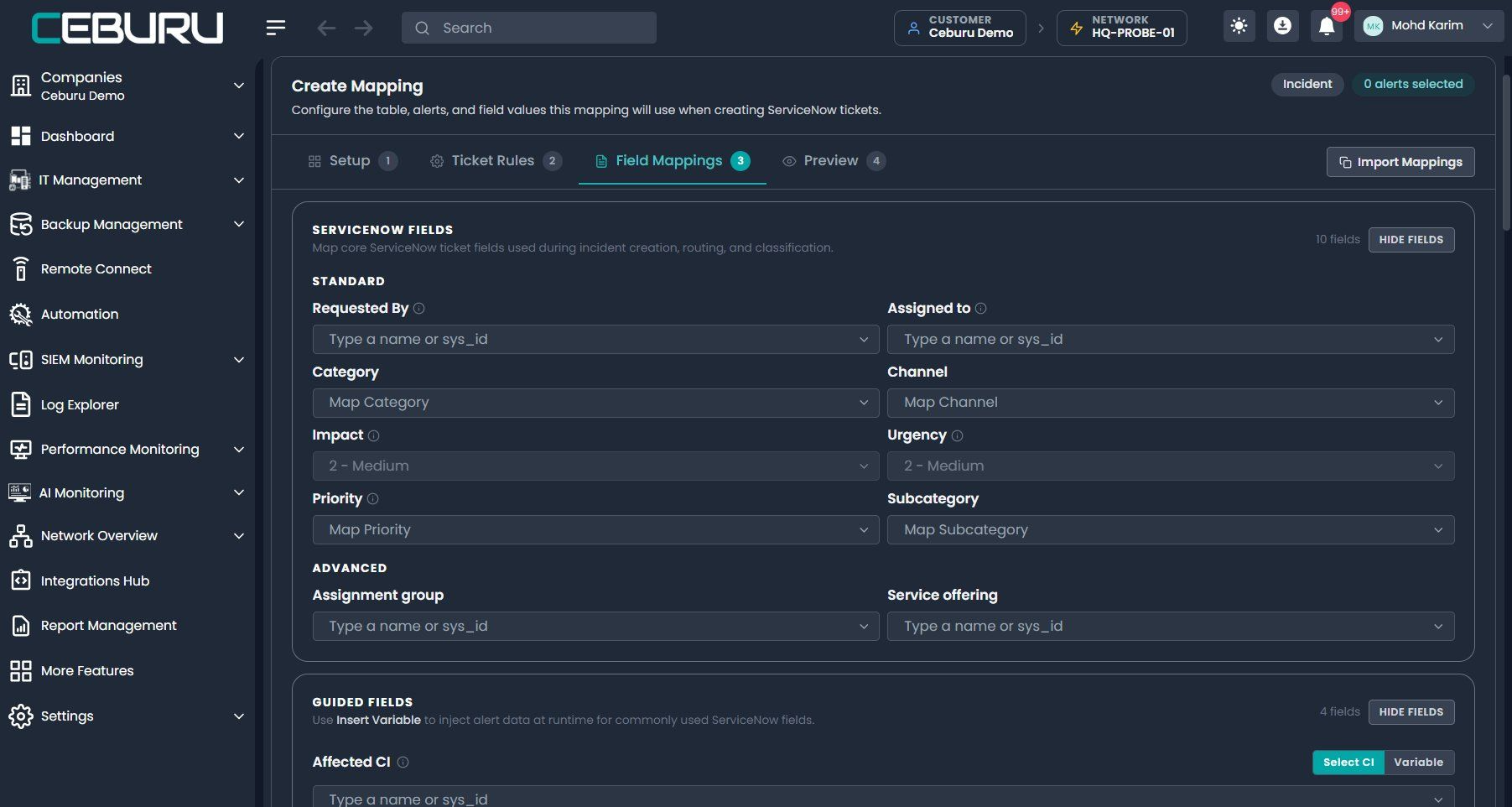
Field mappings use your instance’s field names, choice lists and help text:
Basic field mappings
Subcategory lists only the subcategories of the selected category (here, Network):
Subcategory filtered by category
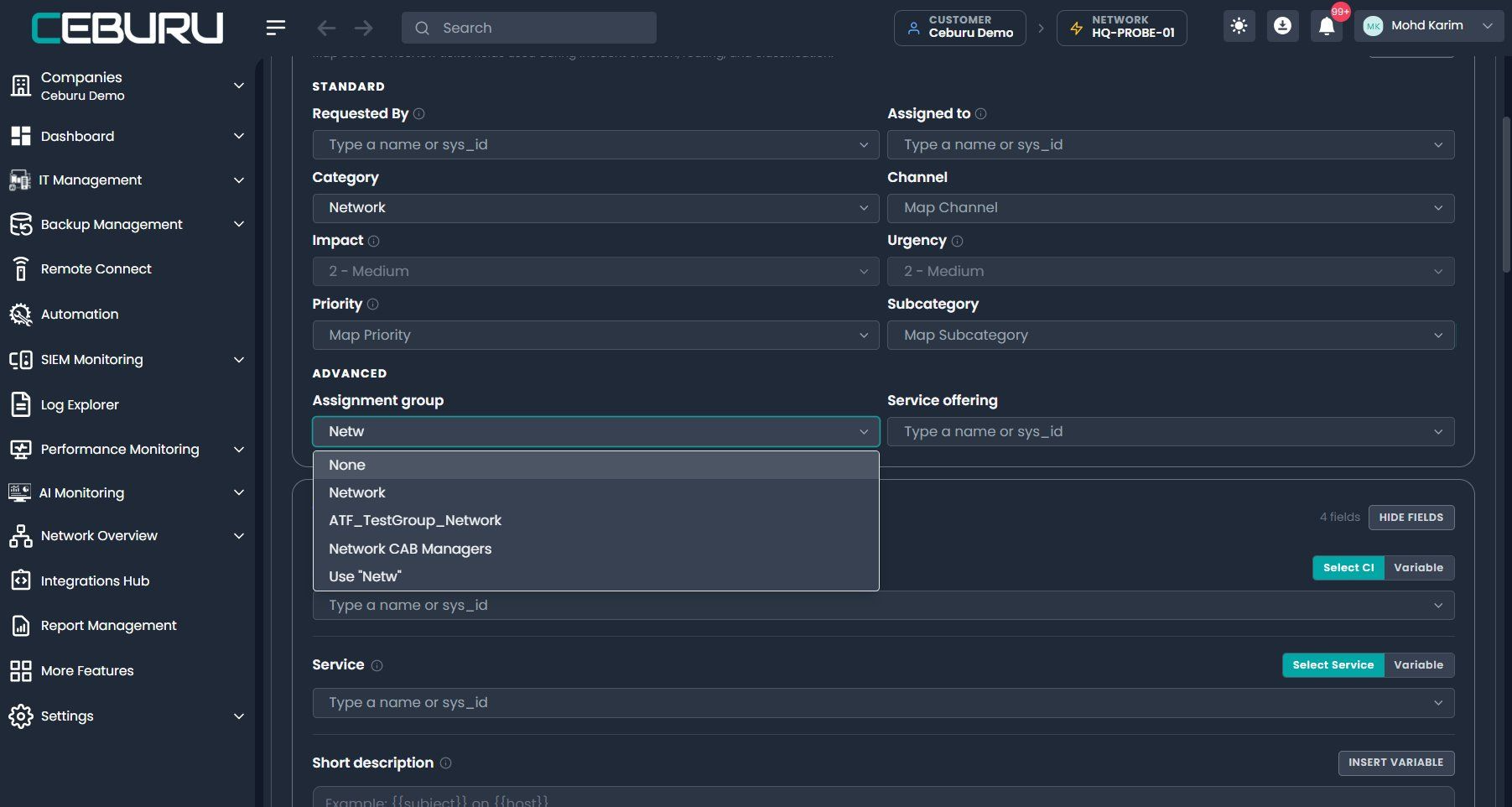
Lookup fields search ServiceNow as you type:
Live search on assignment groups
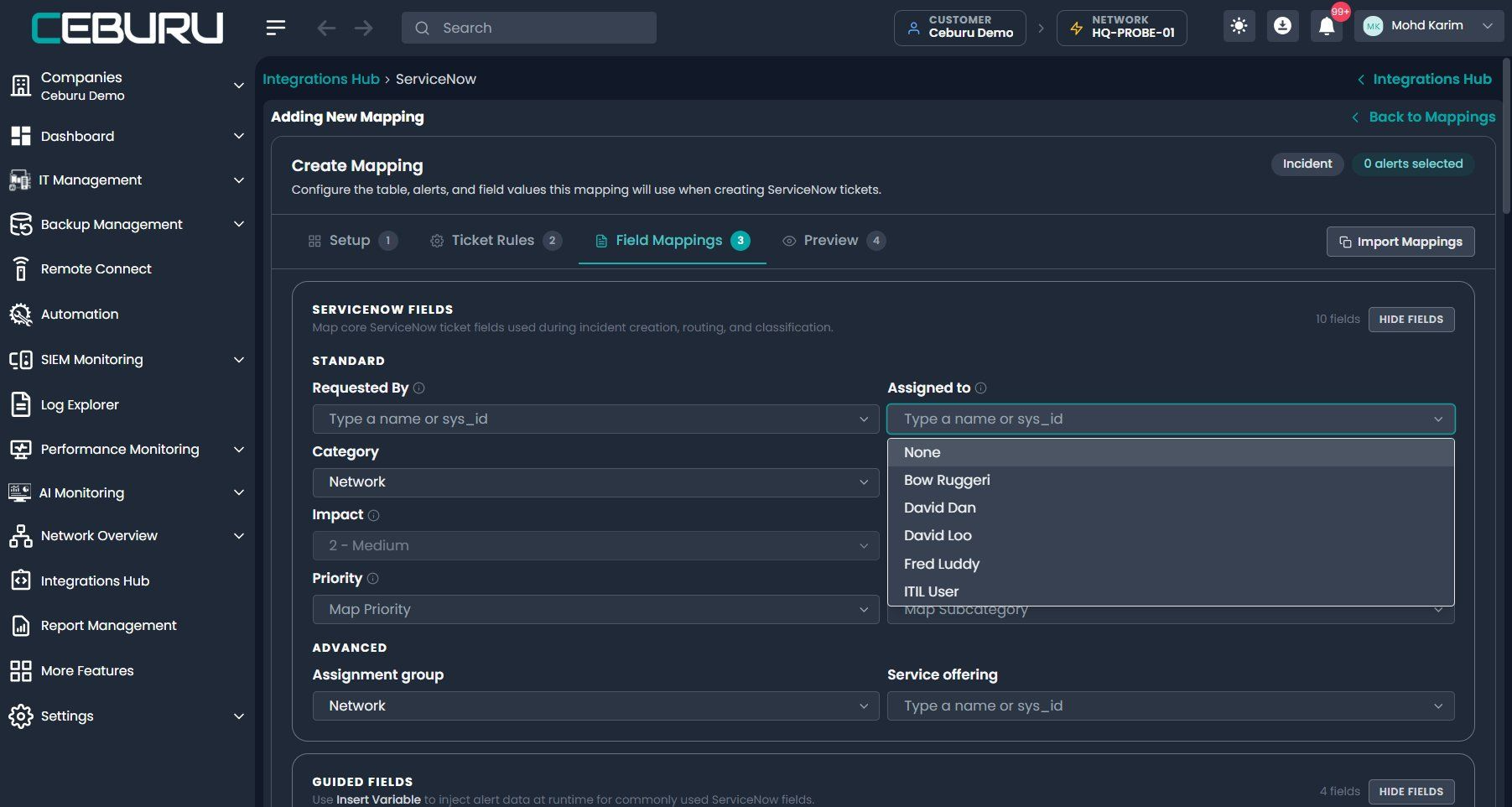
Assigned to lists only members of the selected assignment group:
Assigned to filtered by group
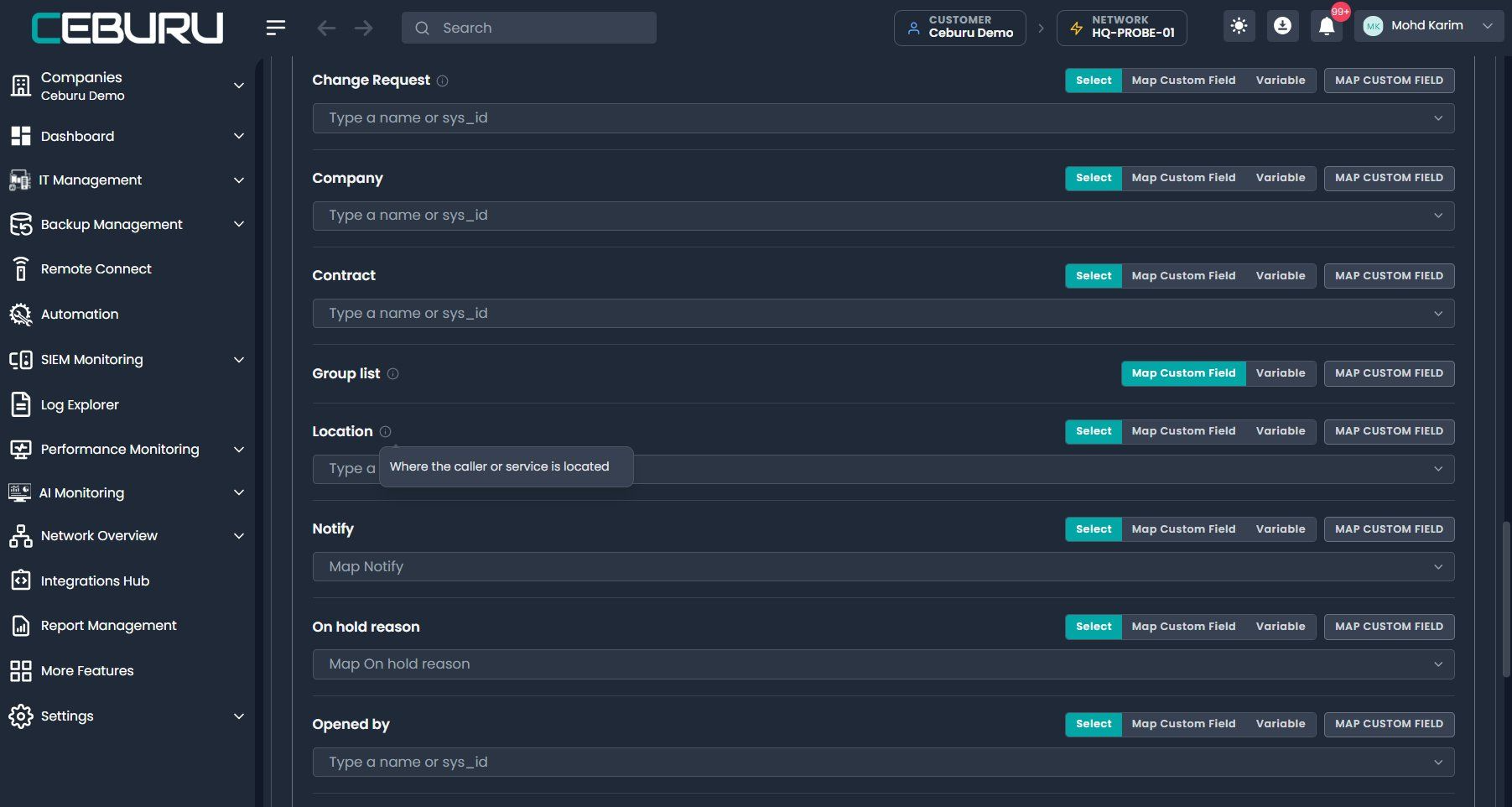
Additional fields include further standard incident fields (Location, Company, Watch list,
Problem, Parent incident, Business impact and more) and your custom fields. Hover the ⓘ icon for
ServiceNow’s description. Fields that ServiceNow manages itself, such as state, timestamps and
work notes, are not offered.
Additional standard fields with help text
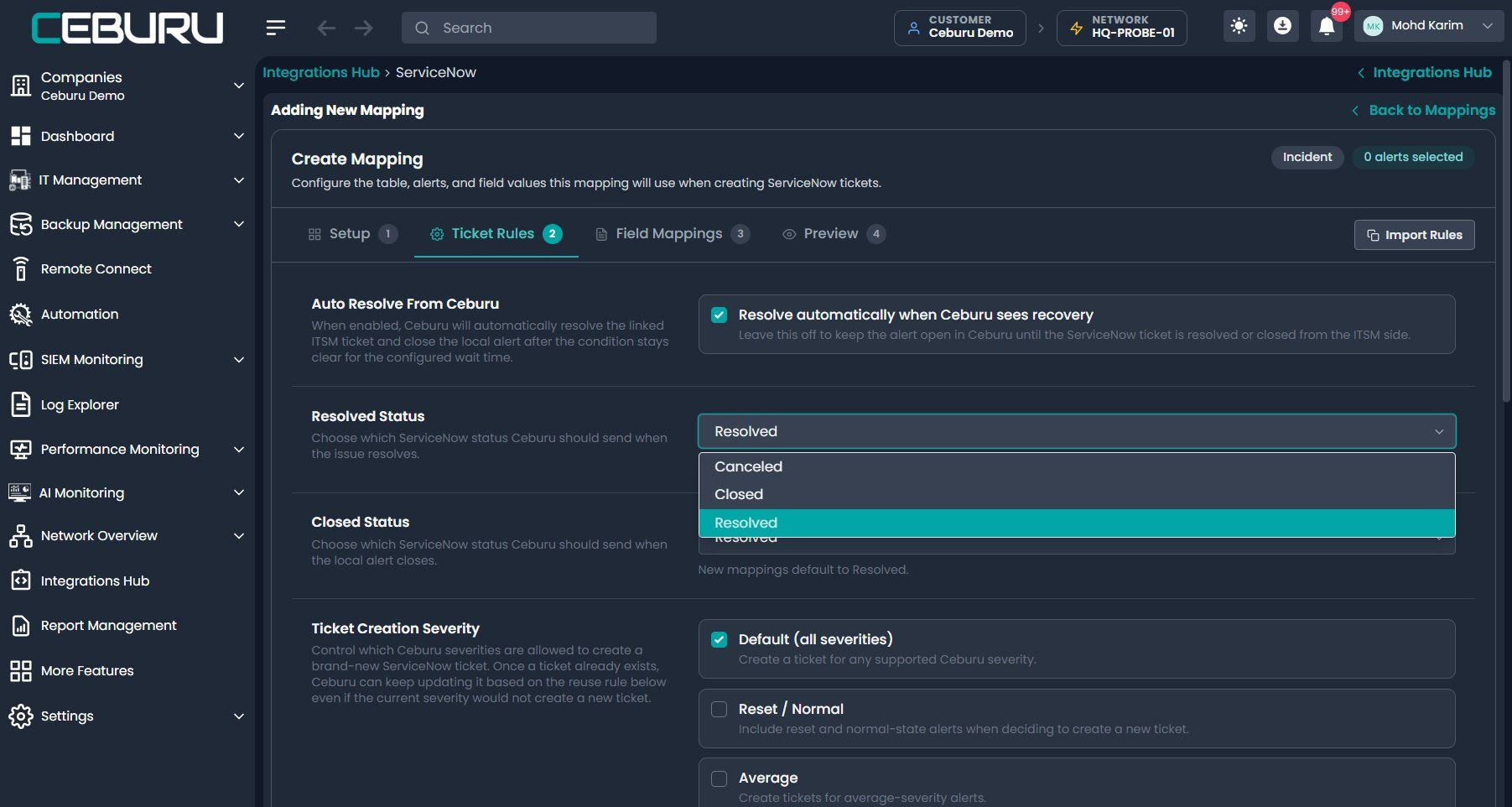
Ticket Rules offer your instance’s final statuses:
Ticket Rules statuses
Send Test Incident shows what ServiceNow stored, then cancels the incident:
Send Test Incident result
6. Fields & Values tab:
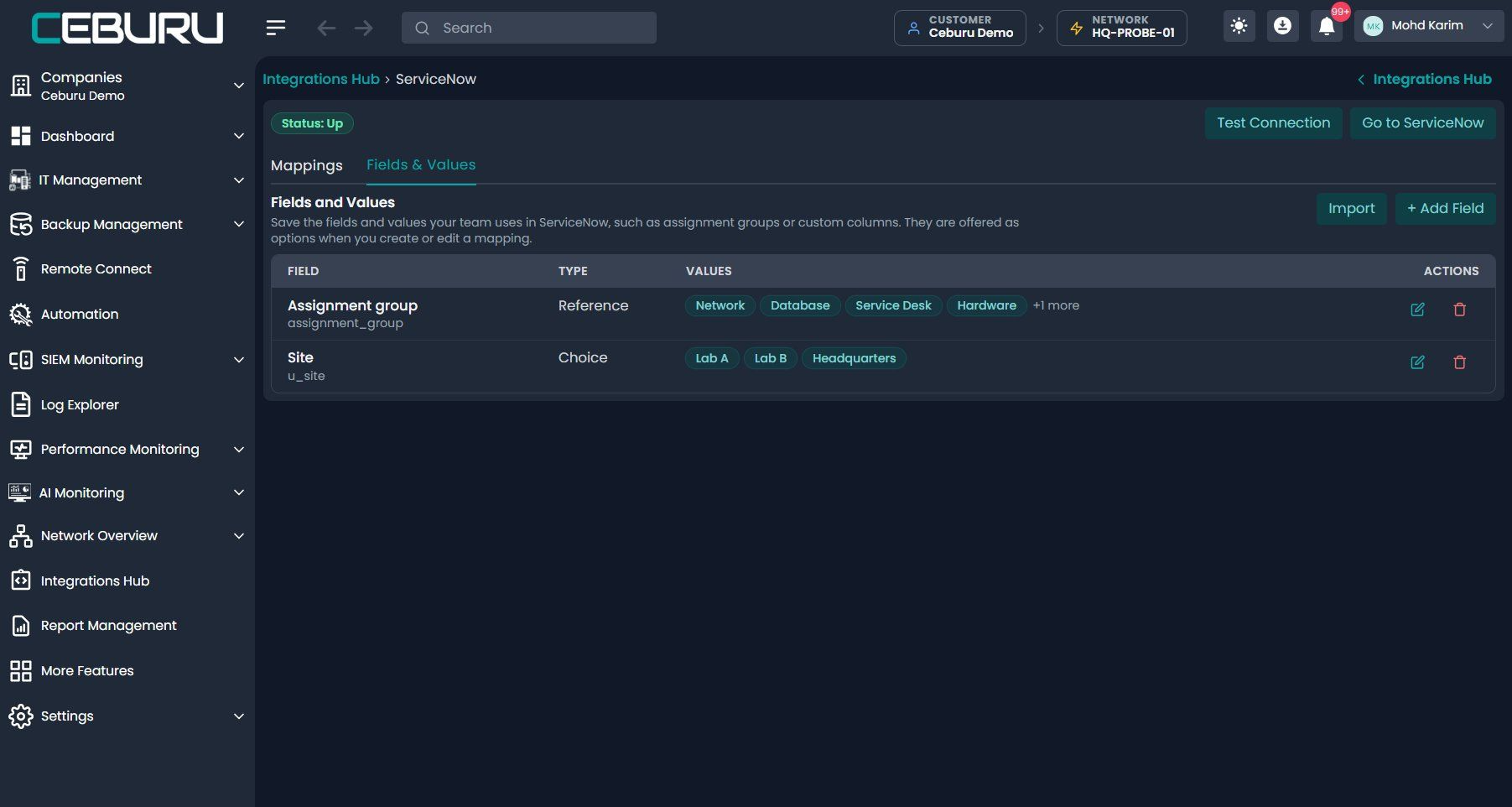
Use this tab to keep lists of values in Ceburu, for example the assignment groups your team
uses, or values for a custom field. They appear as options in the mapping editor. This is most
useful when the integration user cannot read a table, or in Advanced mode when field
definitions stop being readable.
Fields & Values tab
- + Add Field: choose a standard field or type a column name (for example
u_site), then
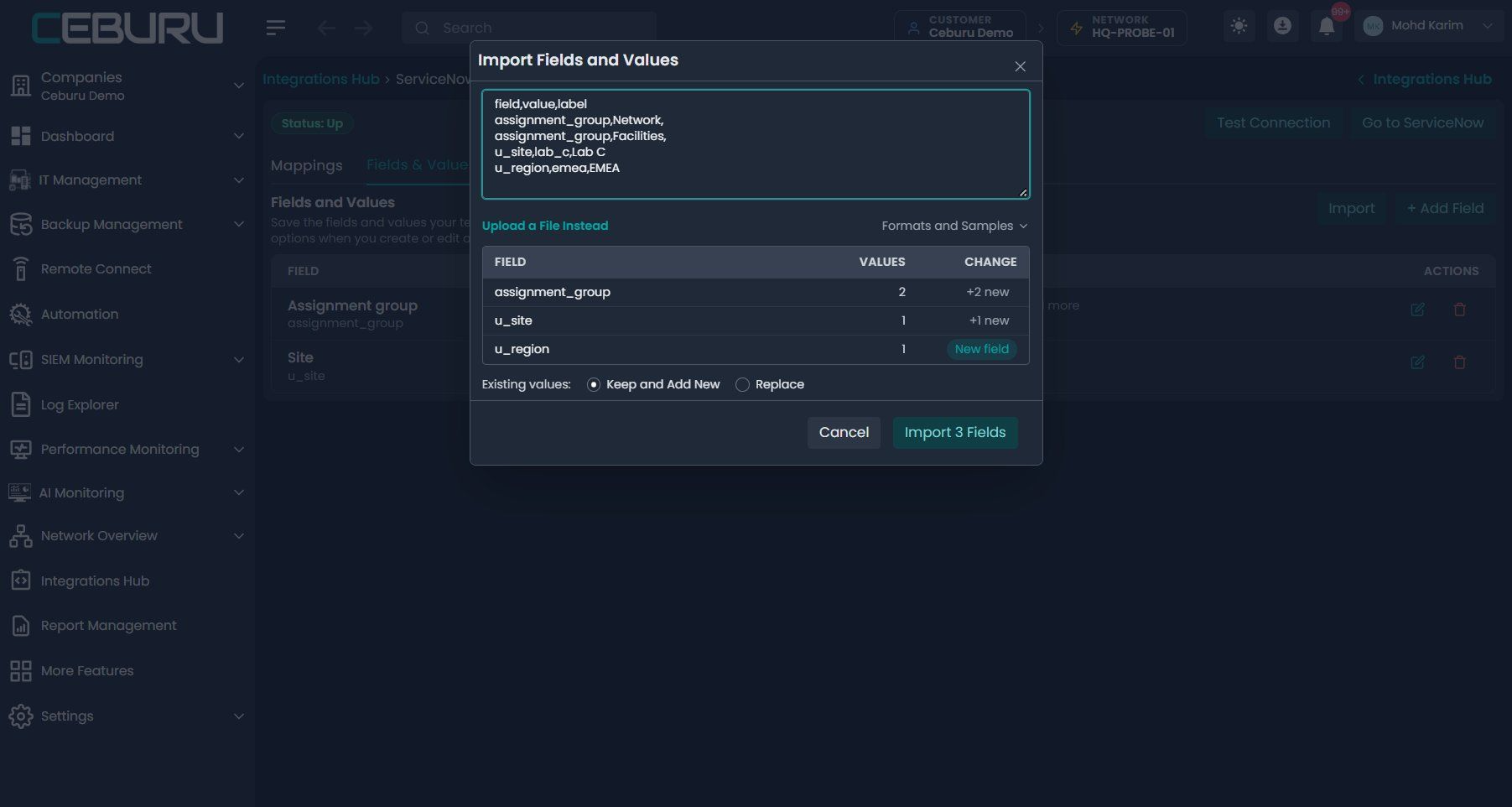
enter one value per line. Add a label after a comma if it should differ from the value. - Import: drop a CSV, TXT or JSON file, or paste its contents. A preview shows what will be
added before anything is saved. Choose Keep and Add New or Replace for existing
values. Formats and Sampleshas an example and a downloadable sample for each format:- CSV with several fields:
field,value,label - CSV or TXT for one field: one value per line
- JSON:
{"assignment_group": ["Network", "Database"]} - A list exported from ServiceNow: the
sys_idcolumn becomes the value andnamethe label
- CSV with several fields:
Up to 2,000 values per field. Text fields, and impact, urgency and priority, take no saved
values.
7. If Advanced access is lost:
If an Advanced integration user loses its extra read access (or Advanced is selected for a user
that never had it), Ceburu does not stop working. Tickets are still created and checked, the
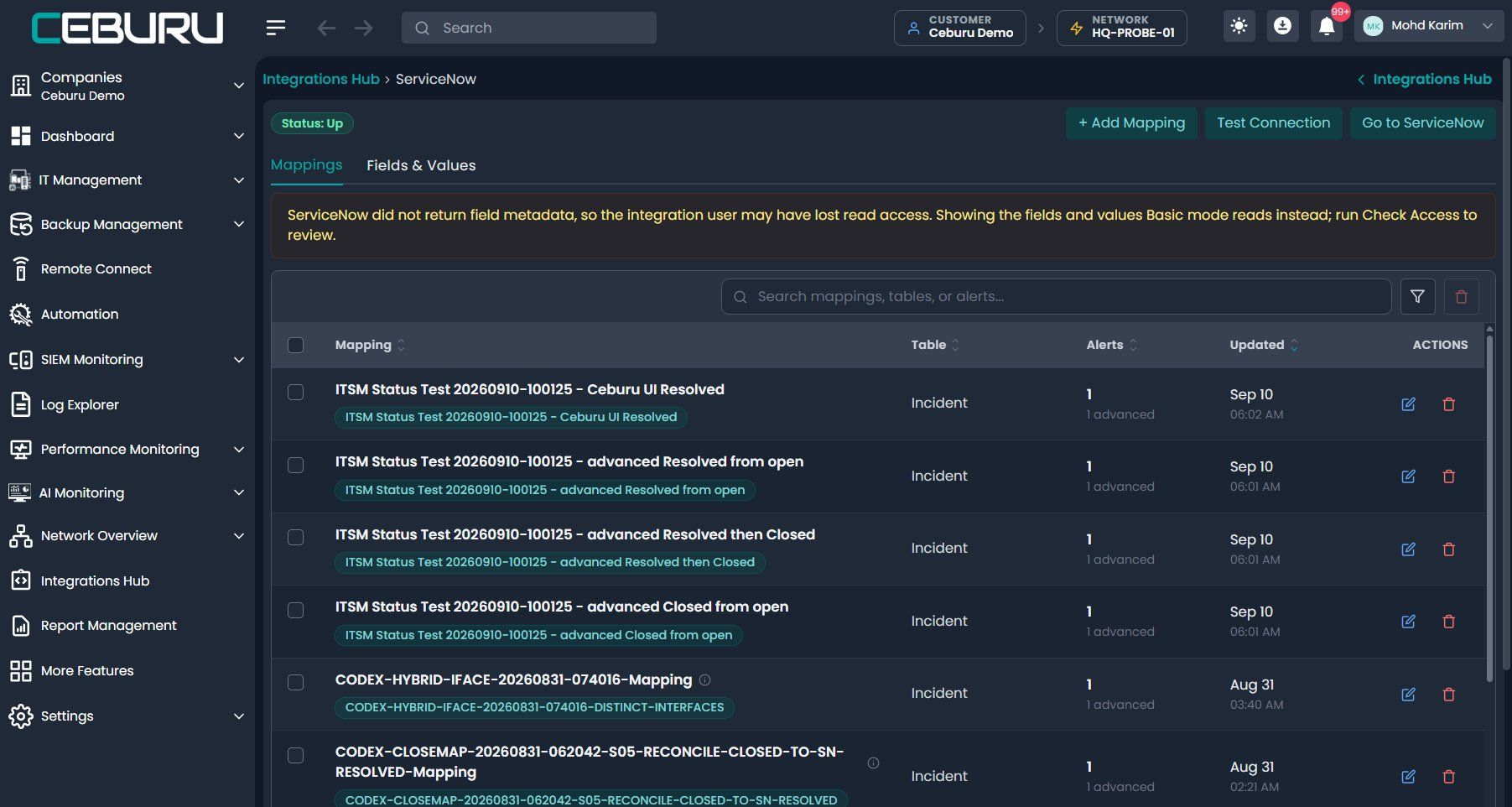
table list offers only Incident, and the mapping editor switches to what Basic can read and shows
this warning:
Advanced fallback warning
Run Check Access to see what changed, then restore the role or switch the Access Mode to
Basic or Auto. In Auto mode Ceburu does this itself: it re-checks the access, moves to
Basic, and the warning goes away.
7a. Changing roles or the Access Mode later:
| Change | Result |
|---|---|
| Basic, and the user is given Advanced access | Nothing changes until you select Advanced or Auto. |
| Basic or Advanced, and the user loses read access to a table (for example groups) | That field offers saved values and typed names; tickets are still created and checked. |
Any mode, and the user loses the itil role | Tickets cannot be created. The error shows on the alert and in Test Connection. |
| Advanced, and the user loses its extra access | Works as Basic with the warning above. |
| Auto, and the user’s access changes either way | Ceburu follows within a day, immediately when Advanced access is missing, or when you click Check Access. |
| Advanced is selected for an itil-only user | Works as Basic with the warning above. |
| Basic is selected for an Advanced user | Works; the extra access is not used. Existing mappings keep their table and values, but missing CIs are no longer created automatically. |
8. Which mode should I use?
| Your situation | Choose |
|---|---|
| You create incidents and want the least ServiceNow privilege | Basic |
| You are not sure what access the integration user has | Auto |
| You need tables other than Incident | Advanced |
| Ceburu should create missing CIs, services or service offerings | Advanced |
| You want ServiceNow’s Required flags and field-definition checks on save | Advanced |
For most customers Basic is the better choice: it needs only itil, no ACL changes, and
offers the same incident workflow.
9. Troubleshooting
| Symptom | Cause and fix |
|---|---|
| 403 “Access to unscoped api is not allowed” | The OAuth application’s Auth scope blocks the Table API. Set Auth scope to useraccount. |
| A lookup list is empty while typing | The user cannot read or search that table, or query ACLs are enforced. Grant read (and query_range) on the table, or add the values in Fields & Values. Typed names still work. |
| Saving says a name was not found in ServiceNow | The group, user or CI name does not match a record. Pick it from the list or check the spelling. |
| Saving says a subcategory does not belong to a category | Choose a subcategory listed under the selected category. |
| A ⚠ appears next to a ticket number | ServiceNow did not keep one of the mapped values (Basic). Hover it for details and correct the mapping. |
| The editor shows the fallback warning | The Advanced user lost read access to field definitions. Run Check Access. |
Was this article helpful?
That’s Great!
Thank you for your feedback
Sorry! We couldn't be helpful
Thank you for your feedback
Feedback sent
We appreciate your effort and will try to fix the article