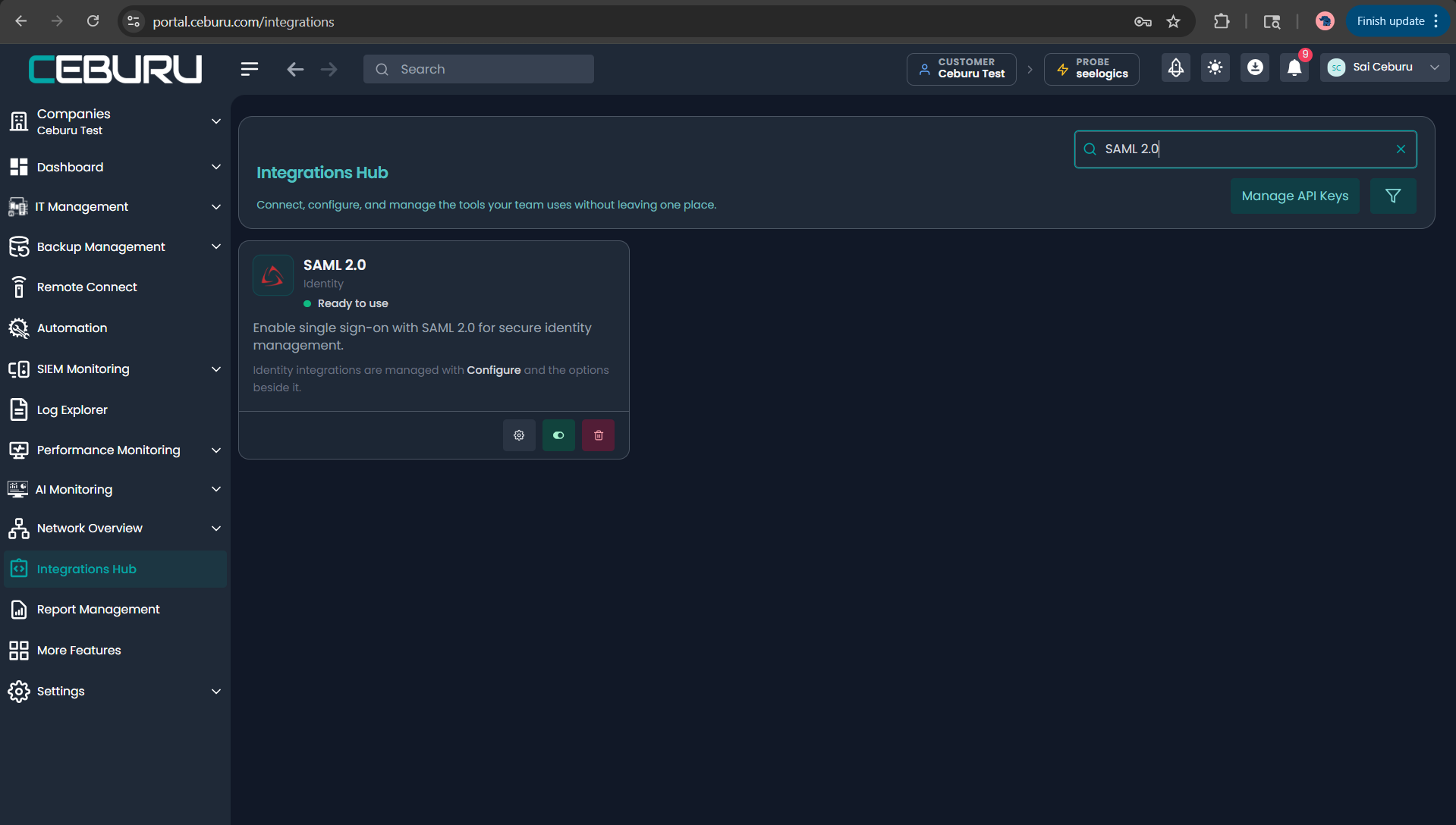
Use this guide to configure SAML 2.0 Single Sign-On from Okta to Ceburu:
You are connecting Okta as the Identity Provider and Ceburu Production as the Service Provider.
Use the following Ceburu production values throughout the setup:
Ceburu Portal URL: https://portal.ceburu.com
ACS URL : https://portal.ceburu.com:7878/account/samlacs/
SP Entity ID / Audience URI: https://portal.ceburu.com:7878
The user’s email address in Okta must exactly match the user’s email address in Ceburu.
Before You Begin:
Confirm the following before starting:
- You have administrator access to the Okta tenant
- The users who will sign in with SSO already exist in Ceburu Production
- The email address in Okta matches the email address in Ceburu exactly
- You know whether the requirement SAML only or SAML plus password login
Set Up the Okta Application:
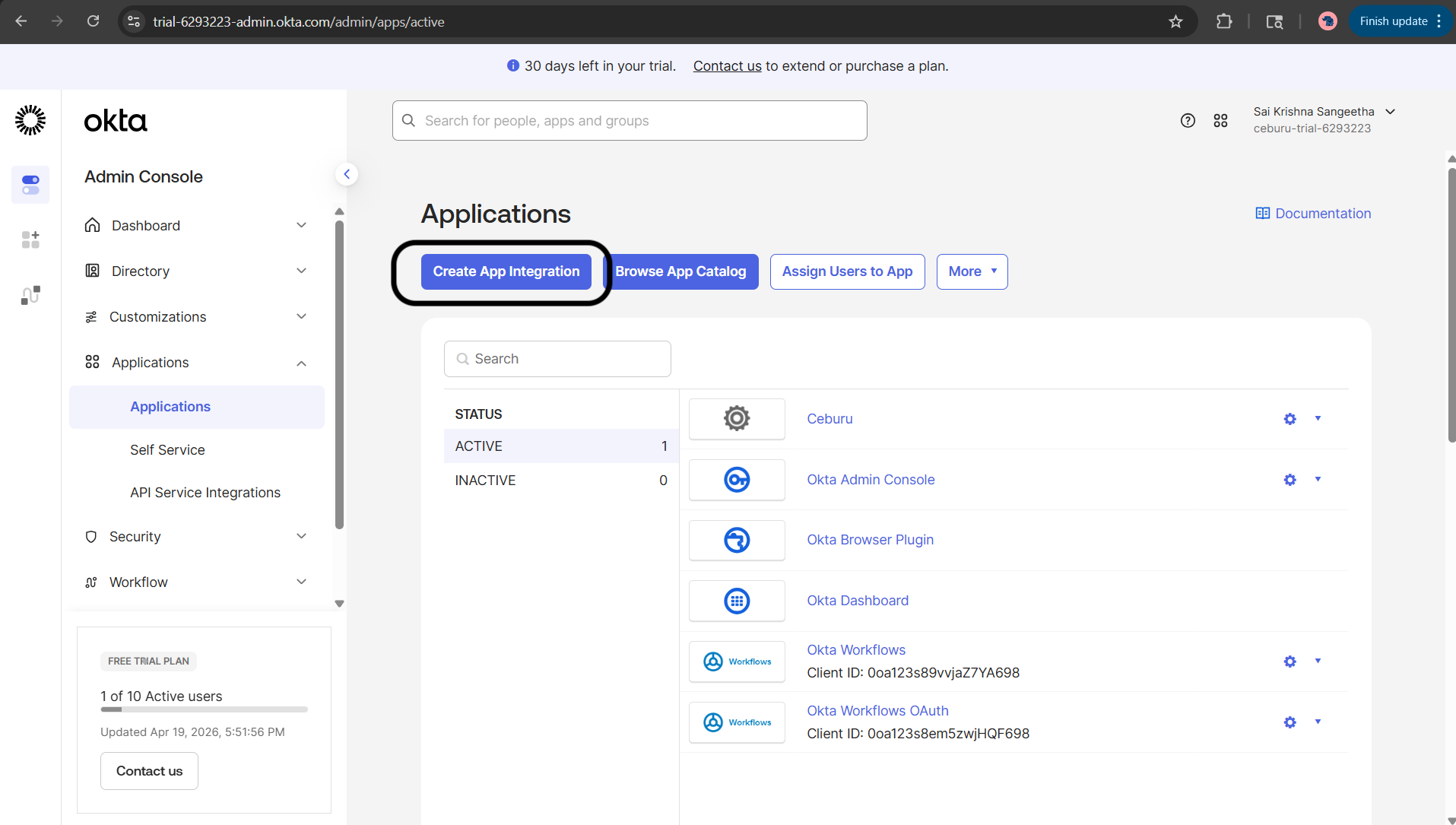
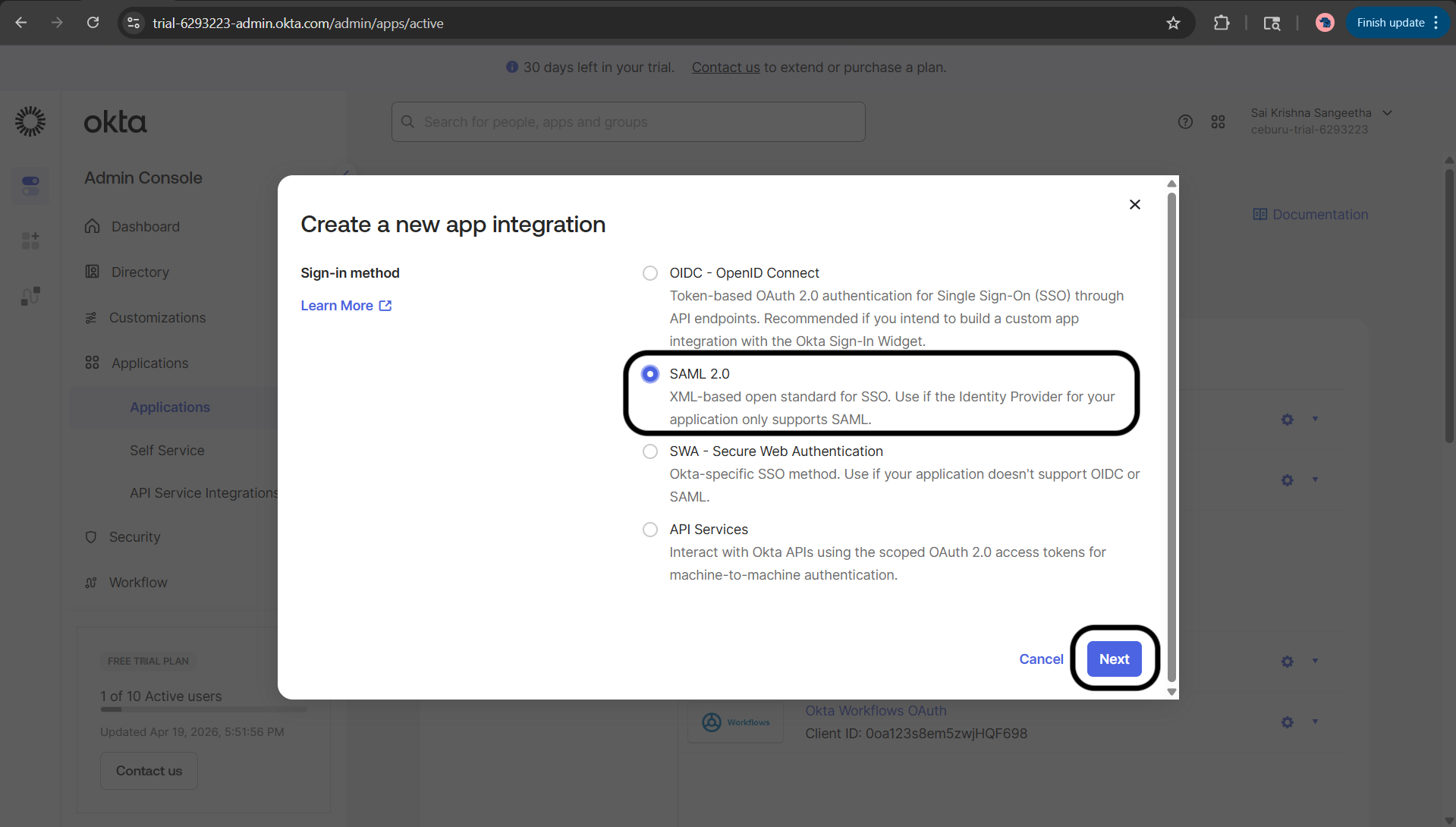
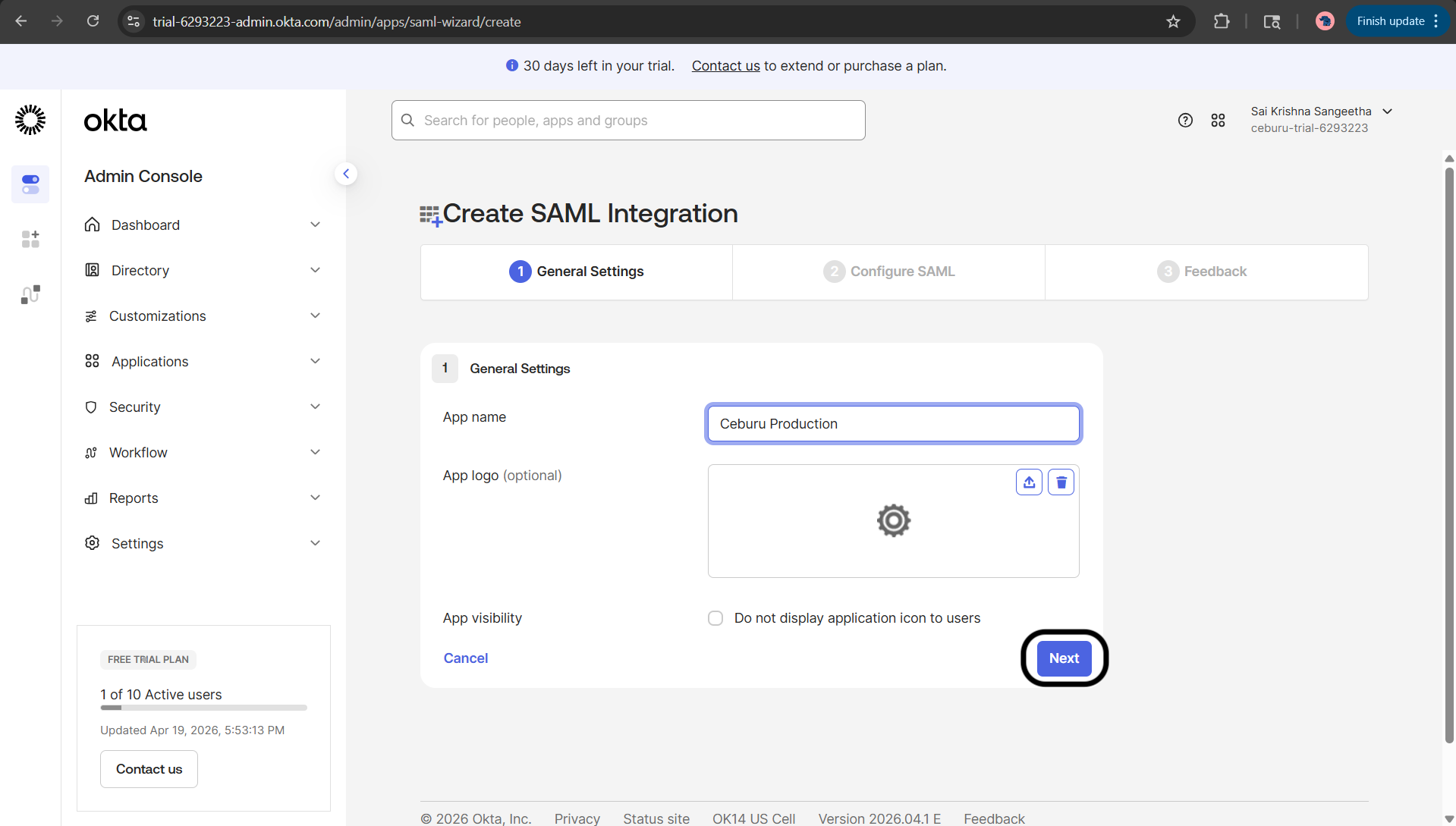
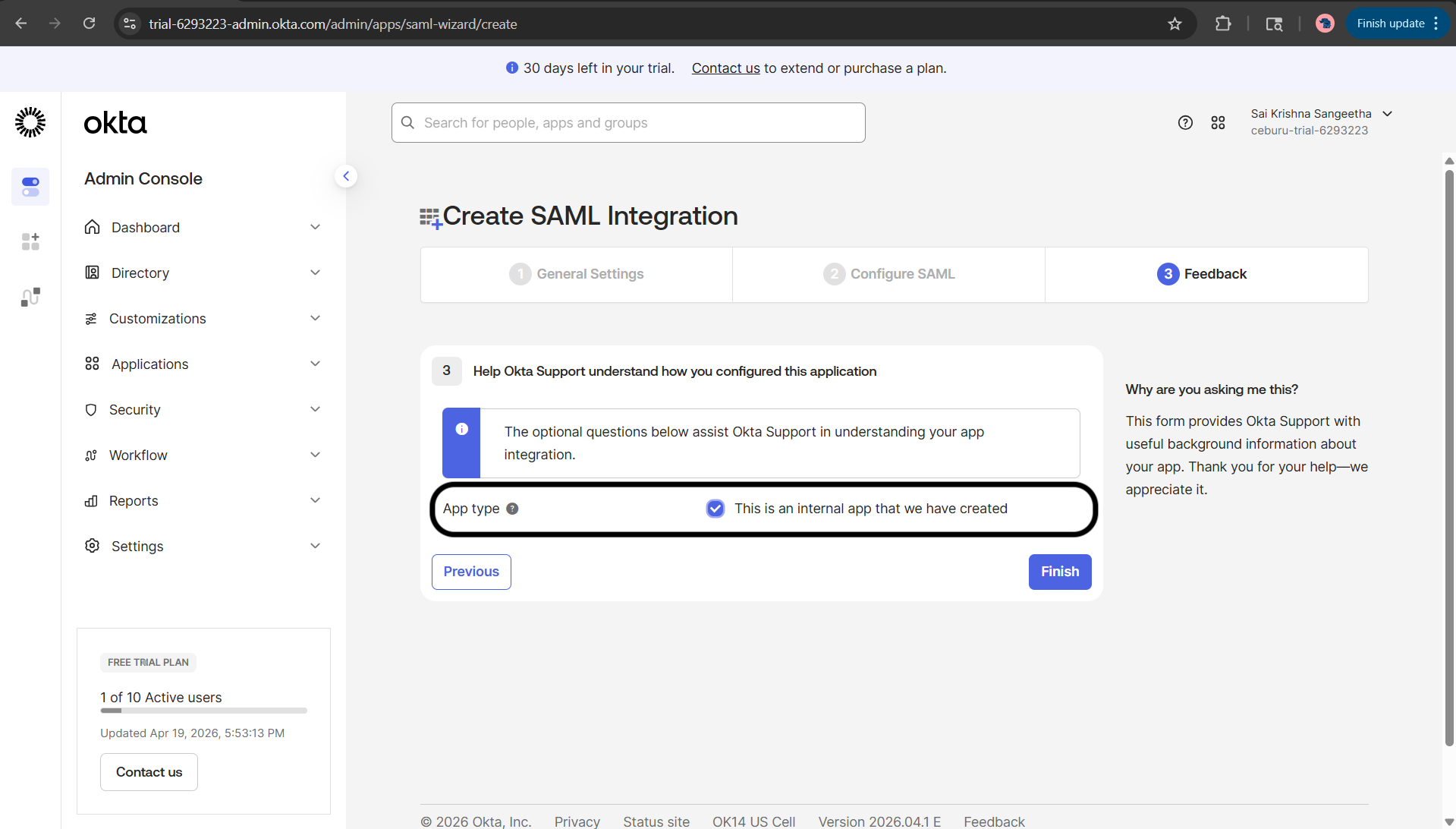
Create a custom SAML 2.0 application in Okta for Ceburu Production.
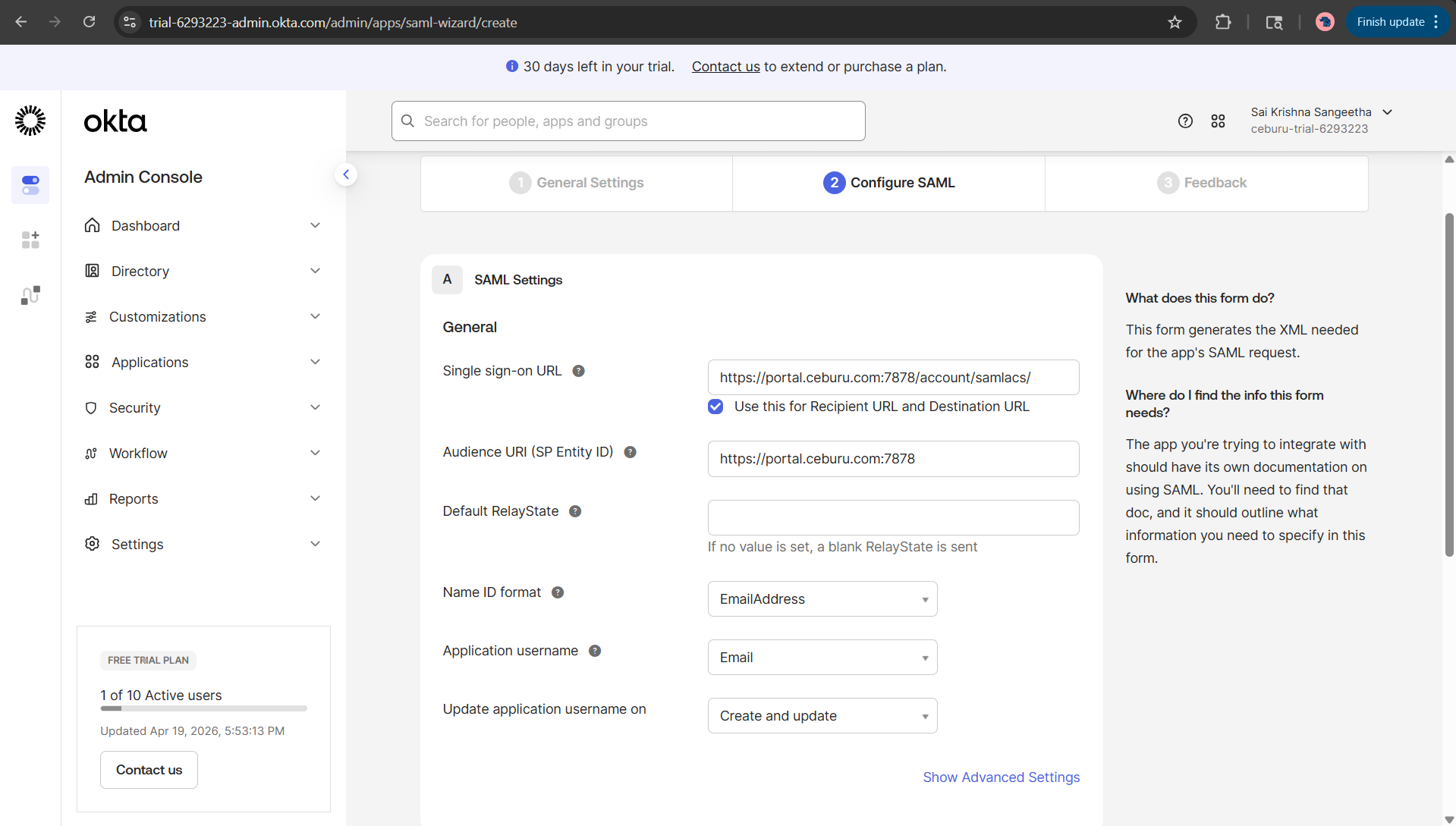
When Okta asks for the application settings, use the values below.
SAML Settings to Use in Okta
Configure the application with these production values:
- Single sign on URL:
https://portal.ceburu.com:7878/account/samlacs/ - Check box should be enabled for “Use this for Recipient URL and Destination URL”
- Recipient URL: use the same value as the Single sign on URL
- Destination URL: use the same value as the Single sign on URL
- Audience URI (SP Entity ID):
https://portal.ceburu.com:7878 - Default RelayState: leave blank
- Name ID format:
EmailAddress - Application username:
Email
Signing and Assertion Settings:
Use these settings:
- Response:
Signed - Assertion Signature:
Signed - Signature Algorithm:
RSA_SHA256 - Digest Algorithm:
SHA256 - Assertion Encryption:
Unencrypted
Single sign on URL: https://portal.ceburu.com:7878/account/samlacs/
 Audience URI (SP Entity ID): https://portal.ceburu.com:7878
 Name ID format: EmailAddress
 Application username: Email
 Response: Signed
 Assertion Signature: Signed
 Signature Algorithm: RSA_SHA256
 Digest Algorithm: SHA256
 Assertion Encryption: Unencrypted
If Okta offers a checkbox to reuse the Single sign on URL for Recipient and Destination, keep it enabled.
Add the Required SAML Attribute:
Ceburu requires a SAML attribute named exactly:
email
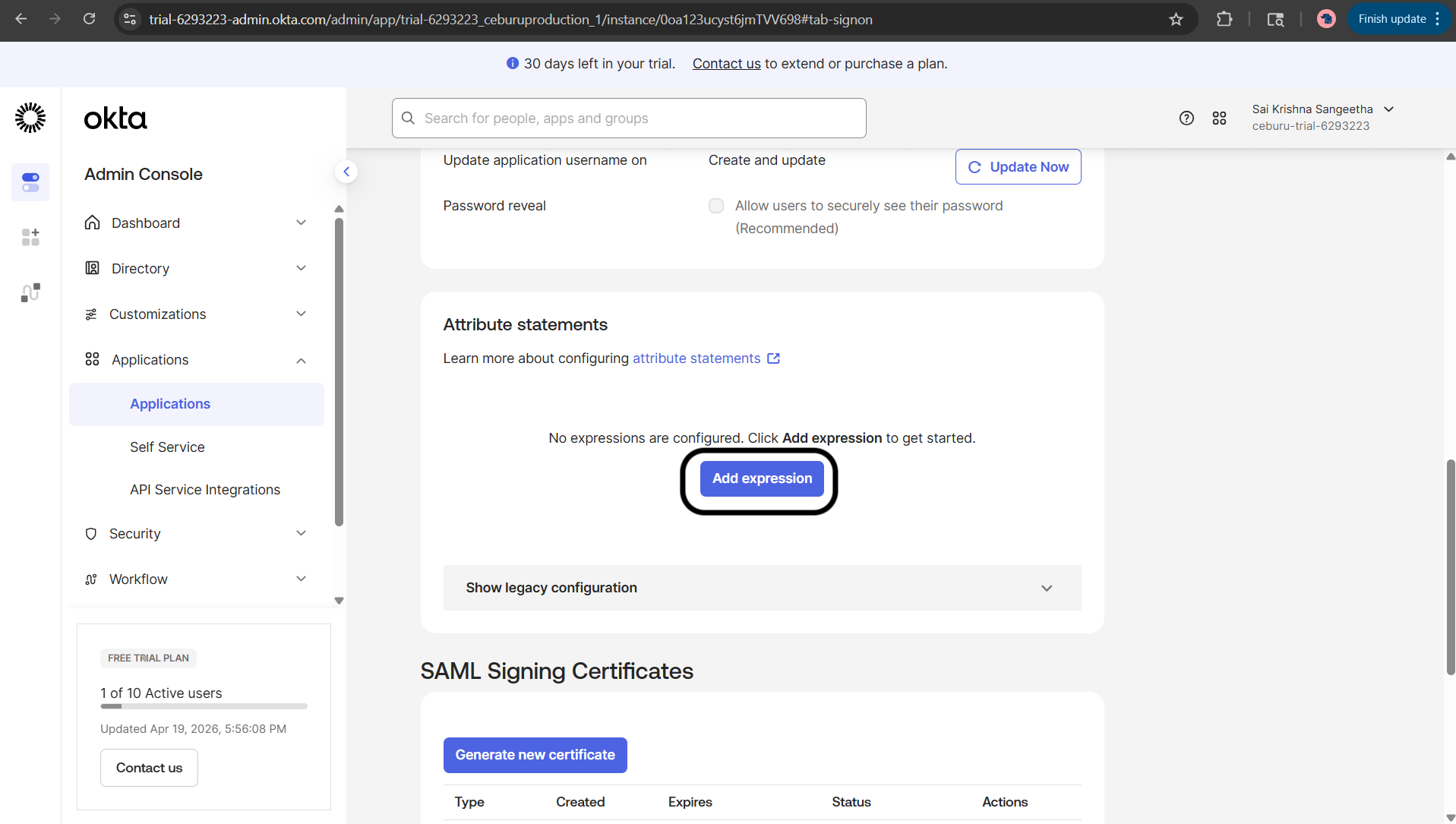
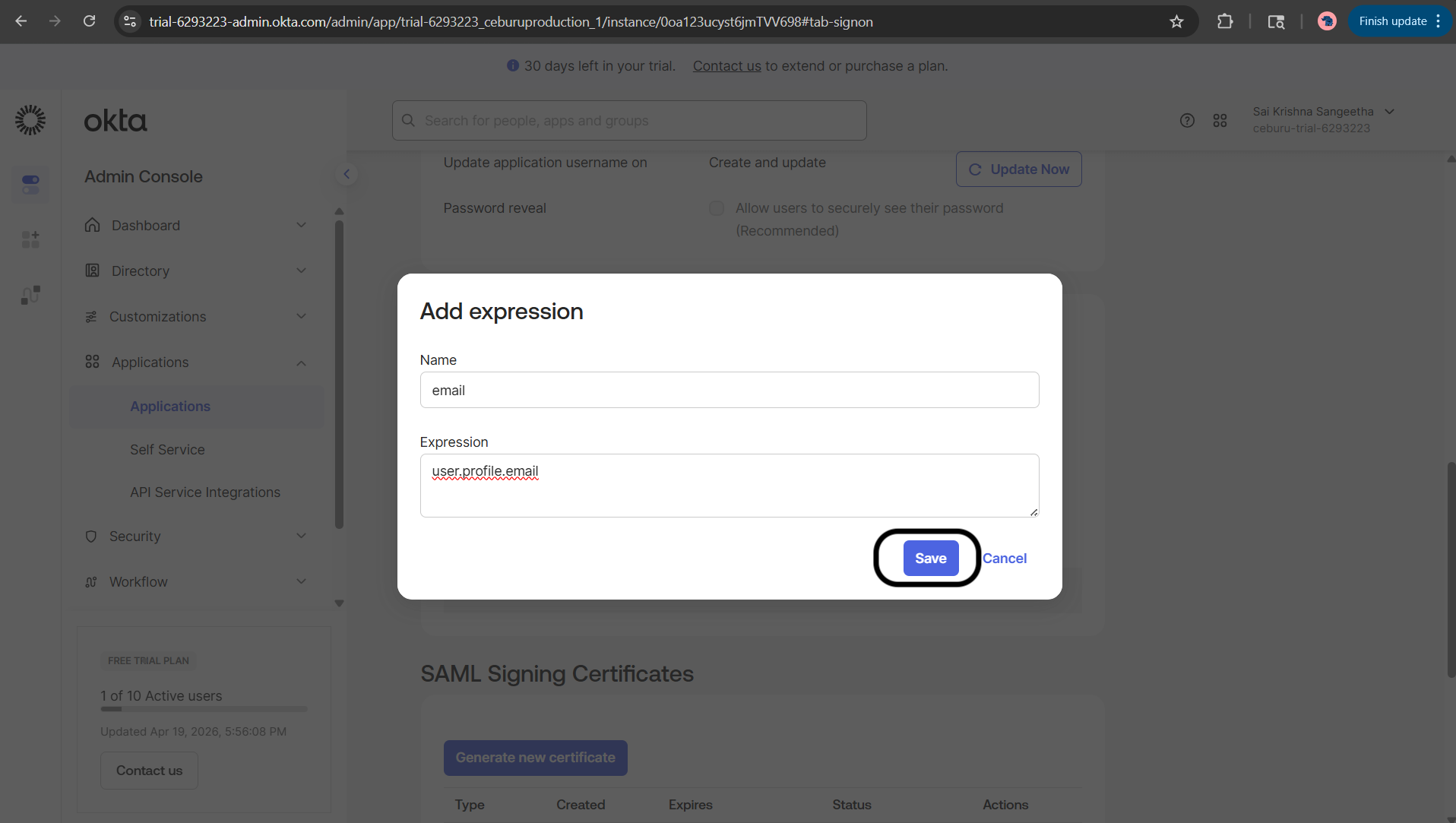
In Okta, add an attribute statement using the standard expression-based claims UI.
Use:
- Name:
email - Expression:
user.profile.email
Copy block
Name: email
 Expression: user.profile.email
Sending only a NameID is not enough for Ceburu. The SAML assertion must also contain a separate attribute named email.
Assign the Application in Okta:
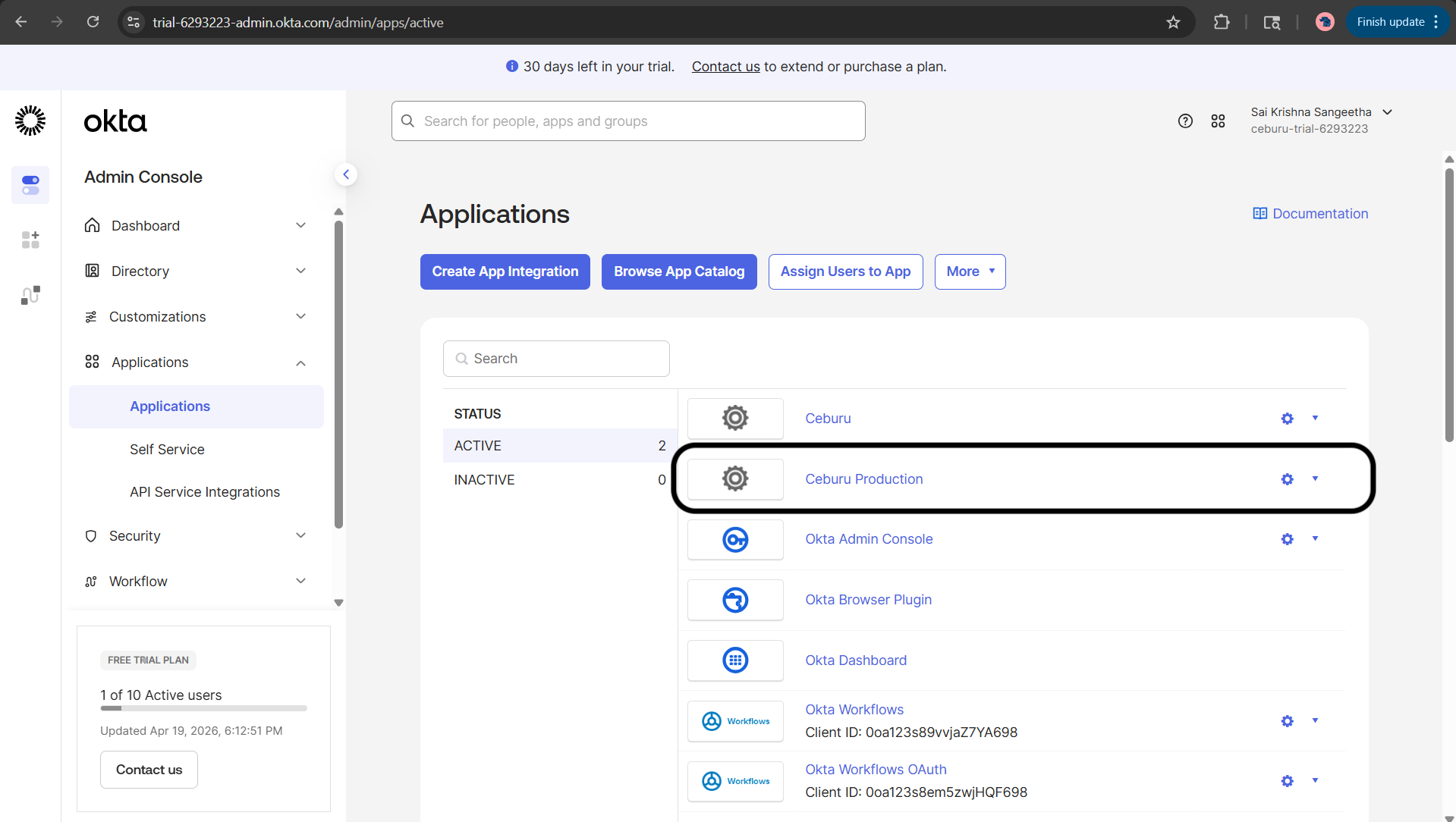
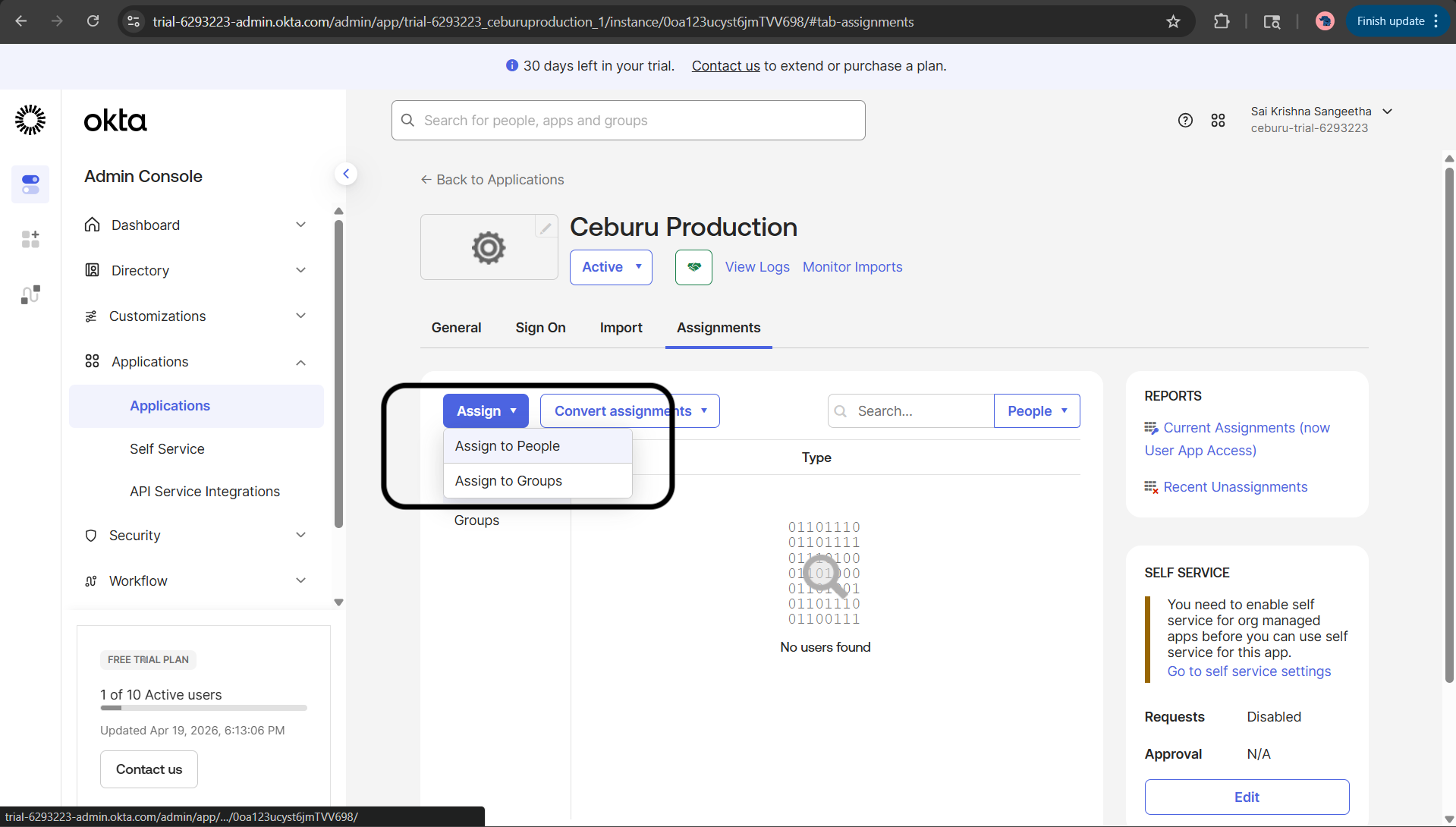
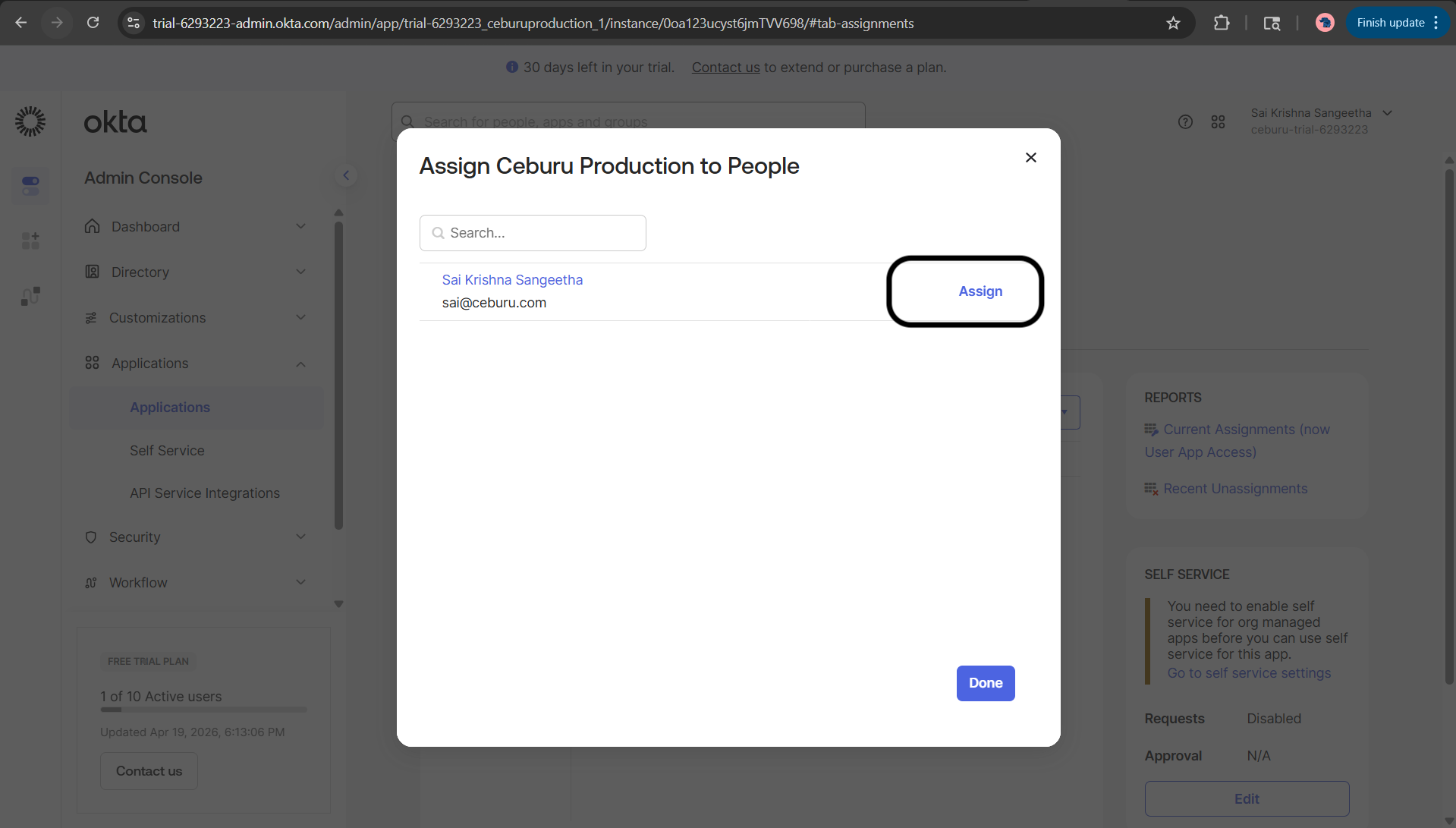
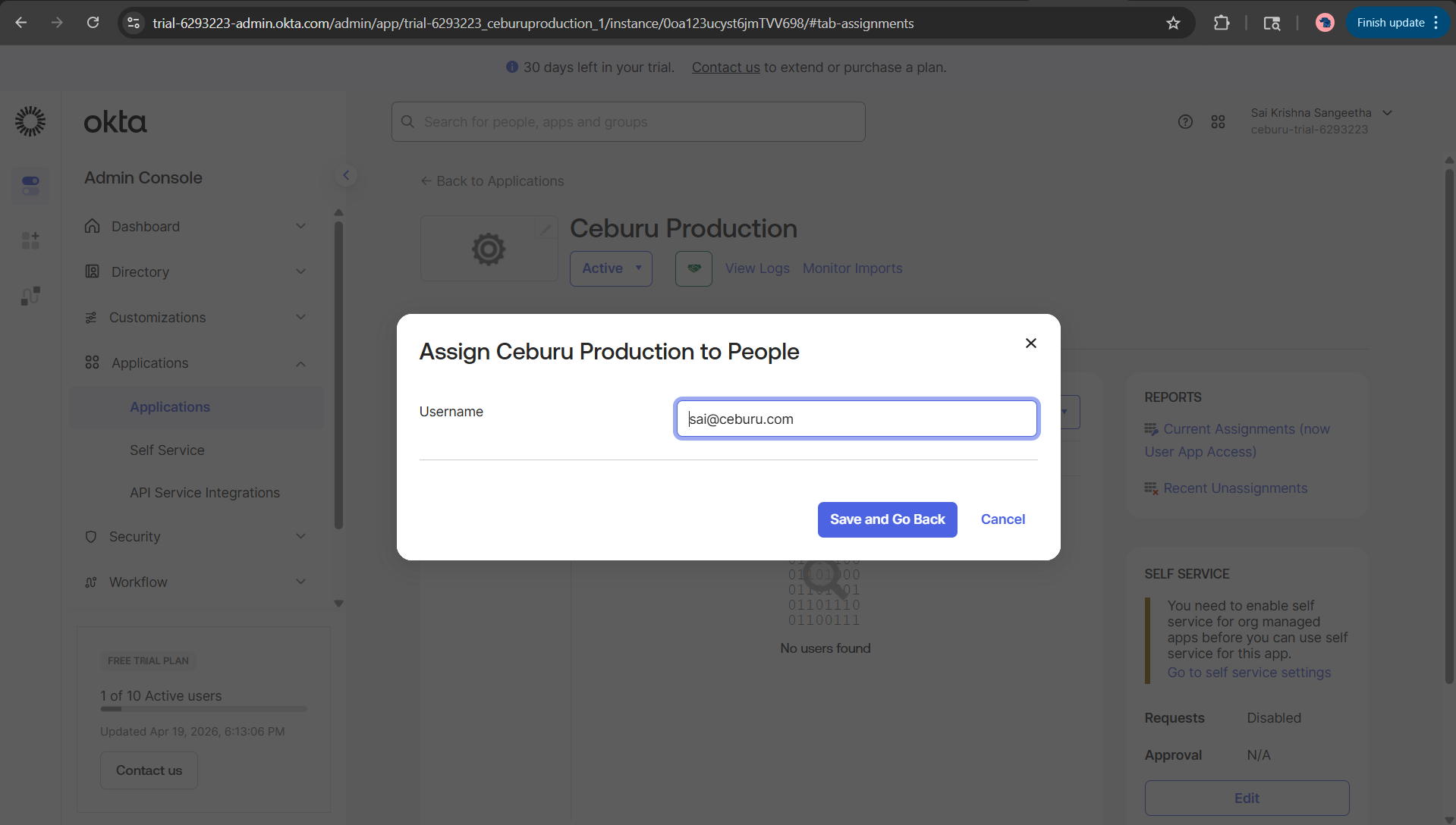
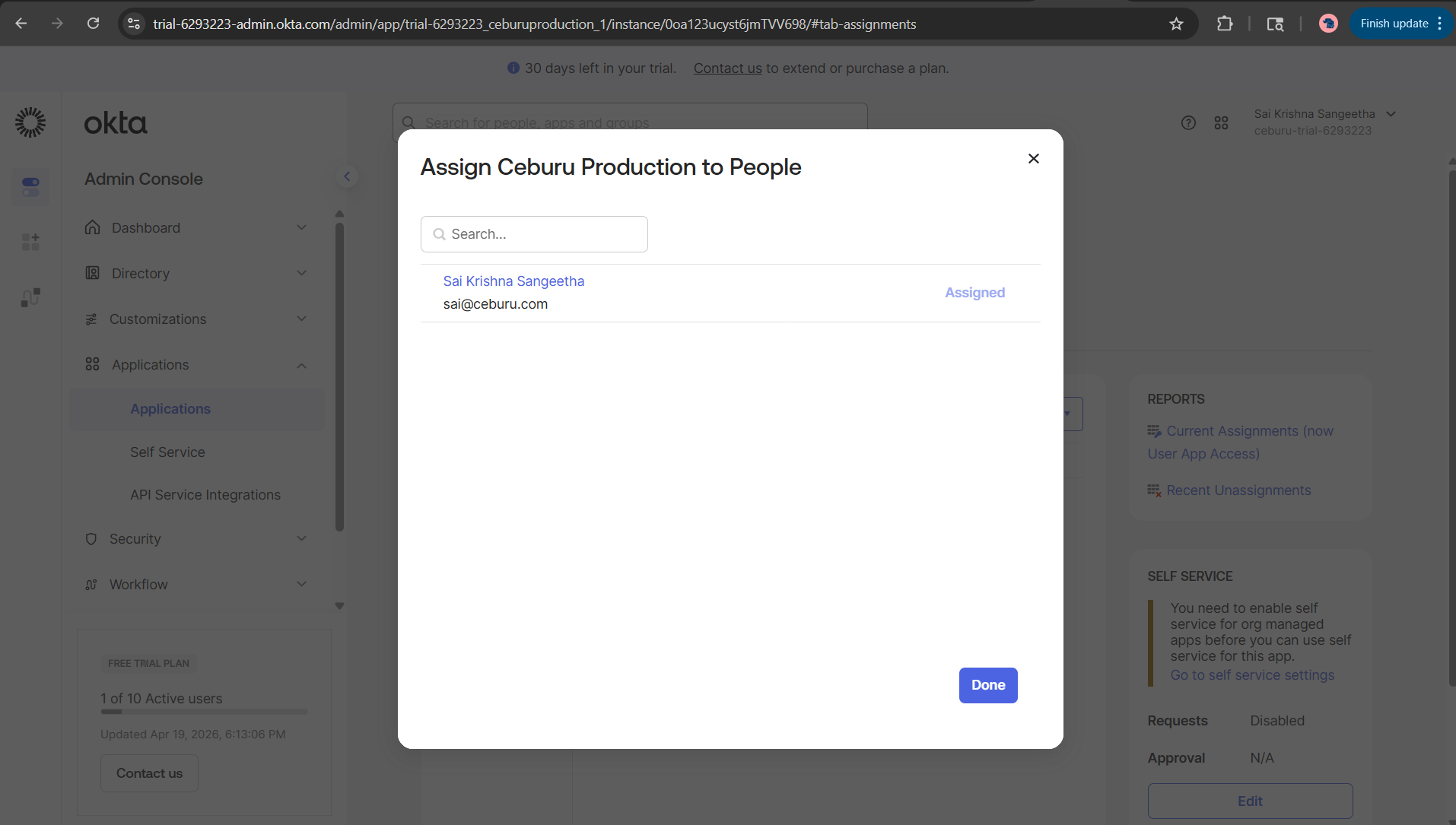
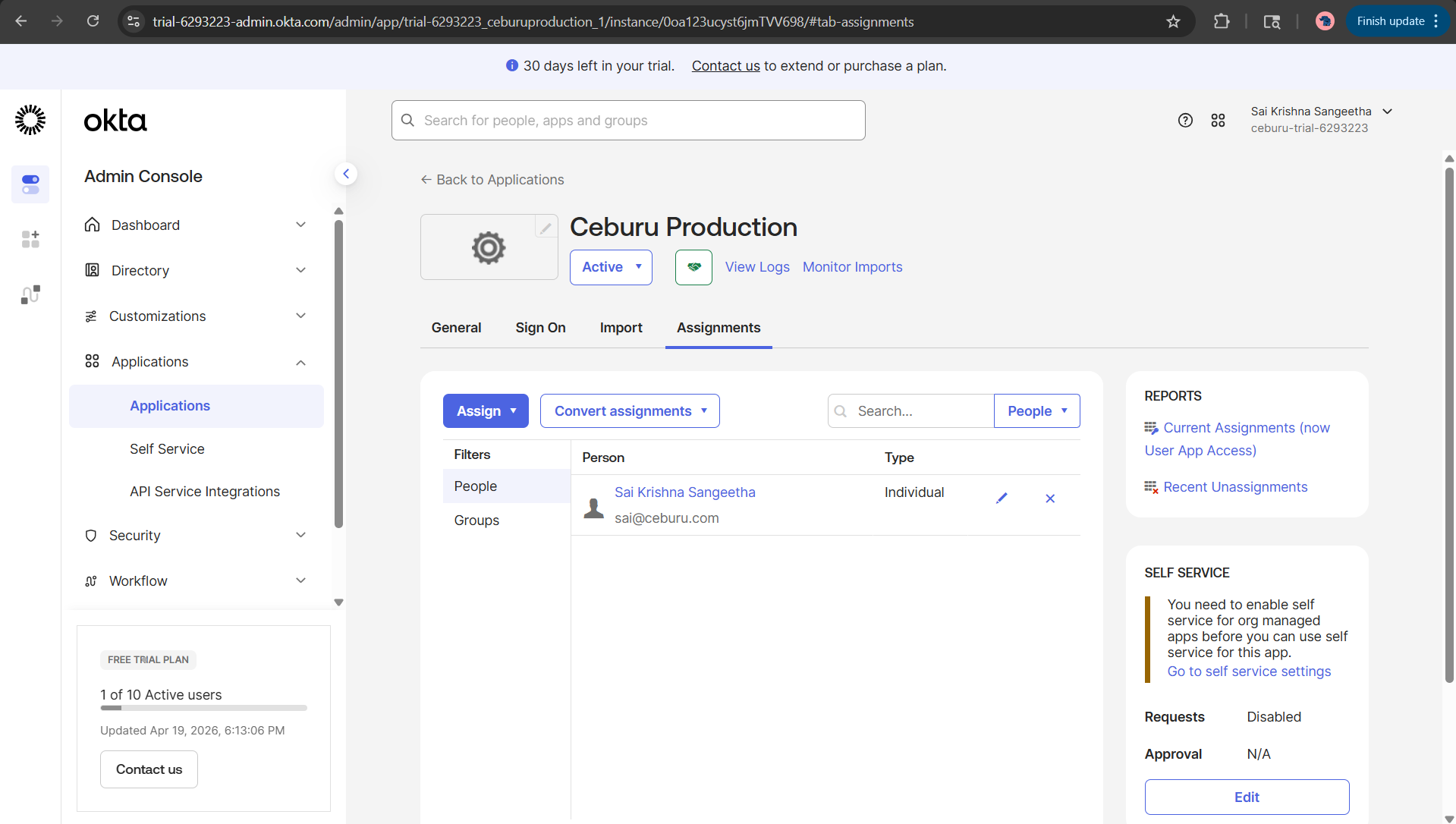
After the Okta application is created, assign it to the appropriate users or groups.
Make sure:
- each user who should sign in to Ceburu is assigned to the Okta app
- or the user belongs to a group that is assigned to the app
If a user is not assigned to the Okta application, login will fail.
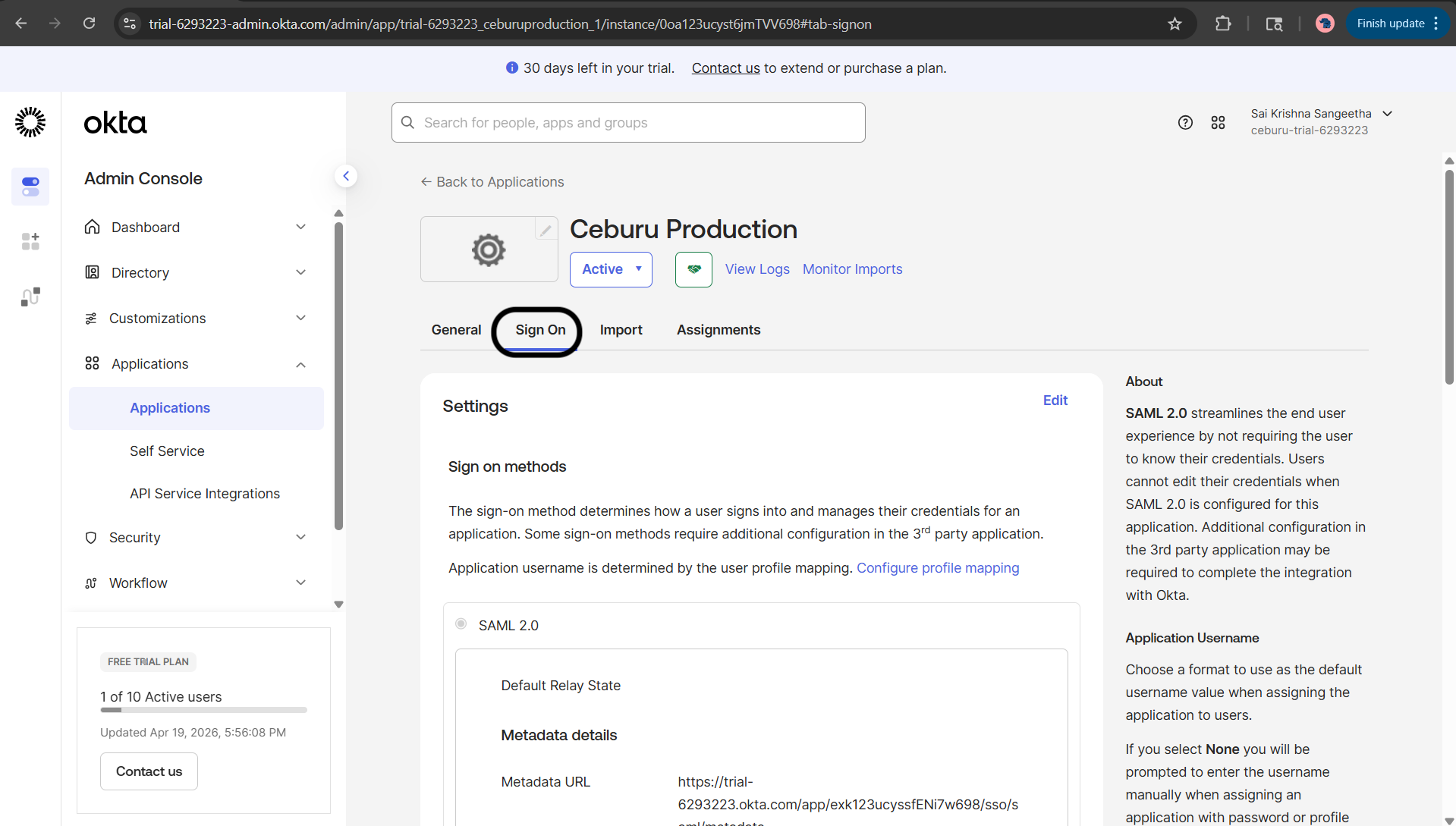
Collect the Okta Values for Ceburu:
From the Okta application, copy the following values:
- Sign on URL
- Issuer
- Signing Certificate
You will paste these into the Ceburu SAML configuration.
Configure SAML in Ceburu:
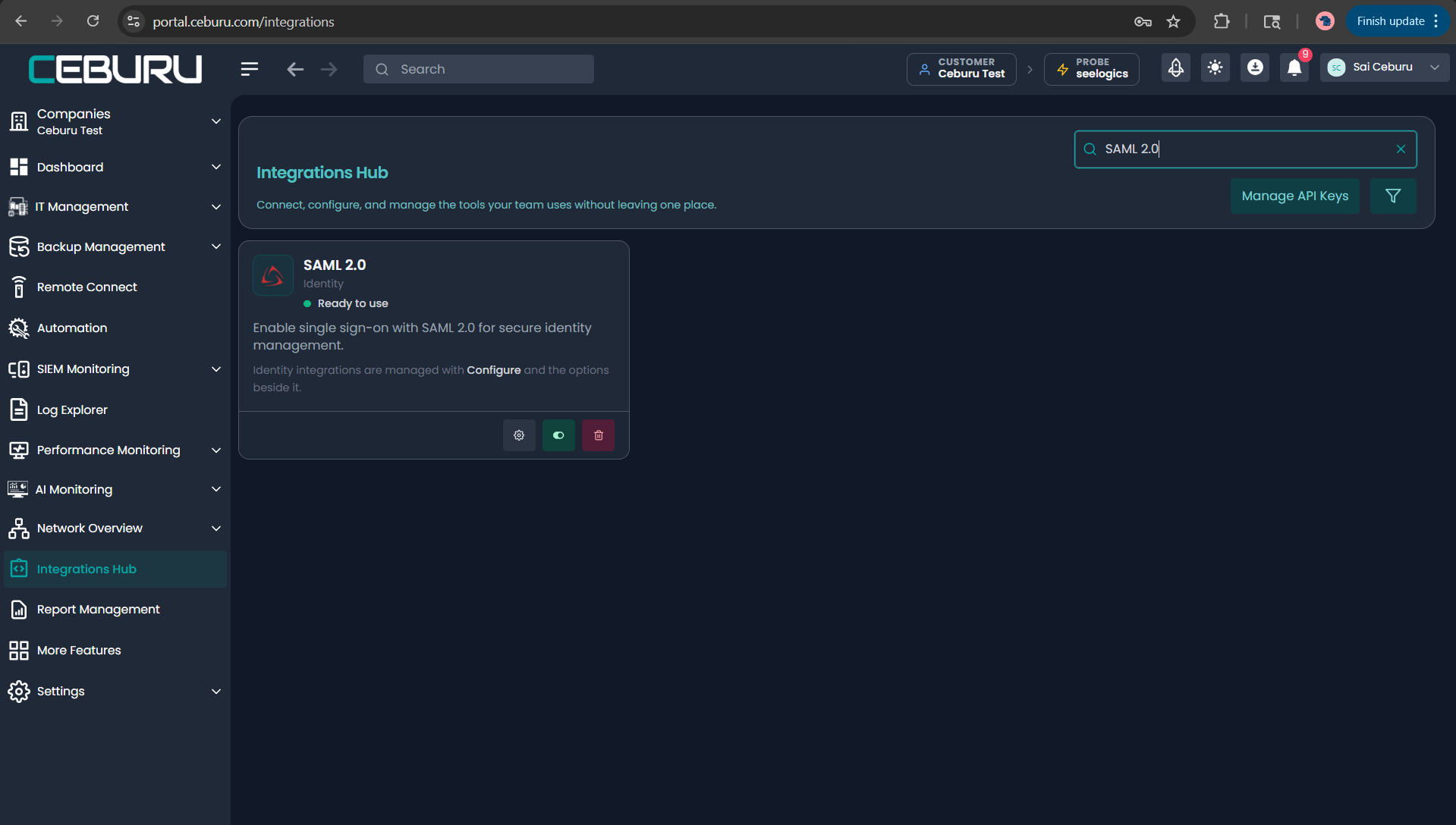
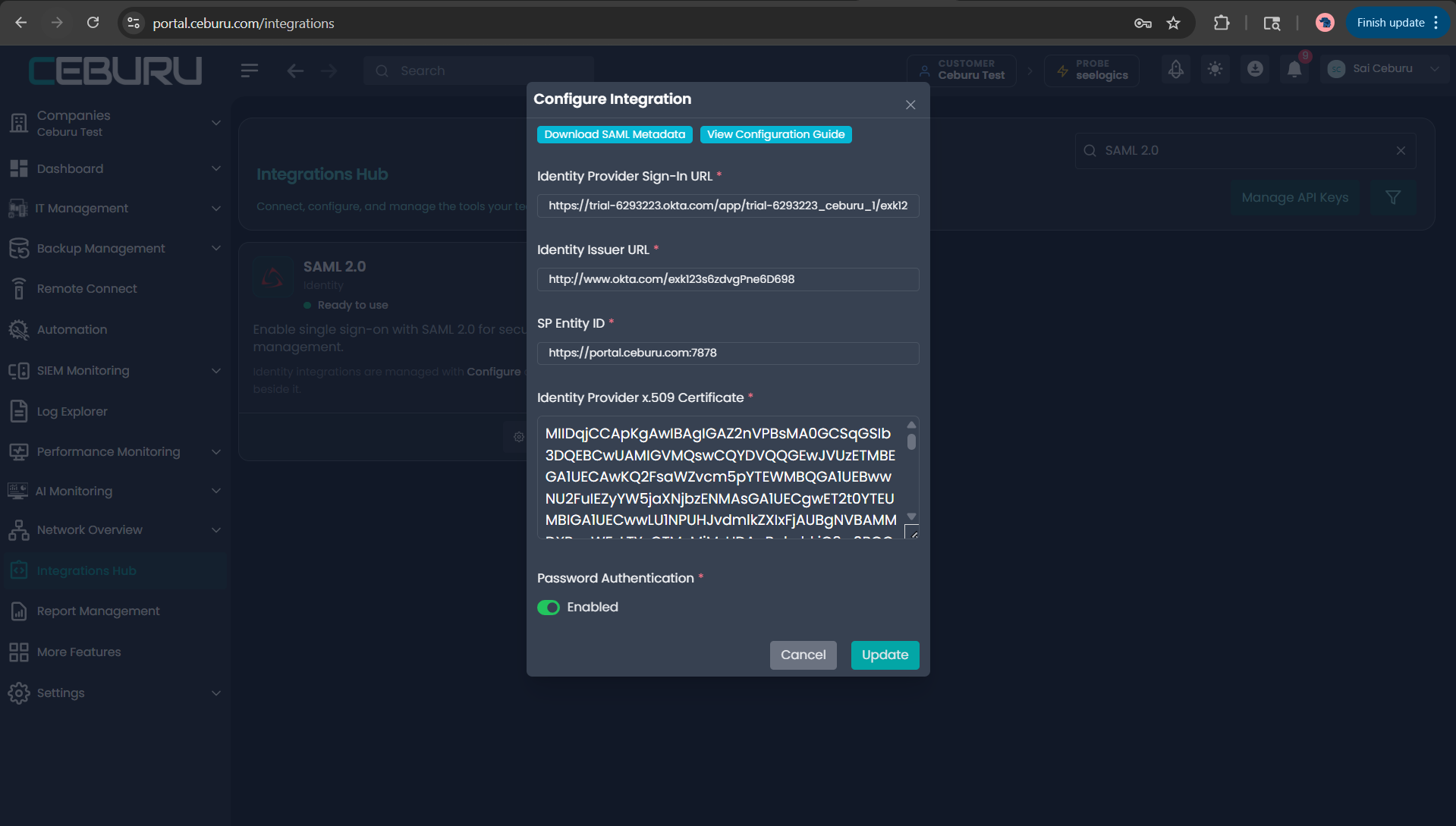
In Ceburu Production, open the SAML 2.0 integration and enter the following values:
- Identity Provider Sign-In URL: paste the Okta Sign on URL
- Identity Issuer URL: paste the Okta Issuer
- SP Entity ID:
https://portal.ceburu.com:7878 - Identity Provider x.509 Certificate: paste the Okta Signing Certificate
- Password Authentication:
- enable it if the customer wants both password login and SAML
- disable it if the customer wants SAML-only login
Then save the integration and make sure it is enabled.
 Identity Provider Sign-In URL: [Paste Okta Sign on URL]
 Identity Issuer URL: [Paste Okta Issuer]
 SP Entity ID: https://portal.ceburu.com:7878
 Identity Provider x.509 Certificate: [Paste Okta Signing Certificate]
 Password Authentication: Enabled or Disabled based on preferences/requirements
Validate the Login Flow:
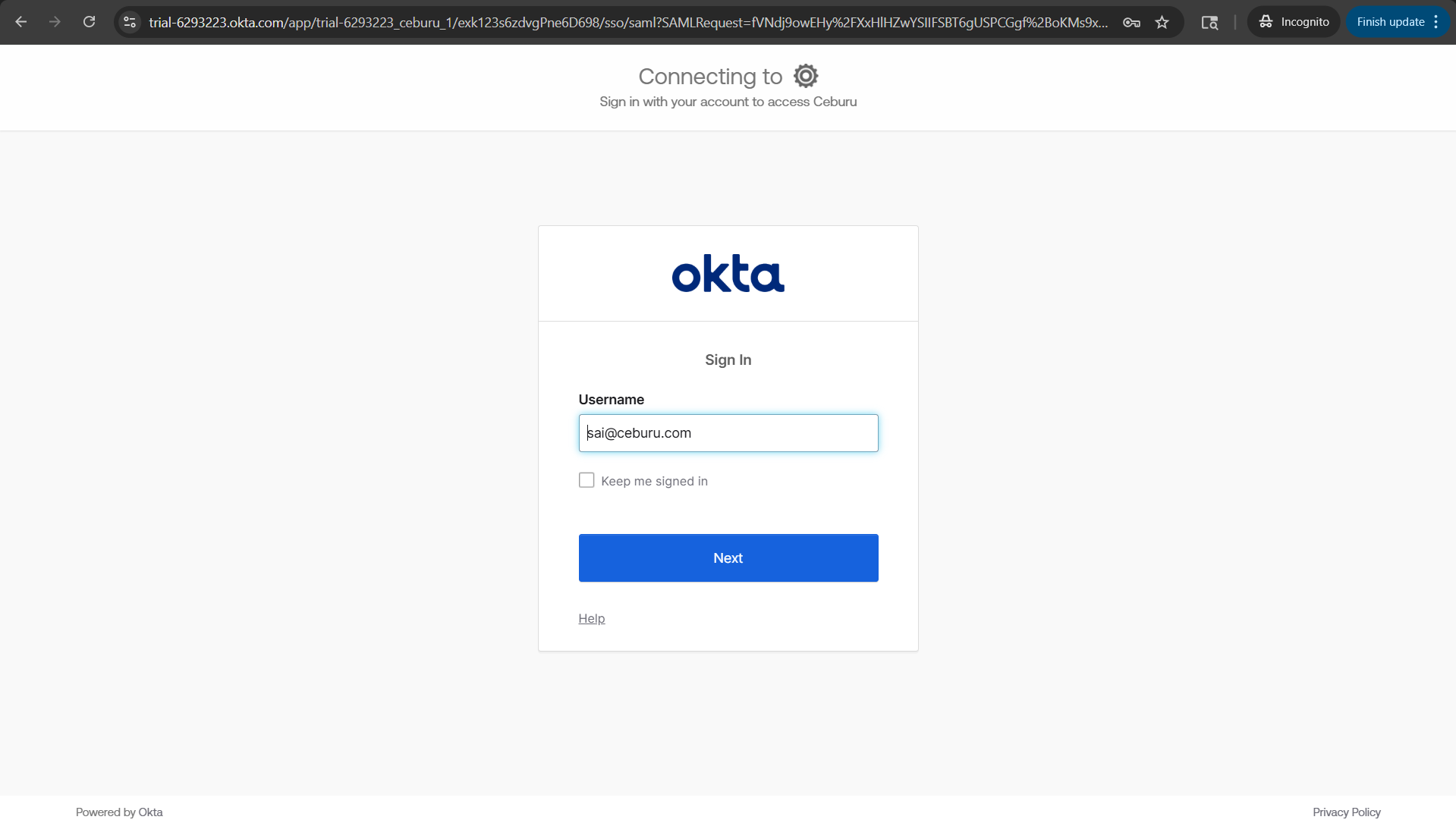
Once both Okta and Ceburu are configured, validate the experience from the production login page.
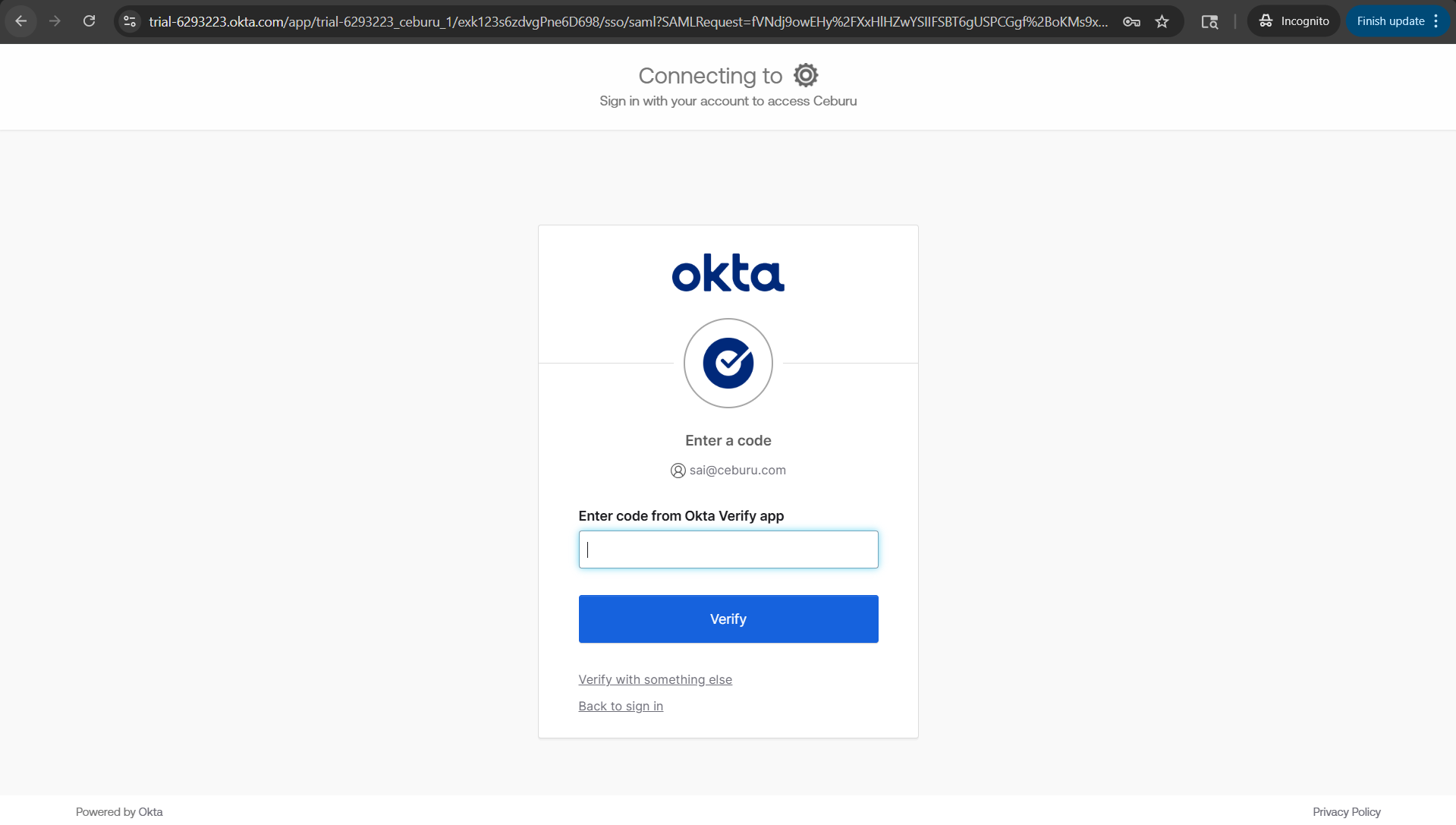
The expected flow is:
- The user opens
https://portal.ceburu.com/login - The user selects
Continue with SAML 2.0 - The user enters their email address
- Ceburu redirects the user to Okta
- Okta authenticates the user
- Okta posts the SAML response to Ceburu
- Ceburu signs the user in successfully
If this succeeds, the SSO integration is complete.

Production Reference Table:
| Setting | Value |
|---|---|
| Ceburu Portal URL | https://portal.ceburu.com |
| ACS URL | https://portal.ceburu.com:7878/account/samlacs/ |
| Recipient URL | https://portal.ceburu.com:7878/account/samlacs/ |
| Destination URL | https://portal.ceburu.com:7878/account/samlacs/ |
| SP Entity ID / Audience URI | https://portal.ceburu.com:7878 |
| Required SAML Attribute Name | email |
| Required SAML Attribute Expression | user.profile.email |
| Name ID Format | EmailAddress |
| Signature Algorithm | RSA_SHA256 |
| Digest Algorithm | SHA256 |
| Assertion Encryption | Unencrypted |
Validation Checklist:
Use this checklist before handoff.
Okta Configuration:
- The application is configured as SAML 2.0
- The Single Sign-On URL is
https://portal.ceburu.com:7878/account/samlacs/ - The Audience URI is
https://portal.ceburu.com:7878 - The Name ID format is
EmailAddress - The Application username is
Email - The response is signed
- The assertion is signed
- The assertion is not encrypted
- The SAML attribute
emailis present - The expression used is
user.profile.email - The required users or groups are assigned to the app
Ceburu Configuration:
- The Identity Provider Sign-In URL is pasted correctly
- The Identity Issuer URL is pasted correctly
- The SP Entity ID is
https://portal.ceburu.com:7878 - The signing certificate is pasted completely
- The SAML integration is saved
- The SAML integration is enabled
User Validation:
- The user exists in Ceburu Production
- The Okta email exactly matches the Ceburu email
Troubleshooting:
Okta returns a 404 Page Not Found error
Cause: The Okta Sign-In URL saved in Ceburu is incorrect, usually because of a typo.
Resolution: Re-copy the exact Sign on URL from Okta and paste it again into Ceburu.
Okta says the user is not assigned to the application
Cause: The user is not assigned to the Okta app.
Resolution: Assign the user directly or assign a group that contains the user.
Ceburu returns “Email attribute not found in SAML response”
Cause: The SAML assertion does not include the required email attribute.
Resolution: Add this attribute statement in Okta:
Name: email
 Expression: user.profile.email
Okta authentication succeeds but Ceburu still does not sign the user in
Cause: The email in Okta does not match the email in Ceburu exactly, or the user exists under a different Ceburu customer context.
Resolution: Verify that the user exists in Ceburu Production and that the email address matches exactly.
Official Okta References
Create SAML app integrations
https://help.okta.com/en-us/Content/Topics/Apps/apps_app_integration_wizard_saml.htm
Application Integration Wizard SAML field reference
https://help.okta.com/oie/en-us/content/topics/apps/aiw-saml-reference.htm
Configure custom claims for app integrations
https://help.okta.com/oie/en-us/content/topics/apps/federated-claims-overview.htm
Okta Expression Language overview
https://developer.okta.com/docs/reference/okta-expression-language/
Was this article helpful?
That’s Great!
Thank you for your feedback
Sorry! We couldn't be helpful
Thank you for your feedback
Feedback sent
We appreciate your effort and will try to fix the article