This guide explains how to set up ITSM sync between Ceburu and ServiceNow using the current implementation.
Overview:
Ceburu integrates with ServiceNow using OAuth Client Credentials. The integration model is:
- one ServiceNow account/configuration per customer in Ceburu
- Multiple alert mappings per network
- ticket creation based on alert mappings
- bidirectional sync between Ceburu alerts and ServiceNow incidents
Current behavior:
- Ceburu creates incidents in ServiceNow for mapped alerts
- Ceburu can update incidents when alerts are acknowledged or resolved
- Ceburu can sync incident status from ServiceNow back into Ceburu
- table creation is not part of the flow
- existing ServiceNow tables are used, typically
incident
Prerequisites
Before starting, make sure the following are available:
- a working ServiceNow instance
- a ServiceNow application configured for
OAuth - Client credentials grant - valid
client_id - valid
client_secret - ServiceNow instance URL
- a ServiceNow user/account with permission to create and update incidents
- access to Ceburu Integrations page
- customer and network already created in Ceburu
ServiceNow Side Setup
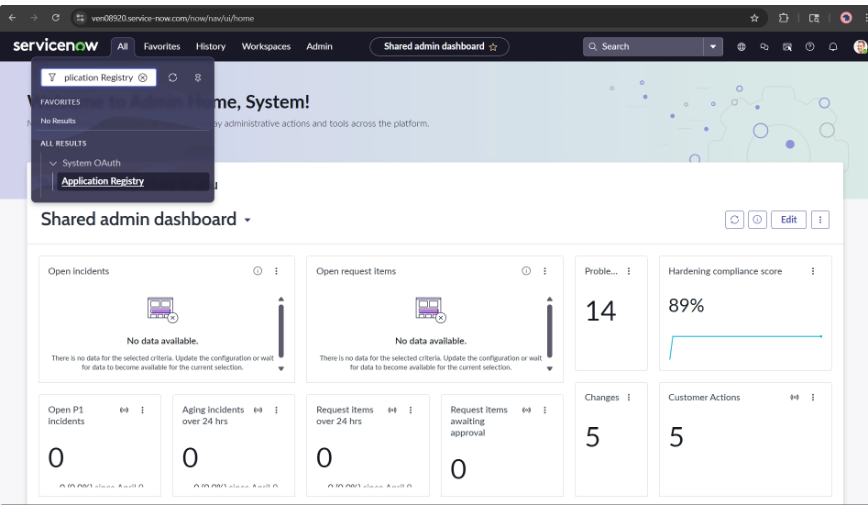
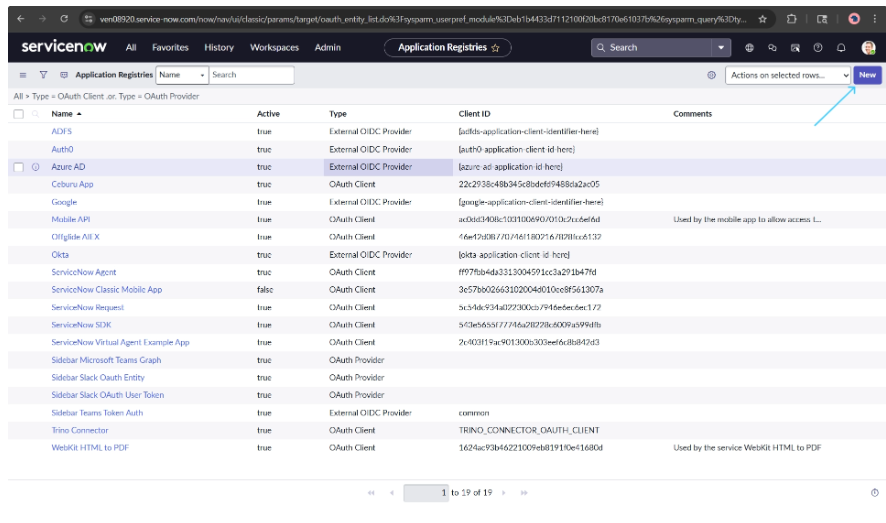
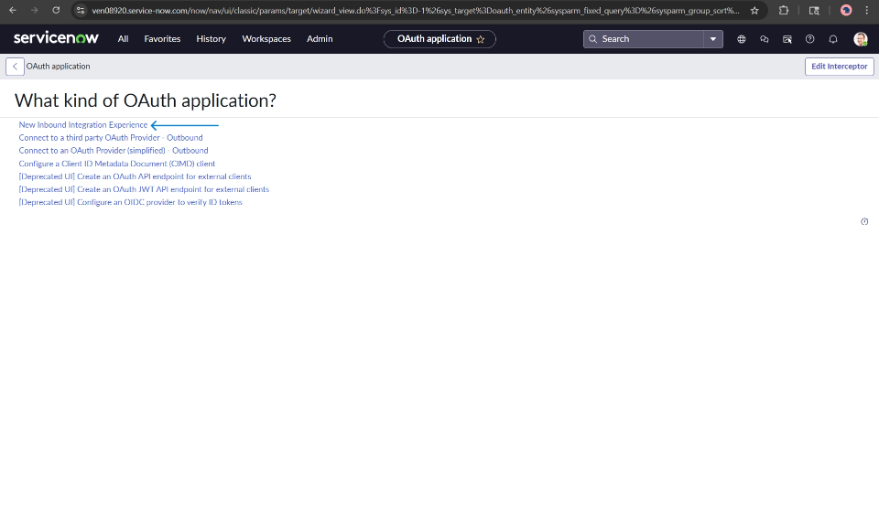
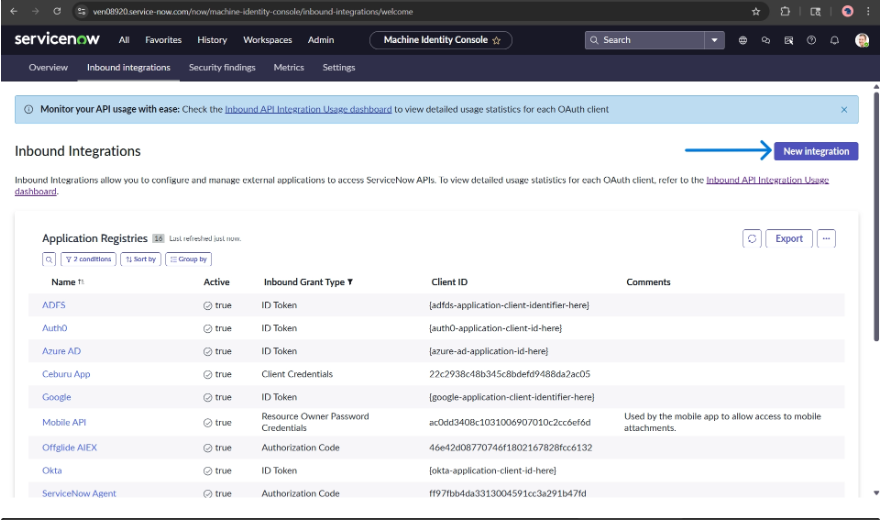
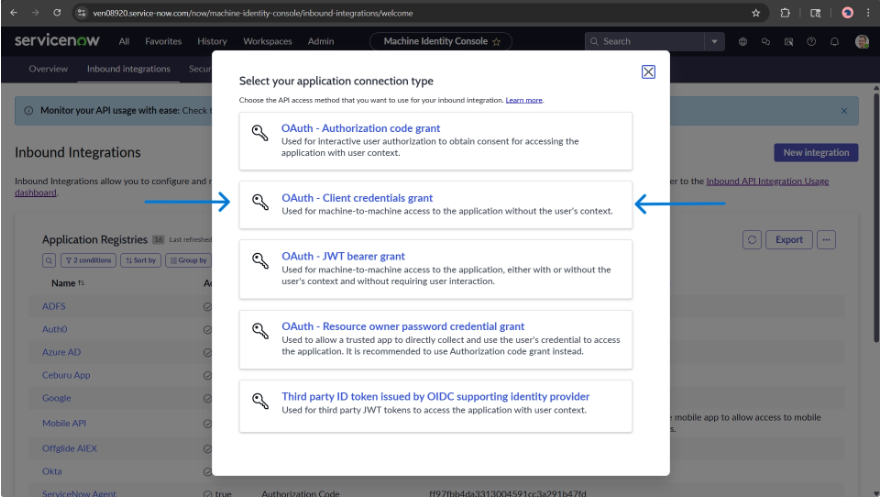
1. Create the inbound application in ServiceNow
In ServiceNow, create an inbound integration application using:
OAuth - Client credentials grant
Do not use:
Authorization code grantPassword grantJWT bearer grant
for this current Ceburu ITSM setup.
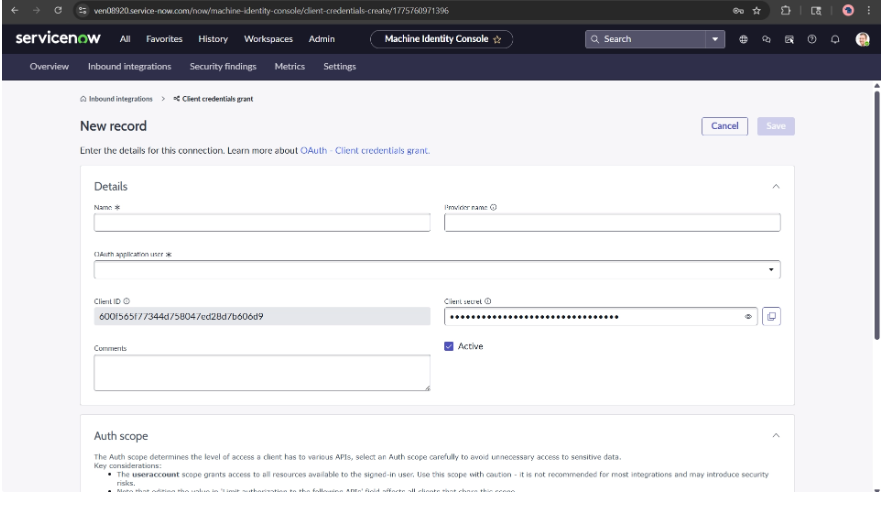
2. Configure the application
Fill in:
- Name
- Provider name
- Client ID
- Client secret
- Active = enabled
Important notes:
- the app must be active
- the credentials must be valid
- the instance must support client credentials for inbound OAuth
- the integration user must be allowed to access the required APIs and tables
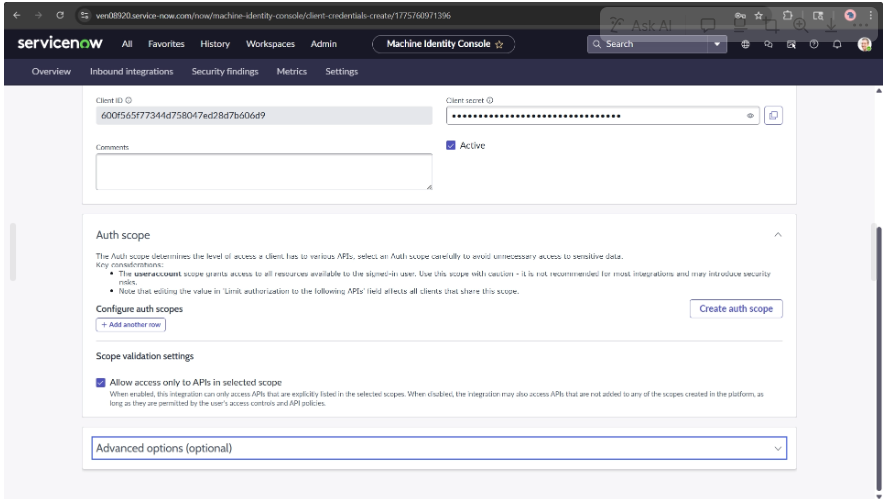
Also configure the client-credentials-specific requirements described:
- create the system property glide.oauth.inbound.client.credential.grant_type.enabled
- expose/add the OAuth Application User field on the OAuth Entity form
- expose/add the Default Grant Type field on the OAuth Entity form
- set Default Grant Type to Client Credentials
- set OAuth Application User to a ServiceNow user with the correct roles/scopes for the APIs and tables Ceburu will access
3. Recommended ServiceNow table
Use:
incident
This is the recommended and tested table for the current implementation.
4. Recommended incident field usage
Recommended base fields:
short_descriptiondescriptioncategorysubcategoryimpacturgencypriority
Optional fields:
caller_idassigned_tocmdb_cibusiness_service
Advanced optional fields:
assignment_groupservice_offering
Notes:
assignment_groupcan fail depending on ServiceNow business rulesservice_offeringis optional and should only be used if required in your instance- if
assignment_groupcauses rejection, Ceburu currently retries without it in the ServiceNow create flow
5. API and permission expectations in ServiceNow
The ServiceNow integration user/application should be able to:
- request access tokens
- read table metadata
- read incident records
- create incident records
- update incident status/comments
6. Reference Links
- ServiceNow Client Credentials docs: https://www.servicenow.com/docs/bundle/washingtondc-platform-security/page/integrate/authentication/concept/client-credentials.html
- ServiceNow support KB for inbound client credentials: https://support.servicenow.com/kb?id=kb_article_view&sysparm_article=KB1645212
Ceburu Side Setup
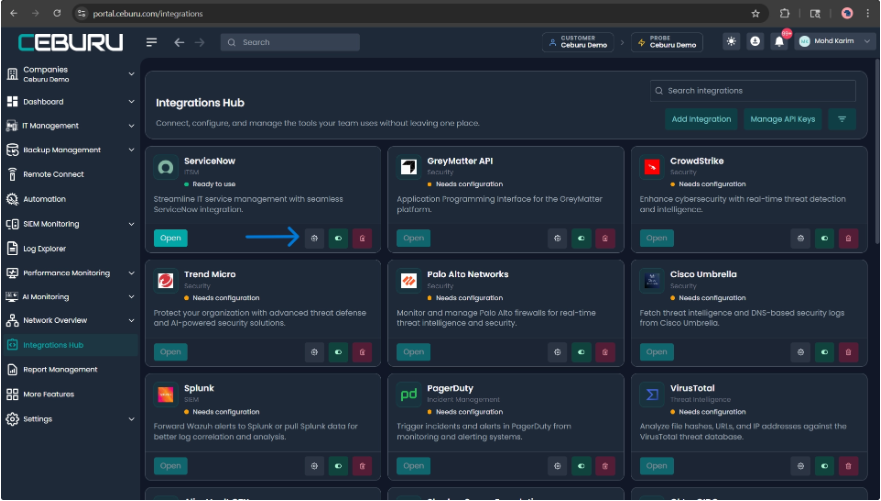
1. Open the Integrations page
Go to:
Integrations Hub- open
ServiceNow
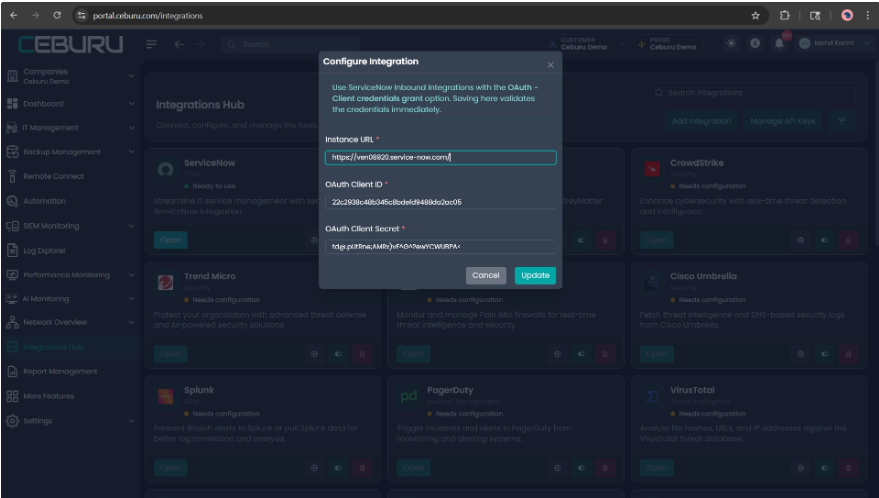
2. Create the ServiceNow integration
Enter:
instance_urlclient_idclient_secret
Then save the integration.
Notes:
- this setup is customer-scoped
- one ServiceNow integration is typically created per customer
- you do not need separate credentials for every network
3. Test the connection
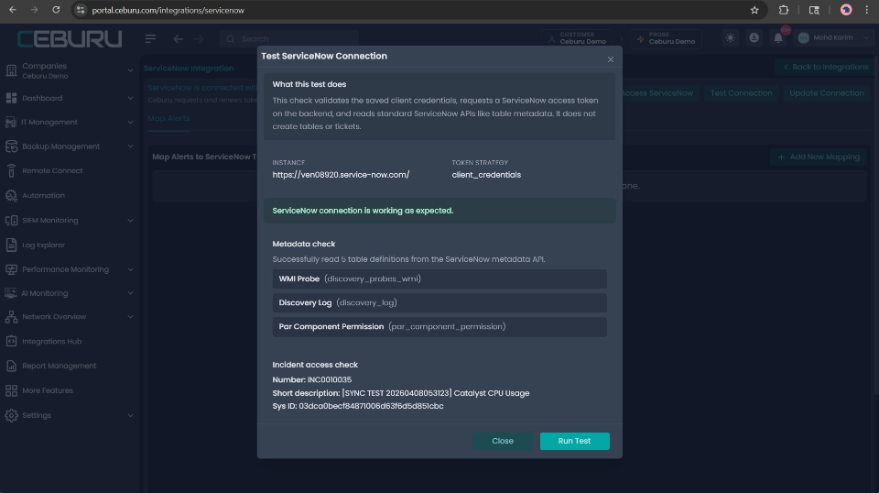
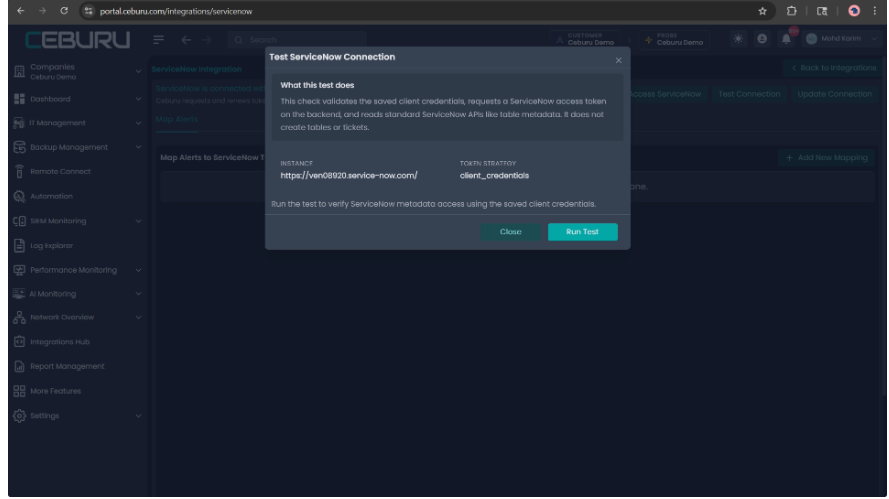
Use the Test Connection flow in Ceburu.
This validates:
- token generation using client credentials
- connectivity to ServiceNow
- ability to reach the required metadata APIs
4. Create alert mappings
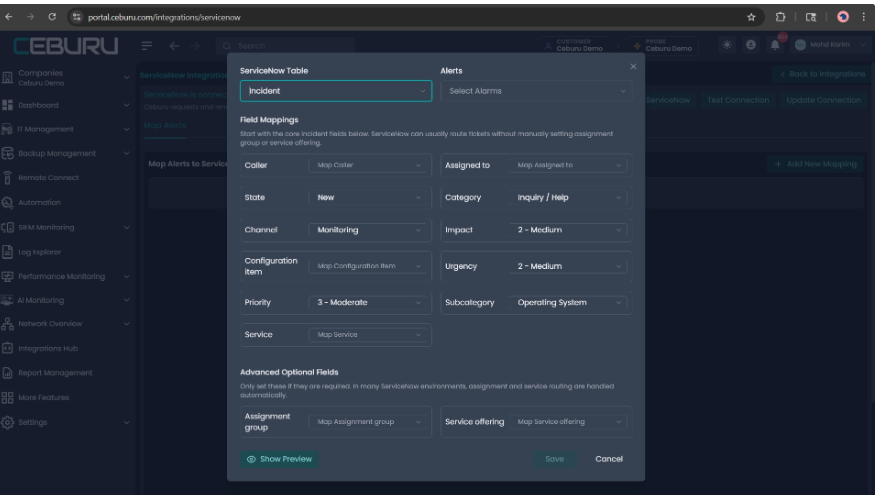
Go to the Map Alerts tab and create network-specific mappings.
For each network, define:
- alert type
- ServiceNow table
- field mappings
Recommended starting table:
incident
Recommended first mappings:
- CPU Usage
- Memory Usage
- Disk Usage
- System Up/Down
You can later expand to other alert types.
5. Mapping guidance
Keep the first mapping simple.
Recommended minimal mapping:
- table =
incident - category
- subcategory
- impact
- urgency
- priority
Optional additions after validation:
- caller
- assigned_to
- cmdb_ci
- business_service
Use advanced fields only when confirmed in ServiceNow:
- assignment_group
- service_offering
6. Network behavior
The current model is:
- integration config is customer-scoped
- alert mappings are network-scoped
This means:
- one ServiceNow account can serve multiple networks
- each network can have different alert-to-ticket mappings
End-to-End Flow
1. Alert is generated in Ceburu
When a mapped alert occurs:
- Ceburu identifies the customer
- Ceburu identifies the network
- Ceburu loads the customer’s ServiceNow integration
- Ceburu loads the mapping for that network and alert type
2. Ticket is created in ServiceNow
Ceburu creates an incident using:
- shared ServiceNow credentials from the customer integration
- mapping rules from the network mapping
Ceburu stores normalized ticket reference data, including:
- ticket number
- sys_id
- table name
- ticket URL
3. Ticket is visible in Ceburu
The alert/trigger in Ceburu shows the linked ServiceNow incident.
4. Manual status changes in Ceburu
When a user acknowledges or resolves a trigger in Ceburu:
- Ceburu updates the related ServiceNow incident
- cached ticket information is refreshed
5. Status sync from ServiceNow
When ServiceNow incident status changes:
- the sync job reads the incident state
- Ceburu updates the linked trigger status accordingly
This is the bidirectional sync path.
Supported Sync Model
Current sync supports:
- alert-to-incident creation
- manual acknowledge/close updates from Ceburu to ServiceNow
- polling-based sync from ServiceNow to Ceburu
- ticket reference storage with
sys_id - network-specific mapping behavior
Current implementation does not rely on:
- ServiceNow table creation
- browser OAuth authorization flow
- one integration record per network
Recommended Initial Rollout
Use this rollout order:
- Configure ServiceNow integration for the customer
- Test connection
- Create one simple mapping on one network using
incident - Generate one test alert
- Verify incident creation in ServiceNow
- Verify linked ticket visibility in Ceburu
- Acknowledge the alert in Ceburu and confirm ServiceNow update
- Change incident state in ServiceNow and run sync
- Confirm Ceburu reflects the updated state
- Add mappings for additional alert types and networks
Best Practices
- use
incidentas the default ServiceNow table - keep the integration customer-scoped
- keep mappings network-scoped
- start with minimal field mappings
- avoid
assignment_groupunless validated in ServiceNow - avoid
service_offeringunless required - test one alert type first before scaling to all alert types
- use
Test Connectionbefore mapping - validate sync in both directions before production rollout
Recommended Validation Checklist
Before go-live, confirm:
- ServiceNow token generation works
- ServiceNow integration saves successfully in Ceburu
- one mapping exists for each required network
- mapped alert creates an incident successfully
- incident number is visible in Ceburu
- acknowledge from Ceburu updates ServiceNow
- close/resolve from Ceburu updates ServiceNow
- ServiceNow state changes sync back into Ceburu
- no blocked field mapping like invalid
assignment_group
Troubleshooting Notes
If token generation fails:
- verify
client_id - verify
client_secret - verify the ServiceNow app is active
- verify the app uses
Client credentials grant
If incident creation fails:
- reduce the mapping to minimal fields
- remove
assignment_group - remove empty optional fields
- retry with only core incident fields
If sync does not reflect in Ceburu:
- confirm the ticket reference contains valid
sys_id - confirm the incident exists in ServiceNow
- run the ServiceNow sync job
- verify the trigger is linked to the correct incident
If mappings look correct but ticket creation fails:
- check ServiceNow business rules
- check ACLs and access policies
- check whether the mapped field values are valid in that instance
Was this article helpful?
That’s Great!
Thank you for your feedback
Sorry! We couldn't be helpful
Thank you for your feedback
Feedback sent
We appreciate your effort and will try to fix the article