1. Create a Ceburu Account
If you are new to Ceburu, start from the login page and complete the guided account registration process.
Step 1: Select Create account
On the Ceburu login page, select Create account in the upper right area of the sign in panel.
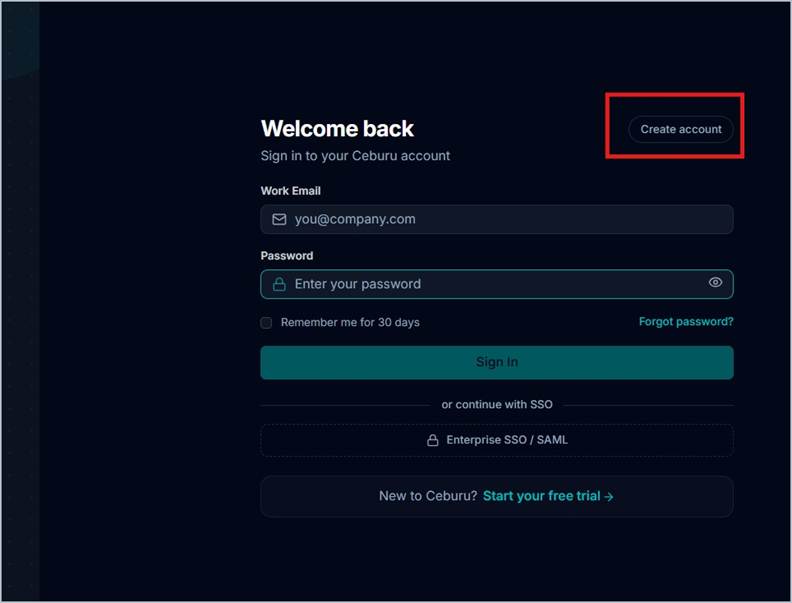
Select Create account to begin registration.
Step 2: Choose a deployment region
Select the deployment region closest to your infrastructure or the region required by your organization, then select Continue.
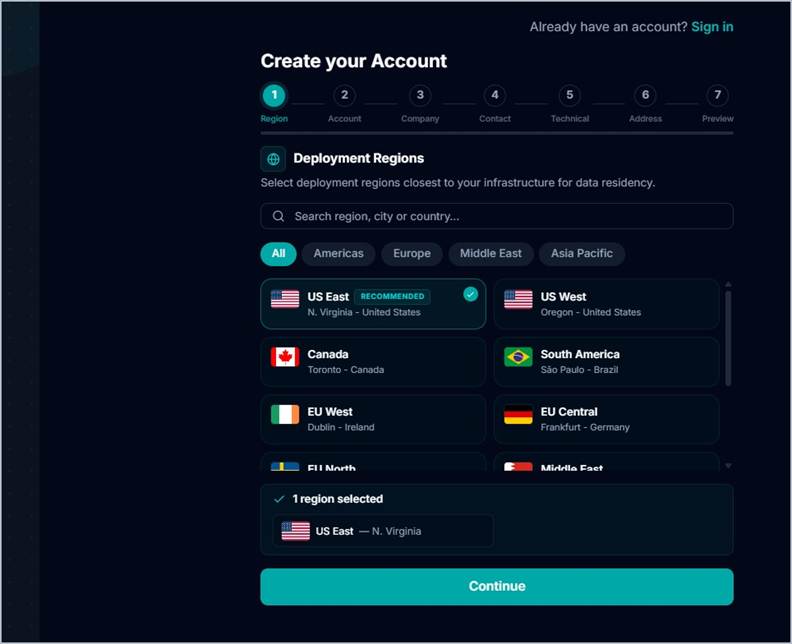
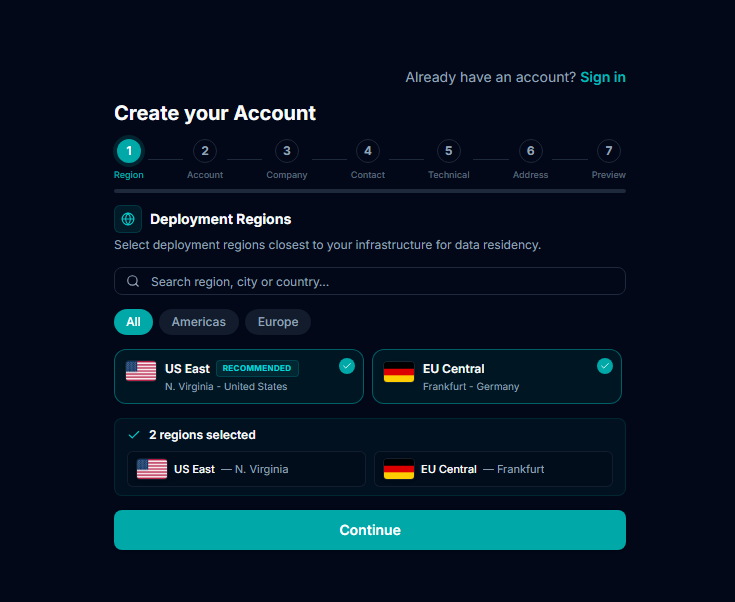
Choose the appropriate deployment region and continue.
Step 3: Enter your work email
Enter your work email address and select Continue. This email becomes the primary email for the account.
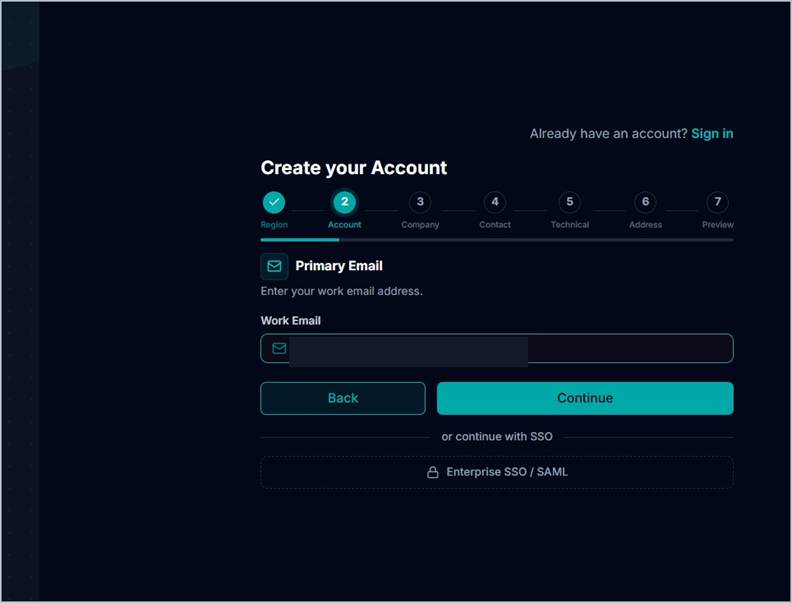
Enter the primary work email address.
Step 4: Enter company details
Provide the company name, industry, company size, and company website. Select Continue when the information is complete.
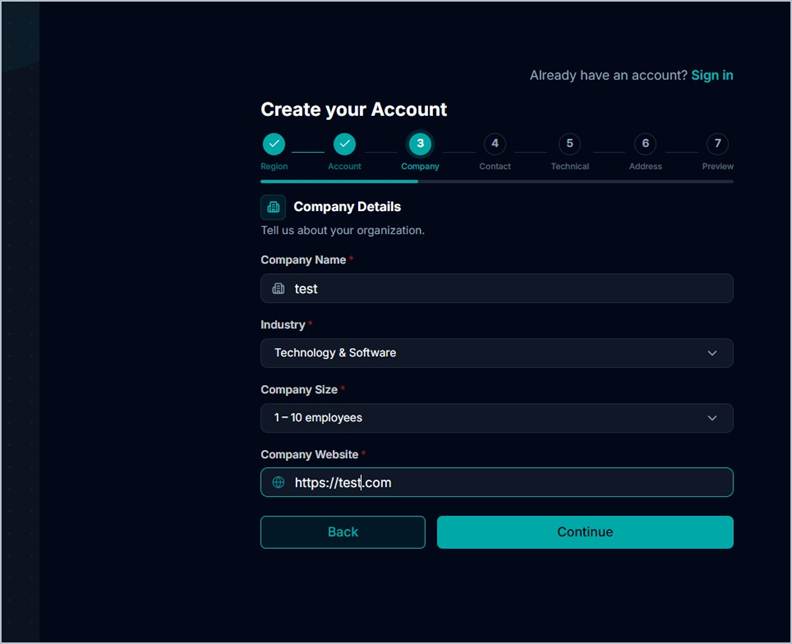
Complete the Company Details section.
Step 5: Enter the primary contact
Provide the primary contact information, including name, job title, and phone number. Review any consent options shown on the page, then select Continue.
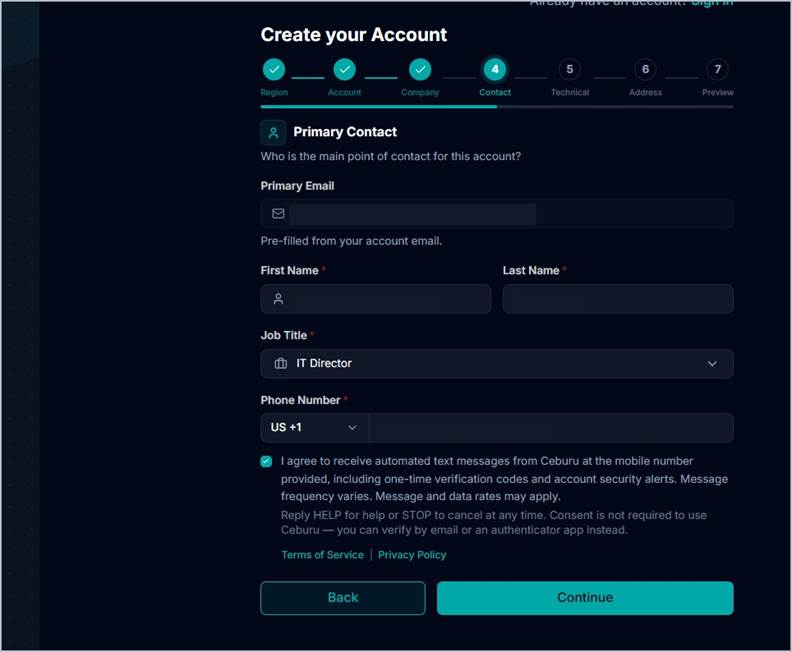
Complete the Primary Contact information.
Step 6: Enter the technical contact
Provide the person responsible for technical setup, integrations, and agent deployments. If the technical contact is the same as the primary contact, use the Same as Primary Contact option when available.
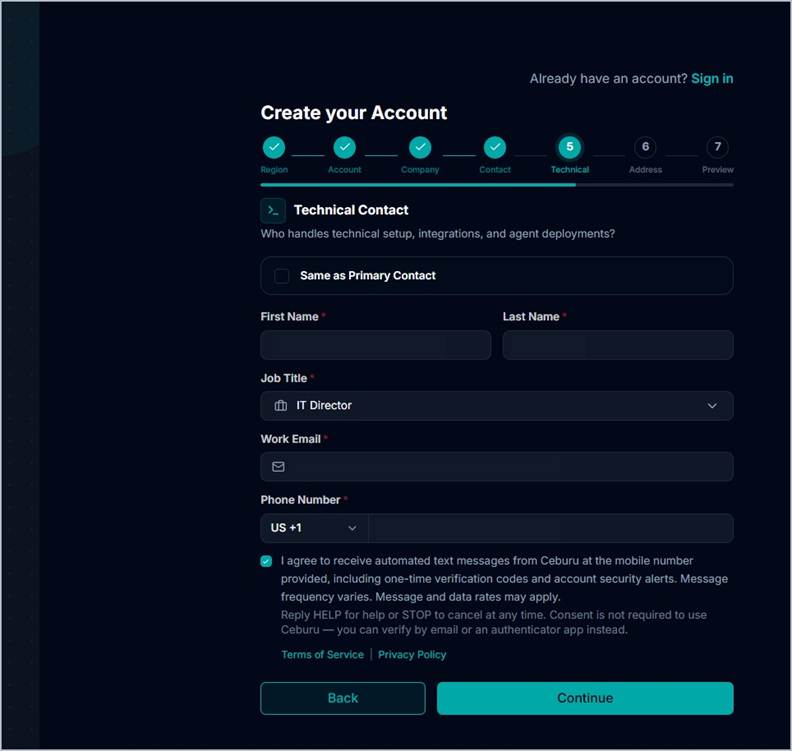
Complete the Technical Contact information.
Step 7: Enter the company address
Enter the company address, city, ZIP or postal code, and country. Select Continue.
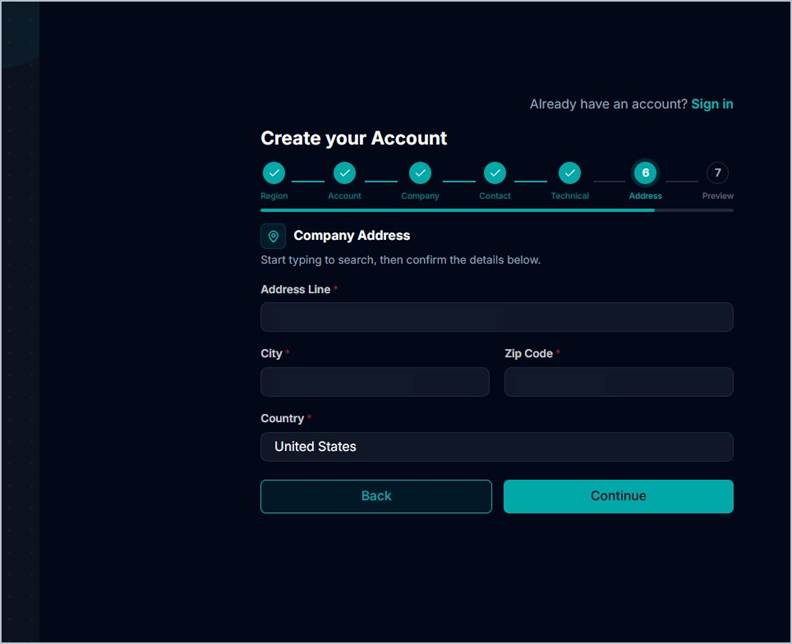
Complete the Company Address section.
Step 8: Review and create the account
Review the account information on the Preview page. Use Edit if any section needs changes. Accept the Terms of Service and Privacy Policy when required, then select Create Account.
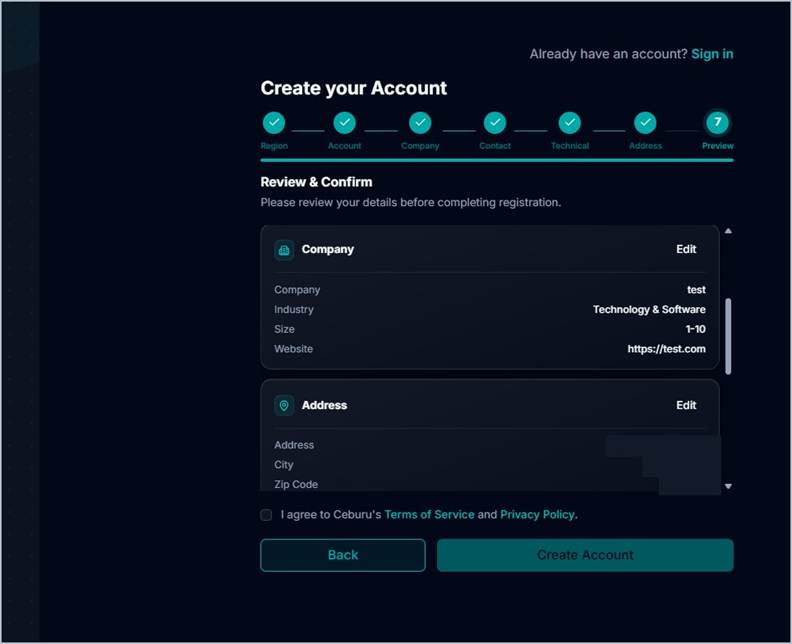
Review the information before creating the account.
Step 9: Open the invitation or activation email
After registration, check the primary email inbox for a Ceburu invitation or activation message. Select Accept Invitation and follow the instructions to activate the account. The invitation email displays its expiration information, so complete activation before it expires.
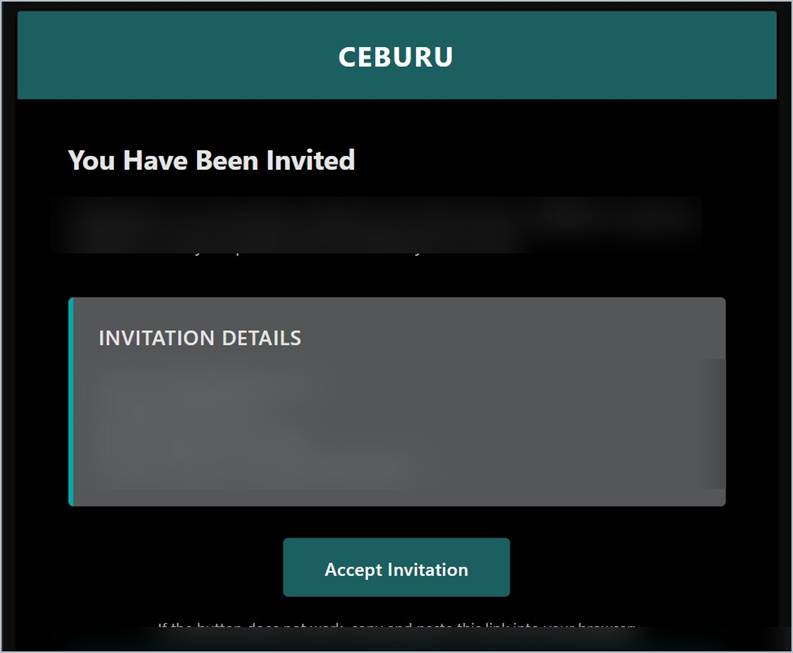
Example Ceburu invitation email. Select Accept Invitation to activate the account.
Tip: If the invitation email does not appear, check the spam or junk folder and confirm that the email address entered during registration is correct. |
2. Sign In to Ceburu
Step 1: Enter your credentials
Open the Ceburu login page and enter your Work Email and Password.
Step 2: Select Sign In
Select Sign In to access your Ceburu account.
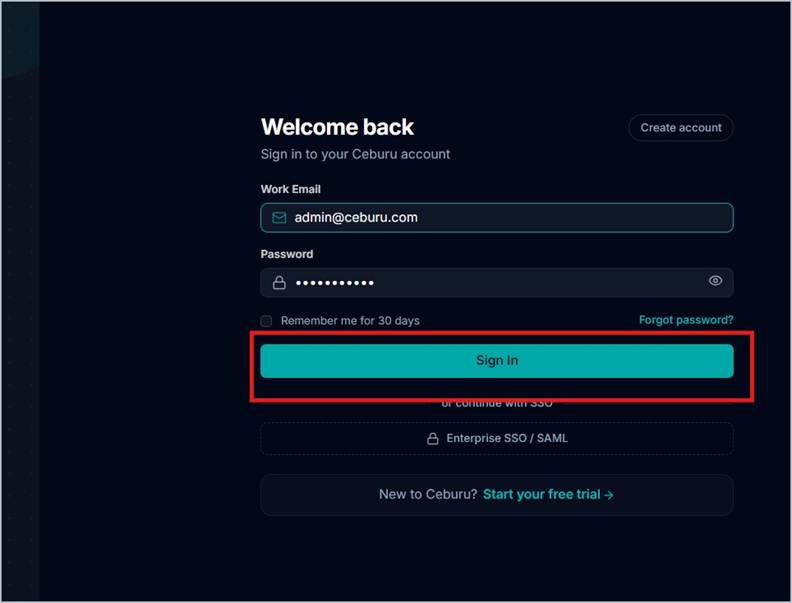
Enter your work email and password, then select Sign In.
If your organization uses Enterprise SSO / SAML, select that option instead of entering a Ceburu password and follow your organization's sign in process. Use the below Link to see the SSO Setup: CeburuAI Single Sign On Setup Guide |
3. Reset a Forgotten Password
Use the password reset process if you cannot remember the password for your Ceburu account.
Step 1: Select Forgot password
From the Ceburu login page, select Forgot password?
Step 2: Enter your registered email
On the Reset your password page, enter the work email registered with Ceburu and select Send email.
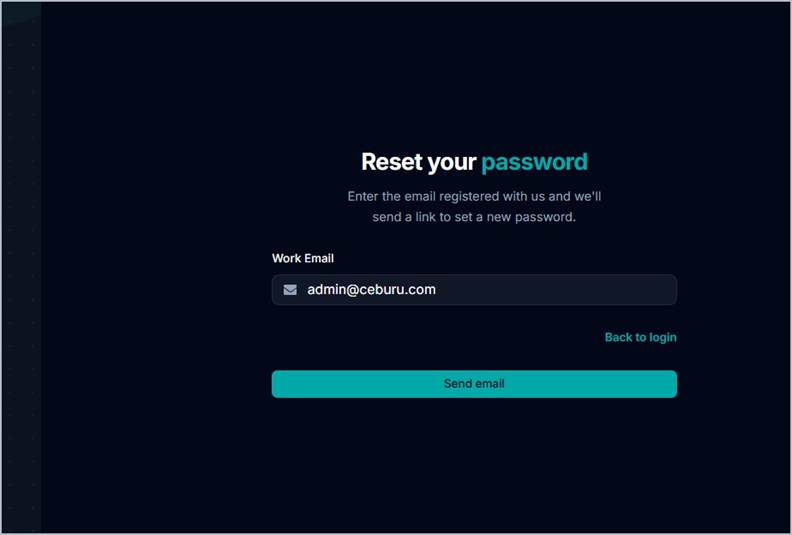
Enter the registered work email and select Send email.
Step 3: Open the password reset email
Check your inbox for the Ceburu Reset Your Password email and use the password reset link or button in that message. The example email states that the reset link is valid for 1 hour and can be used once.
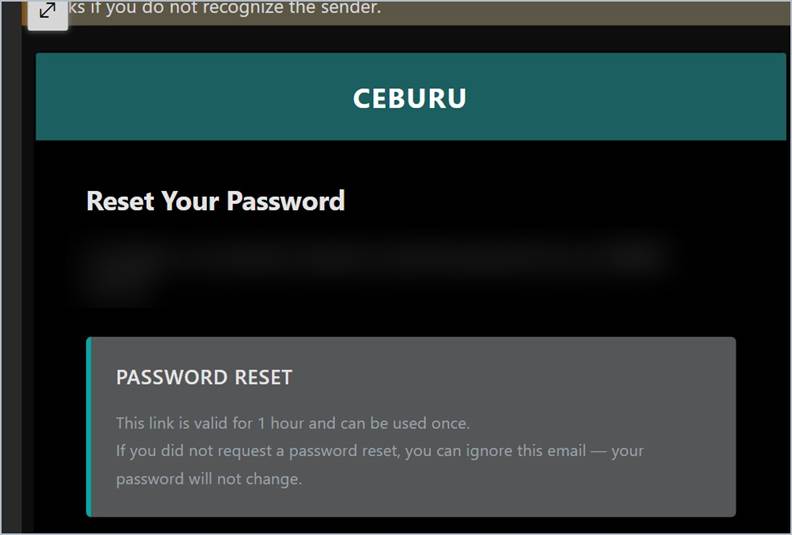
Open the Ceburu password reset email and follow the reset link.
Step 4: Set a new password
Enter a new password, enter it again in Confirm Password, and select Reset Password. Choose a strong password that you have not used before.
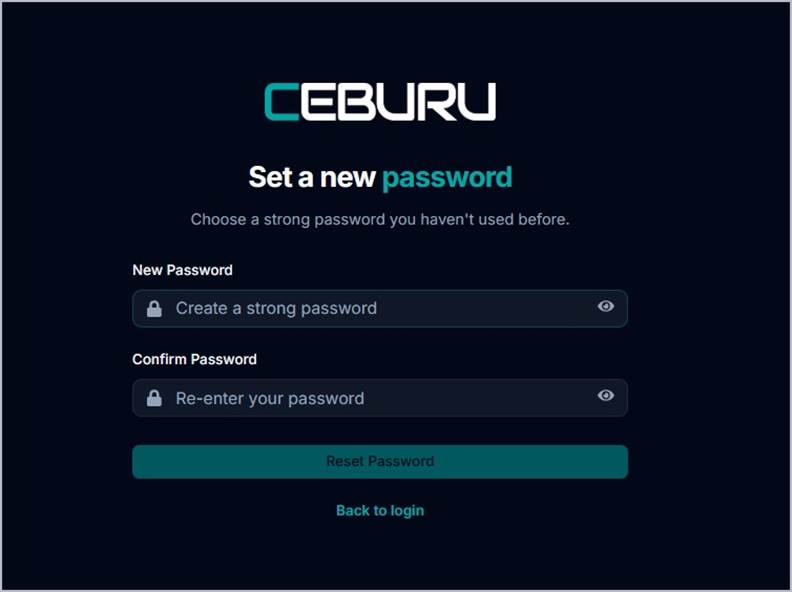
Enter and confirm the new password, then select Reset Password.
Step 5: Return to login
After the password is reset successfully, select Back to login and sign in with the new password.
Access the Auth Portal
After you sign in successfully, you will be redirected to the Ceburu Auth Portal.
From the Auth Portal, you can access the applications and services available to your account.
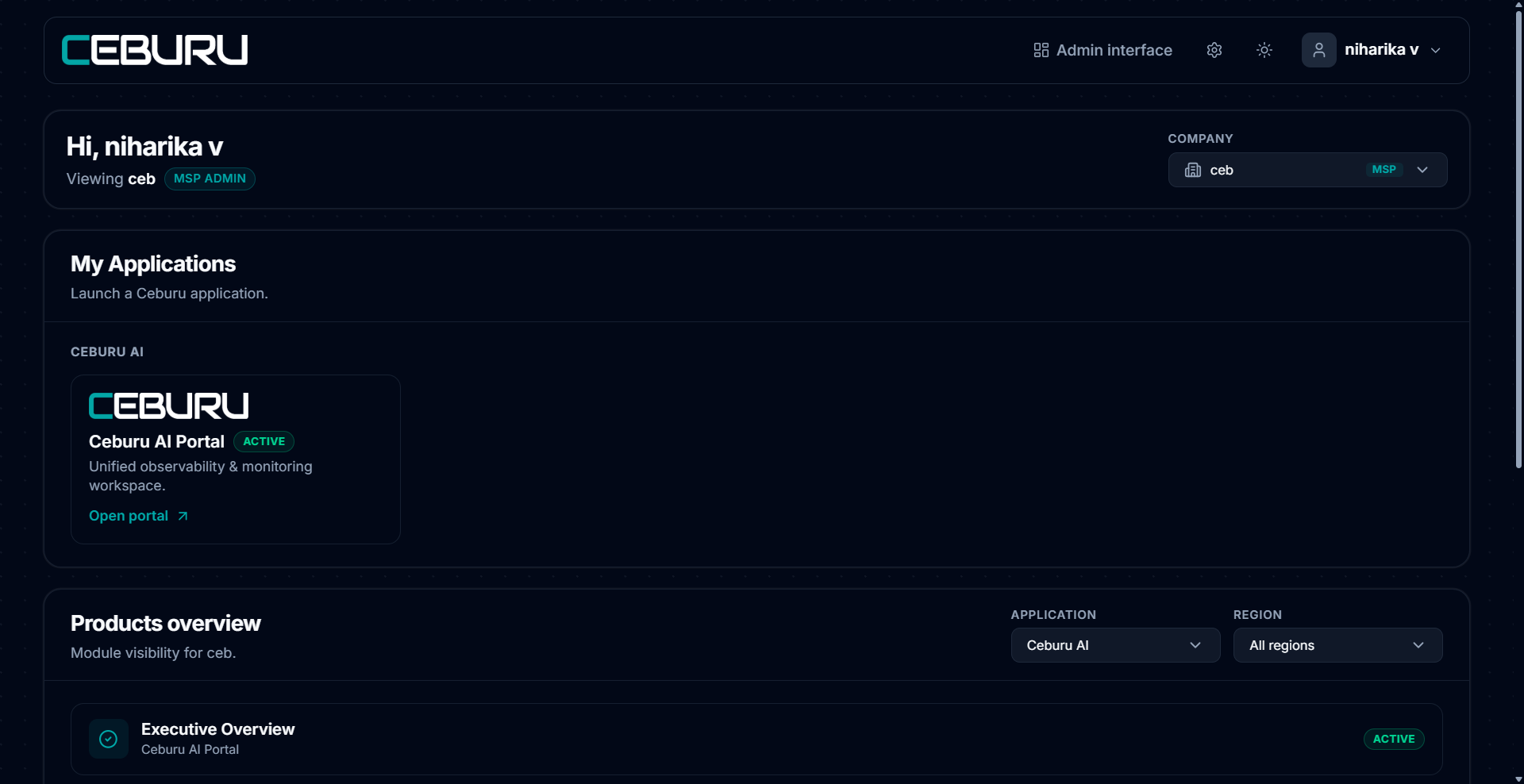
Common Issues:
Invitation email not received: Confirm the work email used during registration and check the spam or junk folder.
Password reset email not received: Make sure you entered the email registered with the Ceburu account. Check the spam or junk folder before requesting another reset.
Reset link expired or already used: Request a new password reset email. The example reset email indicates that each reset link is valid for 1 hour and can be used once.
Unable to sign in after resetting the password: Return to the Ceburu login page and enter the same registered work email together with the newly created password.
For account access problems that continue after following these steps, contact your Ceburu administrator or support contact. |
Was this article helpful?
That’s Great!
Thank you for your feedback
Sorry! We couldn't be helpful
Thank you for your feedback
Feedback sent
We appreciate your effort and will try to fix the article