2FA policy at a glance
Who | What they can do |
MSP administrator | Can require 2FA for all users in a managed DSP company. The requirement is applied at the company security level. |
Administrator adding a user | Can turn on Require 2FA for that user during the invitation process. |
End user | Completes 2FA setup after sign in. For this workflow, configure either Email or Authenticator App. Only one method should be enabled. |
User under an admin enforced policy | Cannot disable 2FA while the administrator requirement is active. |
1. Require 2FA for all users in a company
An MSP administrator can enforce Two Factor Authentication for all users in a managed DSP company. When this setting is enabled, every user in that company must complete 2FA setup before continuing to use the account normally.
1. Open the company security settings
During company onboarding, go to the Security step. For an existing company, review the company security settings from Company Management.
2. Enable Two Factor Authentication
Turn on the Two Factor Authentication requirement. The screen states that every user in the company will be required to set up 2FA when they sign in.
3. Save the company settings
After the company is created or the security setting is saved, the 2FA requirement becomes part of the company security policy.

Figure 1. Company Security step showing the company wide Two Factor Authentication requirement.
What this means for users Once the MSP administrator enables this requirement, users in that company must use 2FA. A user cannot disable 2FA from their personal security settings while the administrator requirement is active. |
2. Require 2FA for an individual user
An administrator can also require 2FA while inviting a user. This is useful when 2FA is required for a specific user even when the company wide setting is not being changed.
1. Go to User Management
Open User Management and select Add User.
2. Enter the user details
Provide the user name, work email, phone number, role, and user group.
3. Enable Require 2FA
Turn on Require 2FA before creating the user. Ceburu will require the user to set up 2FA after the invitation is accepted.
4. Create the user
Select Create to send the invitation with the 2FA requirement applied.

Figure 3. Add User panel with the Require 2FA option.
Administrator enforcement When Require 2FA is enabled for the user, 2FA is mandatory for that account. The user cannot disable the protection while the administrative requirement is active. |
3. User setup: choose one 2FA method
After an administrator requires 2FA, the user must complete setup from Account Settings → Security. For the workflow documented here, the user should configure one of the following methods: Email or Authenticator App.
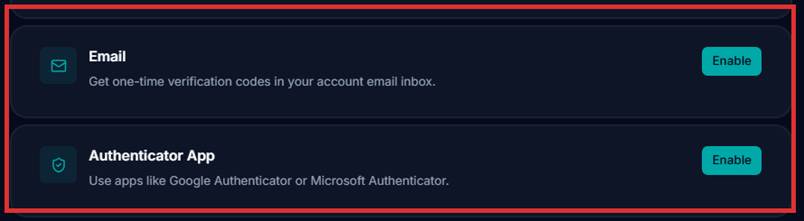
Figure 4. The user can enable Email or Authenticator App from Account Settings → Security.
One method only Enable either Email or Authenticator App. Do not enable both methods at the same time for this configuration. If the Security page also displays Mobile Number, that option is outside the workflow covered by this article. |
Option A: Email
1. Select Enable next to Email
Ceburu uses the email address registered with the account for verification.
2. Complete verification
Follow the verification instructions sent to the account email address.
3. Finish setup
After verification succeeds, Email becomes the account 2FA method.
Option B: Authenticator App
1. Select Enable next to Authenticator App
Use an authenticator application such as Google Authenticator or Microsoft Authenticator.
2. Link the authenticator
Follow the on screen setup process and add the Ceburu account to the authenticator application.
3. Verify the code
Enter the verification code generated by the authenticator application to complete setup.
4. What happens after 2FA is enabled
After setup is complete, 2FA becomes an additional security check for the user account. The exact sign in flow depends on the method selected.
Selected method | What happens at verification |
Ceburu sends a one time verification code to the registered email address. The user enters the code to continue. | |
Authenticator App | The user opens the configured authenticator application and enters the current verification code to continue. |
If an administrator requires 2FA
The administrative policy takes priority over the user setting. The user must keep 2FA enabled for as long as the requirement remains active. If the user needs to change the configured method, the change should be handled according to the organization security process rather than by disabling 2FA.
Recommended administrator workflow
1. Decide whether 2FA should apply to the entire managed company or only to a specific user.
2. For company wide enforcement, enable Two Factor Authentication in the company Security settings.
3. For a specific user, enable Require 2FA when creating or inviting the user.
4. Ask the user to complete setup using either Email or Authenticator App.
5. Confirm the user can sign in successfully with the configured method.
Was this article helpful?
That’s Great!
Thank you for your feedback
Sorry! We couldn't be helpful
Thank you for your feedback
Feedback sent
We appreciate your effort and will try to fix the article