DB KPI Configuration and Management
Overview:
The DB KPI module allows you to configure database performance monitoring by creating DB KPI profiles and mapping them to DB KPI configurations. This setup is completed in two main stages:
Creating a DB KPI Profile
Creating and managing DB KPI configurations under DB KPI Management
Both steps are mandatory for DB KPI monitoring to function correctly.
Go to Settings
Click on Configurations
Select DB KPI
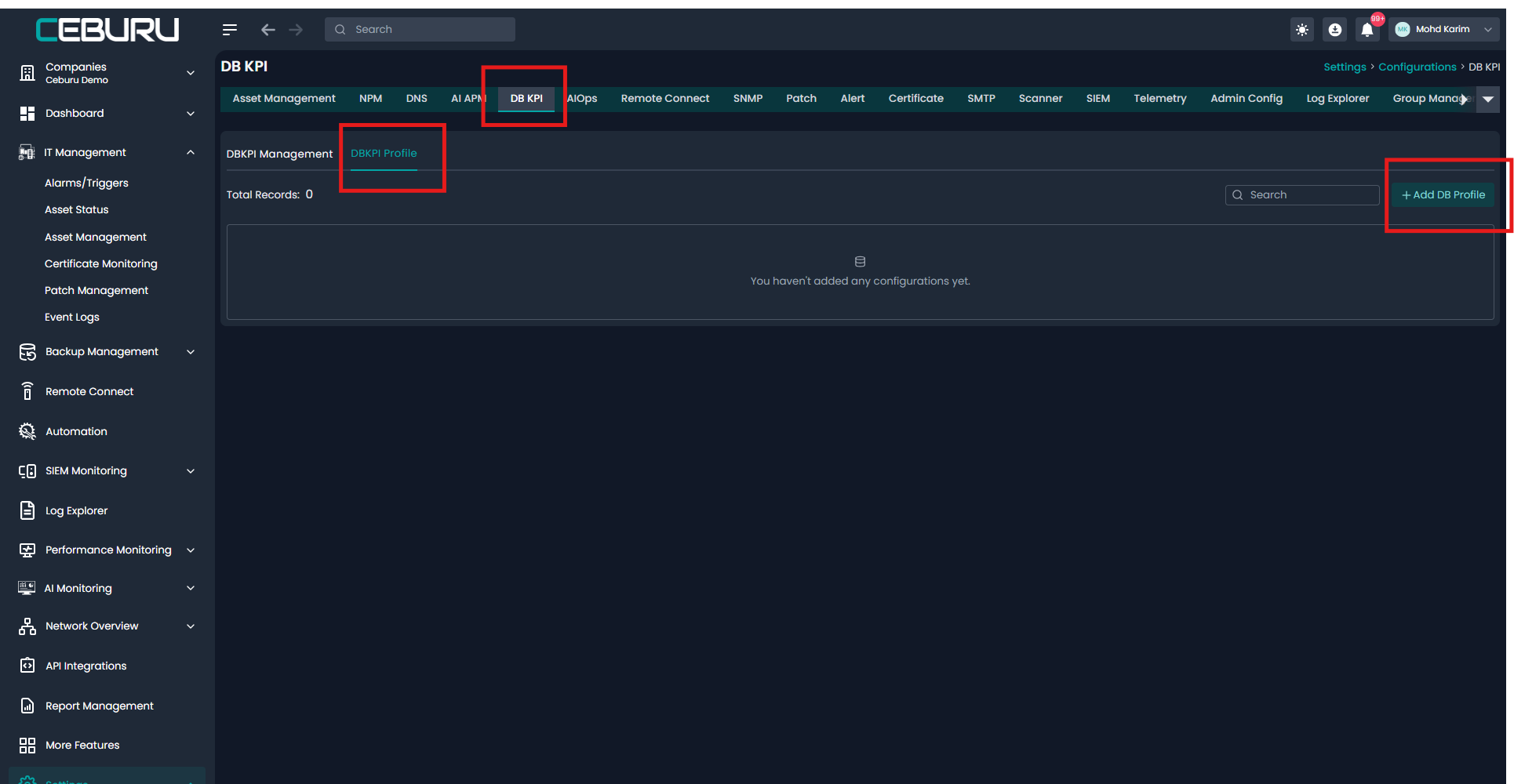
You will now see the DB KPI configuration screen with two sections:
DB KPI Profile
DB KPI Management
Create a DB KPI Profile:
A DB KPI Profile stores database connection and authentication details. This profile is later reused while creating DB KPI configurations.
Steps to Add a DB KPI Profile
From Settings → Configurations → DB KPI, stay on the DB KPI Profile tab
Click Add DB Profile on the right side
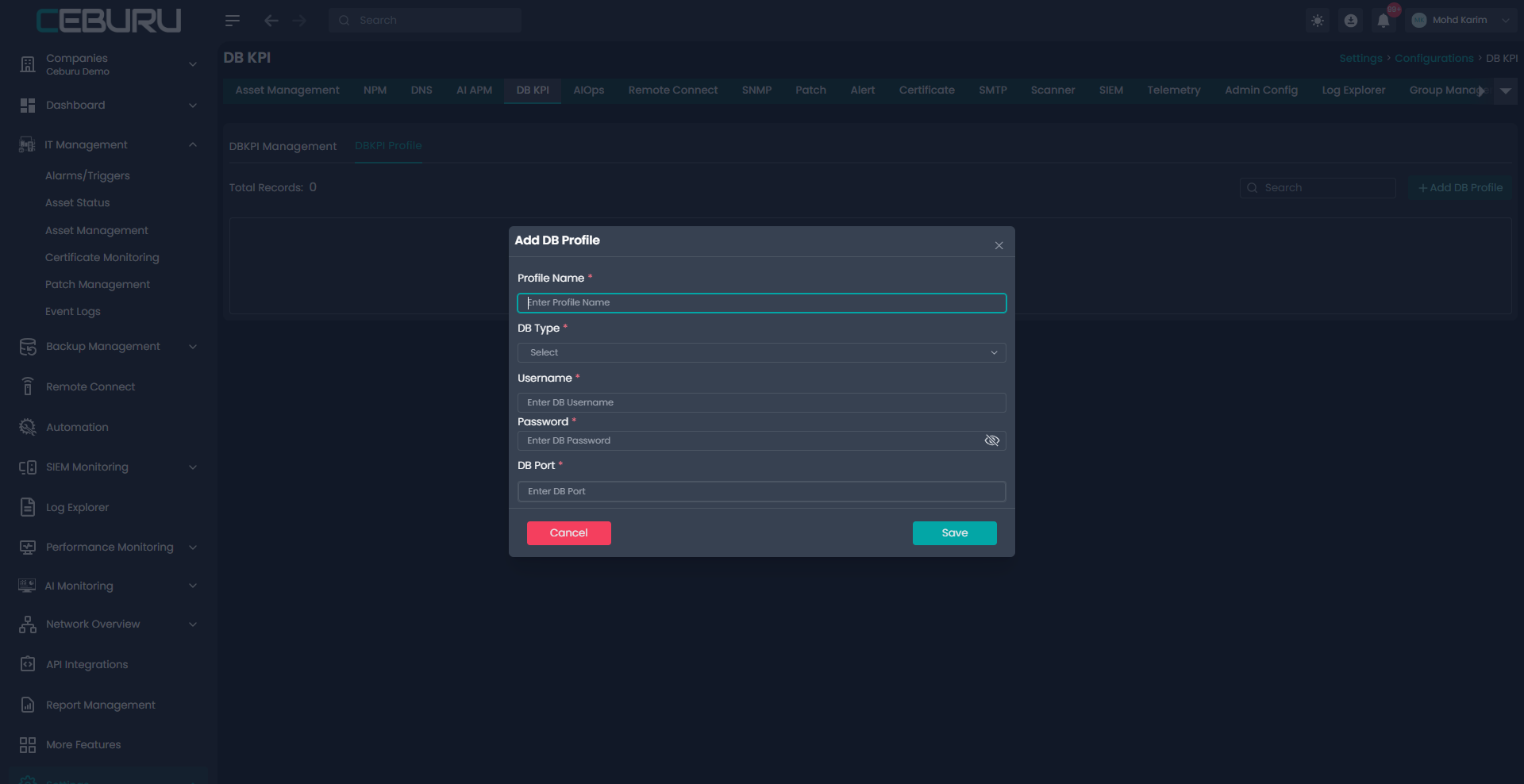
The Add DB Profile dialog opens.
Fields to Fill
Profile Name
Enter a unique and descriptive name for the DB KPI profileDB Type
Select the database type from the dropdown
Example MySQL, PostgreSQL, MSSQL, OracleUsername
Enter the database username with read access to required performance metricsPassword
Enter the corresponding database passwordDB Port
Enter the database port number
Example 3306 for MySQL, 5432 for PostgreSQL, 1433 for MSSQL
Save Profile
Click Save
Result:
The DB KPI profile is created successfully
The profile appears in the DB KPI Profile dashboard
This profile can now be reused when configuring DB KPI monitoring
Create DB KPI Management Configuration:
After creating at least one DB KPI profile, you can configure DB KPI monitoring for specific database instances.
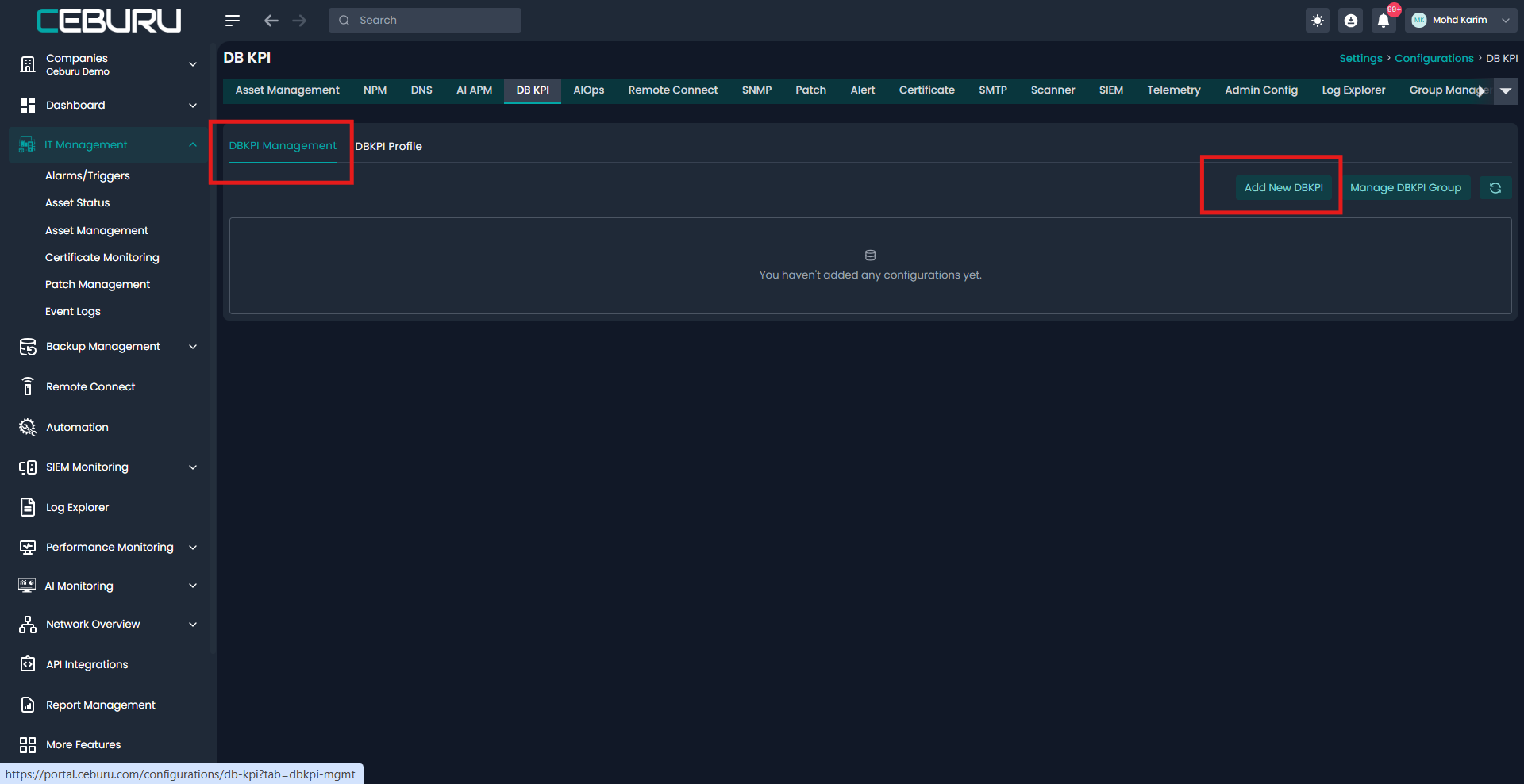
Navigate to DB KPI Management
Click on the DB KPI Management tab
Click Add New DBKPI
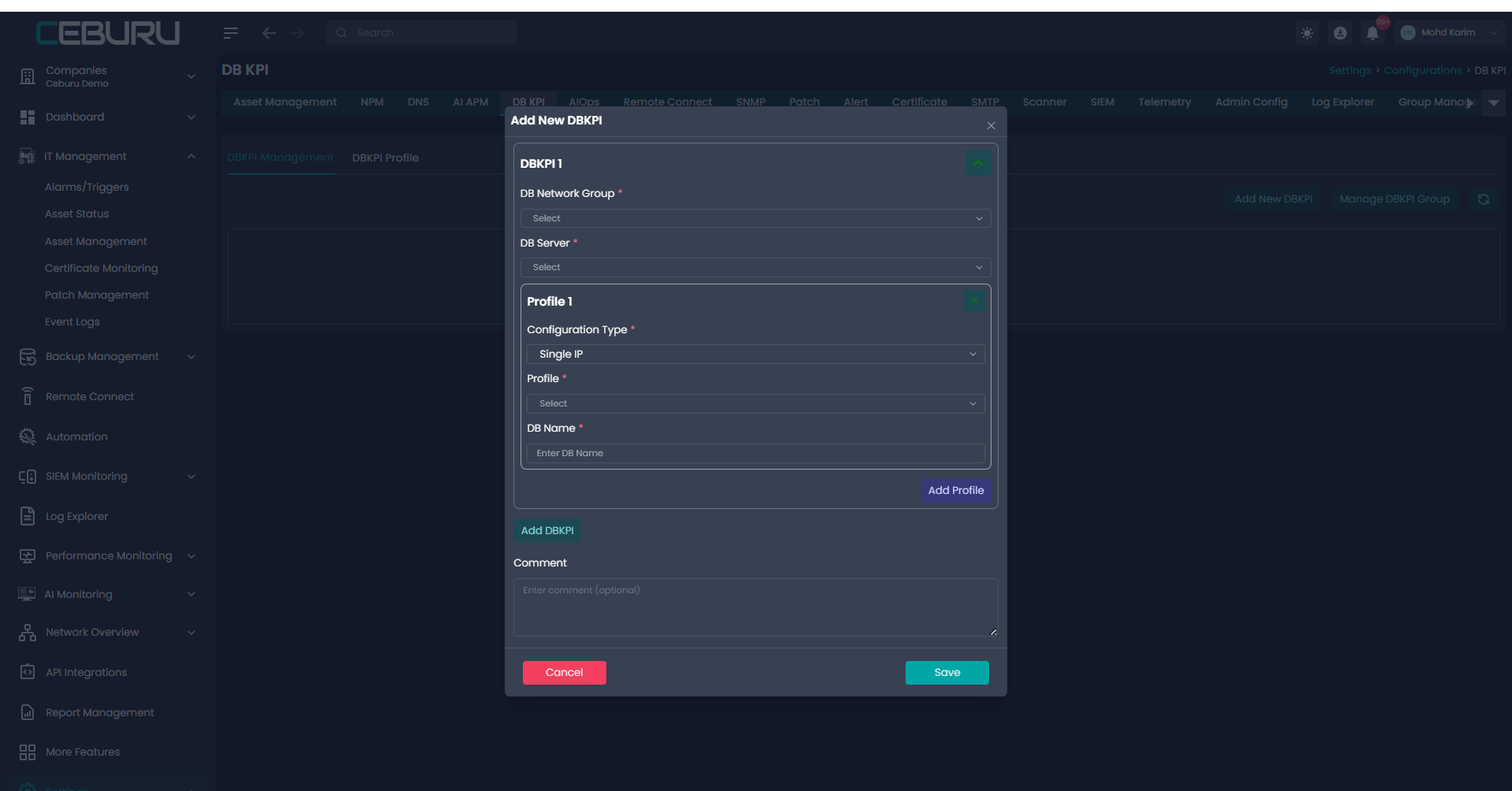
The Add New DBKPI window opens.
Configure DB KPI Details
DB Network Group
Select the database network group where the database server residesDB Server
Select the target database server from the list
Profile Configuration Section
Configuration Type
Select the configuration type
Example Single IPProfile
Select the previously created DB KPI ProfileDB Name
Enter the database name that needs to be monitoredClick Add Profile if multiple profiles or databases need to be added
Optional Fields
Comment
Enter any additional notes or description for this DB KPI configuration
Save Configuration
Click Save
Result:
The DB KPI configuration is listed in the DB KPI Management dashboard
The database is now enabled for KPI monitoring
Metrics collection begins based on the configured profile and server
Managing DB KPI Groups:
From the DB KPI Management dashboard, you can:
View all configured DB KPIs
Group multiple DB KPIs using Manage DBKPI Group
Modify or organize DB KPI configurations for better management
Once the DB KPI Profile and DB KPI configuration are successfully created, the system begins collecting database performance metrics. These metrics are visualized under the Database Performance section.
Was this article helpful?
That’s Great!
Thank you for your feedback
Sorry! We couldn't be helpful
Thank you for your feedback
Feedback sent
We appreciate your effort and will try to fix the article