1. Portal & Whitelisting:
Whitelist the following Ceburu AI endpoints:
- auth.ceburuai.com
- portal.ceburuai.com
- ceburu-media.s3.amazonaws.com
- ceburuai-data-us-prod.s3.amazonaws.com
- ingest.ceburuai.com
- us-ingest-telemetry.ceburuai.com
- Ensure TCP port 443 is open on the probe or internet enabled machines.
- Complete registration using the Registration Link.
- Set up your password using the onboarding email.
- Add the relevant team members after account activation.
2. Credentials Required (Based on Features and Endpoints):
- WinRM credentials for Windows monitoring.
- SNMP credentials for network monitoring.
- SSH keys for Linux. Add an existing private key through the UI or use a CeburuAI provided public key.
3. System Requirements:
Component | Minimum Requirement |
CPU | 8 cores, 16 threads |
RAM | 32 GB |
Network | Public internet connectivity |
Operating System | Windows Server 2019, 2022, or later |
4. Machine Requirements:
- Ensure designated Windows machines have internet access.
- Ensure the required configurable ports are available for selected Ceburu services and features.
- Allowlist CeburuAI installation directories and components in Microsoft Defender and endpoint security software.
5. Installation:
- Complete the required prerequisites.
- Follow the Ceburu AI Installation and Configuration Guide.
- Schedule an installation assistance call with the Ceburu team if required.
Ceburu AI Connectivity Verification Script for Installed Machines
Purpose: Run this PowerShell script on machines where Ceburu AI is installed to verify connectivity to all required Ceburu AI endpoints over HTTPS (TCP port 443).
$domains = @(
    "auth.ceburuai.com",
    "portal.ceburuai.com",
    "ceburu-media.s3.amazonaws.com",
    "ceburuai-data-us-prod.s3.amazonaws.com",
    "ingest.ceburuai.com",
    "us-ingest-telemetry.ceburuai.com"
)

[Net.ServicePointManager]::SecurityProtocol = [Net.SecurityProtocolType]::Tls12

Write-Host "`nCeburu AI - Connectivity Check`n" -ForegroundColor Cyan

foreach ($d in $domains) {
    try {
        Invoke-WebRequest -Uri "https://$d" -Method Head -UseBasicParsing -TimeoutSec 10 | Out-Null
        $ok = $true
    } catch {
        # Any HTTP response (403, 404, etc.) means the domain is reachable
        $ok = [bool]$_.Exception.Response
    }

    if ($ok) {
        Write-Host ("[ OK ]      {0}" -f $d) -ForegroundColor Green
    }
    else {
        Write-Host ("[ BLOCKED ] {0}" -f $d) -ForegroundColor Red
    }
}

Write-Host "`nIf any domain shows BLOCKED, please ask your network team to whitelist it (HTTPS, TCP 443).`n"
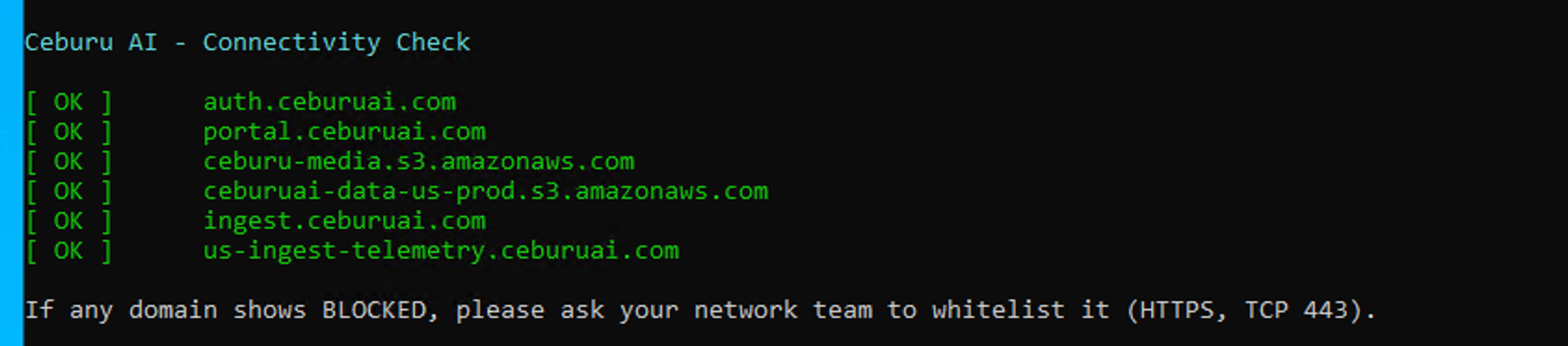
If the connectivity check is successful, you will see the following output, with all six Ceburu AI endpoints showing [ OK ] in green, confirming that the required endpoints are reachable over HTTPS (TCP port 443).
Was this article helpful?
That’s Great!
Thank you for your feedback
Sorry! We couldn't be helpful
Thank you for your feedback
Feedback sent
We appreciate your effort and will try to fix the article