Viewing On-Prem Logs
On-Prem Log Viewing lets you browse and search logs that never leave your infrastructure. Logs are buffered and indexed locally on your own machine by the CeburuAI passive forwarder; when you search from the portal, the query runs on your site and only the matching results are shown — nothing is ingested into the cloud.
When to use it: sources with data-residency or compliance requirements, high-volume logs you don’t want to ship out, or anything you’d like to keep strictly on-site while still using the portal’s explorer.
Requirements
- A passive log forwarder installed on a Windows device in the region.
- Cloud ingestion disabled on that forwarder — On-Prem Log Viewing is available only when cloud ingestion is off. (With cloud ingestion on, your logs are in the cloud and you’d use the regular explorer instead.)
- Local disk space: plan for roughly 2.5 × your expected log volume. The forwarder buffers your raw logs on disk and builds a local search index alongside them, so a source producing 100 GB of logs needs about 200 GB free on the selected volume.
Step 1 — Add a passive forwarder
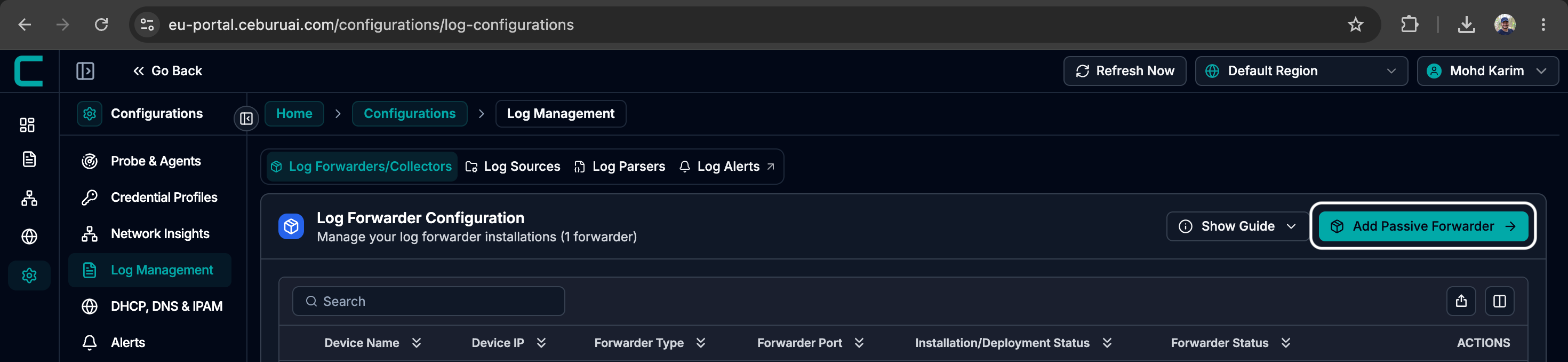
Go to Configurations → Log Management → Log Forwarders/Collectors and click Add Passive Forwarder.
Step 1 — Add Passive Forwarder in Log Forwarder Configuration
Step 2 — Configure the forwarder
Select the device and set the forwarder port, installation path, buffer size and retention, and the indexer port. Leave the Cloud Ingestion toggle off to keep logs on-prem.
Step 2 — Passive forwarder settings, with Cloud Ingestion switched off
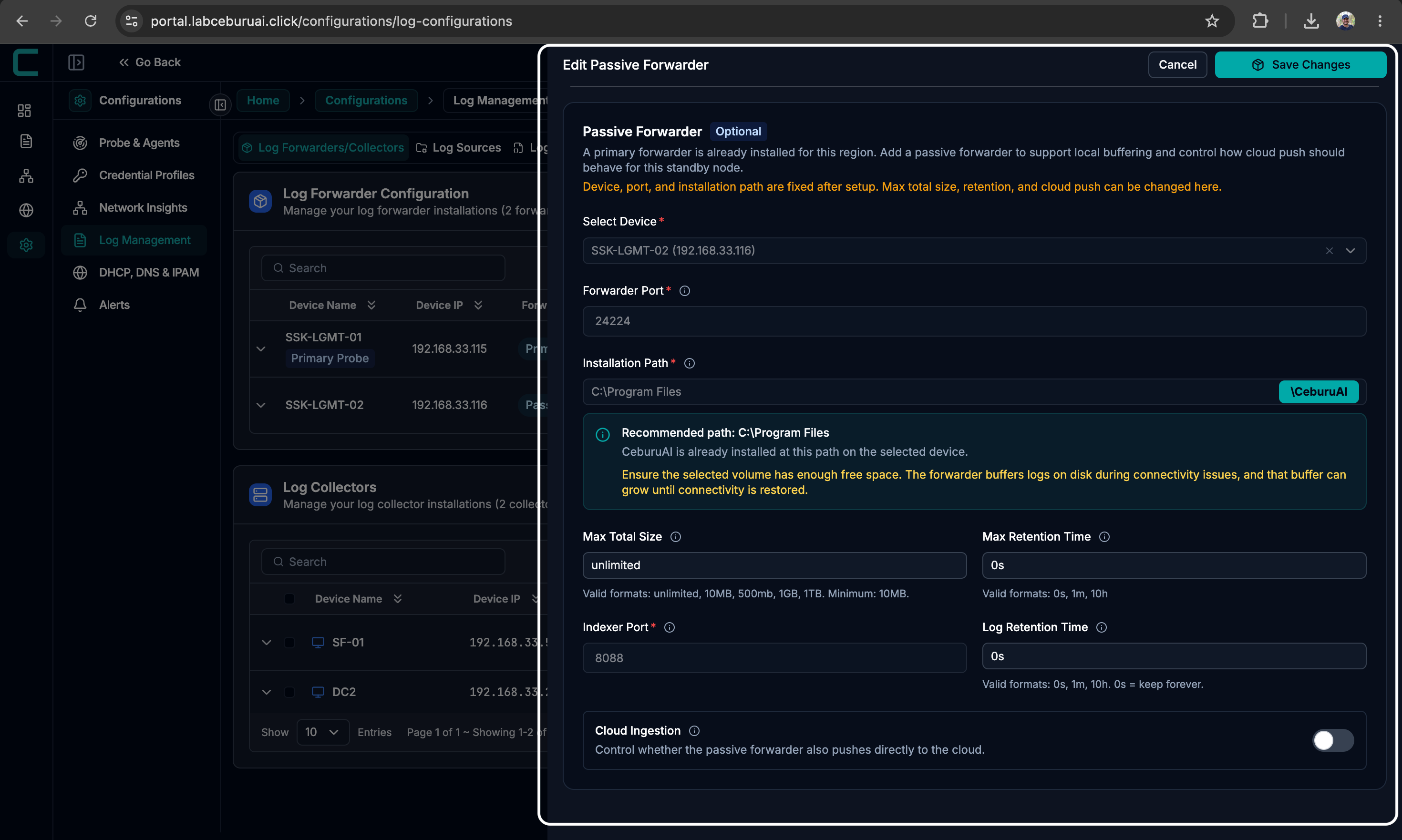
⚠️ Device, port, and installation path are fixed after setup — buffer size, retention, and cloud ingestion can be changed later. Make sure the selected volume has the ~2.5 × free space described above.
Step 3 — Check cloud ingestion is disabled
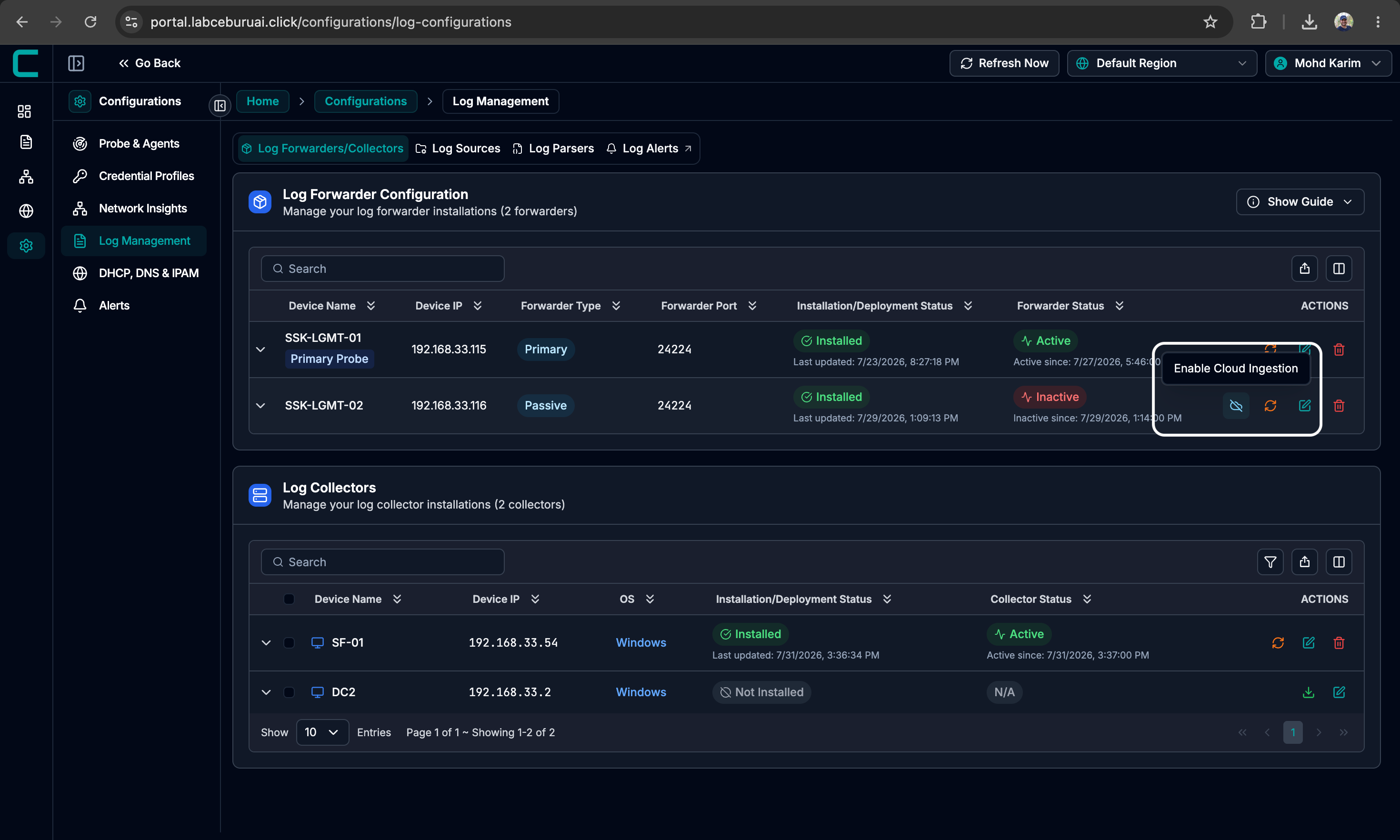
In the forwarders table you can see each forwarder’s status and toggle cloud ingestion from the row actions. For on-prem viewing, it must remain disabled.
Step 3 — Cloud ingestion control in the forwarder row actions
Step 4 — Open On-Prem Logs
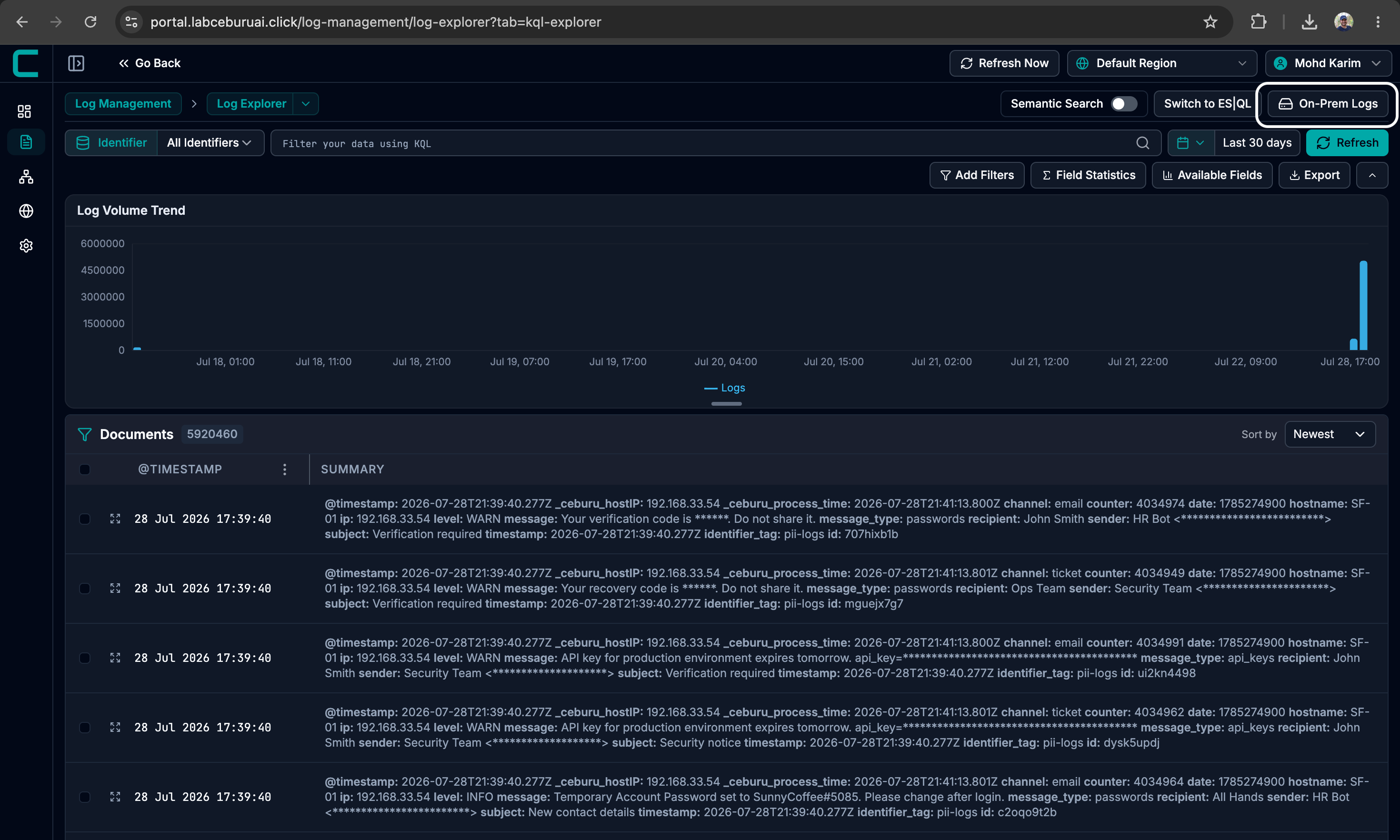
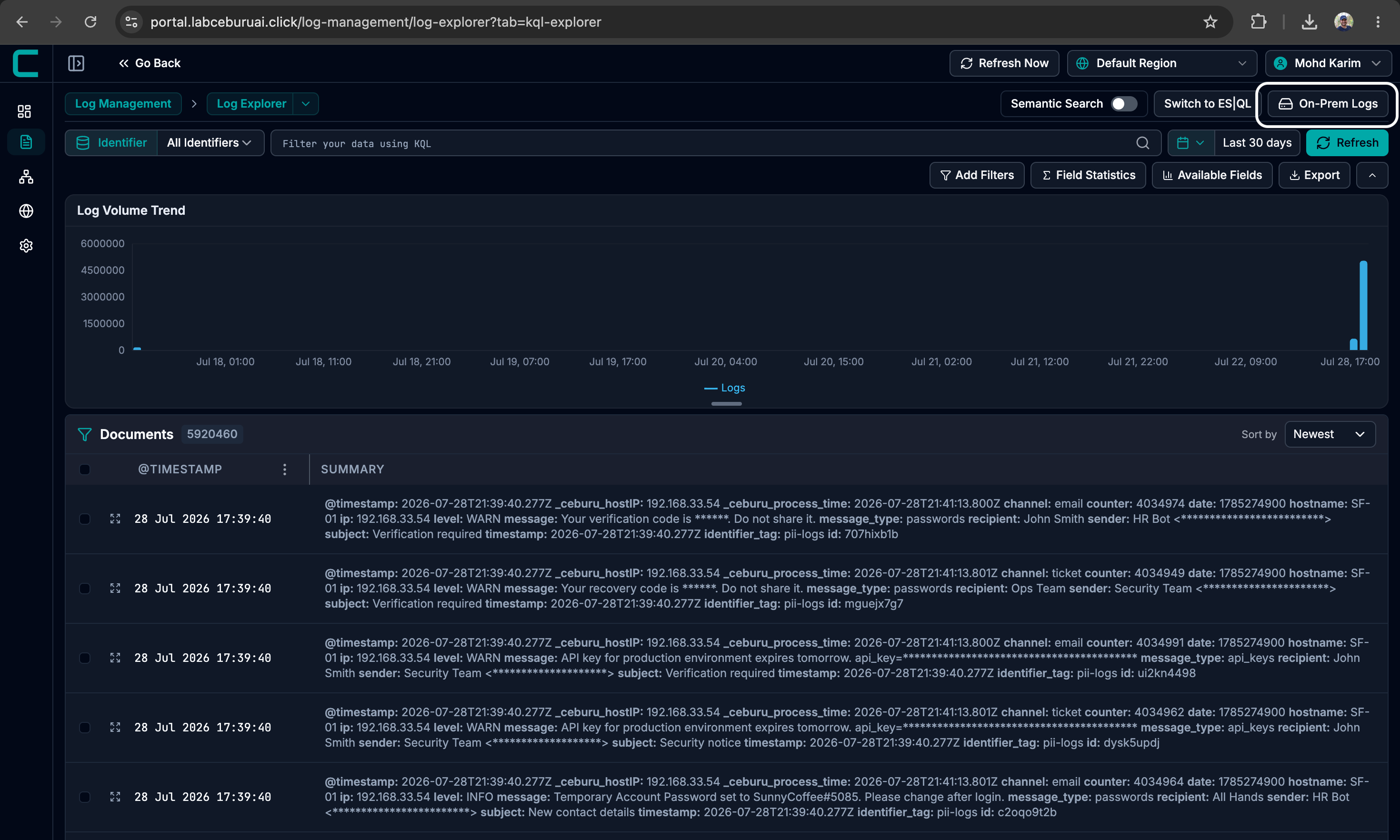
Once a passive forwarder is installed and cloud ingestion is disabled, an On-Prem Logs button appears in Log Explorer. Click it to switch views. (Use On Cloud Logs to switch back at any time.)
Step 4 — The On-Prem Logs button in Log Explorer
Step 5 — The on-prem explorer
The on-prem view works like the regular explorer: pick an identifier, set a time range, and filter. The Indexing button opens the indexing panel.
Step 5 — The on-prem explorer with the Indexing button
Step 6 — Index your logs
Logs become searchable once they’re indexed. You can start indexing two ways:
- Change the time range in the explorer — logs for the selected window are indexed automatically, or
- Open the Indexing panel and start a run yourself: pick Last 1 day, Last 2 days, Last 7 days, or a custom number of days, then click Start Indexing.
⚠️ Indexing is limited to a maximum of the last 7 days.
Step 6 — The On Prem Indexing panel with window presets and run status
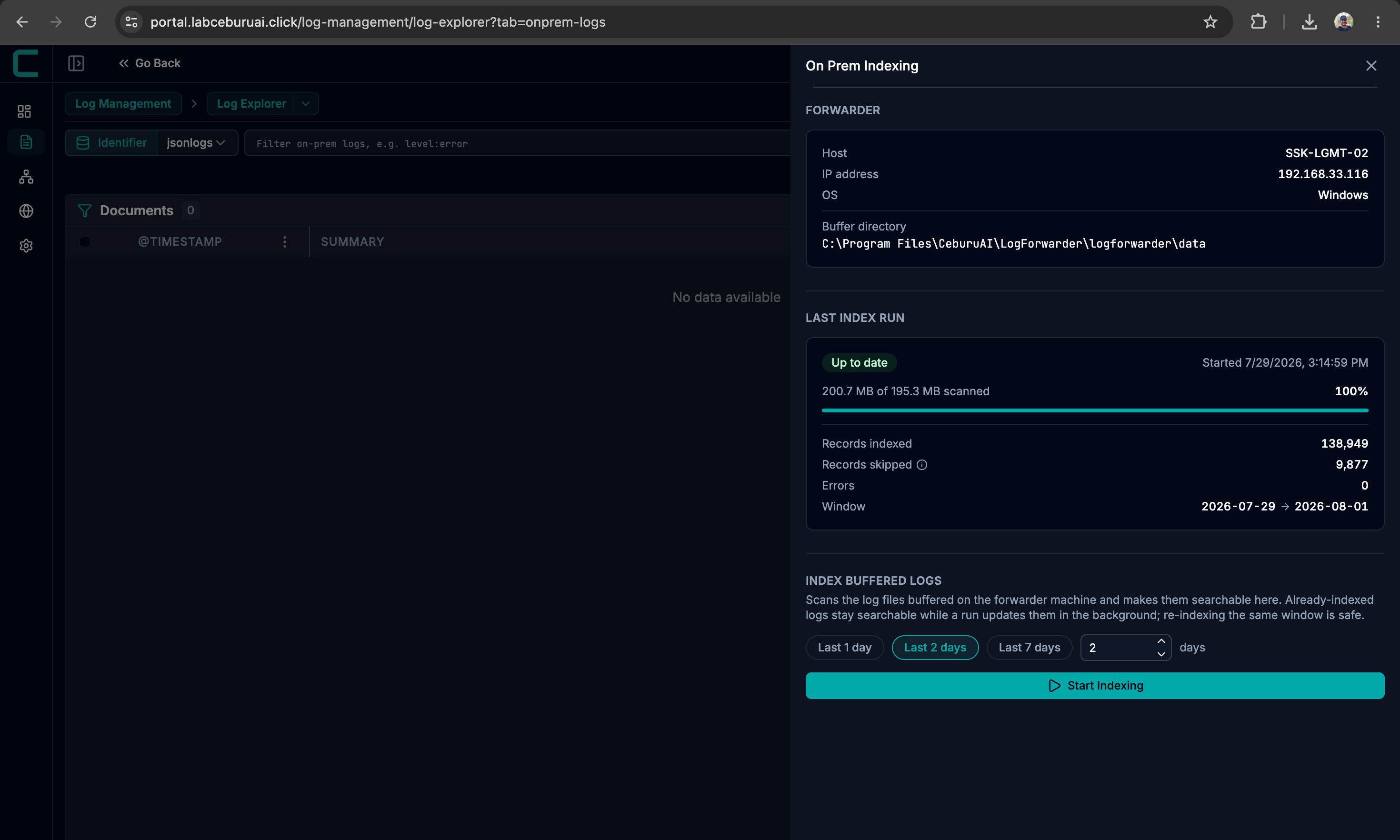
The panel also shows the forwarder’s details (host, buffer directory) and the last index run: how much data was scanned, records indexed and skipped, errors, and the covered window. Already-indexed logs stay searchable while a new run updates in the background, and re-indexing the same window is safe.
Step 7 — Search your on-prem logs
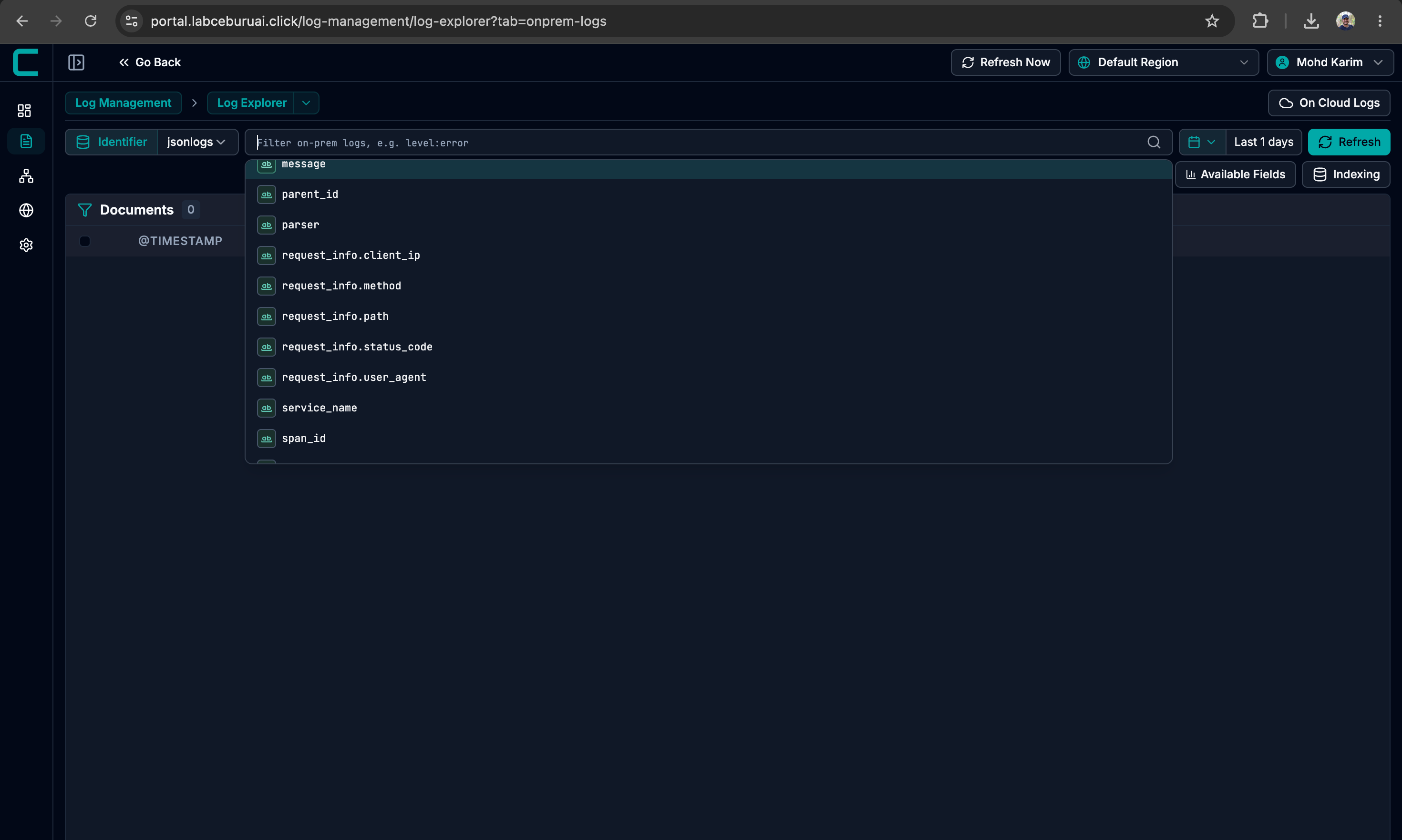
Filter with the same query syntax as the cloud explorer — field suggestions pop up as you type (e.g. level:error, service_name, request_info.status_code). Each search runs live against the index on your machine, so results can take a few seconds longer than cloud searches.
Step 7 — Filtering on-prem logs with field suggestions
How your data stays on-prem
| Cloud logs | On-prem logs | |
|---|---|---|
| Log storage | CeburuAI cloud | Your infrastructure only |
| Search index | CeburuAI cloud | Local, on your machine |
| Search execution | Cloud | On your machine, on demand |
| What the portal sees | Full logs | Only the results of your query, when you run it |
Troubleshooting
- No On-Prem Logs button in Log Explorer — the region needs a passive forwarder installed and cloud ingestion disabled on it. Check both under Configurations → Log Management.
- Searches fail or time out — confirm the forwarder machine is online and the forwarder shows Active in the configurations page.
- No documents for a time range — that window may not be indexed yet. Open the Indexing panel and start a run covering it (up to the last 7 days).
- Running out of disk space — revisit the buffer’s max size and retention settings on the forwarder, and remember the 2× storage guideline.
Was this article helpful?
That’s Great!
Thank you for your feedback
Sorry! We couldn't be helpful
Thank you for your feedback
Feedback sent
We appreciate your effort and will try to fix the article