After DHCP is configured under DDI, IP Address Management (IPAM) becomes available for that DHCP server.
From DDI → IPAM, the system lists all configured DHCP servers. Selecting a server redirects to the IPAM page, where all discovered and managed IP structures are displayed.
All scope and IP related information displayed in IPAM is fetched directly from the configured DHCP server IP.
This includes:
Total scopes
Total IPs
Available IPs
Reserved IPs
Excluded IPs
Held IPs
Lease information
IPAM does not calculate these values independently. The DHCP server remains the source of truth.
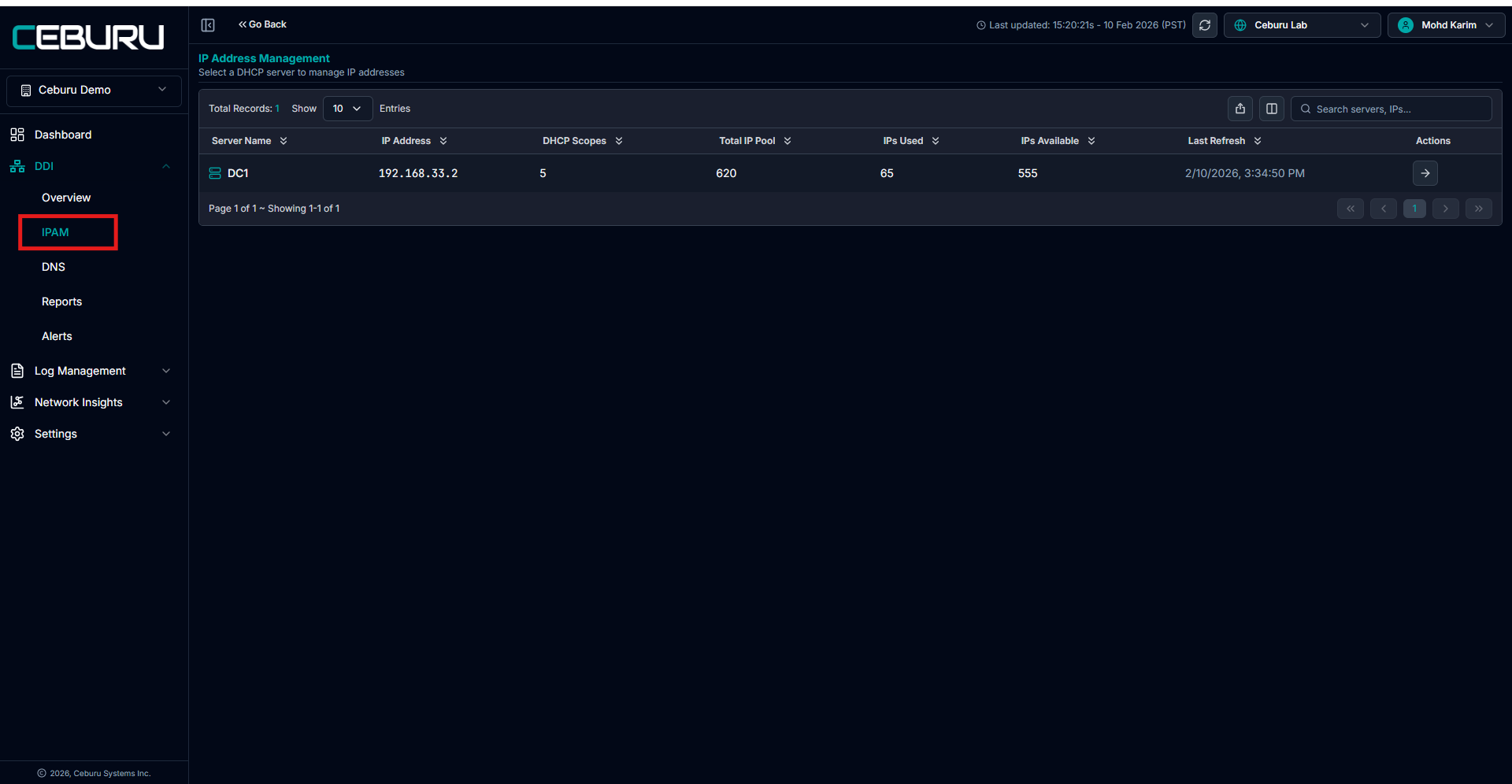
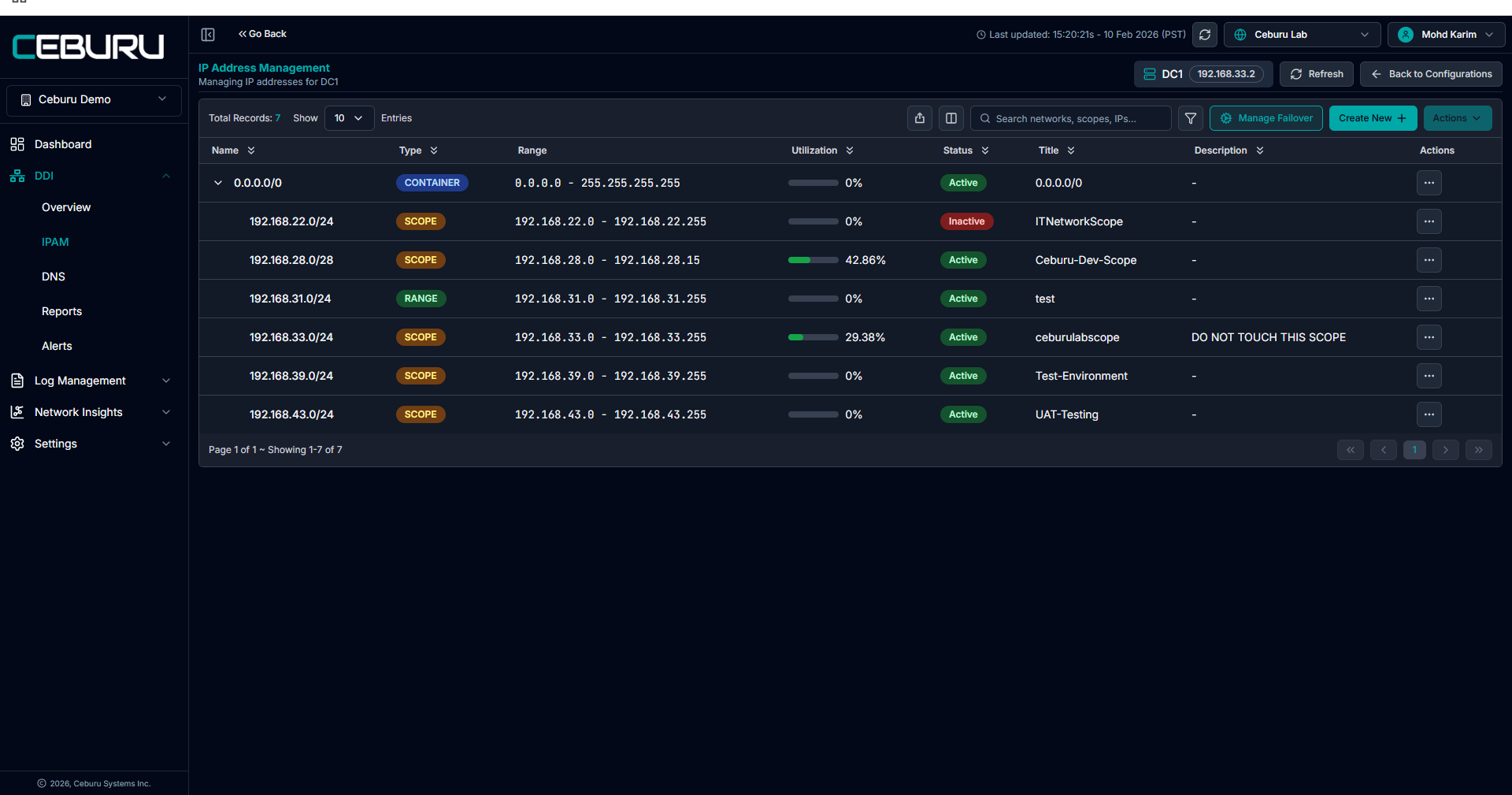
In the IPAM view, you can see:
Containers
Networks (Ranges)
DHCP Scopes
Each entry shows its CIDR range, utilization, status, title, and description. This provides full visibility into how IP space is organized and consumed on the selected DHCP server.
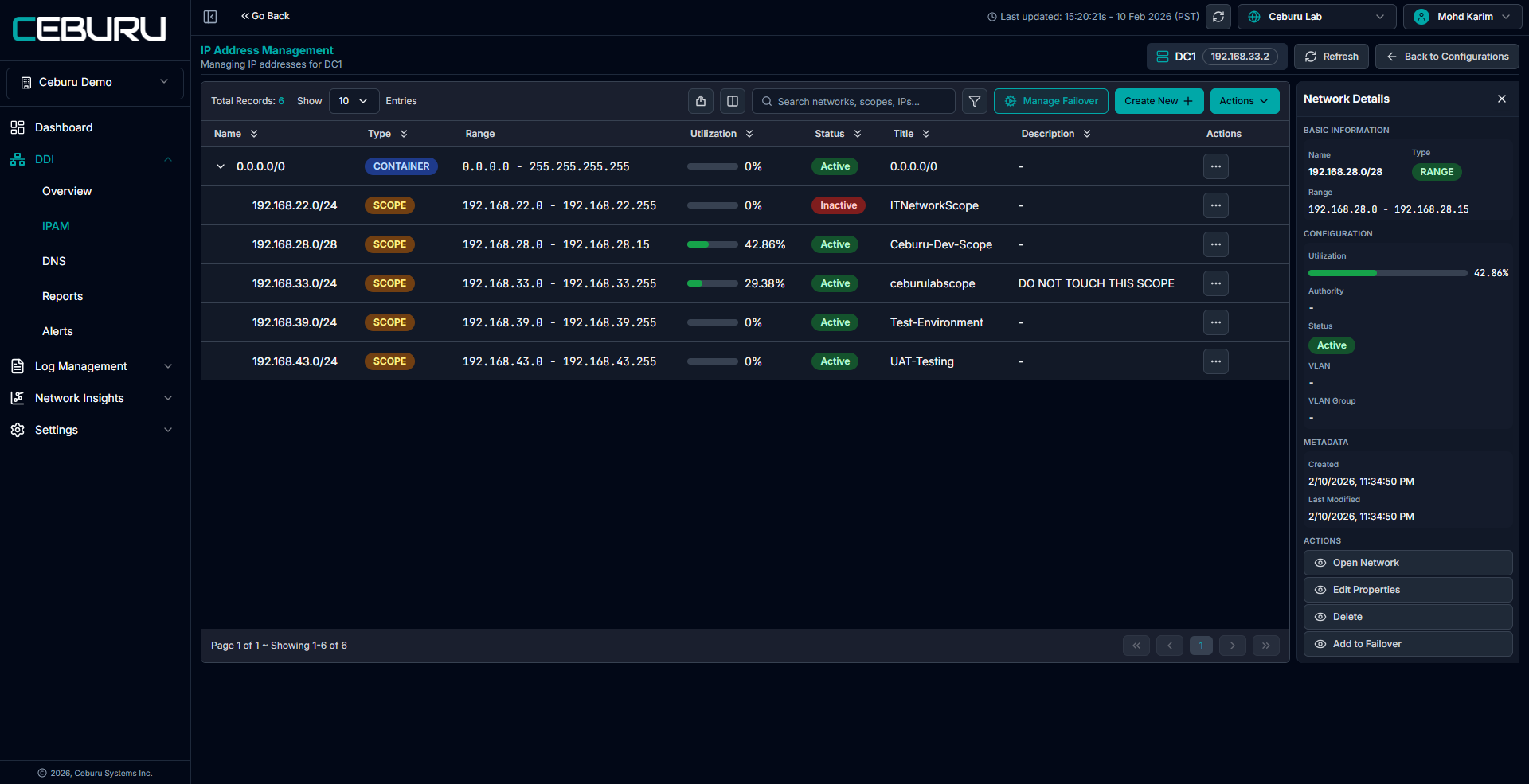
Using the Actions menu on any container, range, or scope, you can:
Edit network or scope properties
Create or manage DHCP failover
Delete a scope or range (based on permissions)
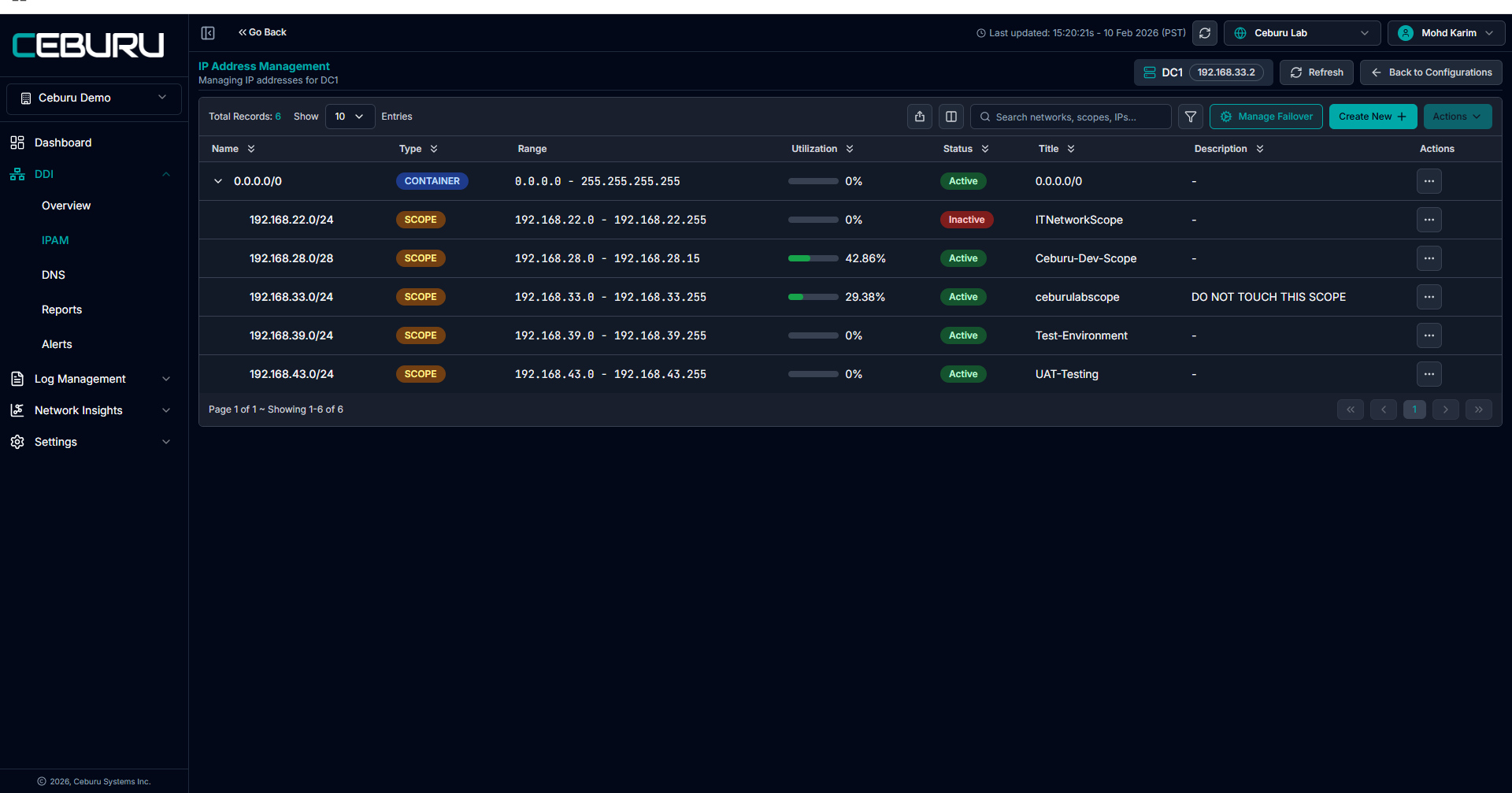
Inactive Scope Status:
An Inactive scope indicates one of the following conditions:
The scope has been removed from the DHCP server
The scope exists but is in an inactive state on the DHCP server
Inactive scopes:
Remain visible in IPAM for reference
Do not allocate IPs
Are excluded from utilization calculations
May require cleanup or re activation on the DHCP server
From the Create New option, you can:
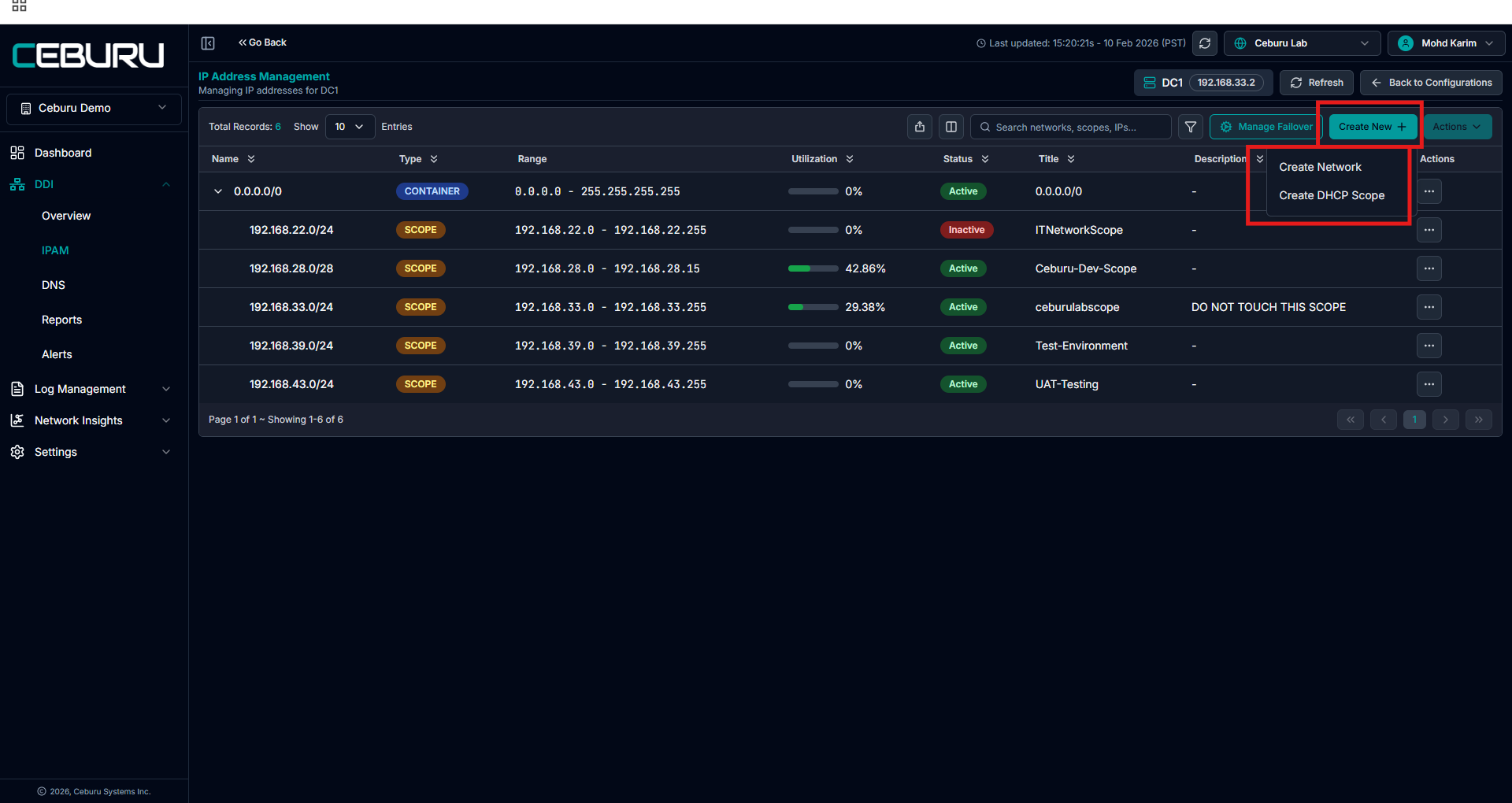
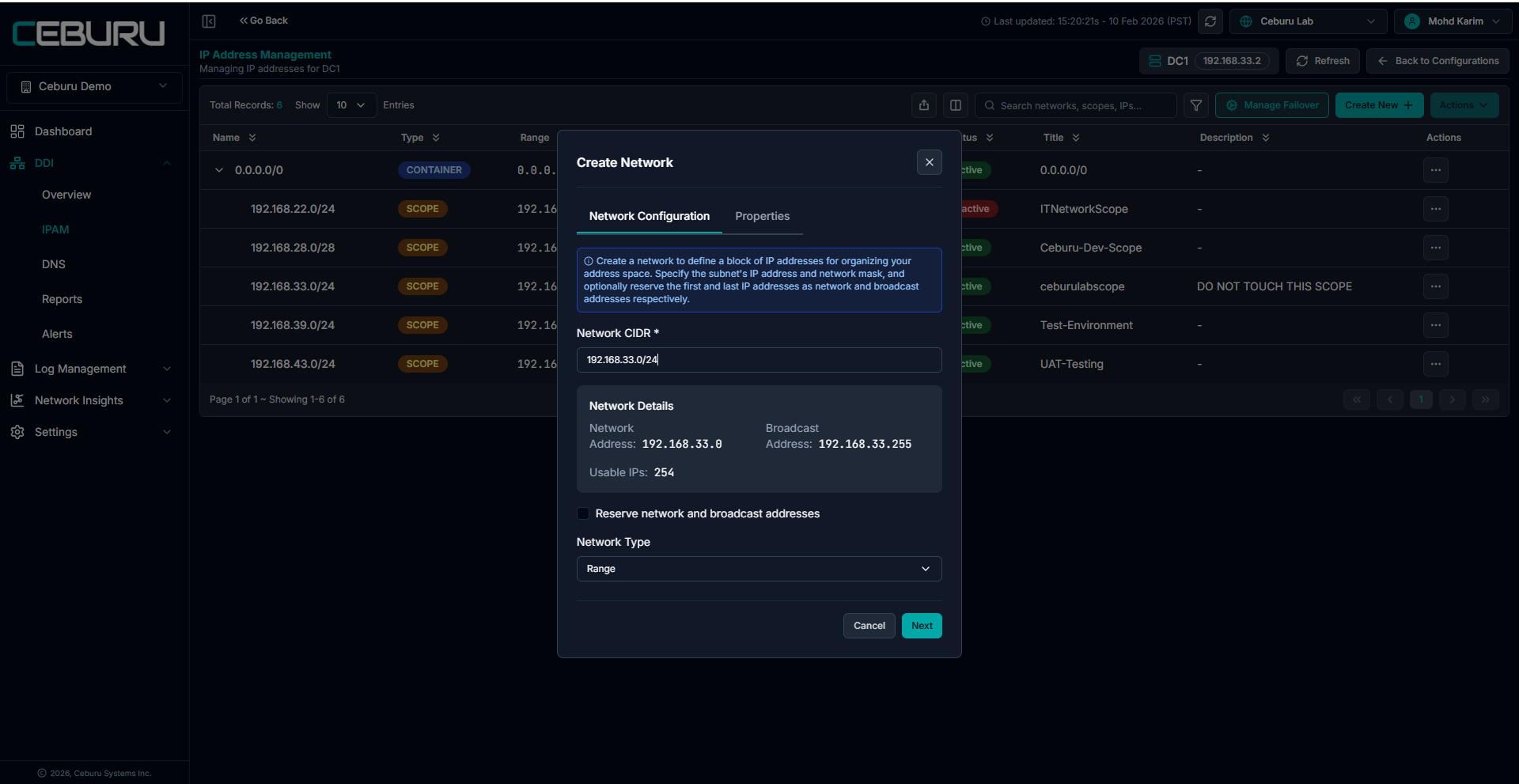
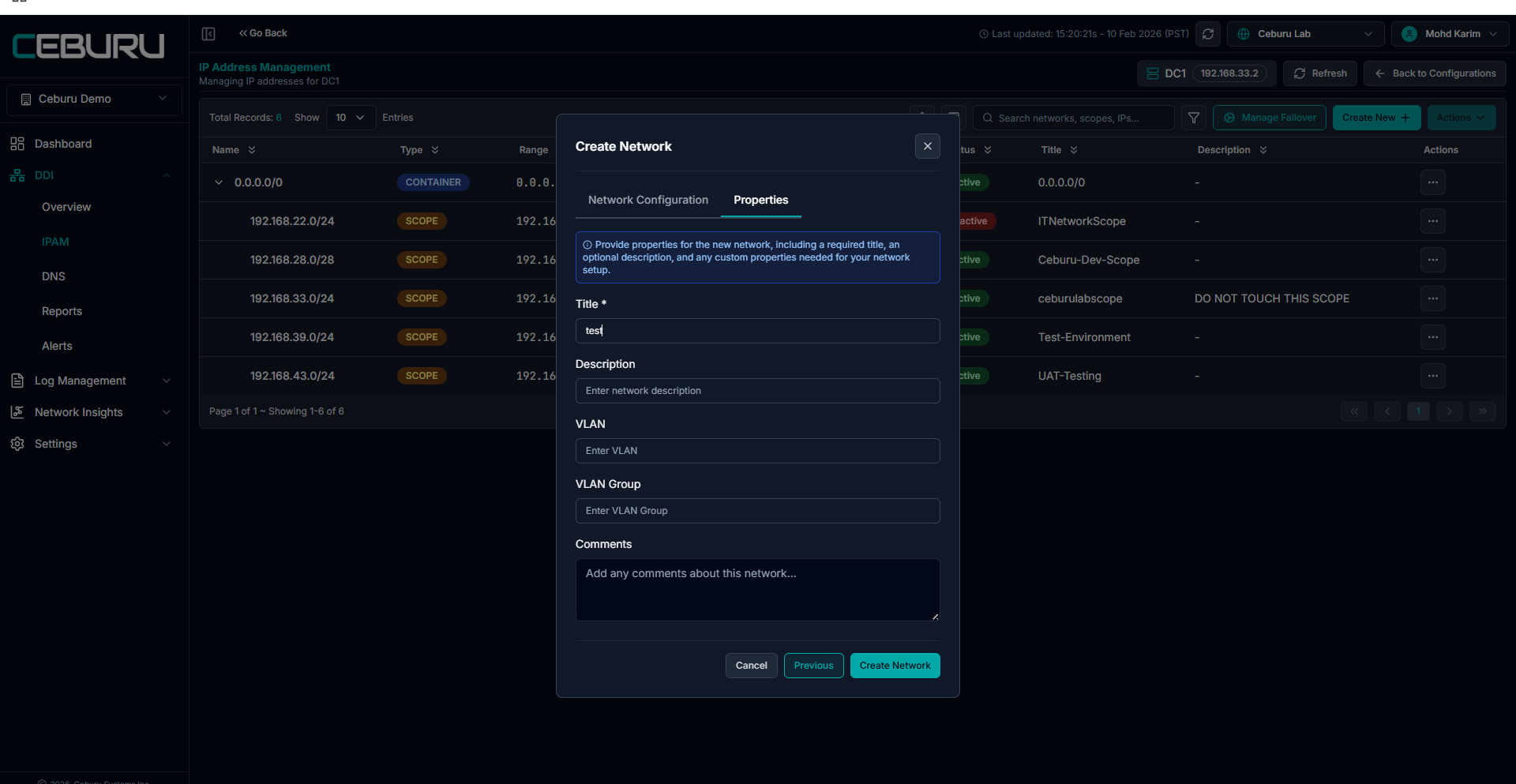
Create Network:
Defines a new IP range
The range can later be converted into a container if needed
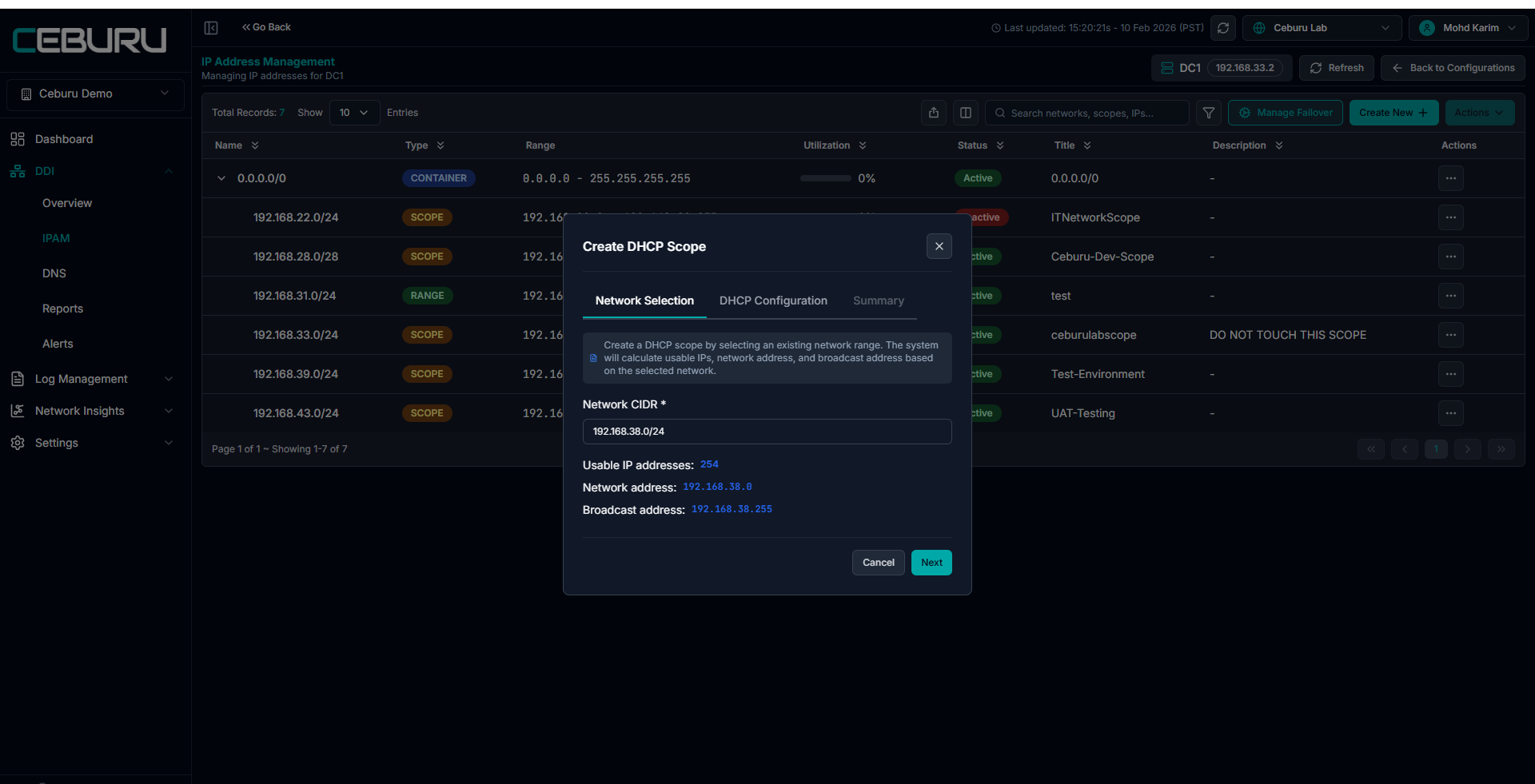
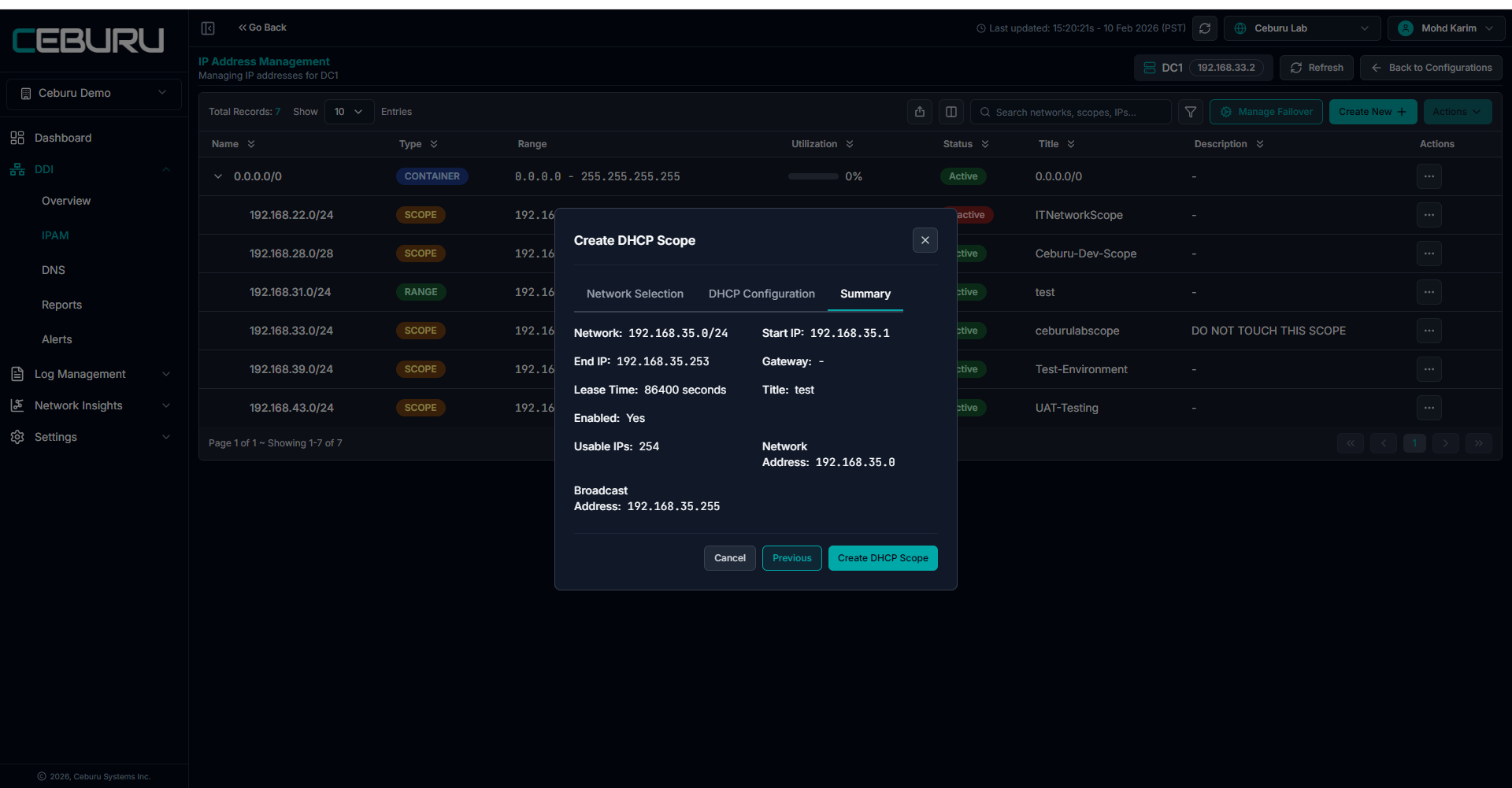
Create DHCP Scope:
Select an network
- Enter scope details such as start IP, end IP, gateway, DNS servers, lease time, and status
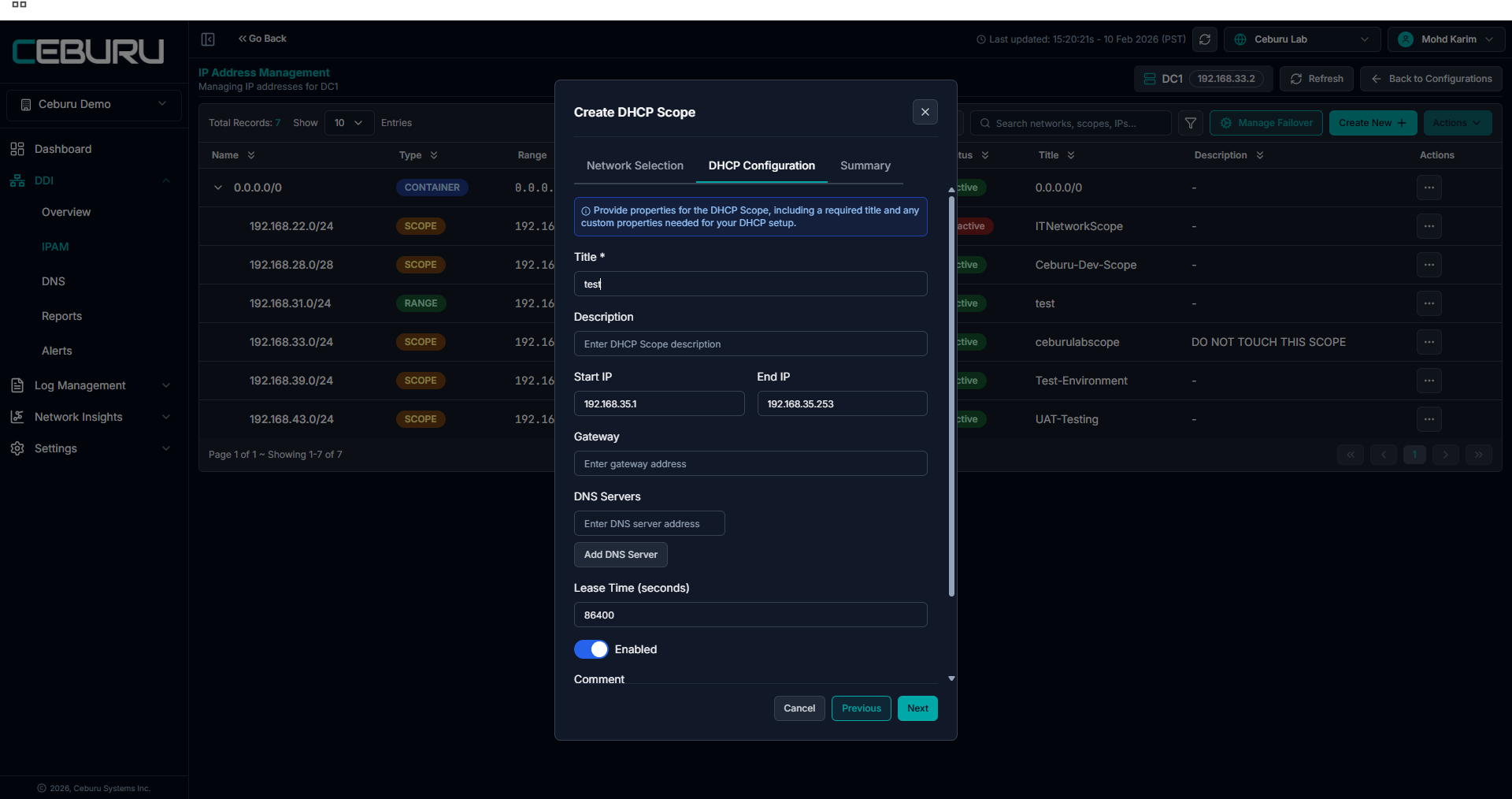
- On creation, the scope is pushed to the DHCP server and reflected in IPAM
DHCP Failover:
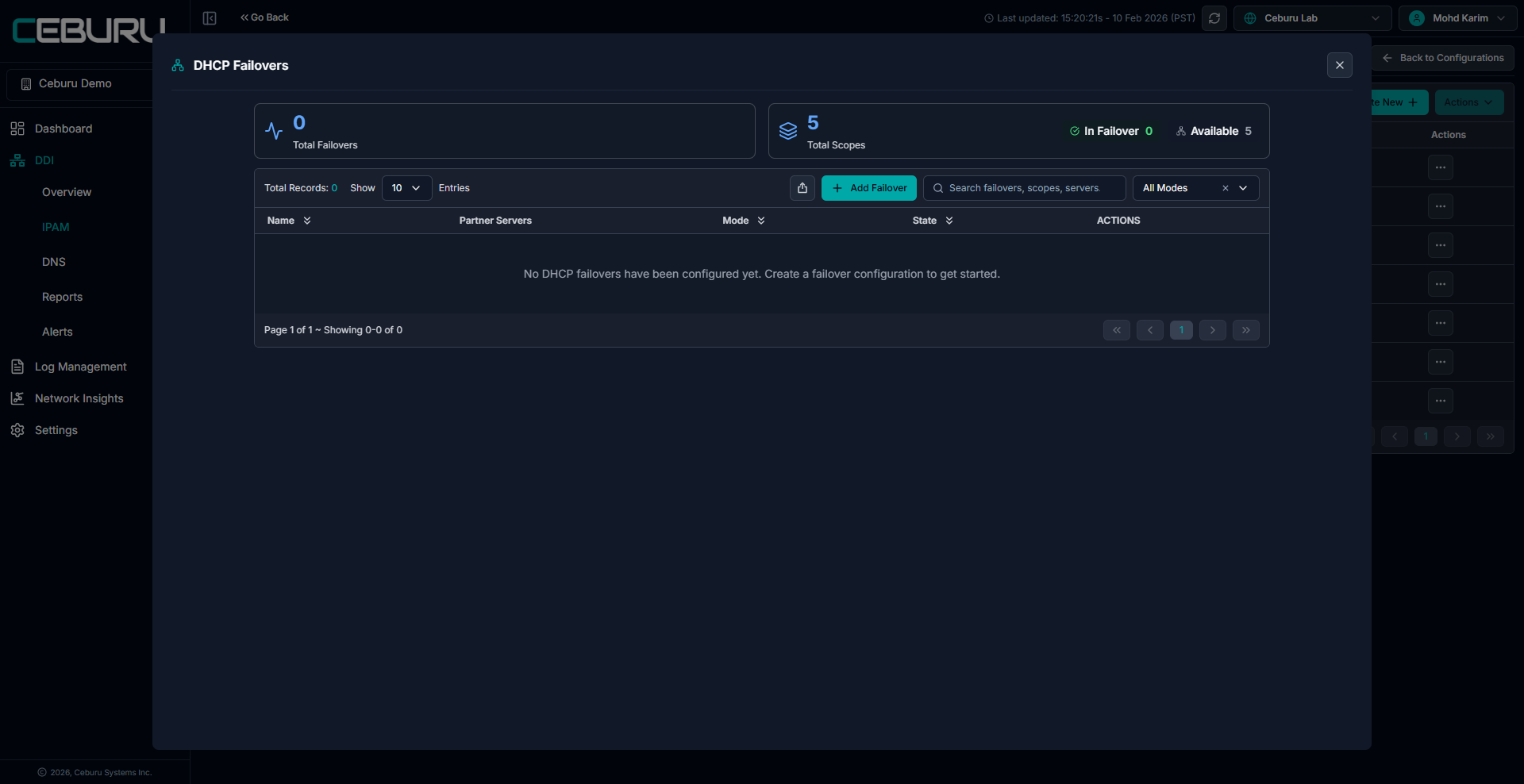
From the IPAM page, click Manage Failover to open the DHCP Failovers screen.
Click Add Failover
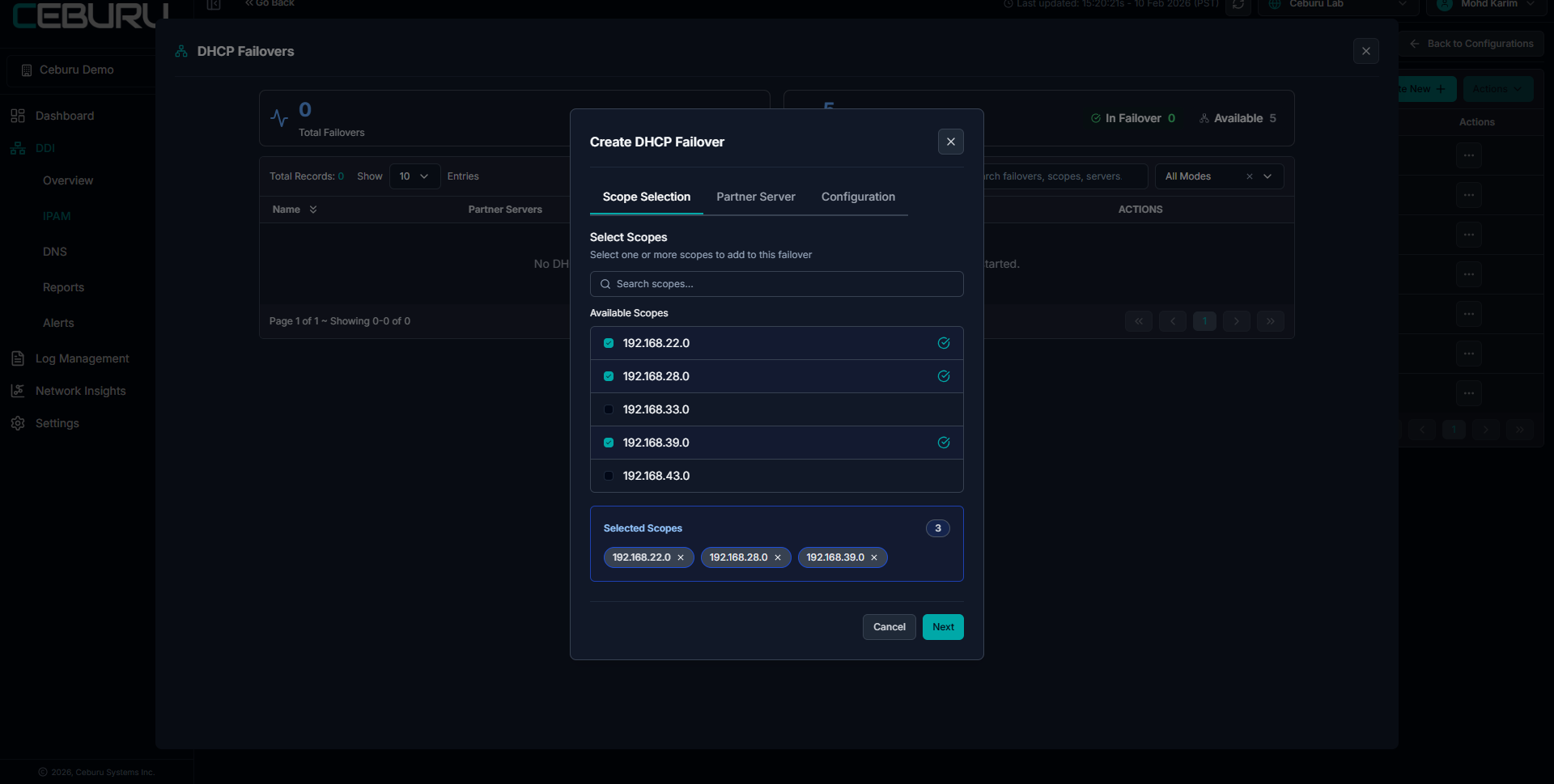
Scope Selection
Select one or more available DHCP scopes that should participate in failover
Click Next
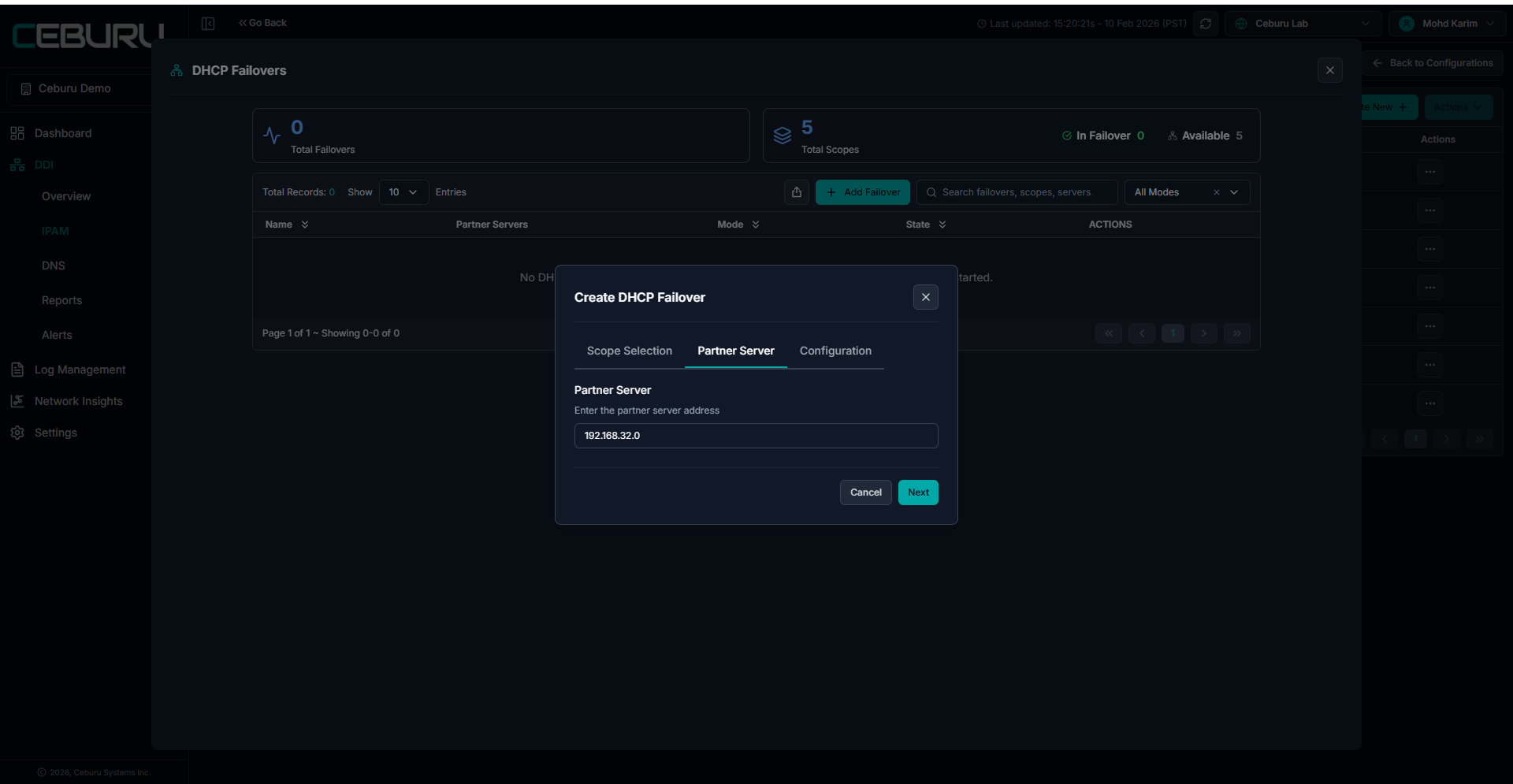
Partner Server
Enter the partner DHCP server IP address
This server will act as the failover peer
Click Next
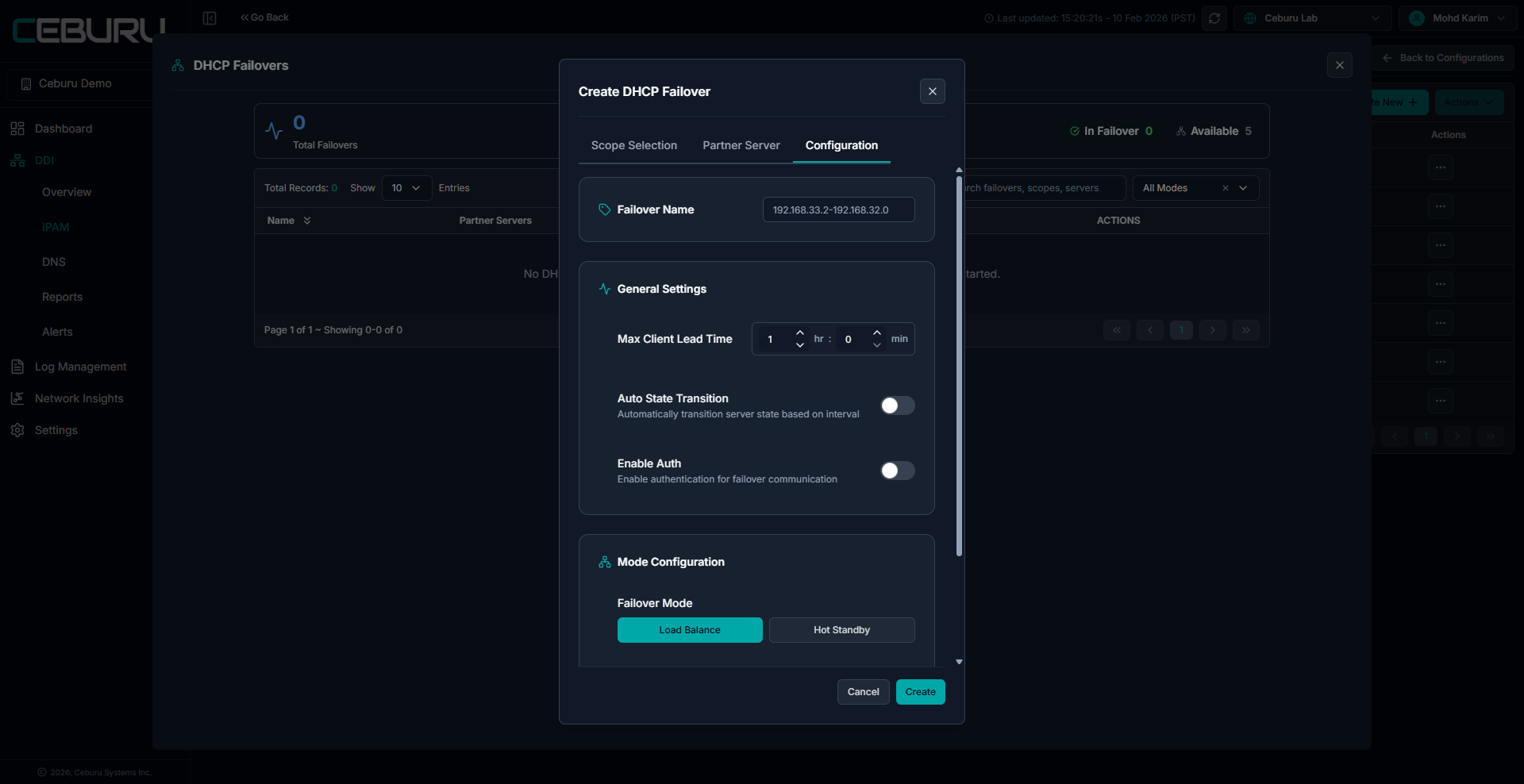
Configuration
Provide a failover name
Configure general settings such as max client lead time
Optionally enable authentication and auto state transition
Select the failover mode
Load Balance
Hot Standby
Click Create
Once created, the failover configuration is listed with its status and associated scopes. This ensures DHCP continuity if one server becomes unavailable.
Edit Failover
Modify failover settings such as mode, partner server, or timing parameters
Changes are synced directly to the DHCP server
Delete Failover
Removes the failover relationship from the selected scopes
DHCP servers revert to standalone operation
Add Scope to Failover
Additional DHCP scopes can be added to an existing failover configuration
Ensures high availability for newly added scopes
All failover changes are logged and reflected in IPAM after refresh.
Open Network and Scope Visibility:
From the IPAM networks list, clicking Open Network displays all associated scopes under that network.
For each scope, the system shows:
Total IP count
Available IPs
Assigned or claimed IPs
Excluded IPs
Reserved IPs
Held IPs
These values are displayed as summary cards at the top for quick visibility.
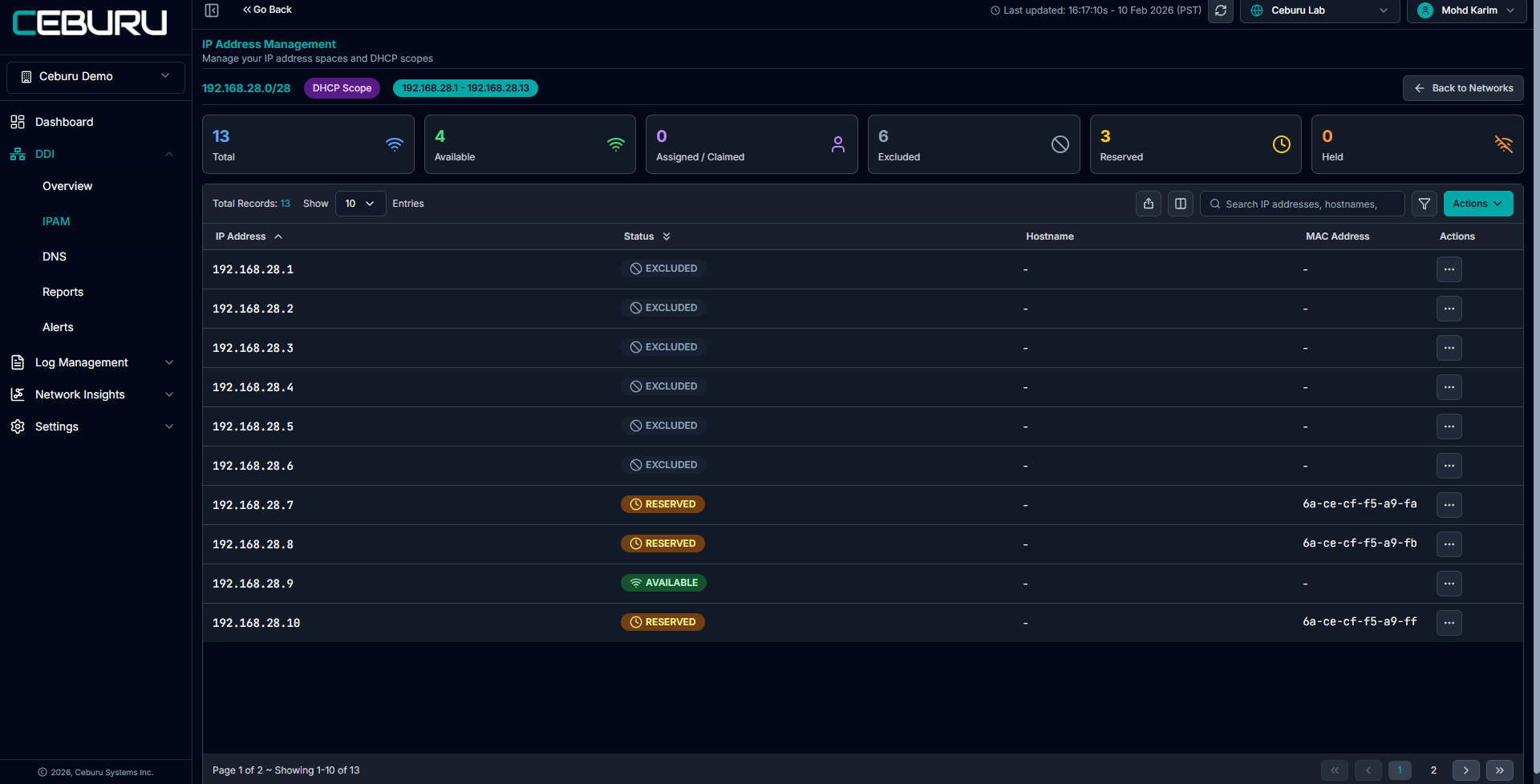
IP Address Level Actions:
Clicking into a specific DHCP scope opens the IP address view, where every IP in the range is listed with its current status.
Each IP can have one of the following states:
Available
Reserved
Excluded
Assigned or Claimed
Selecting an individual IP opens the IP Properties panel, from where you can perform actions such as:
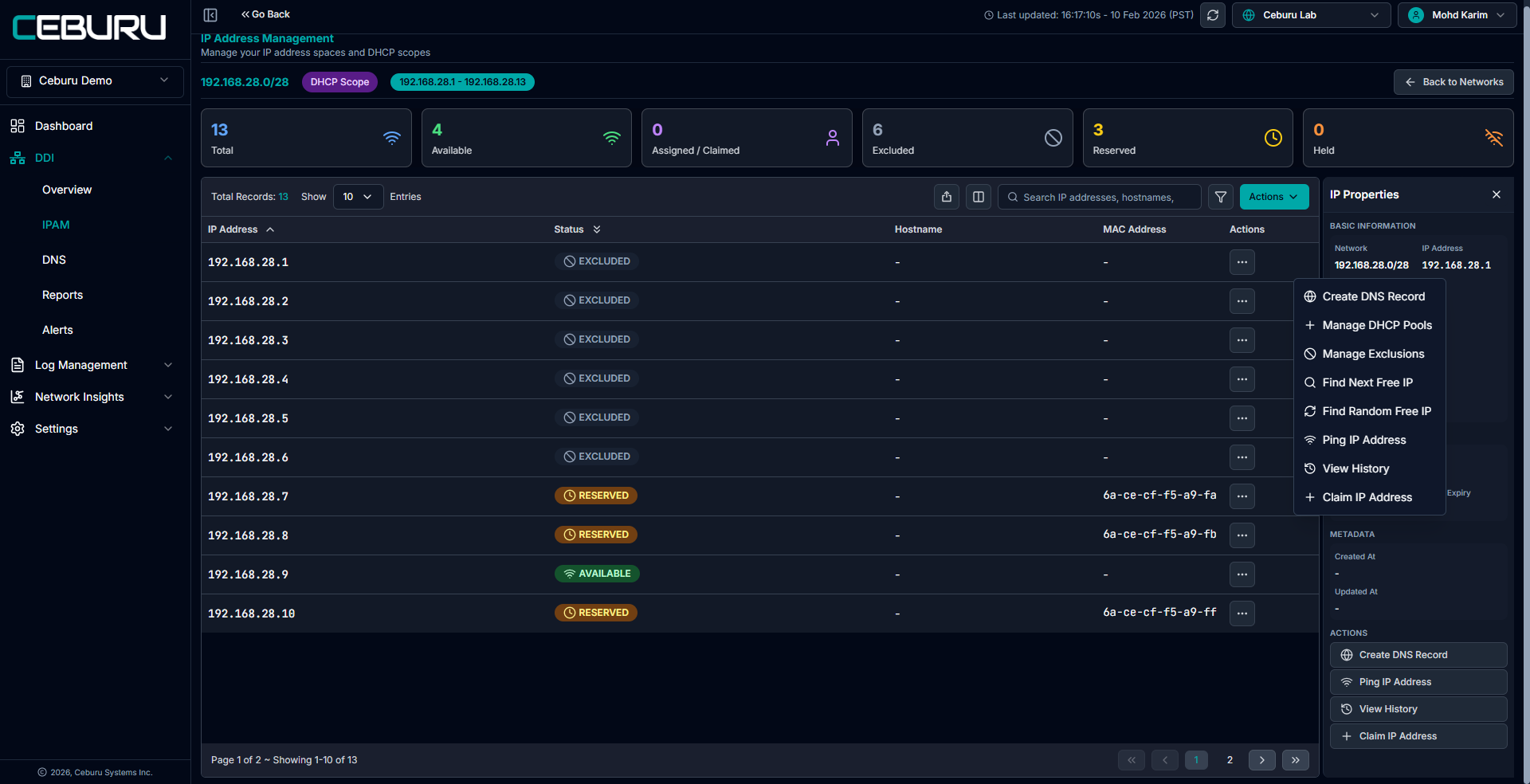
1. Create DNS Record:
This action allows you to create a DNS record for the selected IP address.
Purpose
Associates a hostname with the IP address in the configured DNS zone.
How it works
The selected IP address is auto populated
Admin selects the Primary DNS Zone
Provides the Hostname
Selects the Record Type (A record by default)
Configures TTL value
Adds an optional Comment
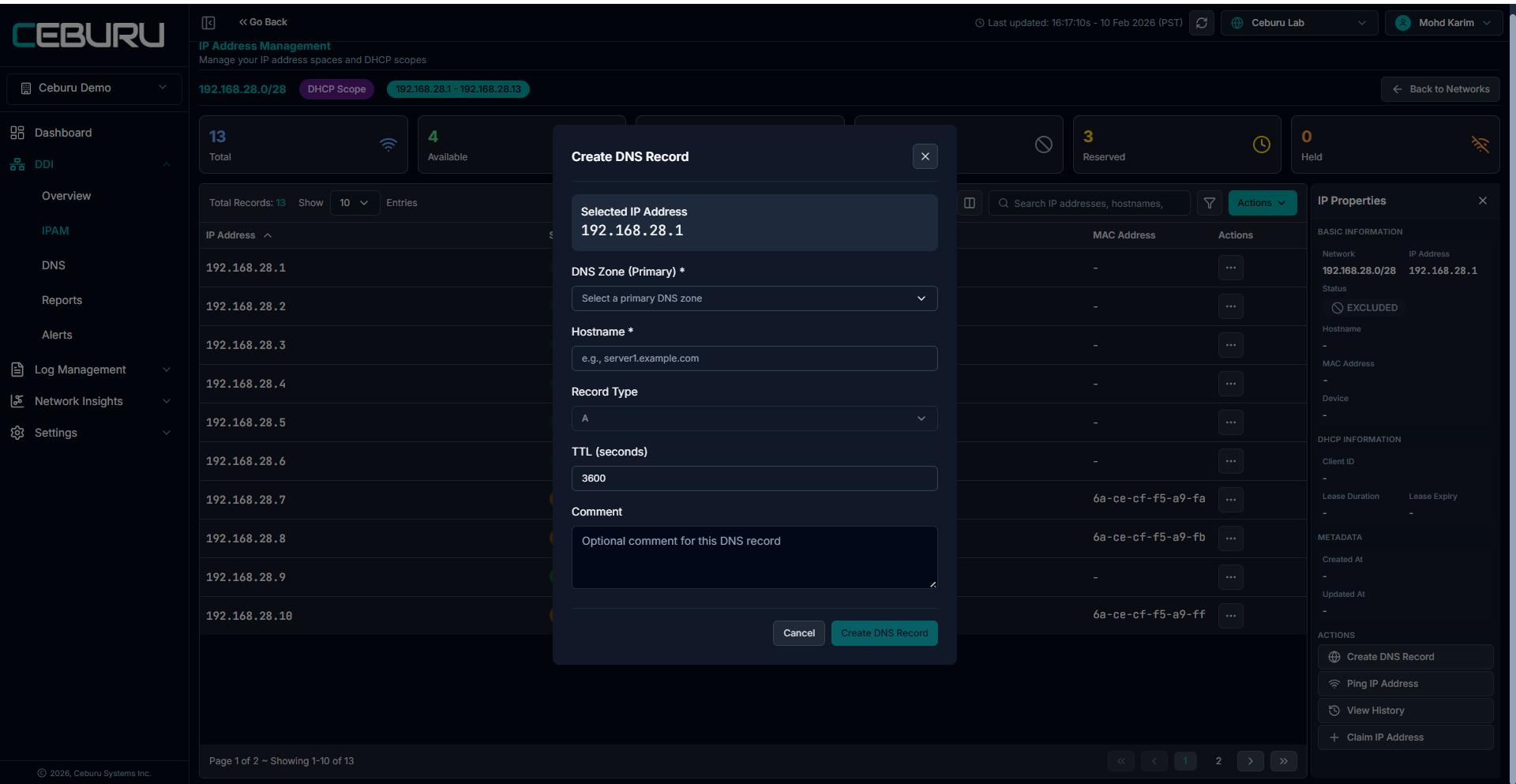
Result
DNS record is created on the DNS server
IP is now resolvable via DNS
Action is logged and visible in IP history
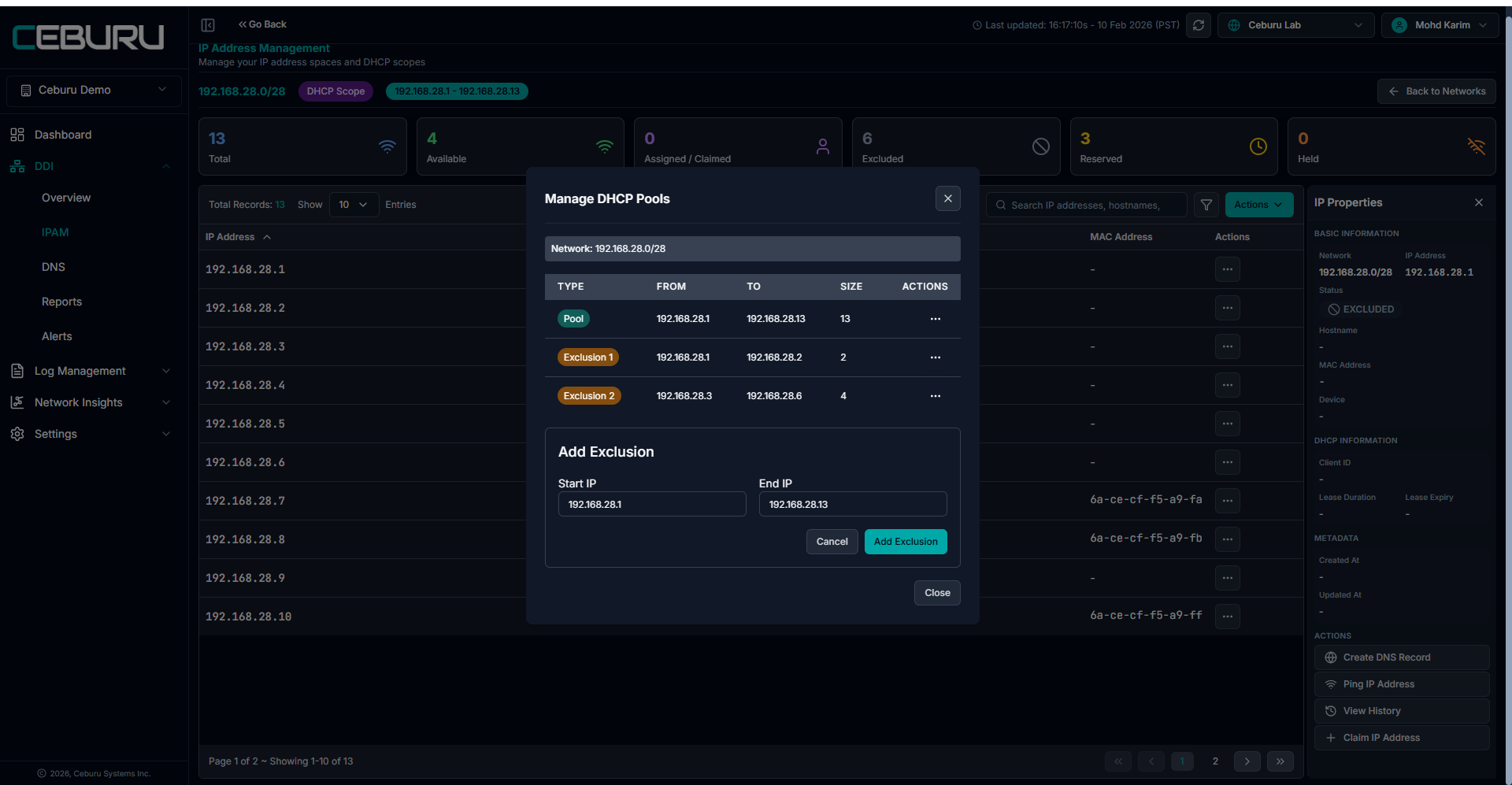
2. Manage DHCP Pools:
This option opens the DHCP pool management view for the selected network.
Purpose
Controls how IP addresses are distributed within the DHCP scope.
Capabilities
View the full DHCP pool range
See all existing exclusions within the pool
Add new exclusions by defining start and end IPs
Modify or remove existing exclusions
Behavior
Excluded IPs are removed from DHCP assignment
Excluded IPs are marked as Excluded in IPAM
Changes are synced directly to the DHCP server
3. Manage Exclusions:
This action is used to exclude specific IP addresses from DHCP assignment.
Purpose
Prevents DHCP from leasing selected IPs.
How it works
Select a specific IP range to exclude
All IPs within the selected range are marked as Excluded
IP status changes to Excluded
DHCP server will not allocate this IP
Note
Excluded IPs do not support DHCP reservations
For excluded IPs, Manage DHCP Reservation is not available
4. Find Next Free IP:
This action locates the next available IP in the scope.
Purpose
Quickly reserve the next unused IP address.
Scope Level:
For DHCP scopes:
Find Next IP selects the next available IP sequentially
Find Random IP selects any available IP within the scope
Selected IPs are placed in Held state
Held IPs can be released back to Available if not used
For scope level IPs, administrators can:
Claim IP
Manage DHCP Reservation
Network Level:
For network level IPs:
Only Claim IP is available
DHCP reservation options are not shown at the network level
This ensures DHCP reservations are managed only within scopes.
Release Option
Held IPs can be released
On release, IP returns to Available state
5. Find Random Free IP:
This action selects a random available IP from the scope.
Purpose
Useful for non sequential or load distributed allocations.
Scope Level:
For DHCP scopes:
Find Next IP selects the next available IP sequentially
Find Random IP selects any available IP within the scope
Selected IPs are placed in Held state
Held IPs can be released back to Available if not used
For scope level IPs, administrators can:
Claim IP
Manage DHCP Reservation
Network Level:
For network level IPs:
Only Claim IP is available
DHCP reservation options are not shown at the network level
This ensures DHCP reservations are managed only within scopes.
Release Option
Held IP can be released back to available pool
6. Ping IP Address:
This action tests reachability of the selected IP.
Purpose
Verify if the IP address is currently reachable on the network.
How it works
Sends ICMP ping request
Displays success or failure status
Use case
Validate if an IP is already in use
Troubleshooting connectivity issues
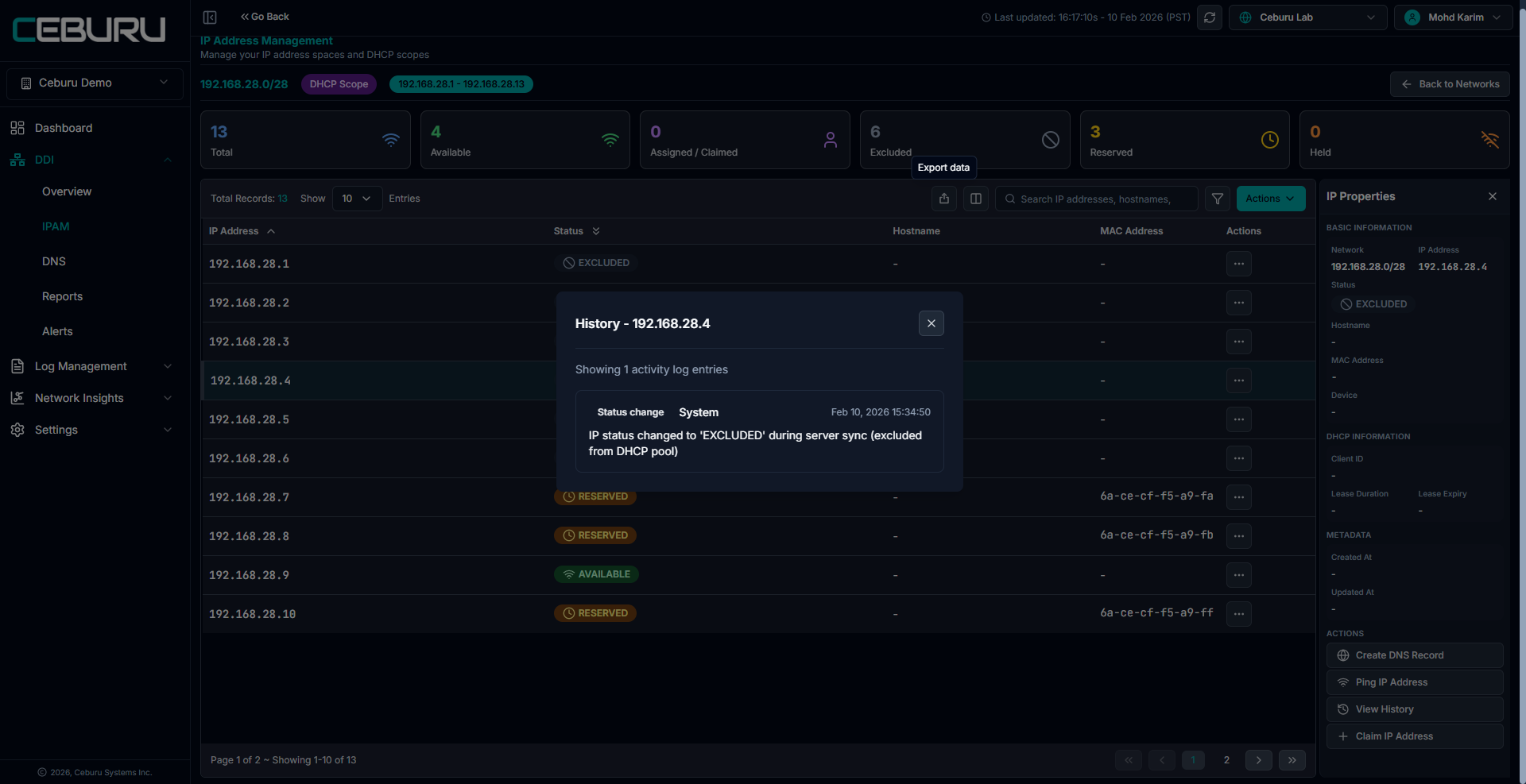
7. View History:
This action displays the full activity log for the selected IP.
What it shows
Status changes (Available, Reserved, Excluded, Held, Claimed)
DHCP sync actions
DNS creation or deletion
System or user initiated changes
Timestamp and action source
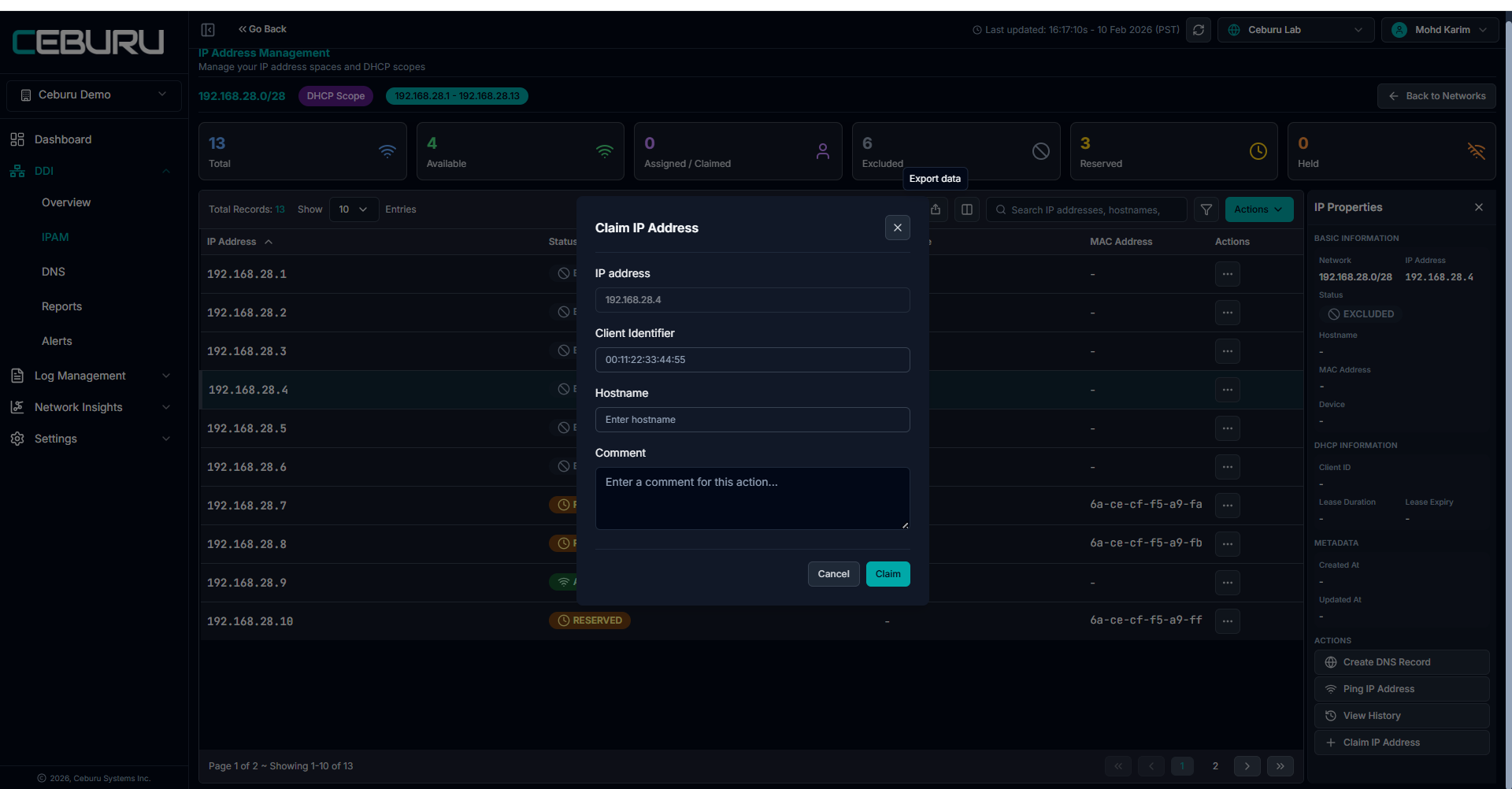
8. Claim IP Address:
This action assigns an IP to a specific client.
Purpose
Manually allocate an IP to a device or service.
Required fields
Client Identifier (MAC address)
Optional hostname
Optional comment
Result
IP status changes to Assigned or Claimed
IP is no longer available for DHCP allocation
Change is synced to DHCP server
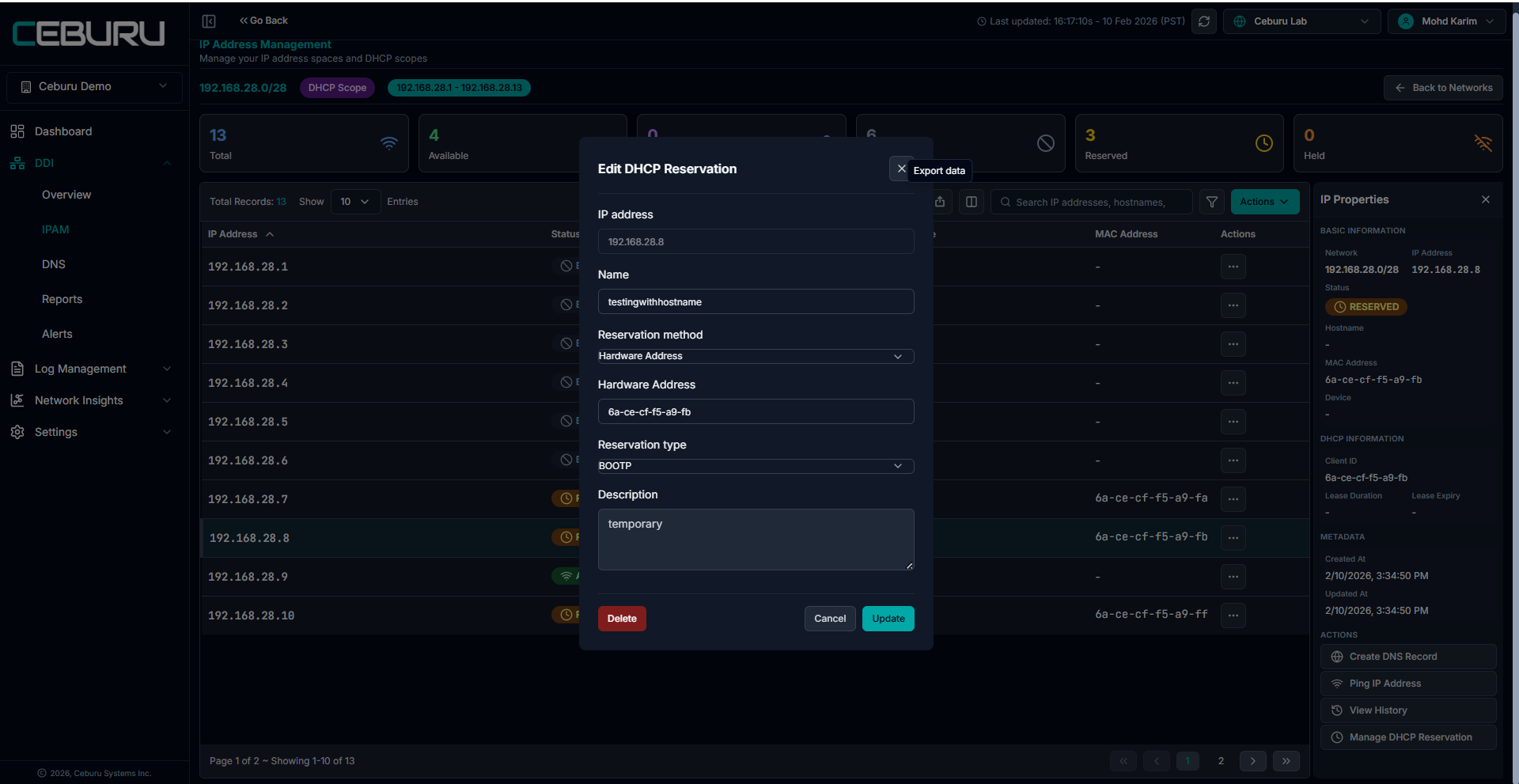
9. Manage DHCP Reservation:
This action creates or edits a DHCP reservation.
Purpose
Ensure a specific client always receives the same IP address.
Capabilities
Define reservation method (Hardware Address or Client ID)
Set reservation type (BOOTP or DHCP)
Assign hostname and description
Update or delete existing reservations
Availability Rule
This option is not available for excluded IP addresses
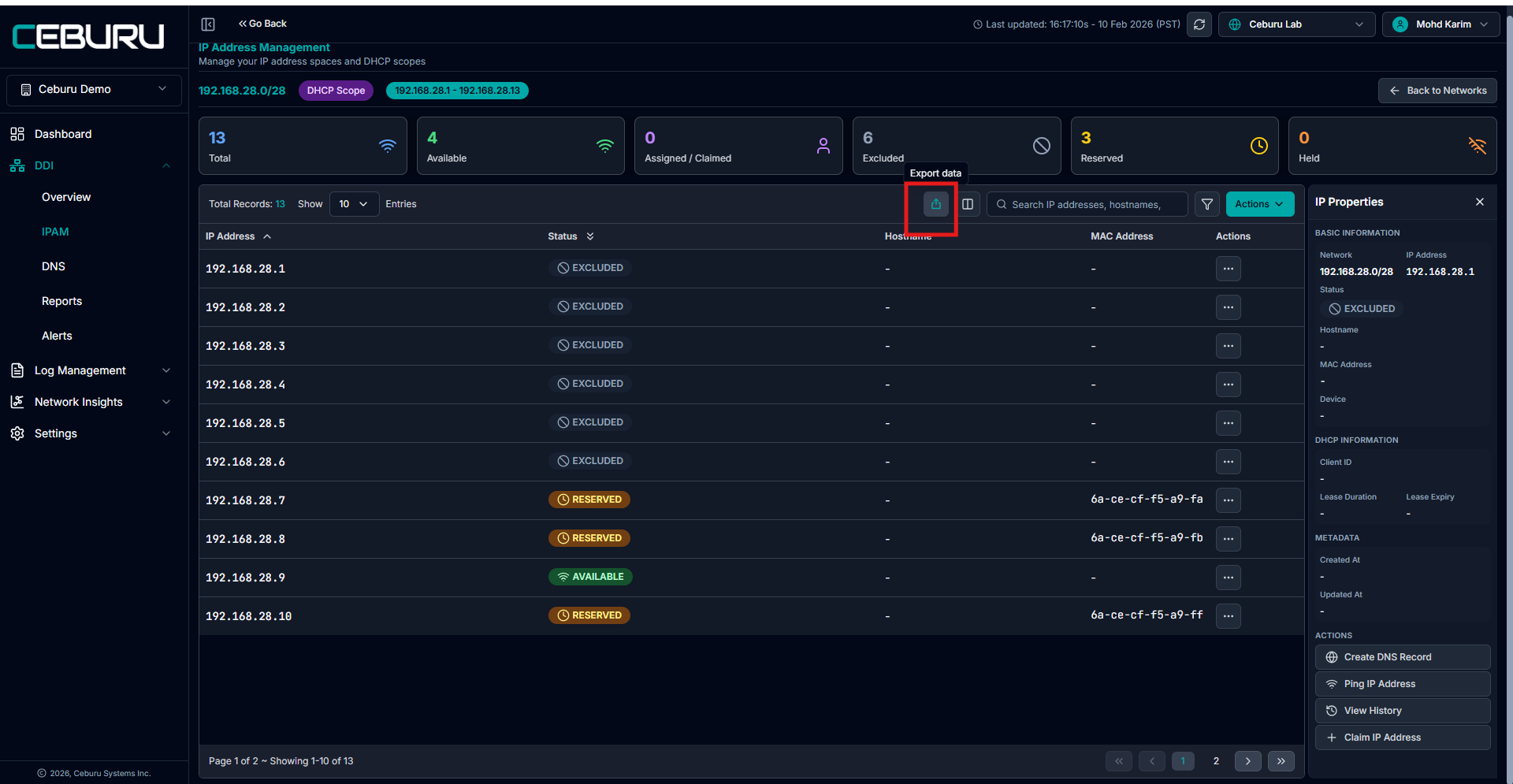
Export Data (CSV):
This option exports IPAM data into a CSV file.
2
Was this article helpful?
That’s Great!
Thank you for your feedback
Sorry! We couldn't be helpful
Thank you for your feedback
Feedback sent
We appreciate your effort and will try to fix the article