The DNS Management module allows to manage DNS servers, zones, and DNS records from a centralized interface. It provides full lifecycle control including zone creation, record management, history tracking, and deletion.
Accessing DNS Management:
Navigate to DDI → DNS
The DNS Management page lists all configured DNS servers.
For each DNS server, the following details are displayed:
Server Name
IP Address
Total Zones
Last Sync Time
Clicking on the DNS Management action icon for a server opens the zones configured on that DNS server.
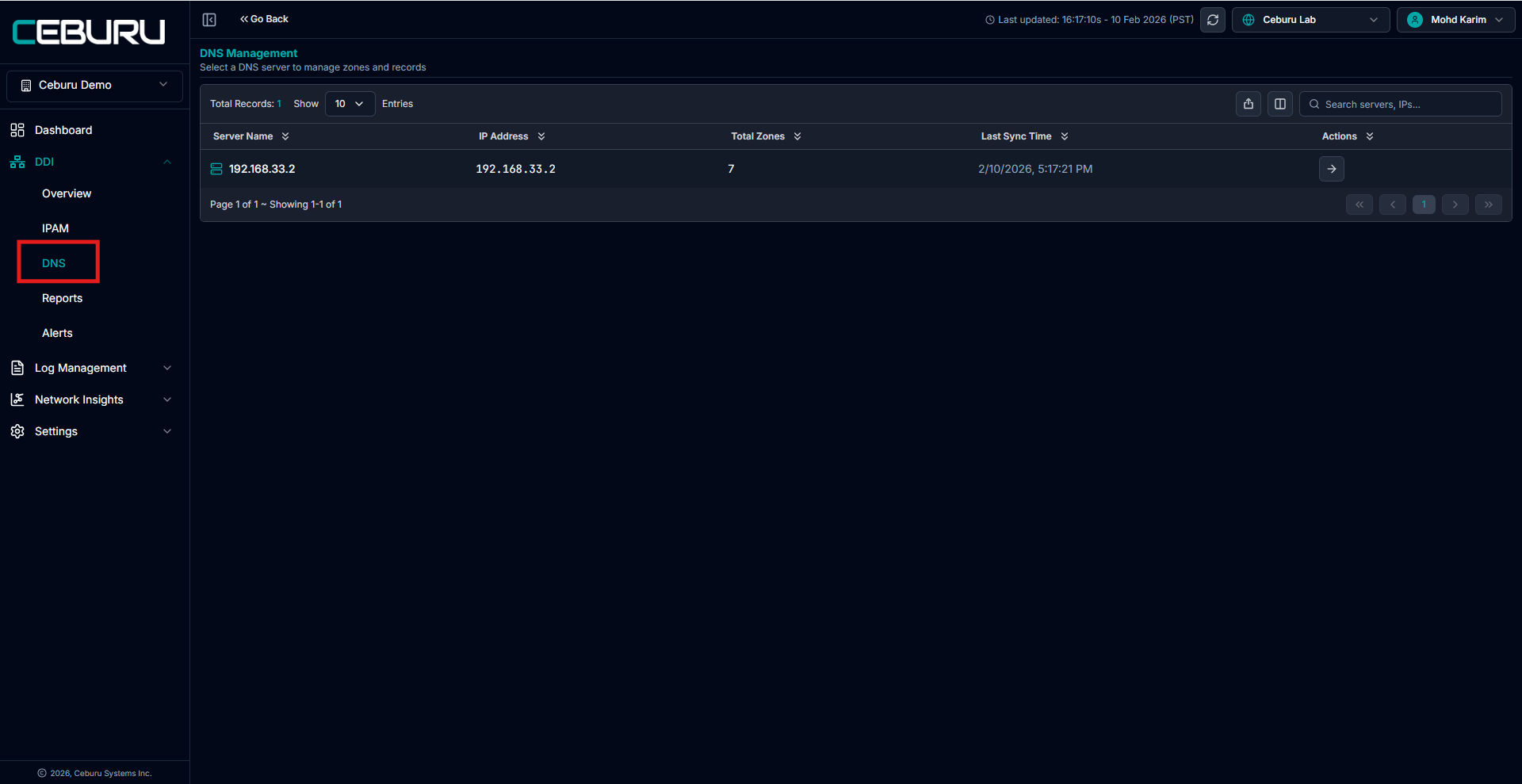
DNS Zones Overview:
Once a DNS server is selected, the Zones page displays all available DNS zones.
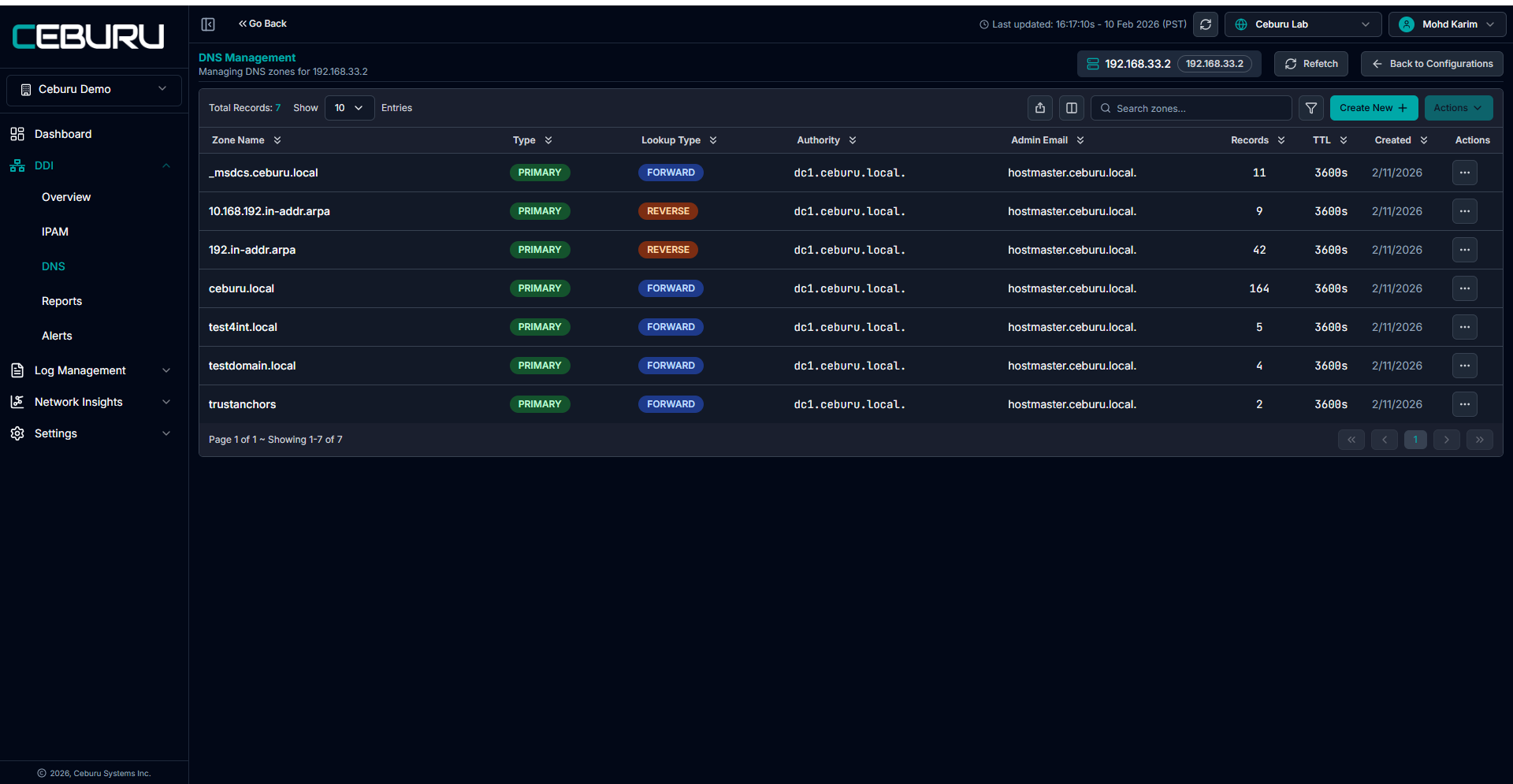
Forward and Primary DNS Zones:
Forward Lookup Zones
Used to resolve hostnames to IP addresses
Commonly used for A, CNAME, and SRV records
Primary Zones
The authoritative source for DNS records
All record creation, updates, and deletions are performed on the primary DNS server
Secondary servers receive zone data through replication if configured
Zone Level Actions:
By selecting a zone, the Actions panel becomes available with the following options.
1. View Records
Redirects to the Records page for the selected zone
Displays all DNS records under that zone
Shows record type, value, TTL, status, and comments
2. View History
Displays the activity history for the zone
Shows creation, updates, and system sync actions
Includes timestamp and action source
3. Delete Zone
Permanently deletes the selected DNS zone
Removes the zone from the DNS server
This action is irreversible
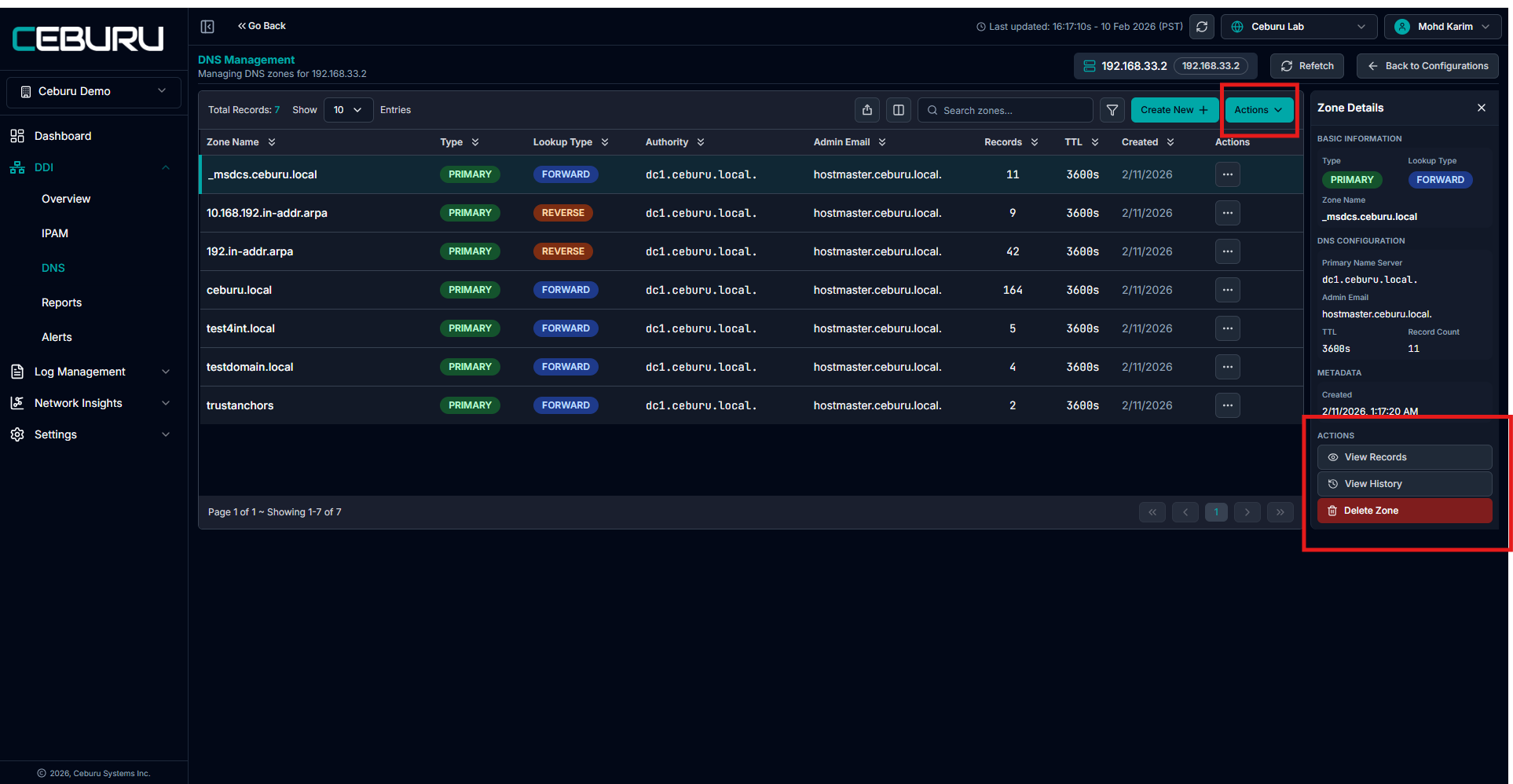
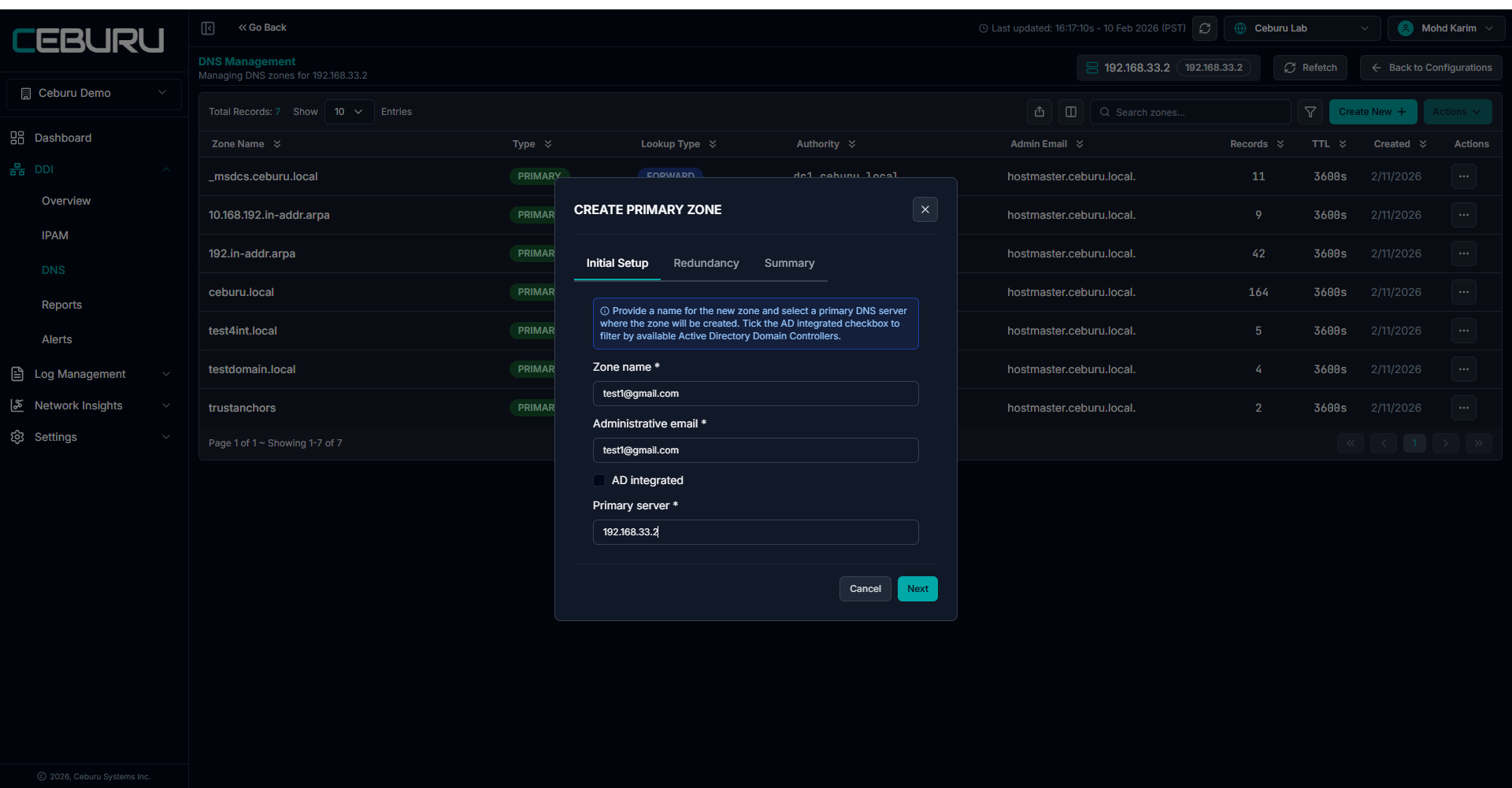
Creating a New Primary Zone:
To create a new DNS zone:
Click Create New on the Zones page
Select Primary Zone
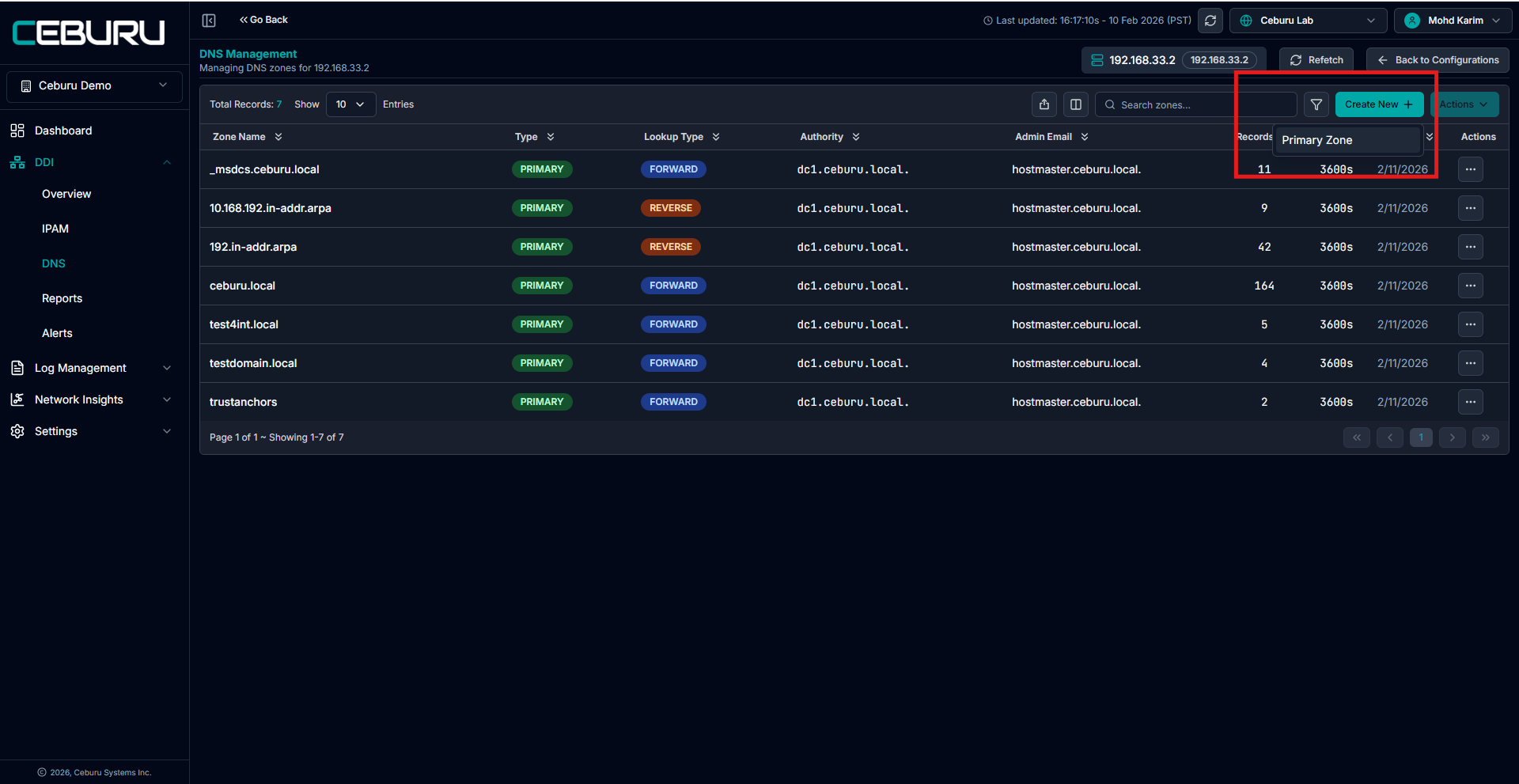
Initial Setup:
Enter Zone Name
Provide Administrative Email
Optionally enable AD Integrated
Select the Primary DNS Server where the zone will be created
Click Next to continue.
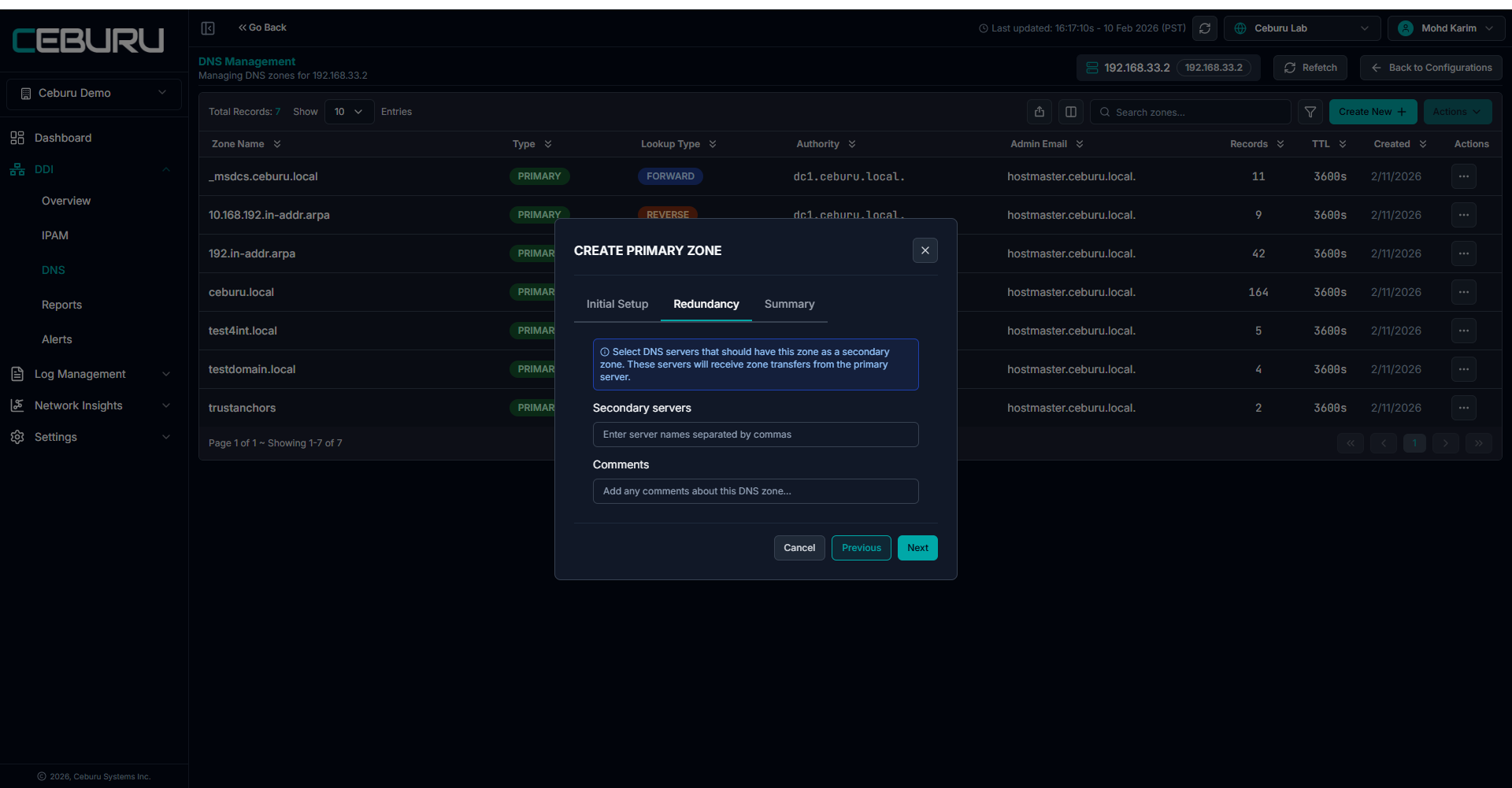
Redundancy:
Optionally select Secondary DNS Servers
These servers will receive zone transfers from the primary server
Add optional comments
Click Next to continue.
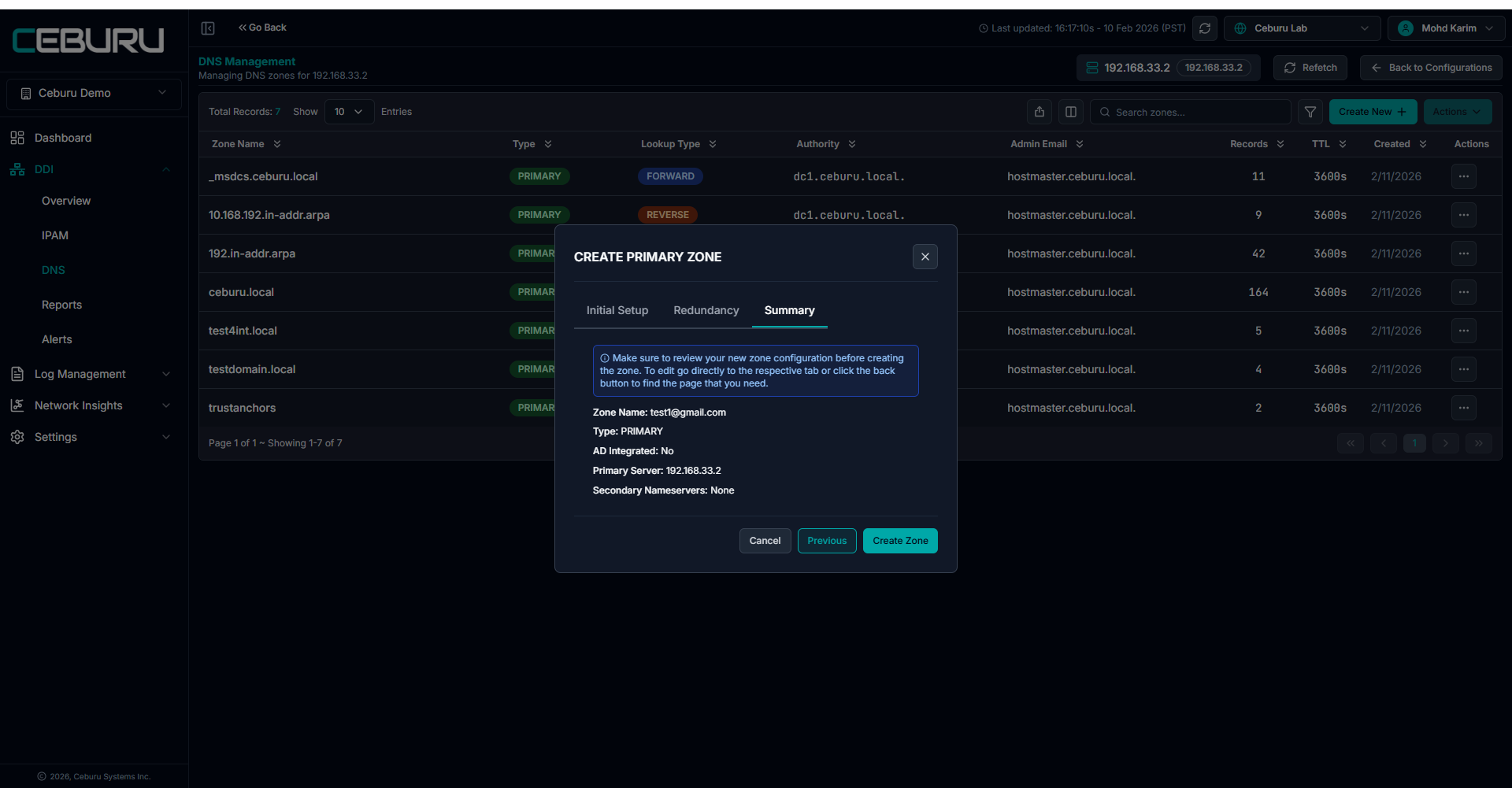
Summary:
Review all zone configuration details
Confirm zone name, type, primary server, and redundancy
Click Create Zone to complete the process.
Viewing DNS Records:
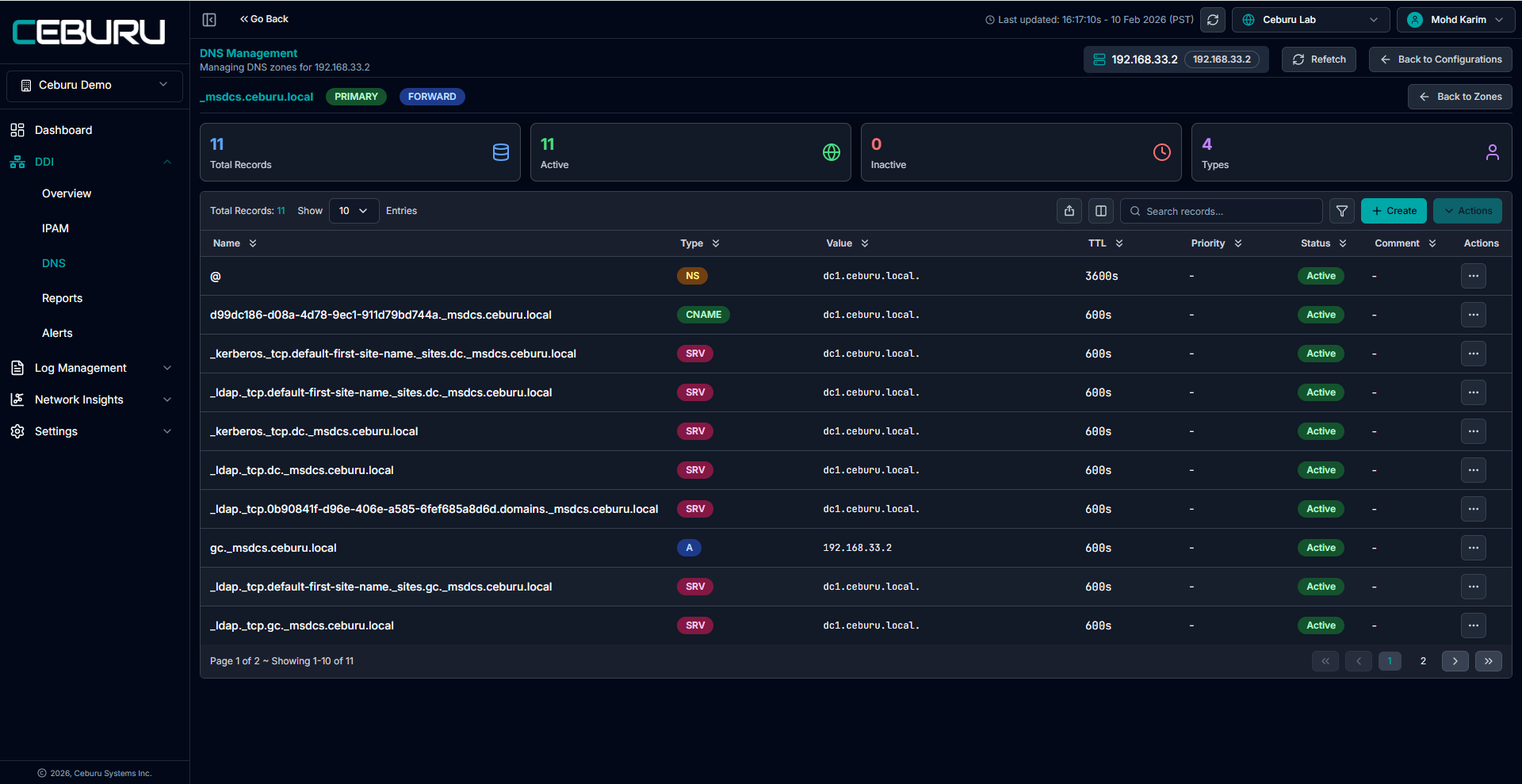
Clicking View Records for a zone redirects to the DNS Records page.
The top summary displays:
Total Records
Active Records
Inactive Records
Record Types count
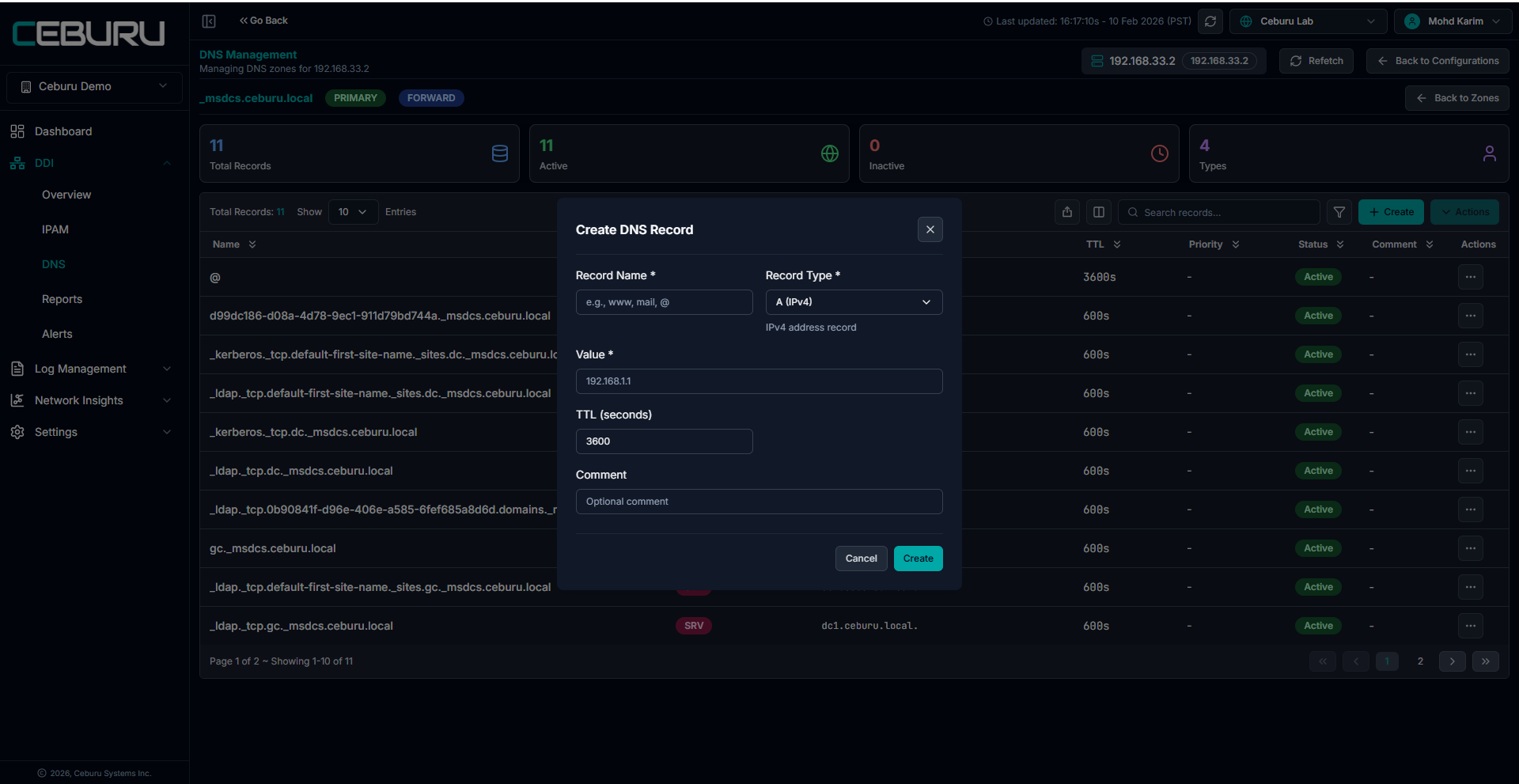
Creating a DNS Record:
To add a new record:
Click Create on the Records page
Fill in the record details:
Record Name
Record Type
A (IPv4)
CNAME
SRV
NS
Value (IP address or target hostname)
TTL (seconds)
Optional Comment
Click Create
Managing Existing DNS Records:
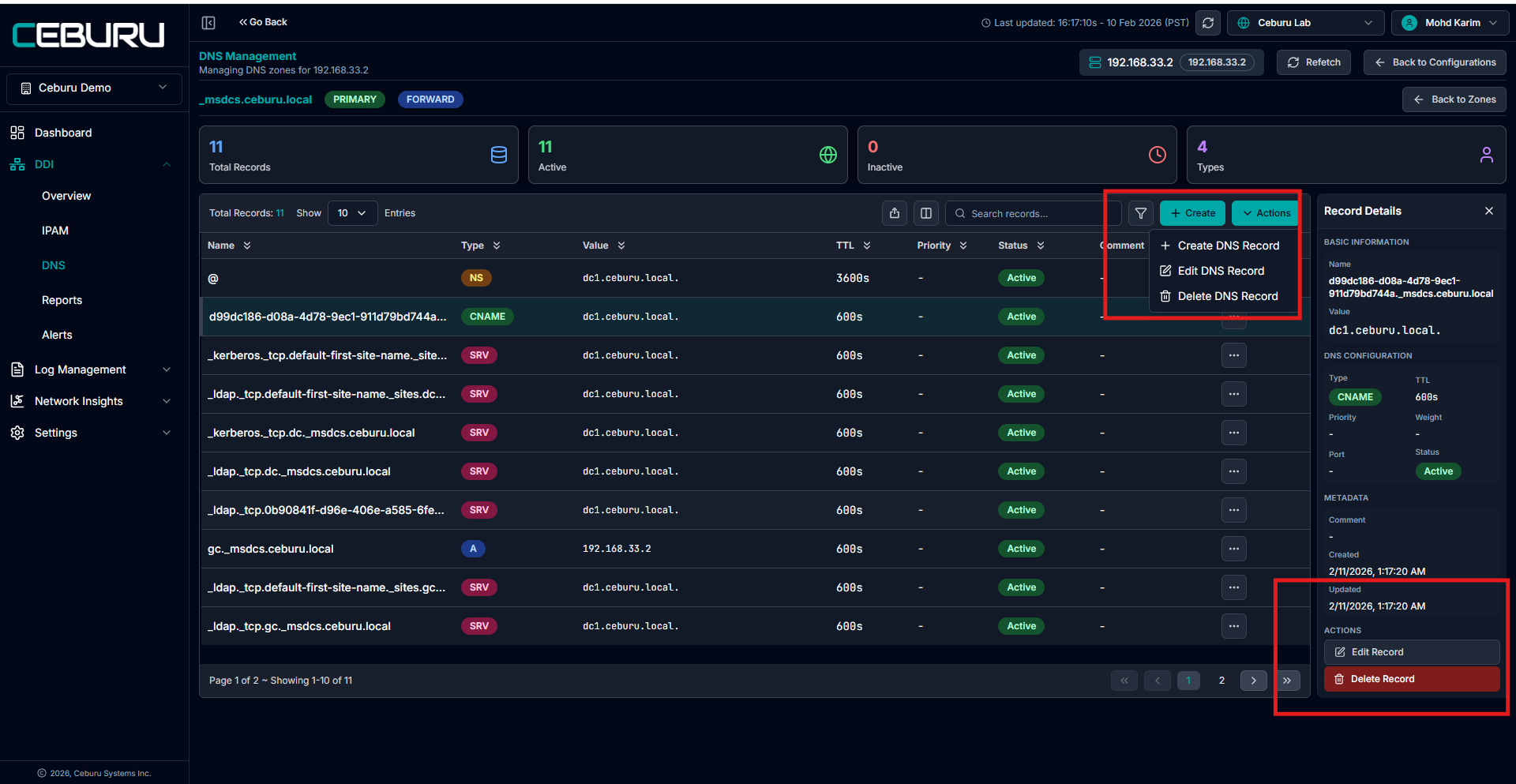
For each DNS record, the Actions menu provides:
Edit DNS Record:
Modify record name, value, TTL, or comment
Updates are synced to the DNS server
Delete DNS Record:
Permanently removes the record from the zone
Record is deleted from the DNS server
Was this article helpful?
That’s Great!
Thank you for your feedback
Sorry! We couldn't be helpful
Thank you for your feedback
Feedback sent
We appreciate your effort and will try to fix the article