Ceburu AIOps (Artificial Intelligence for IT Operations) enables intelligent monitoring, analysis, and automation for network and infrastructure devices.
AIOps uses APIs, SNMP, NetFlow, and AI-driven analytics to provide real-time insights, performance trends, and proactive issue detection.
To access AIOps configuration:
Go to Setting -> Configuration -> AIOps
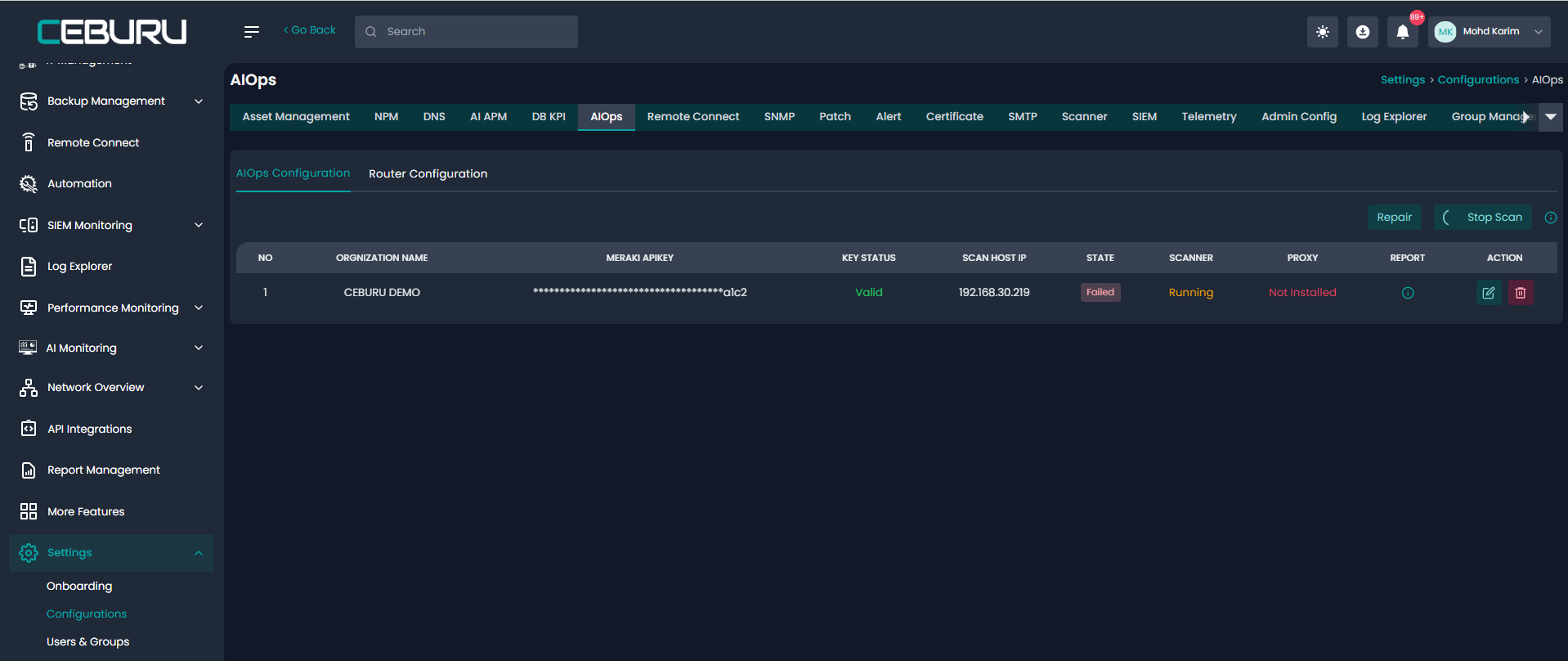
The AIOps Configuration section is used to configure API integrations, scanning, NetFlow, SNMP, proxy setup, and subnet discovery.
Click Edit or Add Configuration to open the Update System Configuration screen.
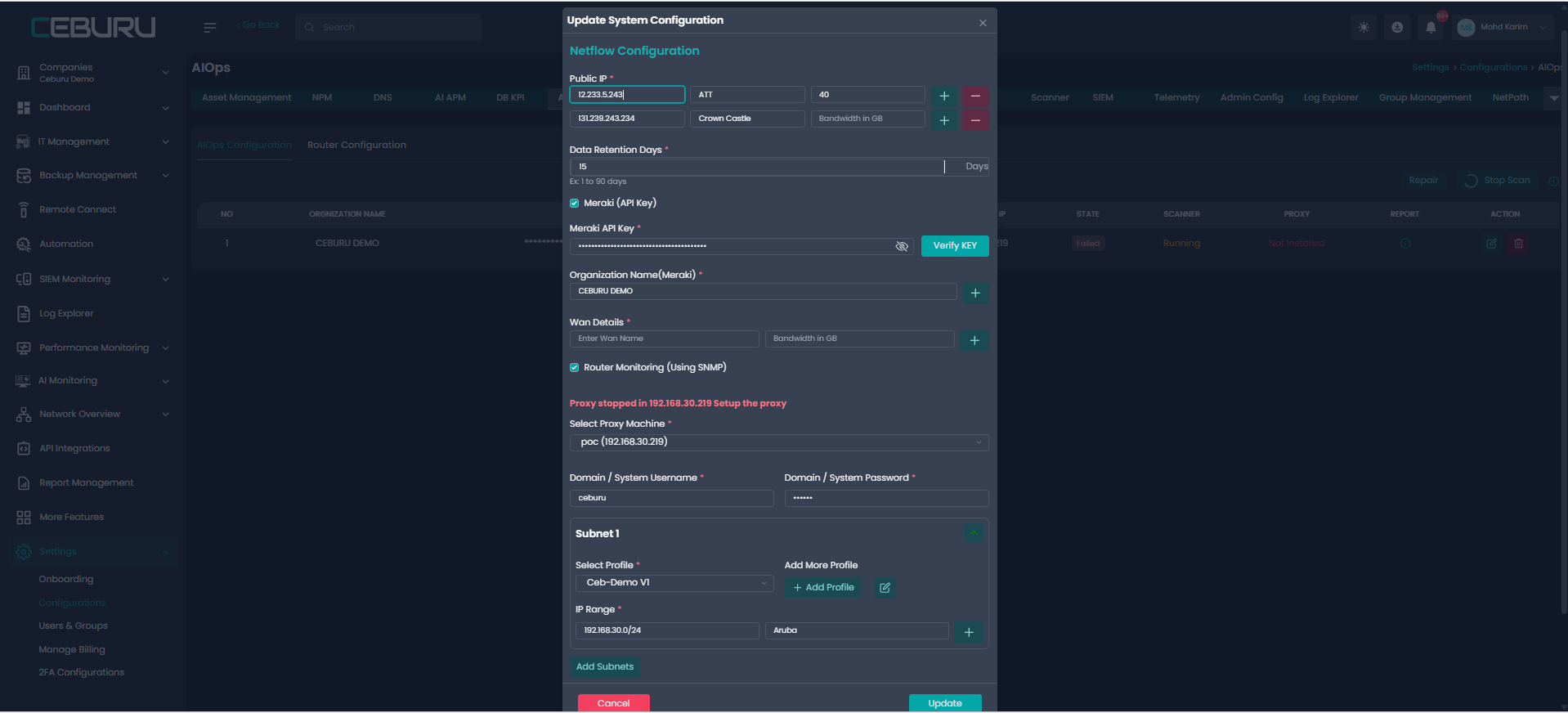
NetFlow Configuration:
Used to monitor network traffic patterns.
Fields:
Public IP
ISP / Provider Name
Bandwidth (GB)
Data Retention Days
Purpose: Collects flow-level traffic data for AIOps analytics.
Meraki Configuration (Optional):
Enable this if Meraki devices are present.
Steps:
Check Meraki (API Key)
Enter Meraki API Key
Click Verify Key
Select Organization Name (Meraki)
Status changes to Valid after successful verification.
Purpose: Allows Ceburu to pull device health, inventory, and metrics directly from Meraki.
WAN Details (Optional):
WAN Name
Bandwidth in GB
Used for WAN traffic visibility and capacity planning.
Router Monitoring (Using SNMP):
Enable SNMP-based monitoring.
Ensure SNMP is enabled on routers/switches
Credentials will be configured under Router Configuration
Proxy Configuration:
AIOps requires a Proxy / Scanner machine to collect data.
Steps:
Select Proxy Machine
Provide Domain / System Username
Provide Domain / System Password
If proxy is stopped, an error message appears: “Proxy stopped in <IP>. Setup the proxy”
Purpose: The proxy performs network scanning and device communication.
Subnet Configuration:
Used to discover network devices.
Steps:
Select Profile
Enter IP Range
Select Vendor
Click Add Subnets
Repeat for additional subnets if needed
Save Configuration
Click Update to save and activate the configuration. Scanner will start automatically. Devices will begin appearing in AIOps and Asset Status
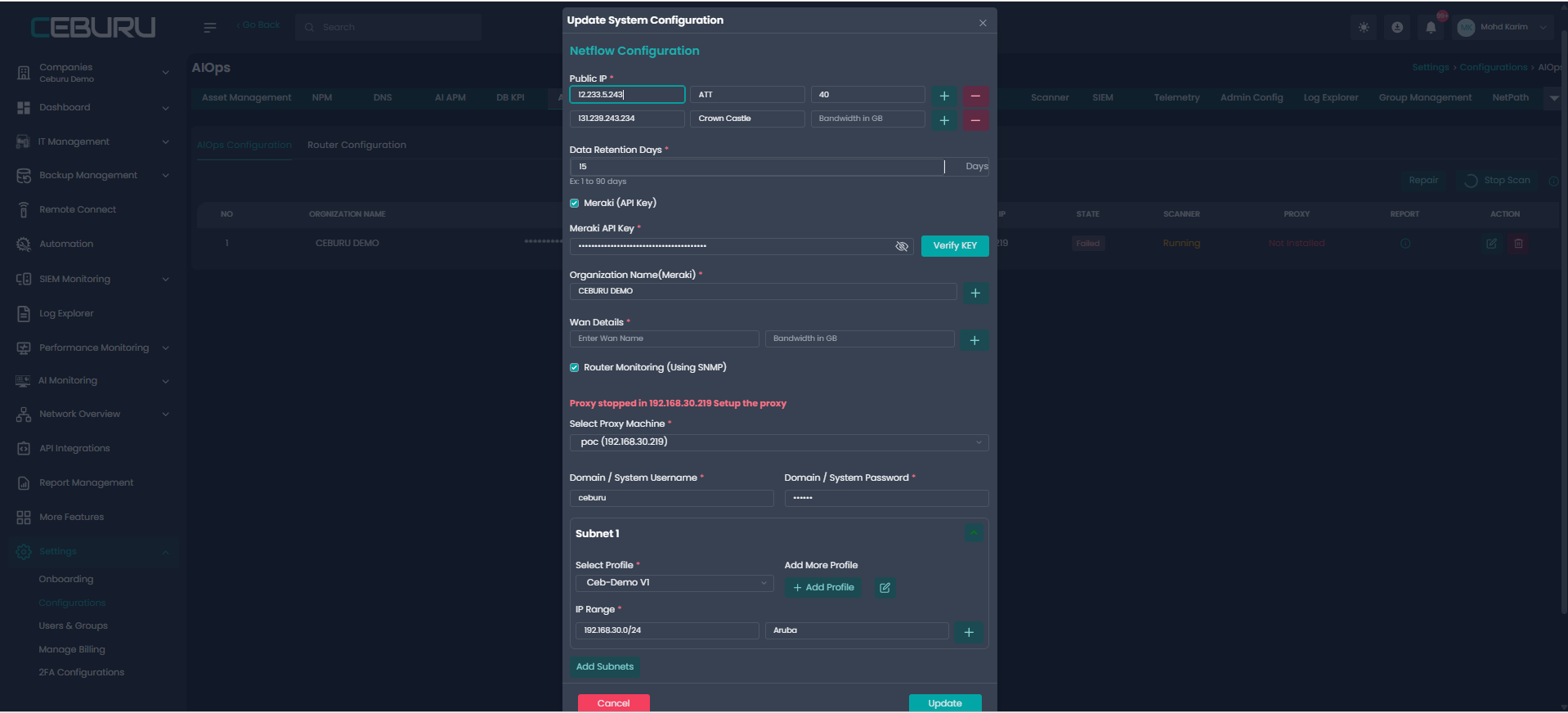
Repair / Stop Scan
Repair – Fix proxy/scanner issues
Stop Scan – Temporarily stop scanning operations
Use these controls during troubleshooting.
Router Configuration:
The Router Configuration section manages credentials used for SNMP-based router and switch monitoring.
Settings → Configurations → AIOps → Router Configuration
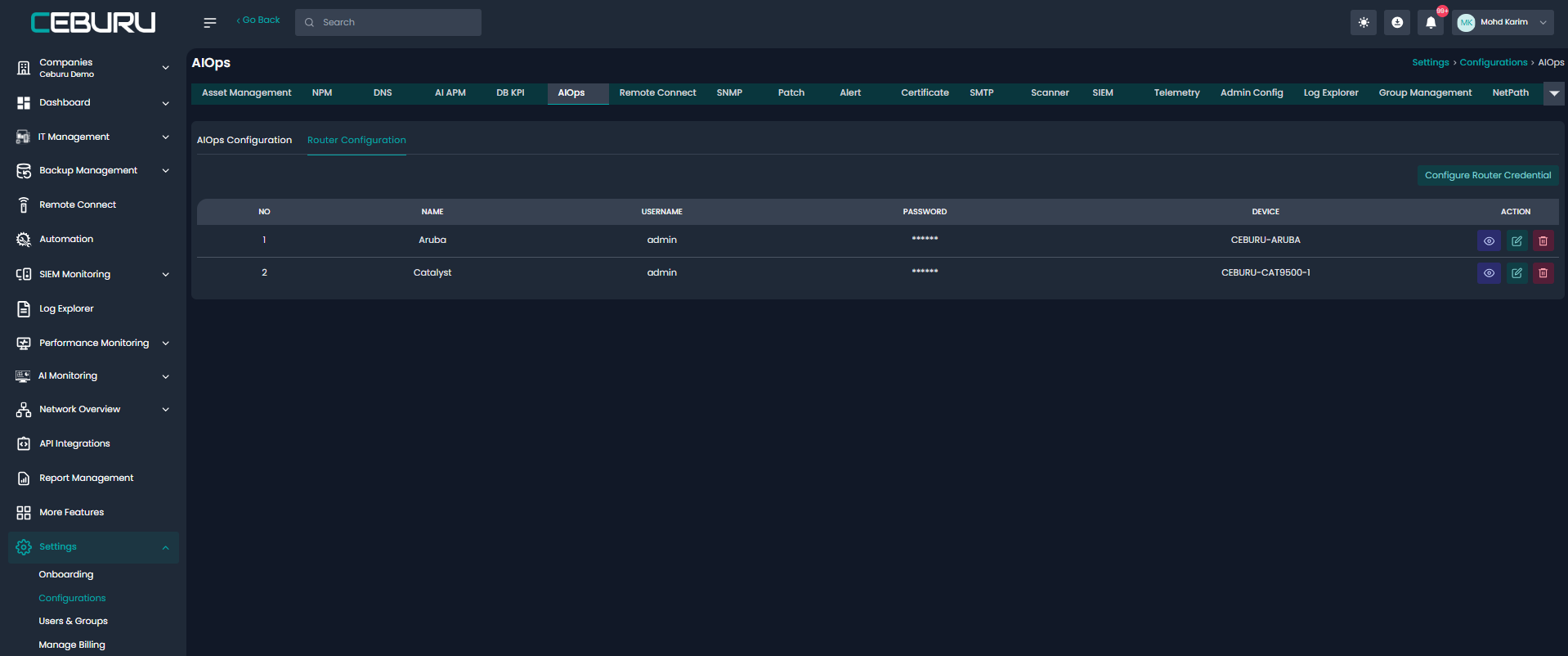
Add Router Credentials:
Click Configure Router Credential.
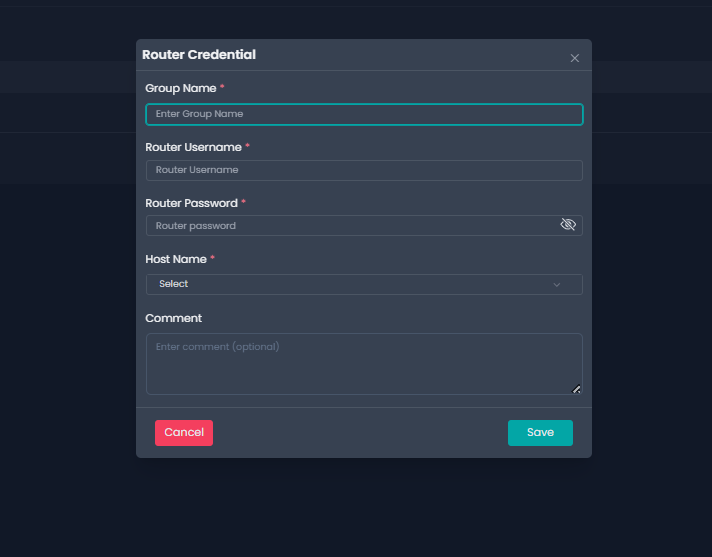
Router Credential Form
Required Fields:
Group Name
(Example: Aruba, Catalyst, Nexus)Router Username
Router Password
Host Name
Select the target device (from discovered assets)
Click Save.
Purpose: Allows Ceburu to authenticate with routers/switches via SNMP for monitoring.
Was this article helpful?
That’s Great!
Thank you for your feedback
Sorry! We couldn't be helpful
Thank you for your feedback
Feedback sent
We appreciate your effort and will try to fix the article