Custom Log Dashboards allow you to visualize log data using tables based on ESQL queries. You can create multiple panels with different queries and organize them into a single dashboard for easier monitoring and analysis.
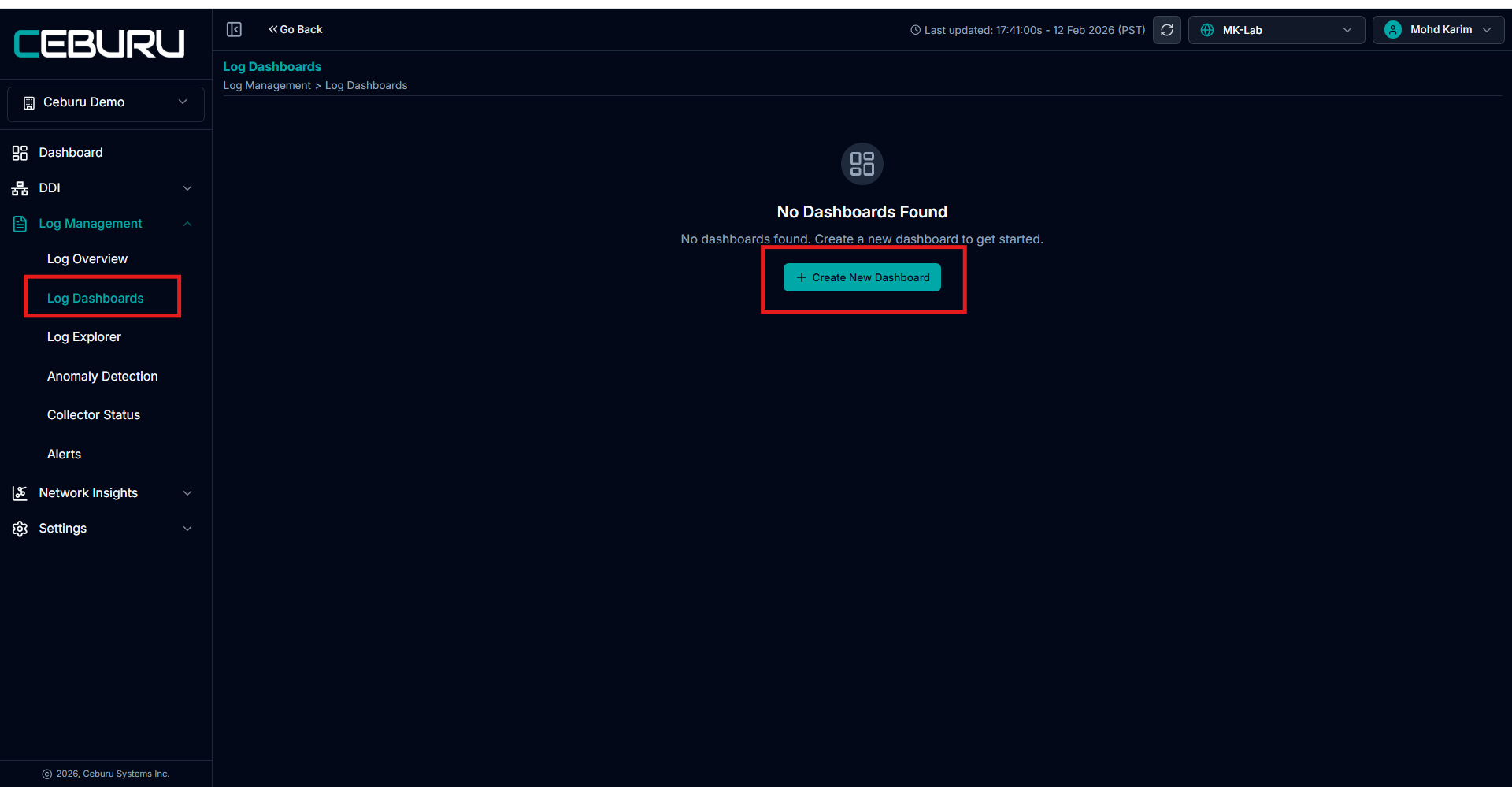
Navigate to Log Management from the left panel.
Click Log Dashboards.
If no dashboards exist, click Create New Dashboard.
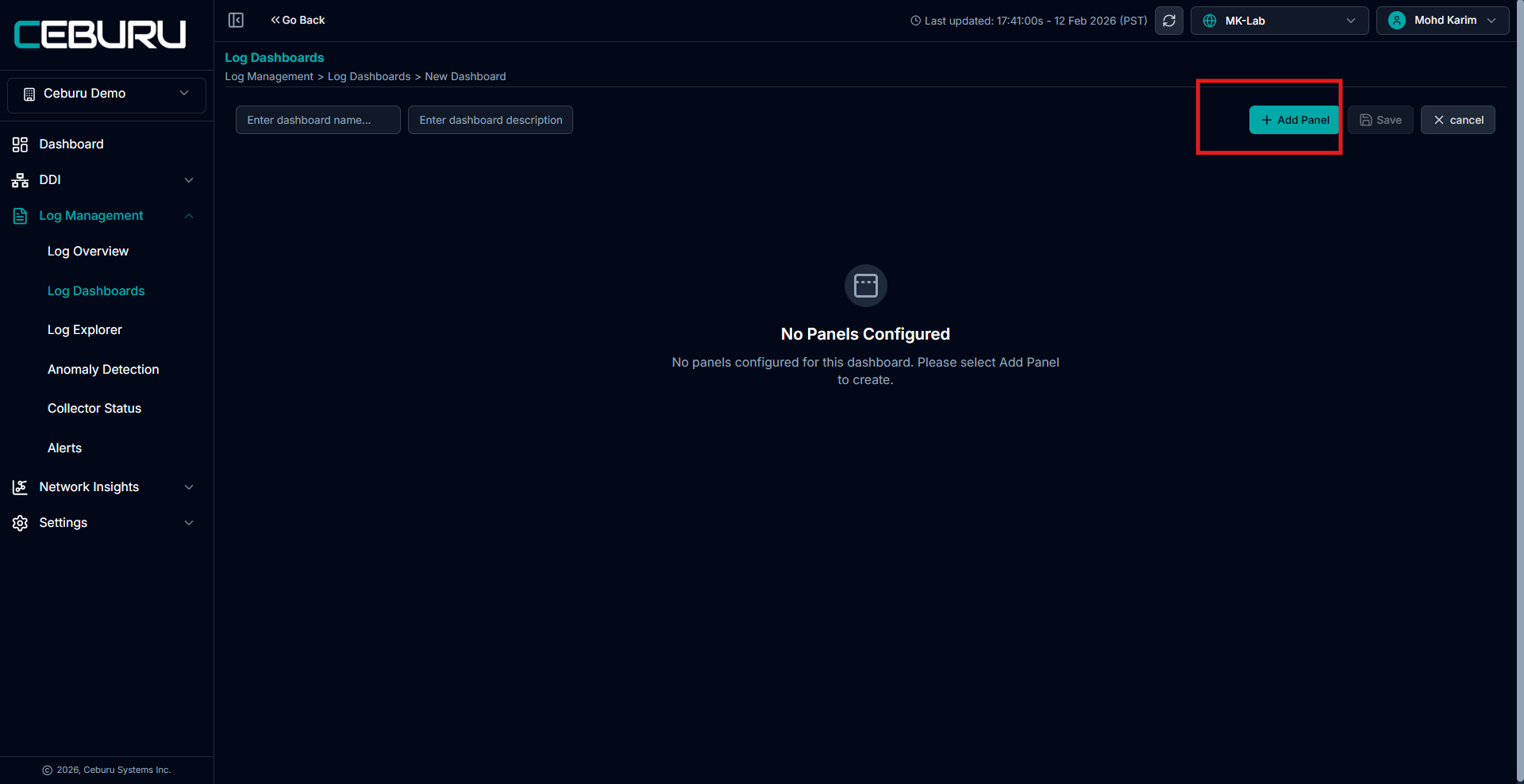
Enter the Dashboard Name.
Optionally enter a Description.
Click Add Panel.
This opens the panel configuration screen.
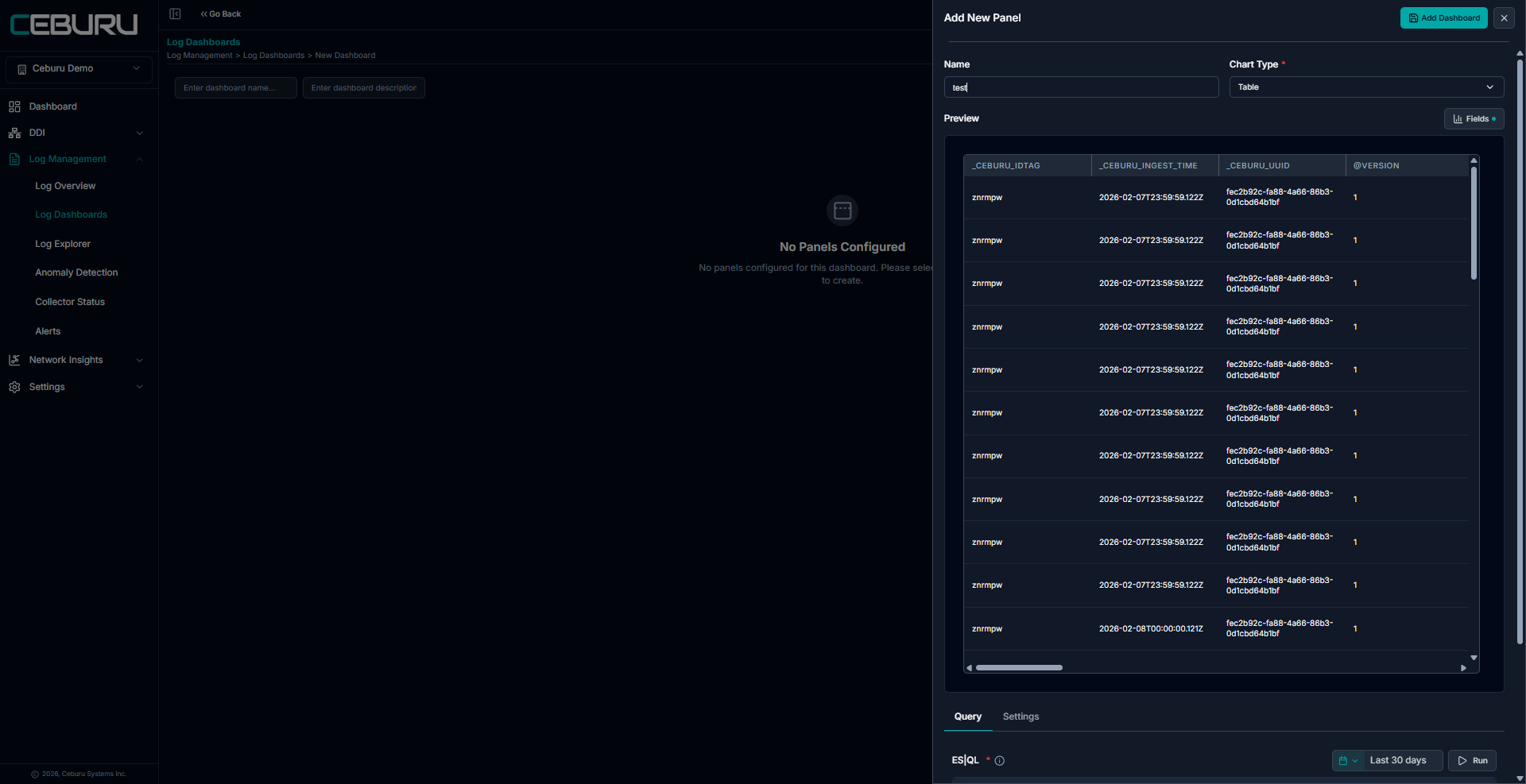
Configure Panel:
A. Panel Name: Enter a meaningful name for the panel.
B. Select Chart Type: Choose the required visualization type:
Table
Bar Chart
Pie Chart
Gauge Chart
Area Chart
Markdown
Timeseries Chart
For log listing and structured fields, select Table:
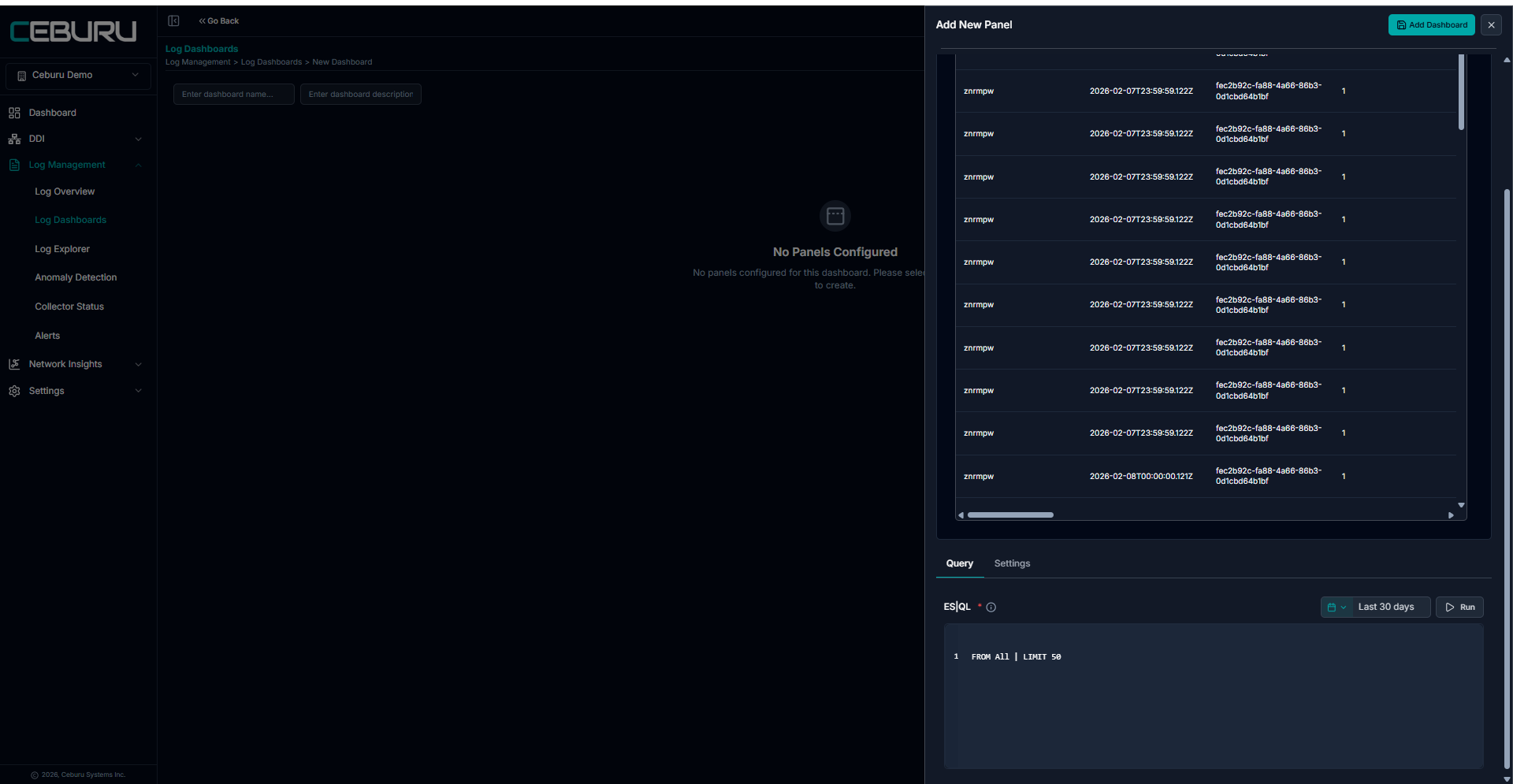
Enter ESQL Query
In the ESQL editor:
Example: FROM ALL | LIMIT 50
Click Run to validate and preview data.
Preview Data: The preview section displays returned records based on your query.
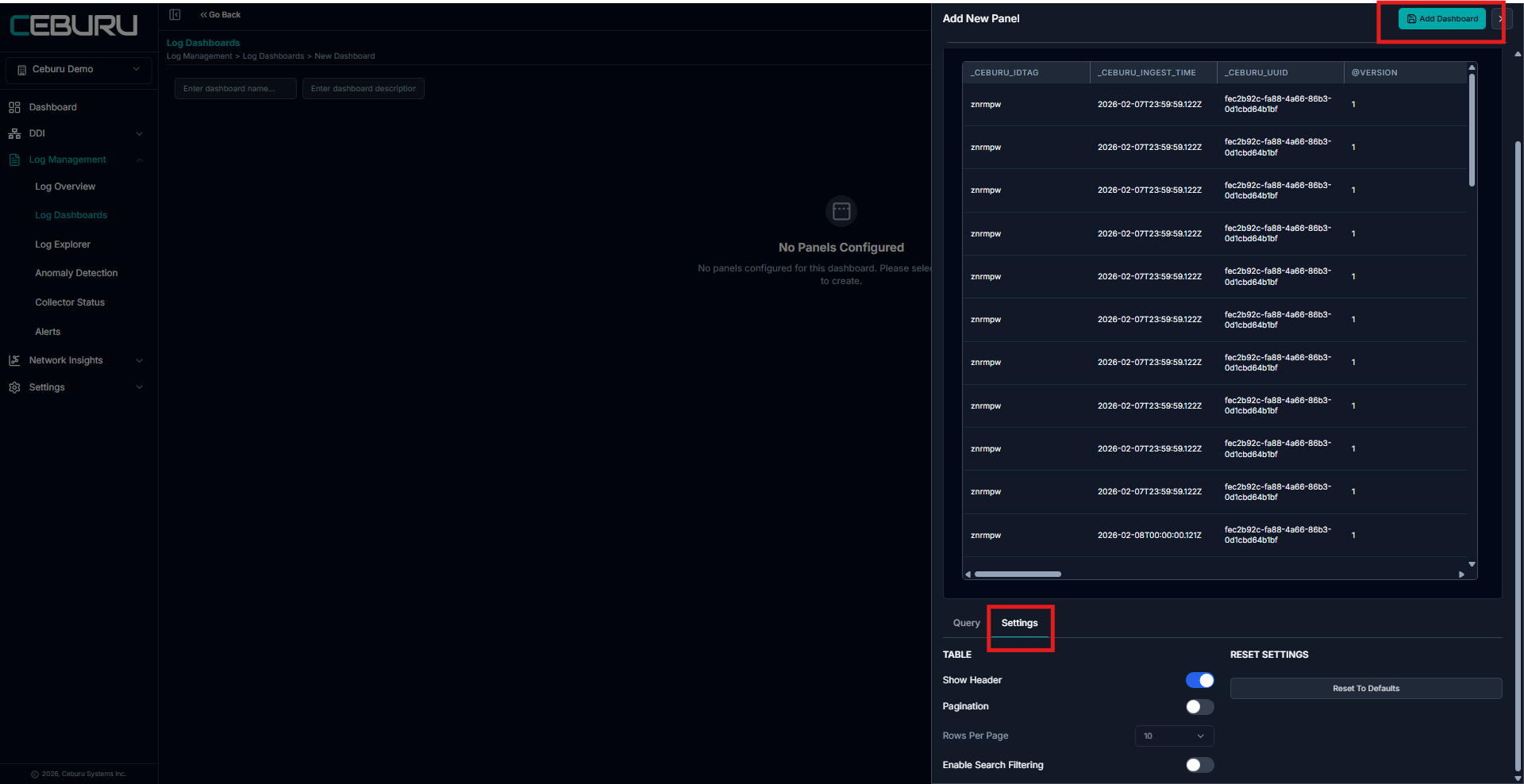
Setting Options:
Show Header – Toggles the visibility of the table header row.
Pagination – Enables or disables pagination for navigating through large datasets.
Rows Per Page – Specifies the number of rows displayed per page when pagination is enabled.
Enable Search Filtering – Allows users to search and filter table data dynamically.
Reset to Defaults – Restores all table settings to their default configuration.

Bar Chart:
A Bar Chart is used to compare counts or values across categories.
Example Use Cases
- HTTP status code distribution
- Requests per service
- Errors by host
- Top IP addresses generating logs
Behavior
- X-axis → Categories (status codes, services)
- Y-axis → Aggregated count
Query Requirements
- Query must include
STATS - Must return exactly 2 columns:
- 1 categorical (X-axis)
- 1 numeric metric (Y-axis)
- Numeric column must be numeric in all rows
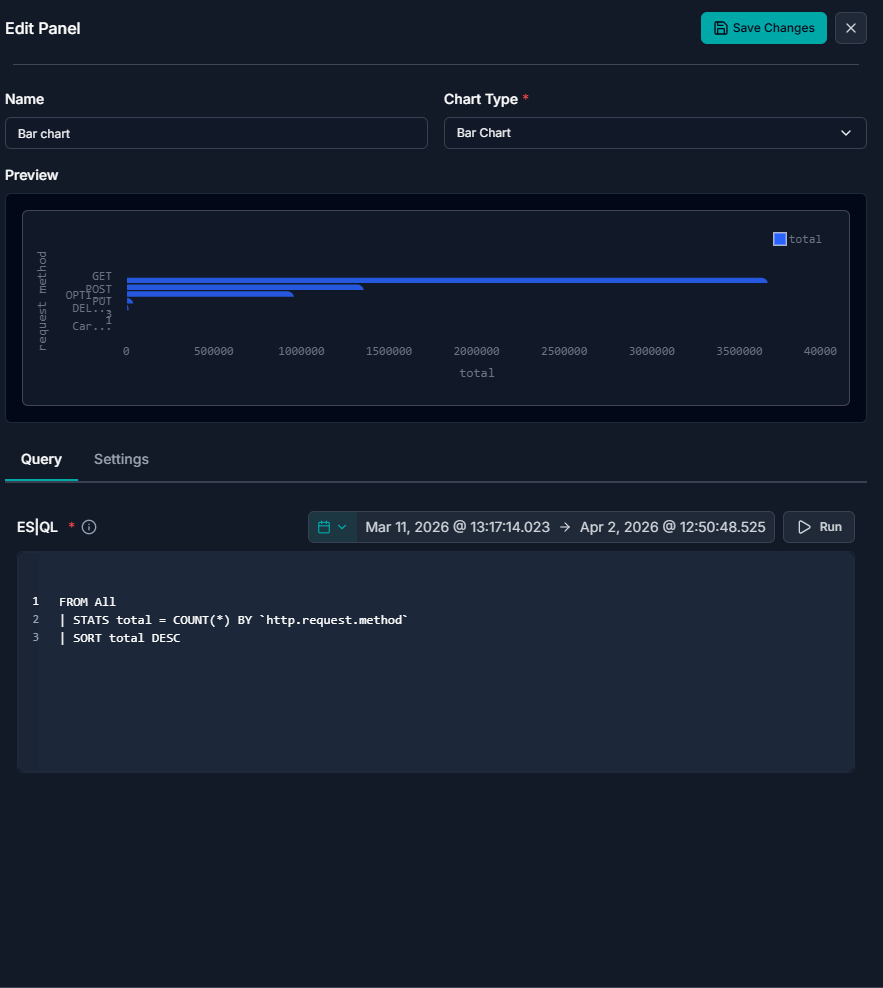
Settings Option:
X-axis Label: Set the label for the horizontal axis.
Y-axis Label: Set the label for the vertical axis.
Orientation: Choose whether bars are displayed horizontally or vertically.
Sort Order: Arranges bars in ascending, descending, or default order.
Bar Color: Set the color of the bars using a hex code.
Bar Width: Controls the thickness of the bars (range 0–1).
Show Legend: Toggles the display of the chart legend.
Show Grid: Toggles the visibility of background grid lines.
Reset to Defaults: Restores all settings to their default values.
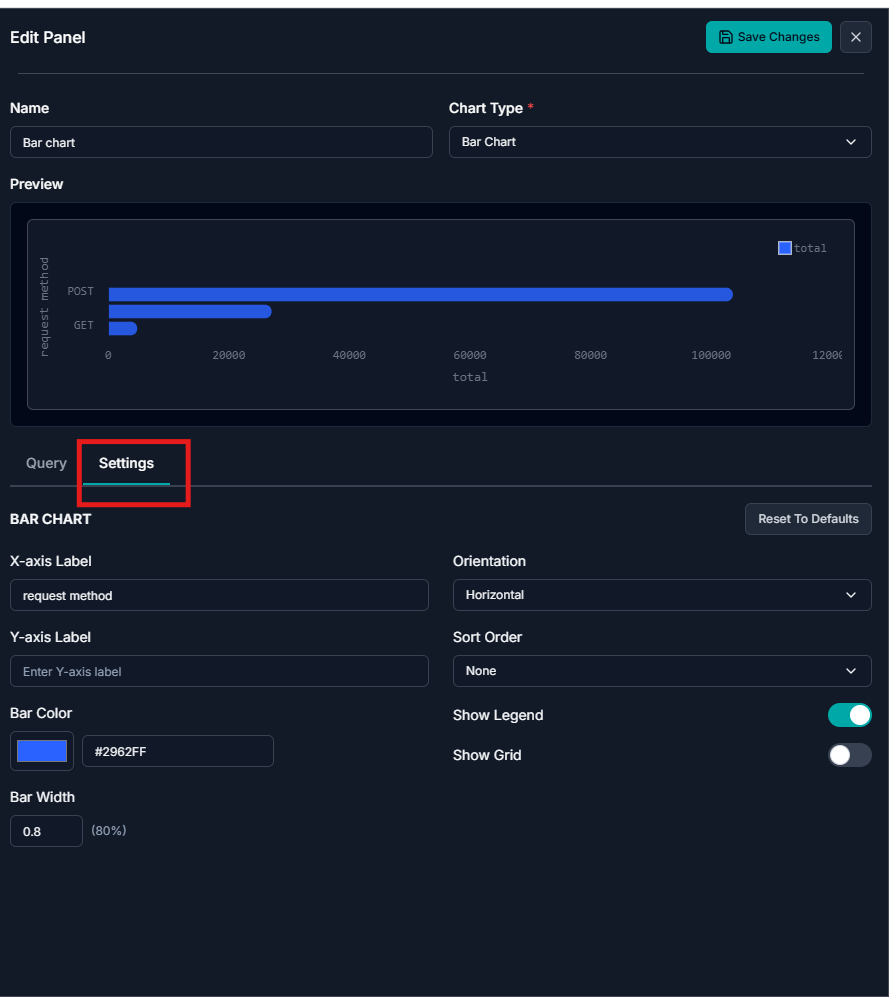
Pie Chart:
A Pie Chart displays proportional distribution within a dataset.
Example Use Cases
- Error vs success ratio
- Service traffic share
- Log source distribution
- Protocol usage
Behavior
- Each slice represents a category
- Size reflects percentage contribution
Query Requirements
- Query must include
STATS - Must return exactly 2 columns:
- 1 categorical
- 1 numeric
- Maximum categories: 15 rows
- Not allowed for time/date fields
- Numeric values cannot be negative
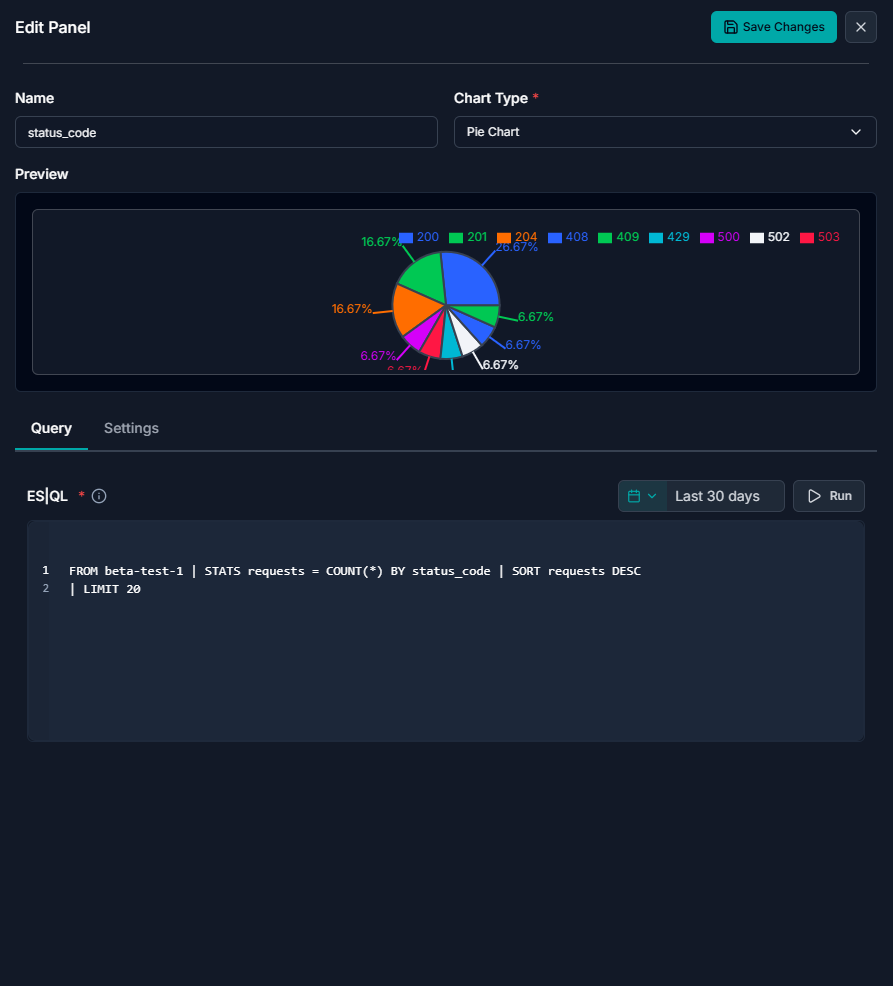
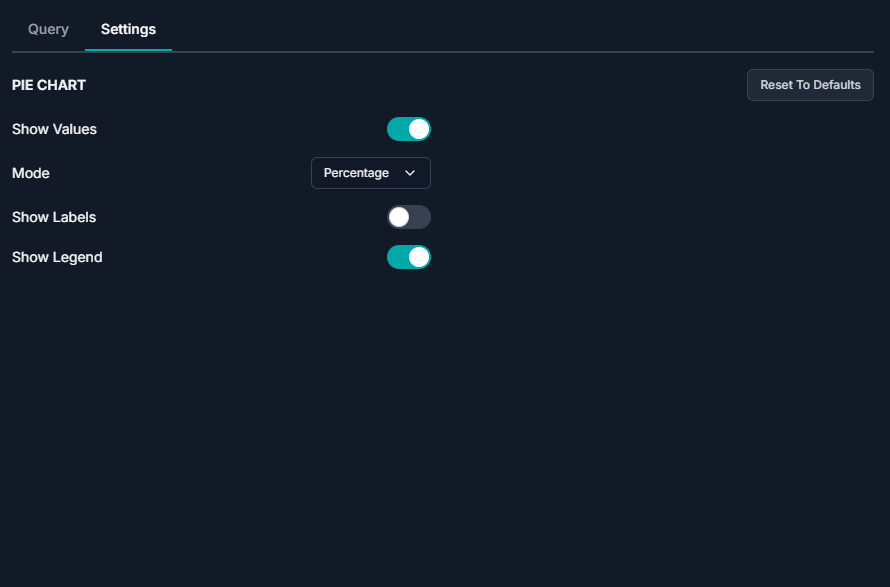
Setting options:
Show Values: Toggle display of values on the pie chart.
Mode: Select whether values are shown as percentage or actual numbers.
Show Labels: Toggle display of slice labels on the chart.
Show Legend: Toggle the display of the chart legend.
Reset to Defaults: Restore all settings to their default values.
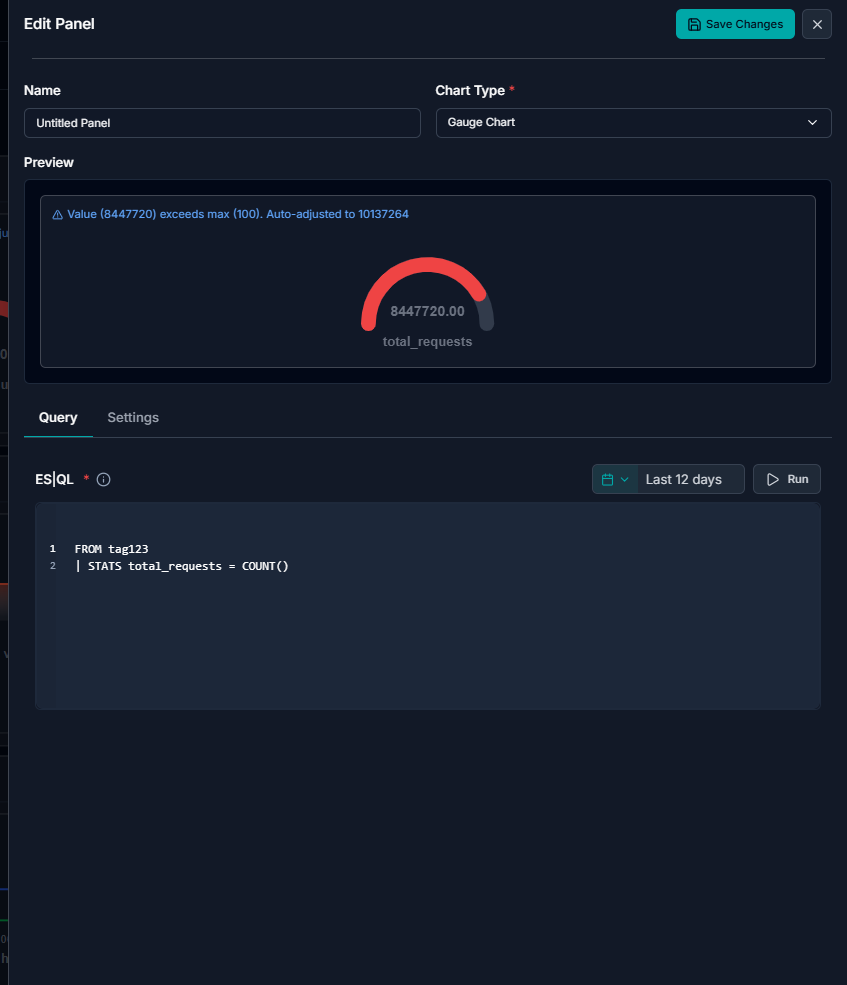
Gauge Chart:
A Gauge Chart displays a single numeric metric relative to a range.
Example Use Cases
- Error rate percentage
- Average response time
- CPU utilization
- Failed login rate
Behavior
- Shows a single value against thresholds
Query Requirements
- Must return:
- exactly 1 column
- exactly 1 row
- Value must be:
- numeric
- non-null
- Typically uses aggregation: STATS AVG(...), COUNT(...)
Setting Options:
- Show Values: Display numeric values on pie slices.
- Mode: Choose between percentage or actual value display.
- Show Labels: Display category names on slices.
- Show Legend: Show or hides the chart legend.
- Reset to Defaults: Reset all settings to default values.

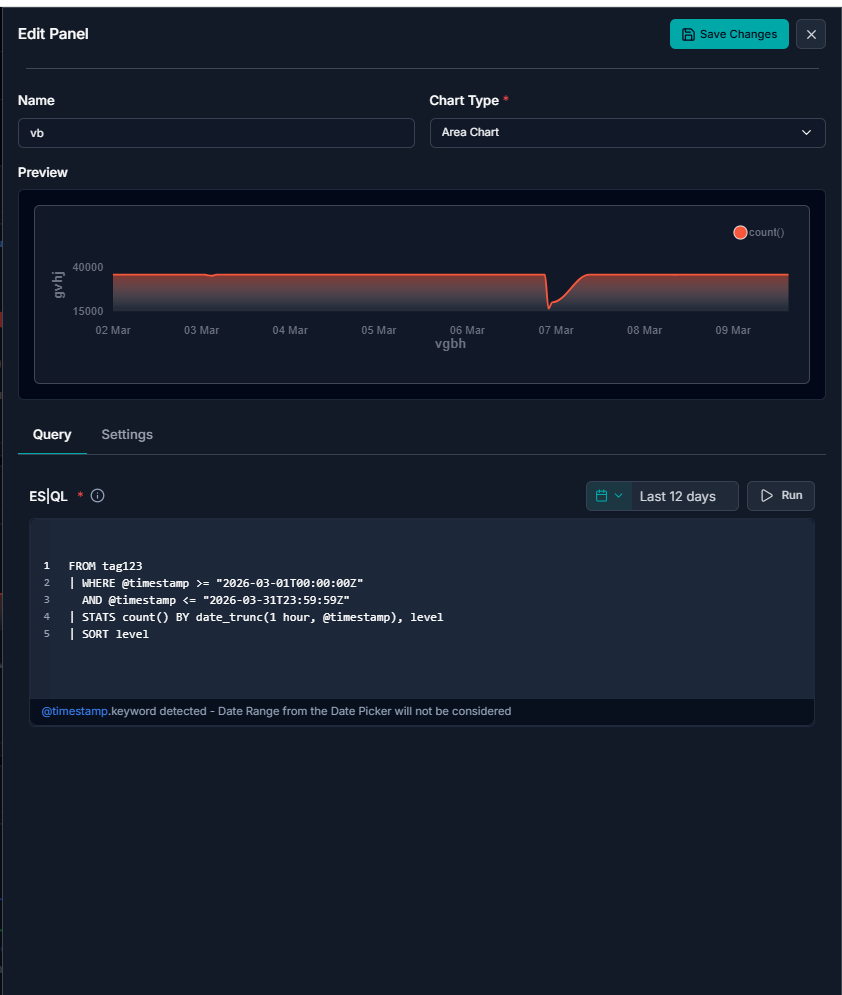
Area Chart:
An Area Chart visualizes trends over time or categories.
Example Use Cases
- Requests over time
- Errors over time
- Log volume trends
- Traffic growth
Behavior
- X-axis → time/category
- Y-axis → aggregated values
- Supports multi-series
Query Requirements
- Query must include
STATS - Must return:
- at least 2 columns
- at least 2 rows
- Requires:
- 1 X-axis field (time/category/numeric)
- 1 or more numeric Y fields
- Supports multiple numeric series
- All numeric columns must be numeric across rows
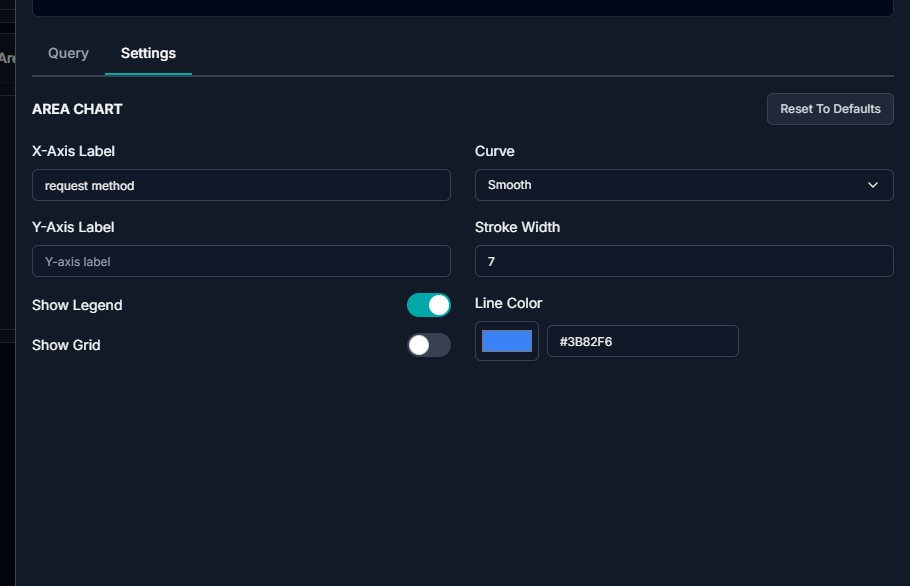
Setting Options:
X-Axis Label – Define the title displayed along the horizontal axis (e.g., request method).
Y-Axis Label – Define the title displayed along the vertical axis.
Curve – Control the style of the line in the chart (e.g., smooth or straight).
Stroke Width – Set the thickness of the chart line.
Line Color – Specifies the color of the chart line using a color picker or hex code.
Show Legend – Toggle the display of the chart legend for identifying data series.
Show Grid – Toggle the visibility of grid lines in the chart background.
Reset to Defaults – Restore all chart settings to their original default values.
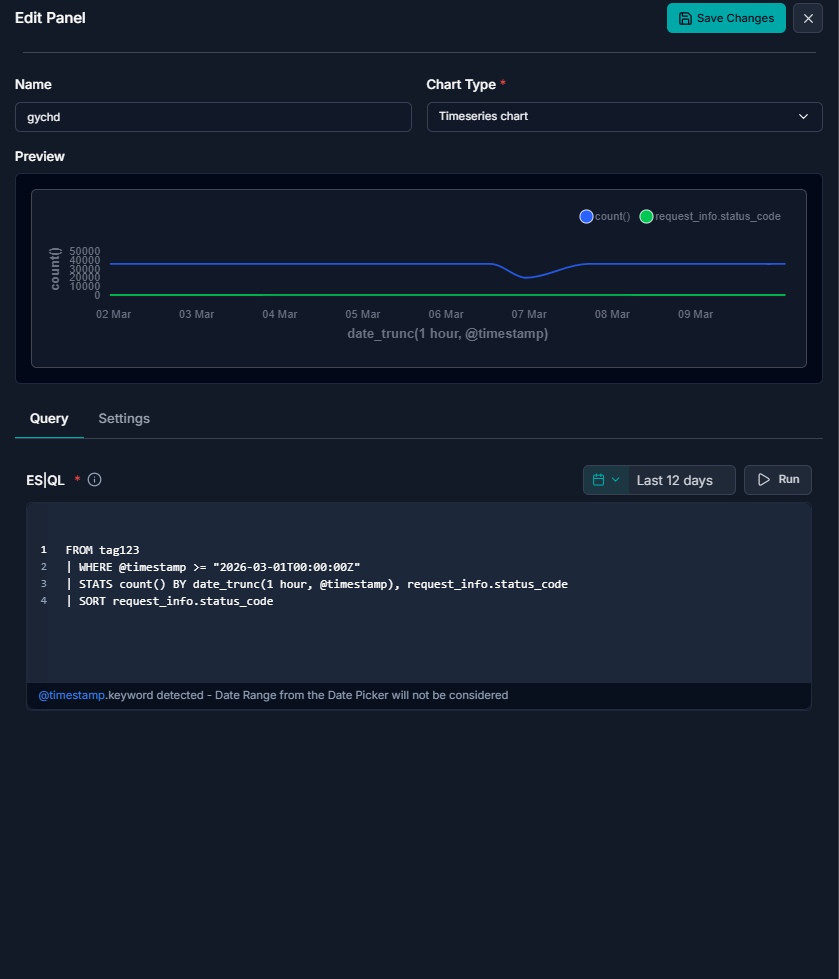
Timeseries Chart:
Displays events in chronological order.
Example Use Cases
- Incident timelines
- Service outages
- Security events
- Request tracking
Behavior
- Plots events along a time axis
Query Requirements
- Query must include
STATS - Must include:
- one time/date field (X-axis)
- one numeric metric (Y-axis)
- Supports grouped multi-series if categorical field exists
- Numeric series must be valid across all rows
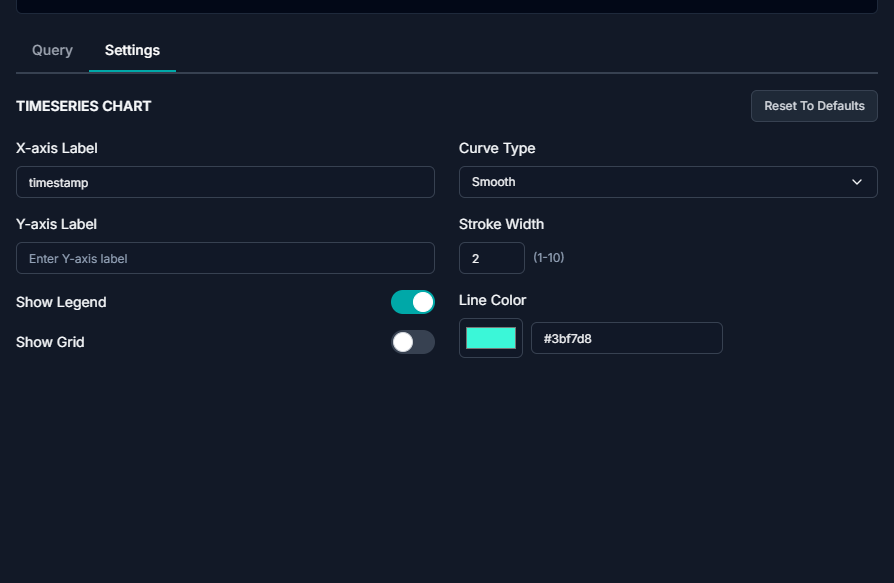
Setting Options:
X-Axis Label – Defines the label for the horizontal axis, typically representing time (e.g., timestamp).
Y-Axis Label – Defines the label for the vertical axis representing the measured values.
Curve Type – Determines the style of the line (e.g., smooth or straight).
Stroke Width – Controls the thickness of the line (range: 1–10).
Line Color – Set the color of the line using a color picker or hex value.
Show Legend – Toggles the visibility of the legend for identifying data series.
Show Grid – Toggles the display of background grid lines.
Reset to Defaults – Restore all chart settings to their default configuration
Markdown Panel:
Allows adding formatted documentation inside dashboards.
Example Use Cases
- Dashboard descriptions
- Operational notes
- Instructions
- Monitoring guidelines

Setting Options:
- Font Size: Adjustable (currently set to 14)
- Font Type: Dropdown selection (currently Arial)
- Text Color: Customizable via color picker and hex code (#f1efef)
- Text Background Color: Customizable via color picker and hex code (#1f2937)
- Add URL Option: Allows adding a link (+ Add URL)
- Reset Button: “Reset to Defaults” to restore original settings

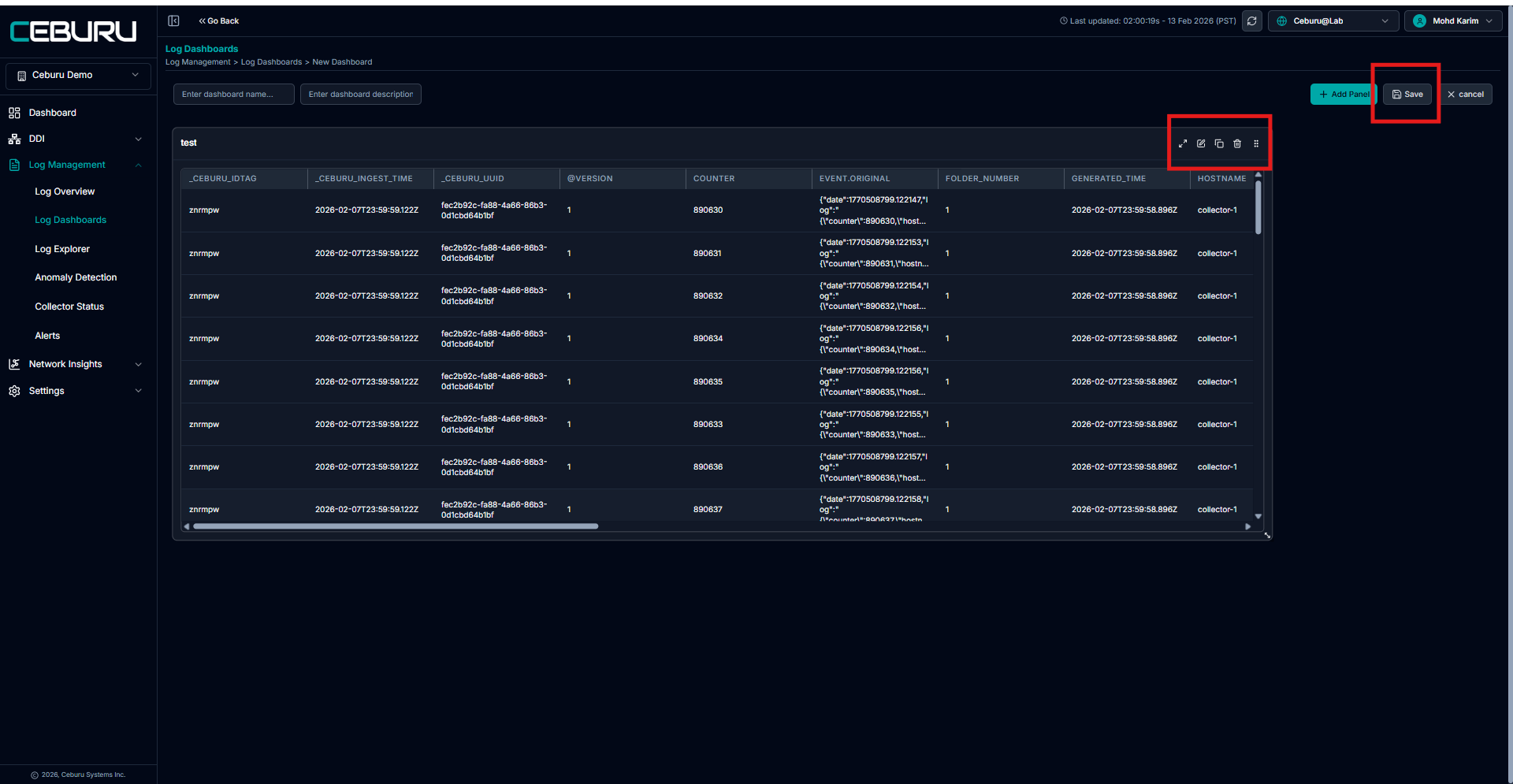
Click Save on the dashboard screen. The panel will now appear on your dashboard.
Manage Panels on Dashboard
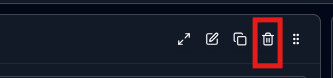
Once saved, each panel provides toolbar options:
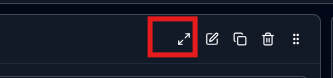
Enlarge panel:
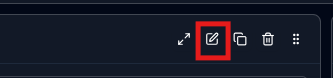
Edit panel:
 Duplicate panel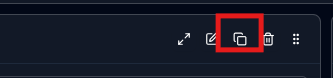
Delete panel
Resize panel by dragging corners
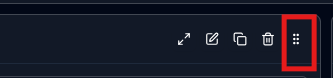
You can adjust the panel size and placement to optimize visibility.
Create Multiple Panels:
Add multiple tables using different ESQL queries.
Combine different chart types in the same dashboard.
Create panels for different log sources or identifier tags.
Filter based on time ranges.
Each panel operates independently based on its own query. Final Save
After arranging panels:
Click Save.
Dashboard becomes available under Log Dashboards list.
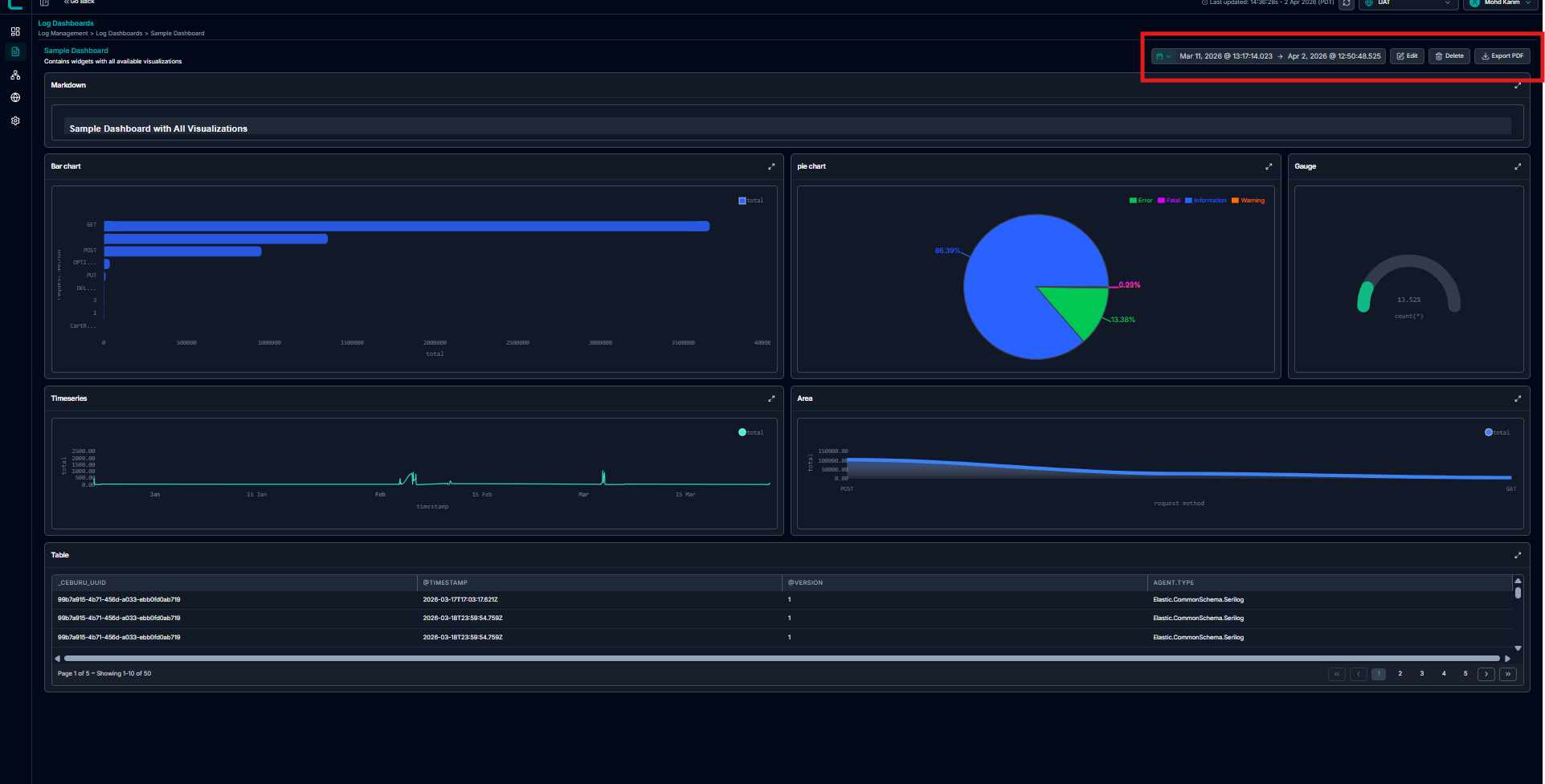
You can later Edit or Delete and export to pdf the dashboard
Was this article helpful?
That’s Great!
Thank you for your feedback
Sorry! We couldn't be helpful
Thank you for your feedback
Feedback sent
We appreciate your effort and will try to fix the article