Advanced Group Configuration:
Advanced Group configuration is used to logically organize devices into a structured hierarchy that mirrors real-world environments such as data centers, branch locations, or regional offices. This configuration is essential because it directly controls how monitoring data, dashboards, and analytics are displayed across the platform, including the Summary Home dashboard and Intelligent Map.
The configuration begins in the Group Management section under Settings. Create a Global Group, which acts as the top-level container. The Global Group name typically represents a customer, organization, or major environment. Once saved, this Global Group becomes available throughout the platform as a selectable scope for monitoring and reporting.
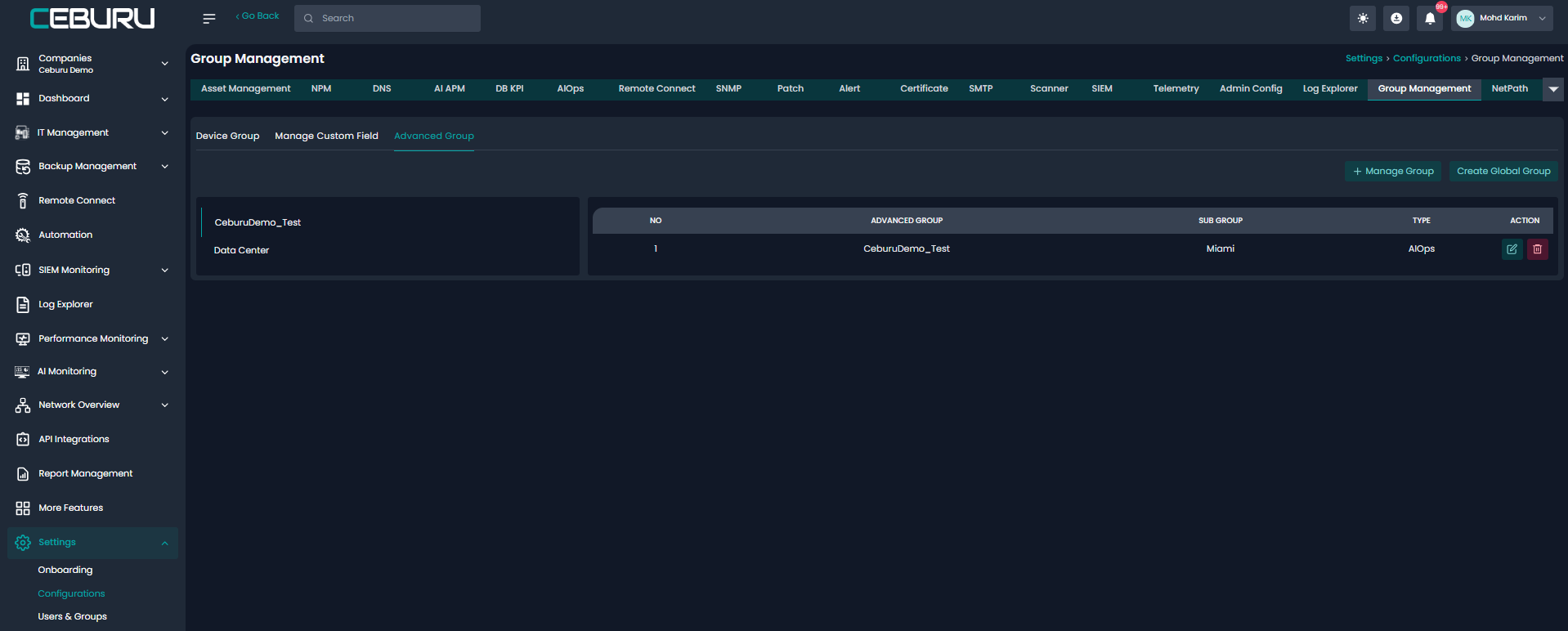
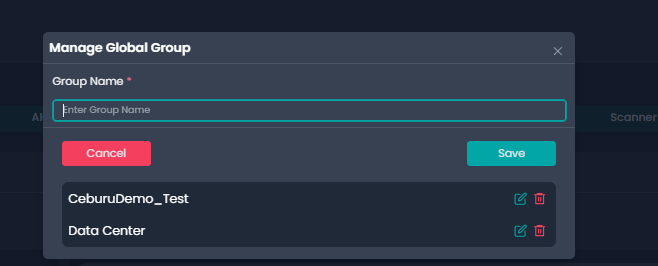
After creating the Global Group, sub-groups are configured under it using the Advanced Group option. A sub-group represents a logical subdivision of the Global Group, such as a specific data center, city, or operational site. Selects the Global Group, specifies the group type, and assigns a meaningful name to the sub-group. Devices are then added to this sub-group by selecting them from the available device list and moving them into the selected devices panel. This step associates each device with a specific location or environment.
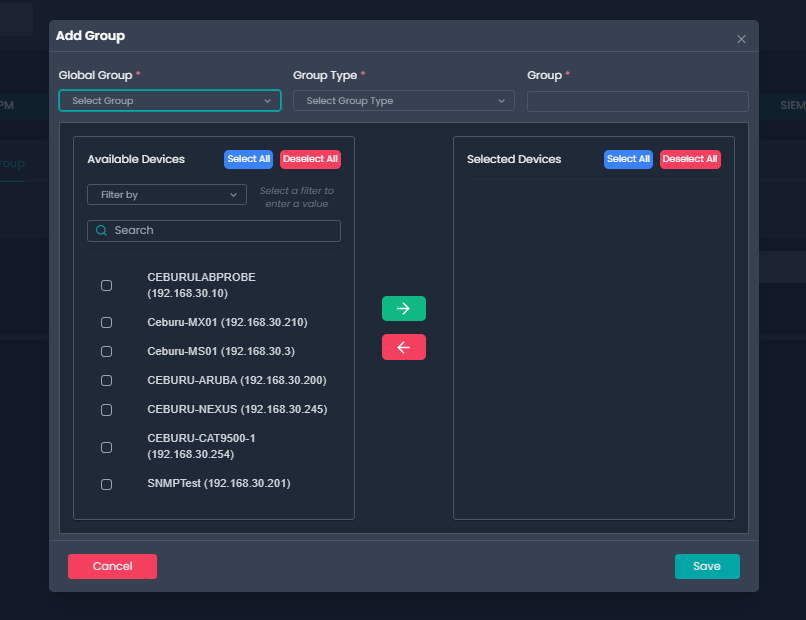
Once saved, the Advanced Group structure becomes active immediately. Devices assigned to these groups inherit the group context across monitoring views, analytics, alerts, and dashboards. This grouping does not change how devices are monitored, but it changes how their data is organized and visualized, allowing teams to work with clearer operational boundaries.
Summary Home:
Navigate to Dashboard -> summary Home
After Advanced Groups are configured, the Intelligent Map provides a visual confirmation of the group hierarchy. The Global Group appears as the top node, with sub-groups displayed beneath it. Devices assigned to each sub-group are visually linked, making it easy to confirm that assets are correctly grouped.
The Intelligent Map also reflects the health status of each group and device. Any warnings or critical states within a sub-group become visible immediately, to validate both the configuration and the operational state of the environment.
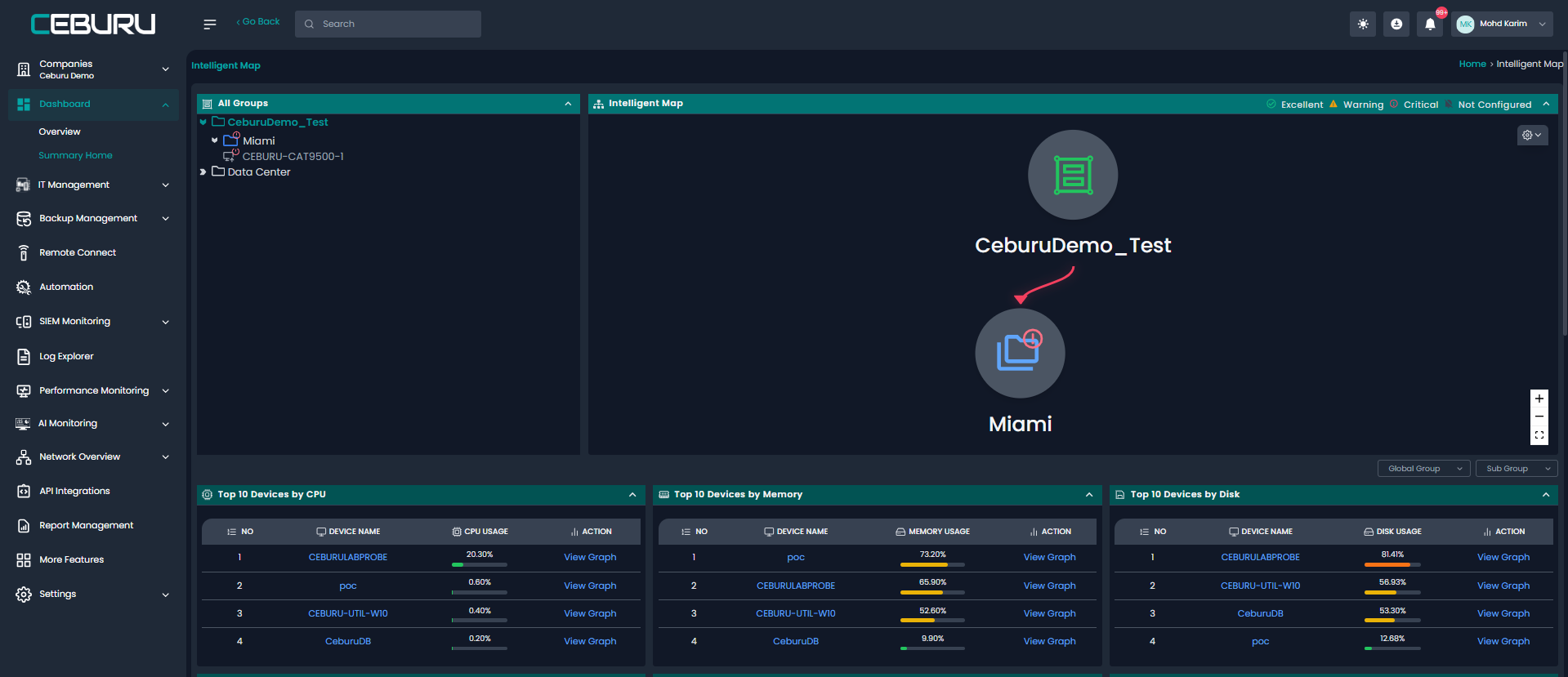
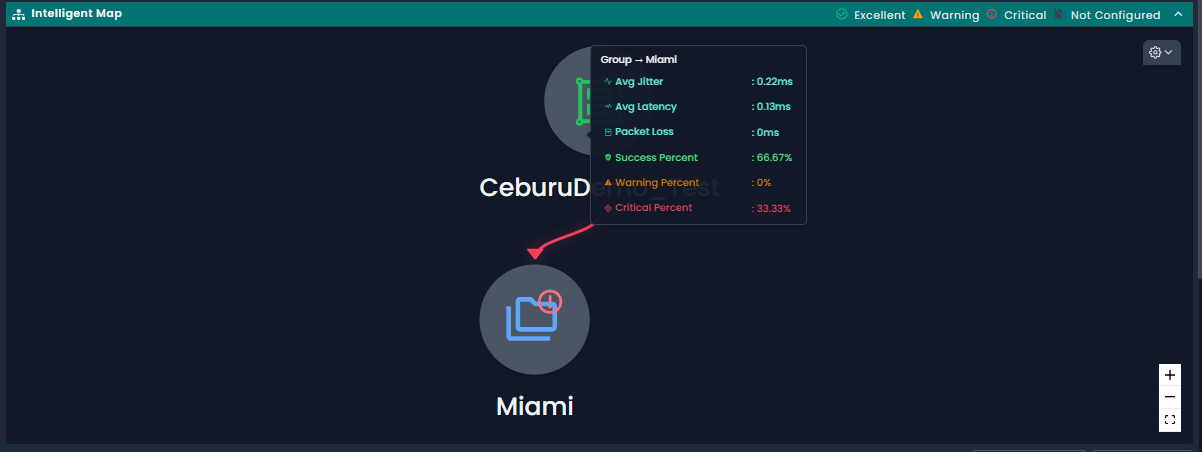
At the top of the Summary Home dashboard, the total asset count, online and offline status, and critical or warning indicators reflect only the devices belonging to the selected group. This ensures that the dashboard view is always relevant to the operational context being analyzed. For example, selecting a data center sub-group shows only the assets deployed in that data center, rather than the entire organization.
The Top-10 widgets on Summary Home also dynamically update based on the selected group. Metrics such as CPU usage, memory utilization, disk usage, latency, jitter, packet loss, and uptime are calculated only from the devices within the group. This allows teams to identify the most resource-intensive or unstable devices within a specific environment instead of across the entire infrastructure.
Network-specific widgets, such as top routers or switches by performance or interface traffic, also follow the same grouping logic. This makes it possible to analyze network behavior at a site level, which is critical for troubleshooting localized performance issues.
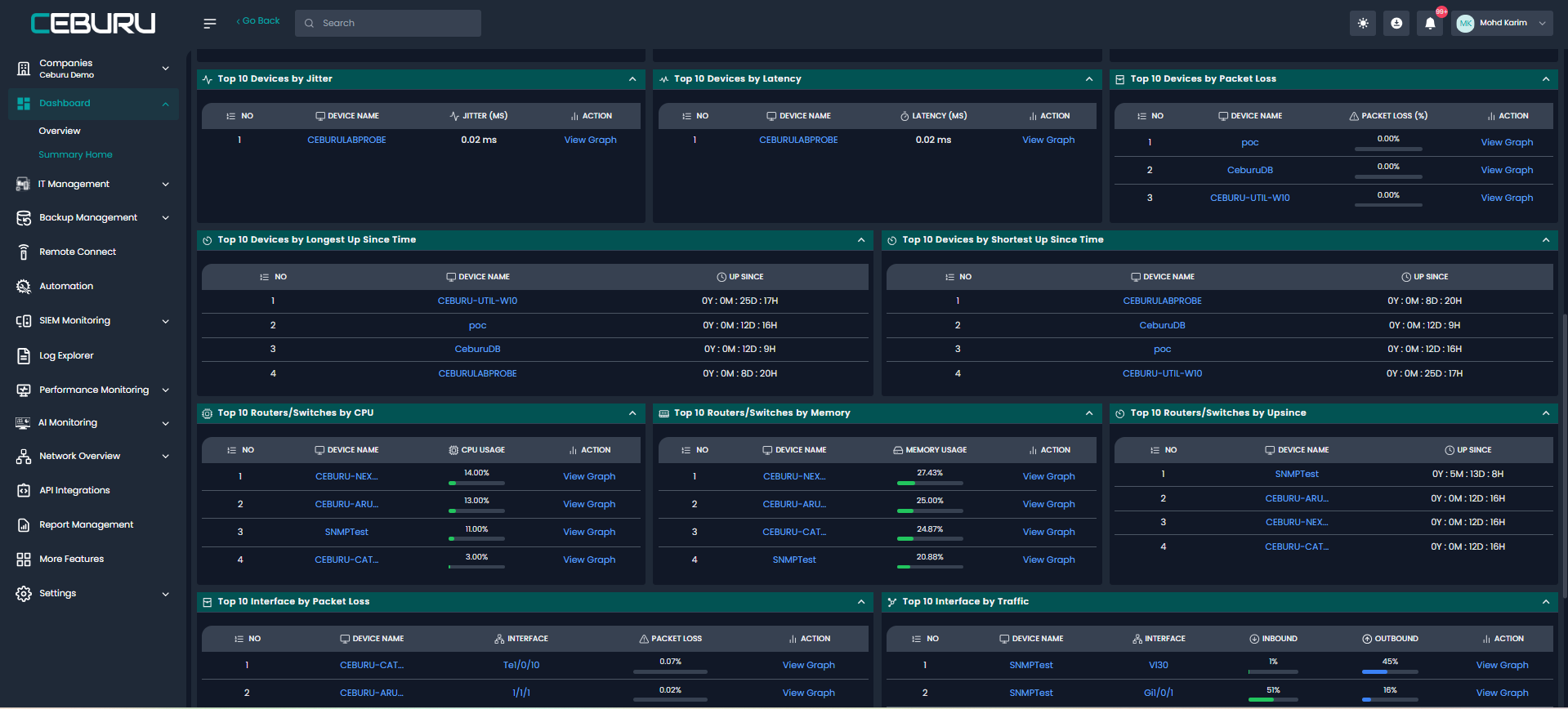
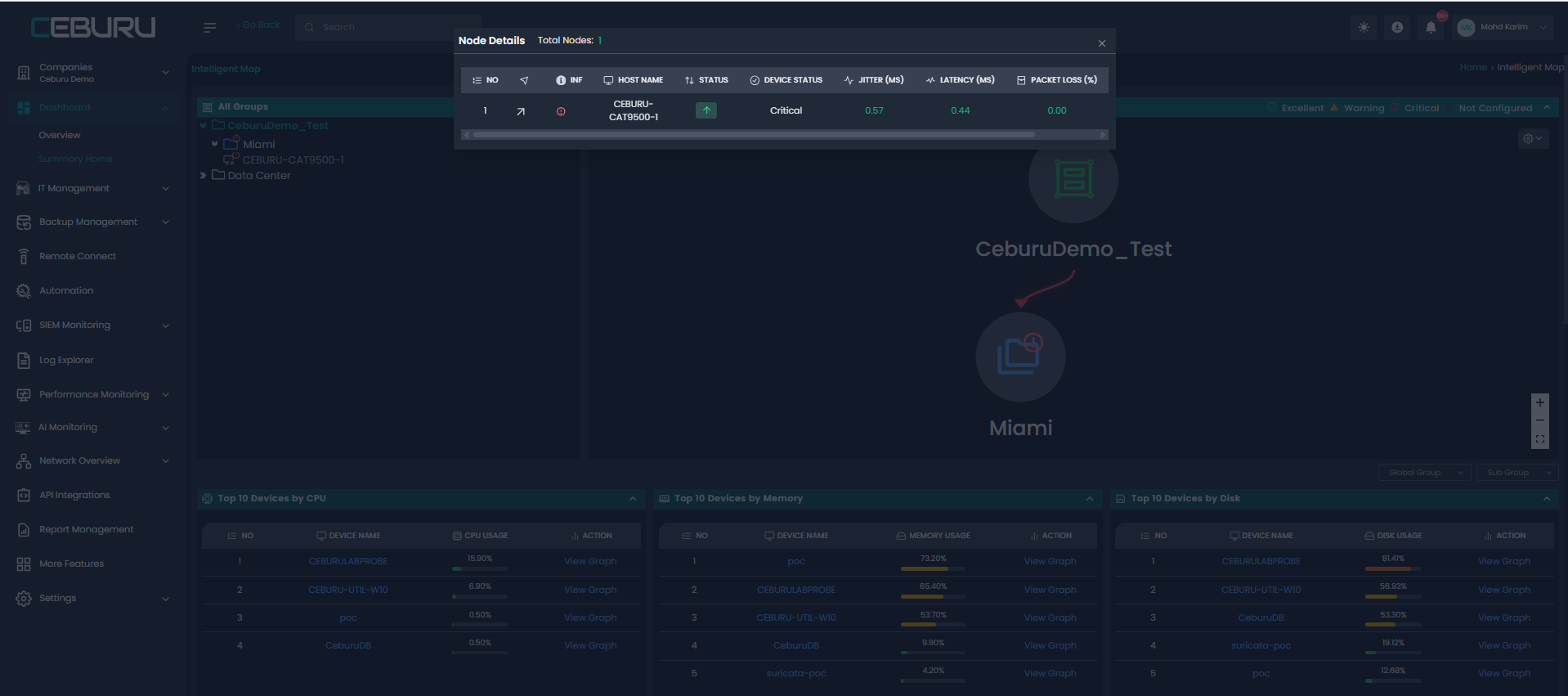
Summary Home dashboard, ensuring that operational insights are always aligned with real-world environments. This approach allows IT teams to monitor, analyze, and troubleshoot infrastructure efficiently, with clear visibility into each location or operational unit.
Was this article helpful?
That’s Great!
Thank you for your feedback
Sorry! We couldn't be helpful
Thank you for your feedback
Feedback sent
We appreciate your effort and will try to fix the article