Group Management Overview
Group Management enables administrators to organize devices into logical structures, enrich them with custom metadata, and apply configurations consistently across monitoring, alerting, analytics, and reporting. It is a foundational feature used across Alerting, AIOps, Maintenance Mode, and dashboards to ensure devices are managed in a structured and scalable way.
This module allows you to create device groups, define custom fields, assign metadata in bulk, and build hierarchical group structures that reflect real-world environments such as regions, data centers, or business units. By organizing devices effectively, teams can simplify operations, improve visibility, and apply policies more efficiently.
Administrators can group devices for collective management, attach additional attributes for better classification and filtering, and structure environments using advanced grouping. While grouping does not change how devices are monitored, it significantly enhances how data is organized, displayed, and consumed across the platform.
Overall, Group Management helps maintain consistency, improves operational clarity, and supports better decision-making through structured device organization and enriched context.
Navigate to Settings
Select Configurations
Click Group Management
Device Group:
Device Groups allow you to group one or more devices together so they can be used collectively in alerts, monitoring policies, and configurations.
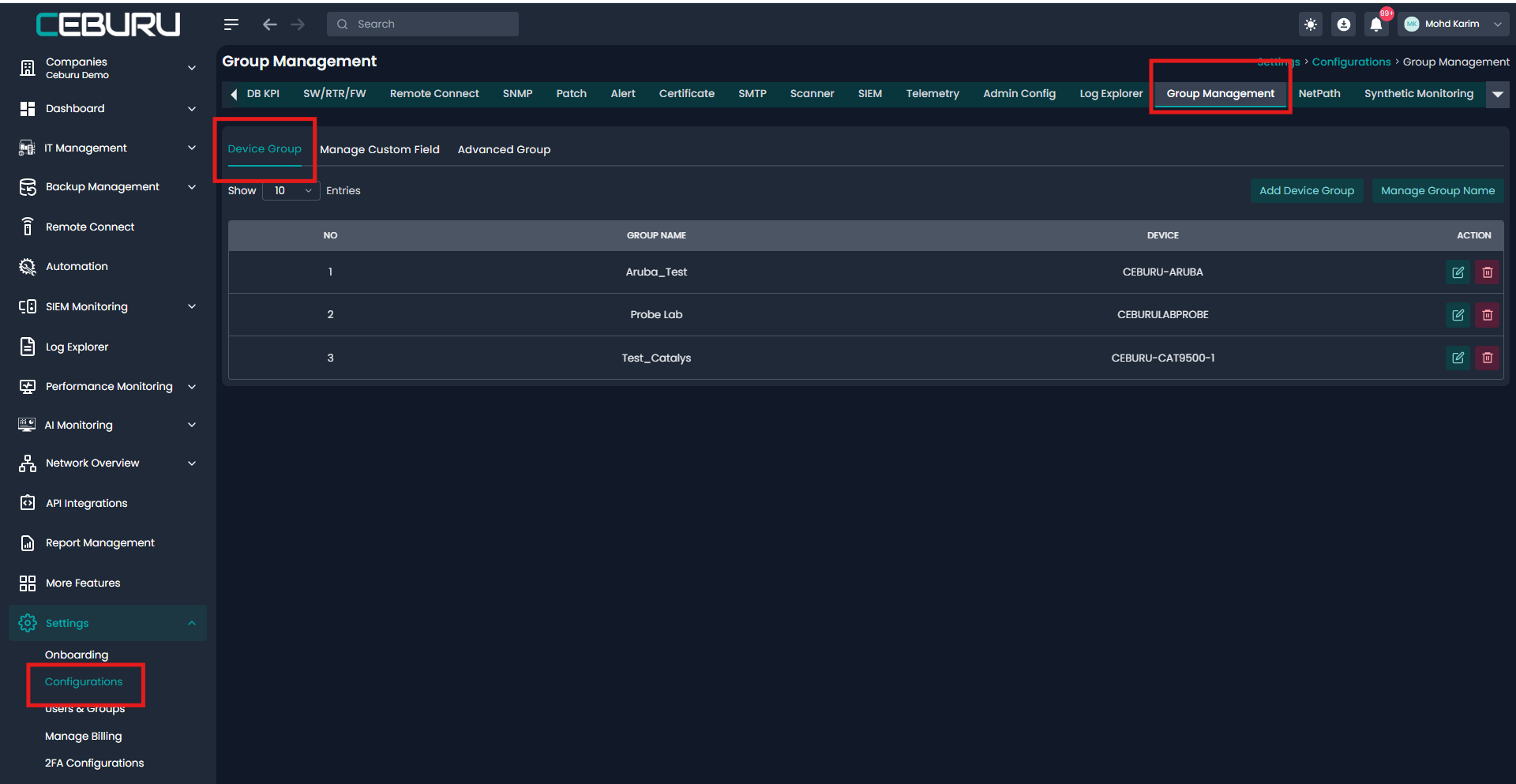
Go to Group Management > Device Group
Click Add Device Group
Add Device Group Fields:
| Field | Description |
|---|---|
| Group Type | Select the group type. Example Devices |
| Group Name | Enter a unique name for the device group |
| Device List | Filter devices by type All, Server, Workstation, Windows, or Linux |
| Selected Devices | Choose one or more devices to include in the group |
| Comment | Optional description for reference |
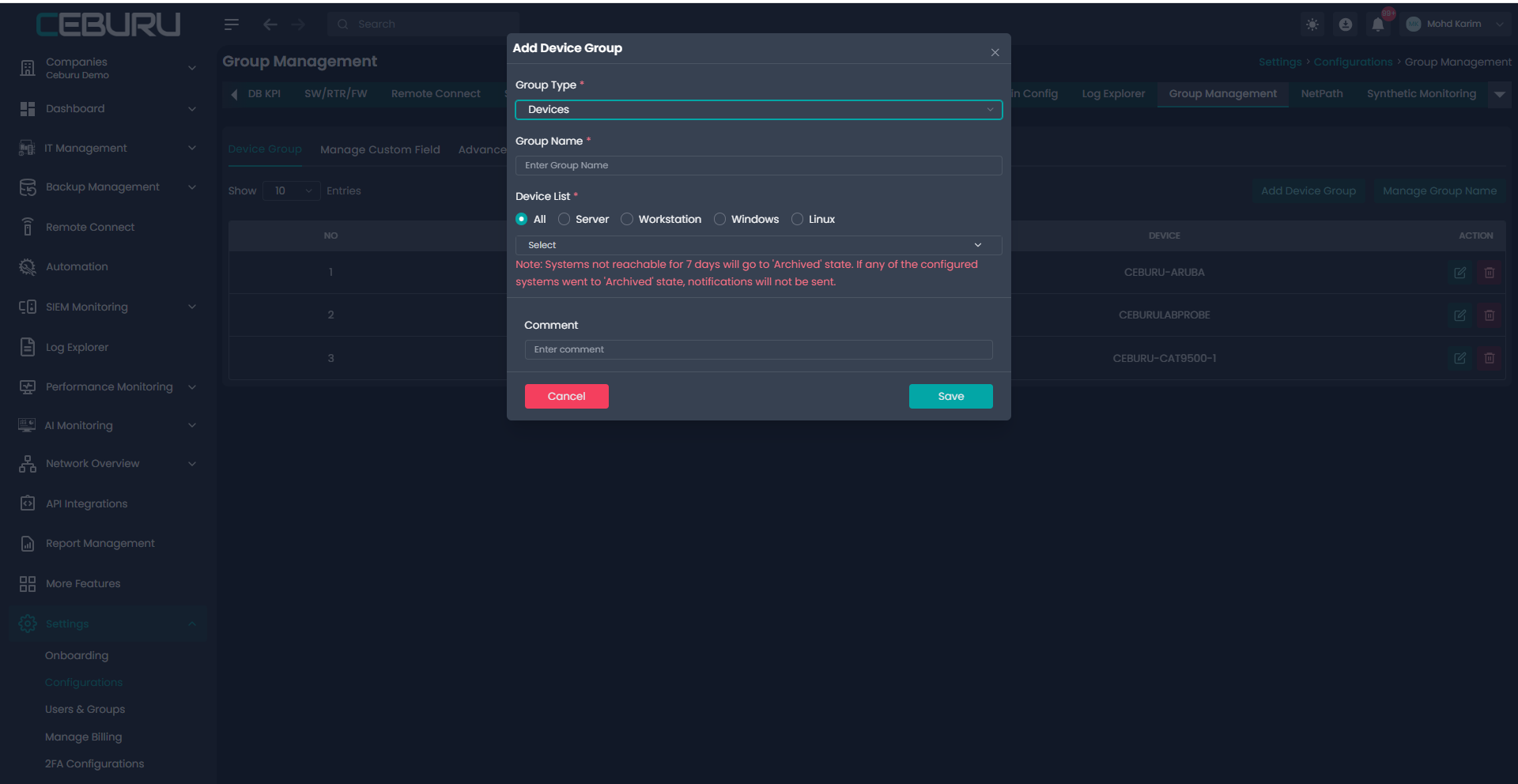
If a system is not reachable for 7 days, it moves to an Archived state. Archived systems do not send notifications even if included in a device group.
Click Save
The device group will now appear in the Device Group list.
Managing Device Groups:
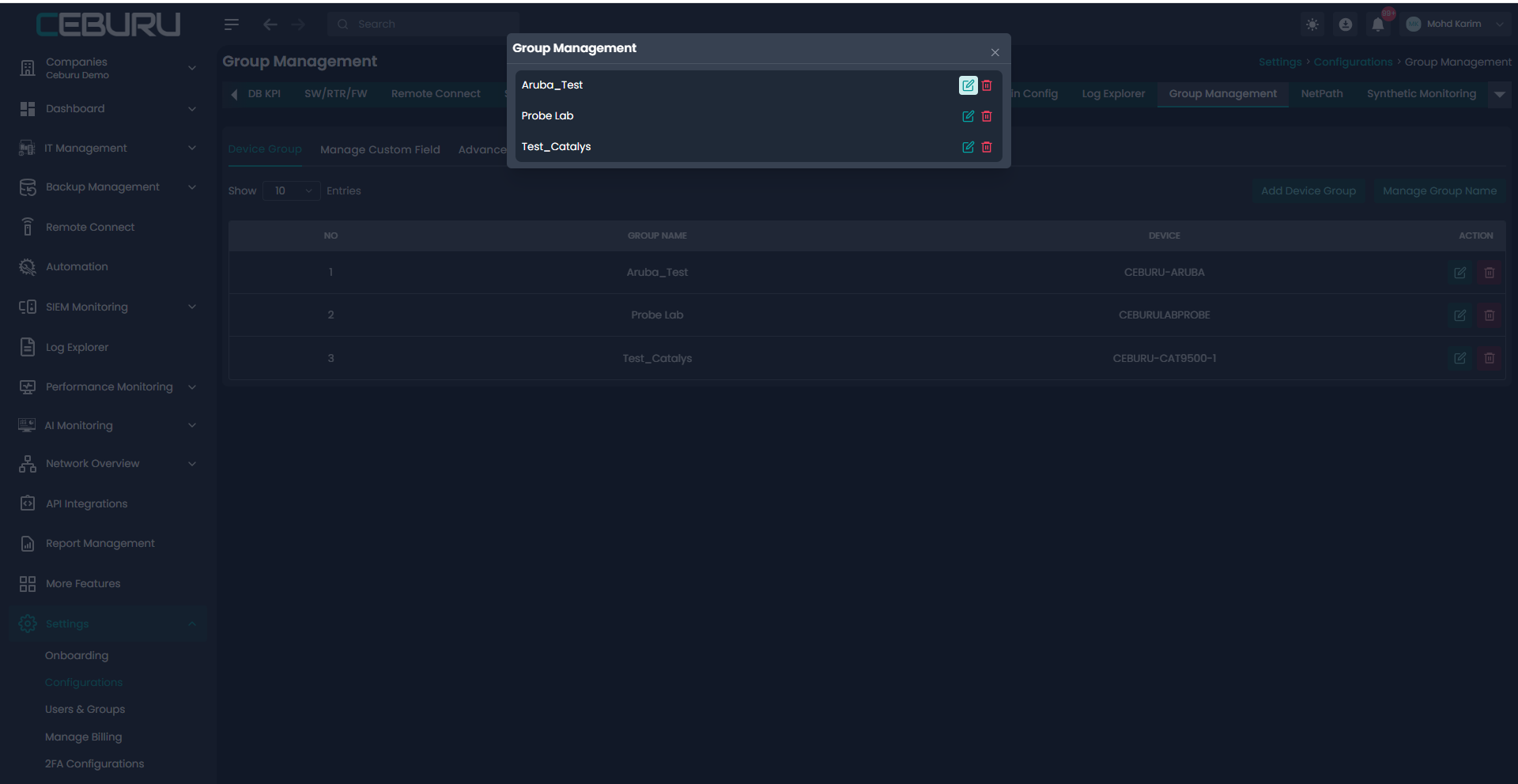
From the Device Group list, you can edit an existing group, delete a group. Each group displays the associated devices for quick visibility.
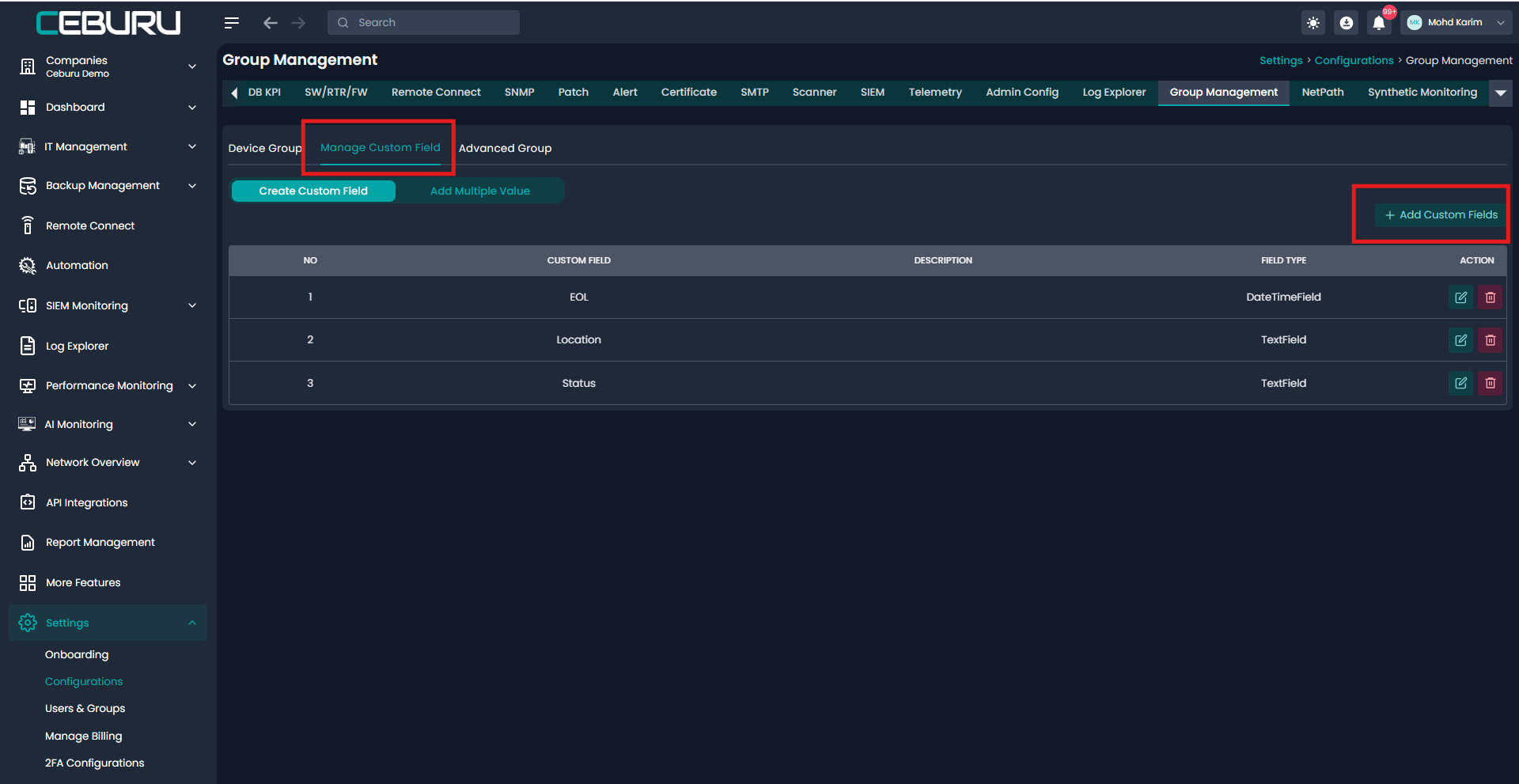
Manage Custom Field:
Custom Fields allow you to attach additional metadata to devices. This helps with classification, filtering, and reporting.
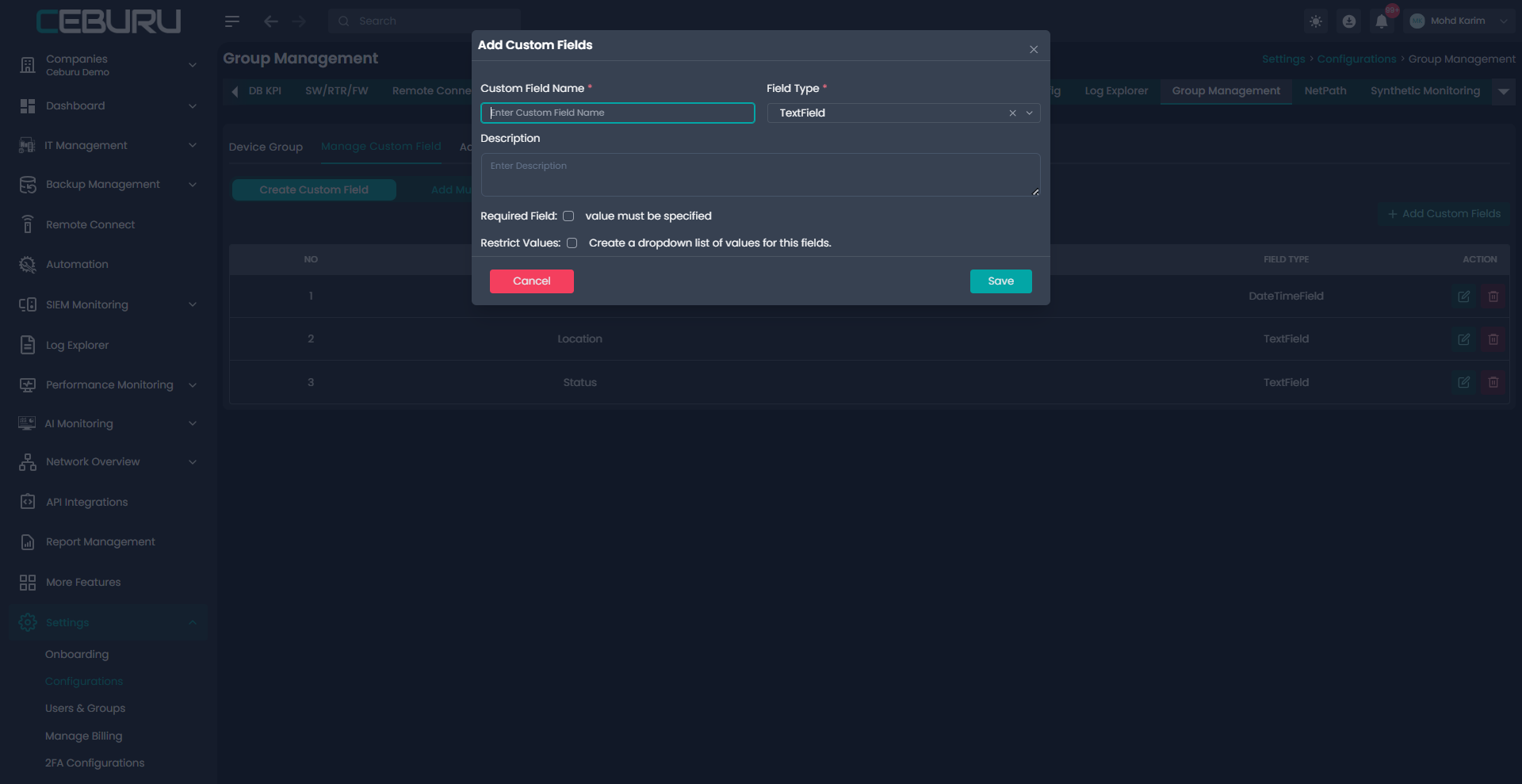
Click Add Custom Fields
Add Custom Fields Window:
| Field | Description |
|---|---|
| Custom Field Name | Name of the custom field |
| Field Type | Data type of the field |
| Description | Optional description of the field |
| Required Field | Enforces mandatory value entry |
| Restrict Values | Enables dropdown based selection |
Supported Field Types:
| Field Type | Description |
|---|---|
| TextField | Free text input |
| DateTimeField | Date and time selection |
Click Save
The custom field will appear in the Custom Fields table.
Add Multiple Value:
Add Multiple Value allows administrators to assign values for multiple custom fields to one or more assets at the same time.
Navigate to Group Management > Manage Custom Field
Click Add Multiple Value
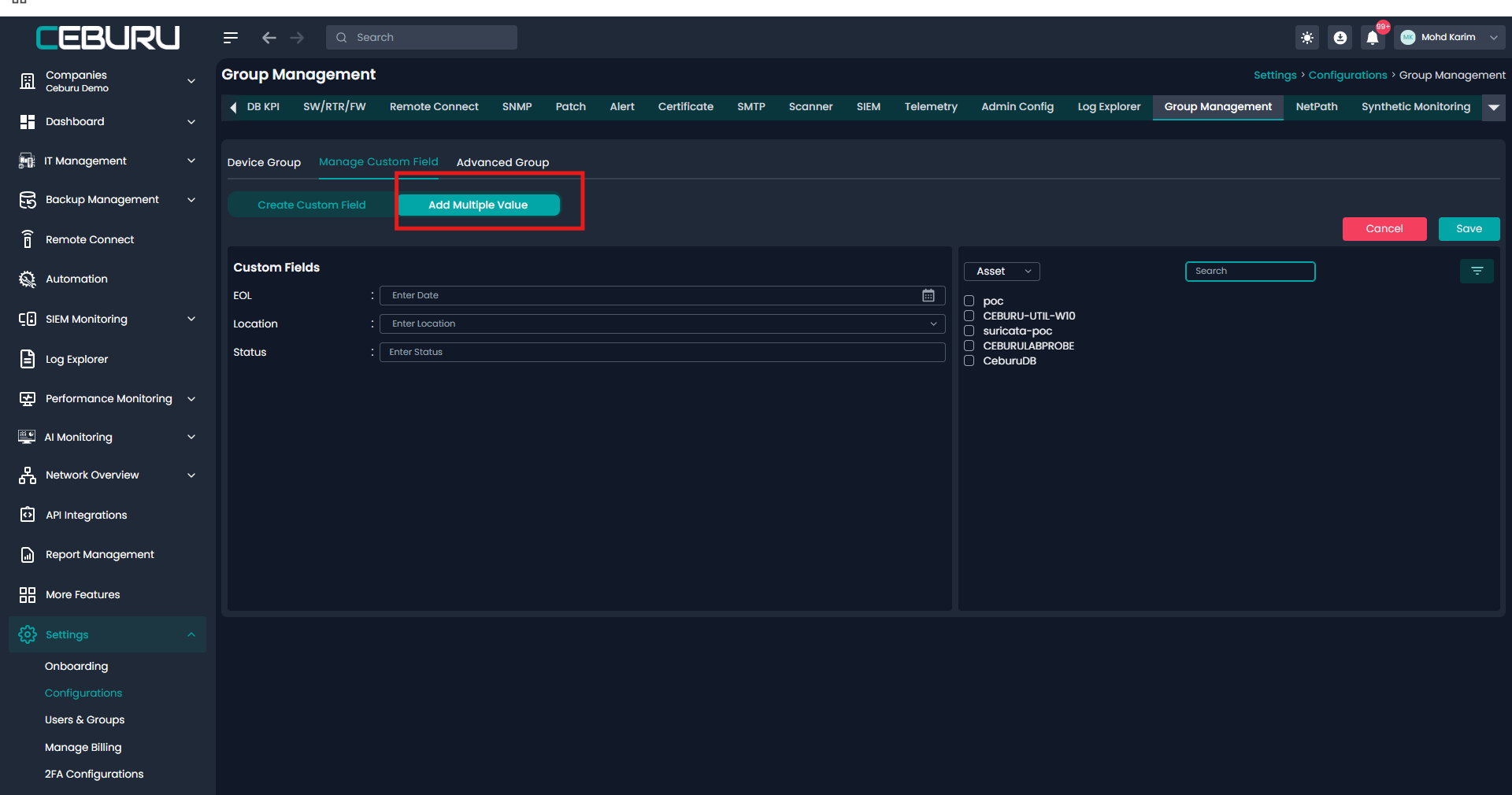
Left panel: Displays available custom fields such as EOL, Location, Status
Center panel: Allows entry of values for selected custom fields
Right panel: Displays list of assets. Allows selection of one or more assets
Steps to Assign Values
Enter values for required custom fields
Select one or more assets from the asset list
Click Save
The selected custom field values are applied to all chosen assets.
Advanced Group Configuration
Advanced Group configuration is used to create a structured device hierarchy inside the Group Management module. This helps organize devices based on real business or infrastructure layouts, such as customer environments, sites, branches, data centers, or device categories.
This grouping is useful because it controls how devices are organized and displayed across monitoring dashboards, reports, analytics, alerts, and map based views. It does not change the monitoring behavior of the device. It only changes how the device data is grouped and visualized in the platform.
In the Group Management page, select the Advanced Group tab.
The Advanced Group tab displays the existing group structure in a table. To create a group click on Manage group.
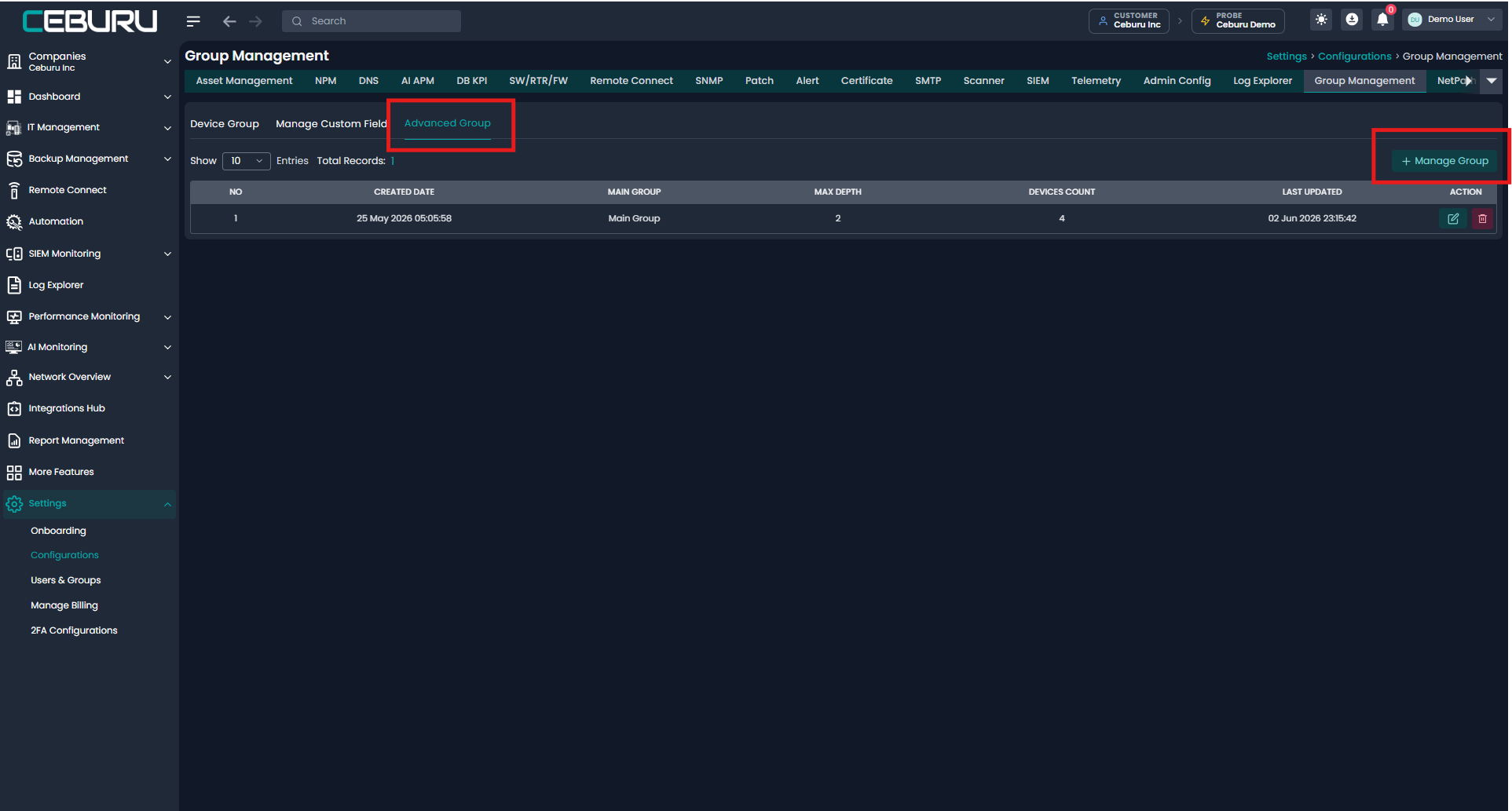
Creating a Network Group Architecture
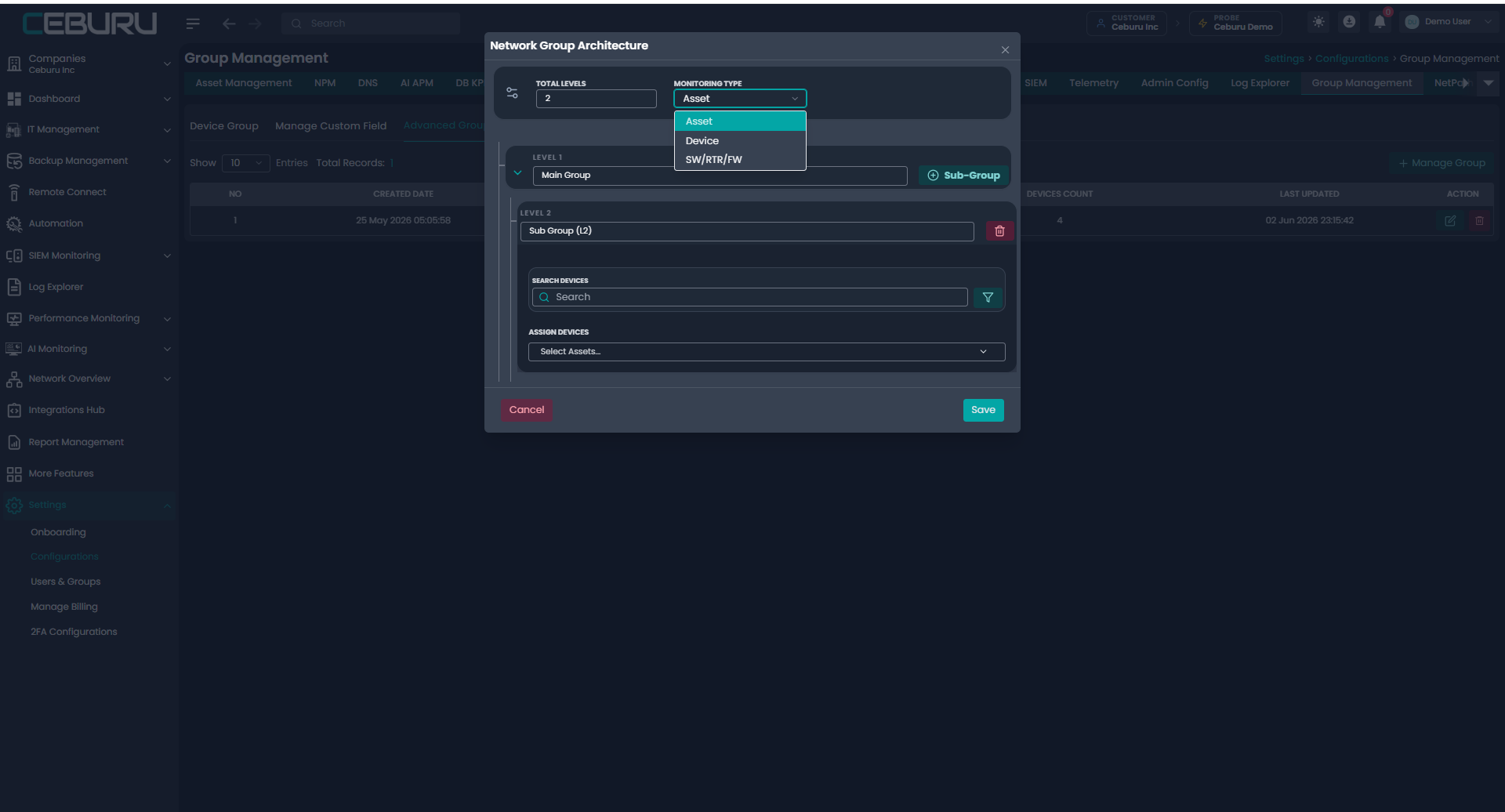
After clicking Manage Group, the Network Group Architecture window opens.
In this window, configure the group hierarchy using the following fields:
| Field | Description |
|---|---|
| Total Levels | Defines how many levels are required in the group hierarchy |
| Monitoring Type | Defines the type of monitoring group being created |
| Level 1 | Main group name |
| Sub Group | Adds the next level under the main group |
| Search Devices | Allows searching for devices before assigning them |
| Assign Devices | Allows assigning selected devices to the group |
The available Monitoring Type options are:
| Option | Usage |
|---|---|
| Asset | Used to group monitored assets |
| Device | Used to group devices directly |
| SW/RTR/FW | Used to group switches, routers, or firewalls |
Configuration Steps
Enter the required number of levels in Total Levels.
Select the required Monitoring Type from the dropdown.
Example: Asset, Device, or SW/RTR/FW.Enter the main group name in Level 1.
Example: Main Group.Click Sub Group to add the next level under the main group.
Enter the sub group name in Level 2.
Example: Sub Group (L2).Use Search Devices to find the devices that need to be added.
Use Assign Devices to select and assign devices to the sub group.
Click Save to save the group architecture.
Result:
Once saved, the advanced group structure becomes available in the Group Management table. The configured group will show the main group name, maximum depth, assigned device count, and last updated date.
Devices assigned to the group will use this group context across dashboards, monitoring views, analytics, alerts, and map based views. This helps teams view and manage device data based on logical business or infrastructure boundaries.
Was this article helpful?
That’s Great!
Thank you for your feedback
Sorry! We couldn't be helpful
Thank you for your feedback
Feedback sent
We appreciate your effort and will try to fix the article