Advanced Alerts allow administrators to create intelligent alert rules based on system metrics and conditions. These alerts help proactively monitor infrastructure and notify the right users or groups when defined thresholds are breached.
Navigation Path
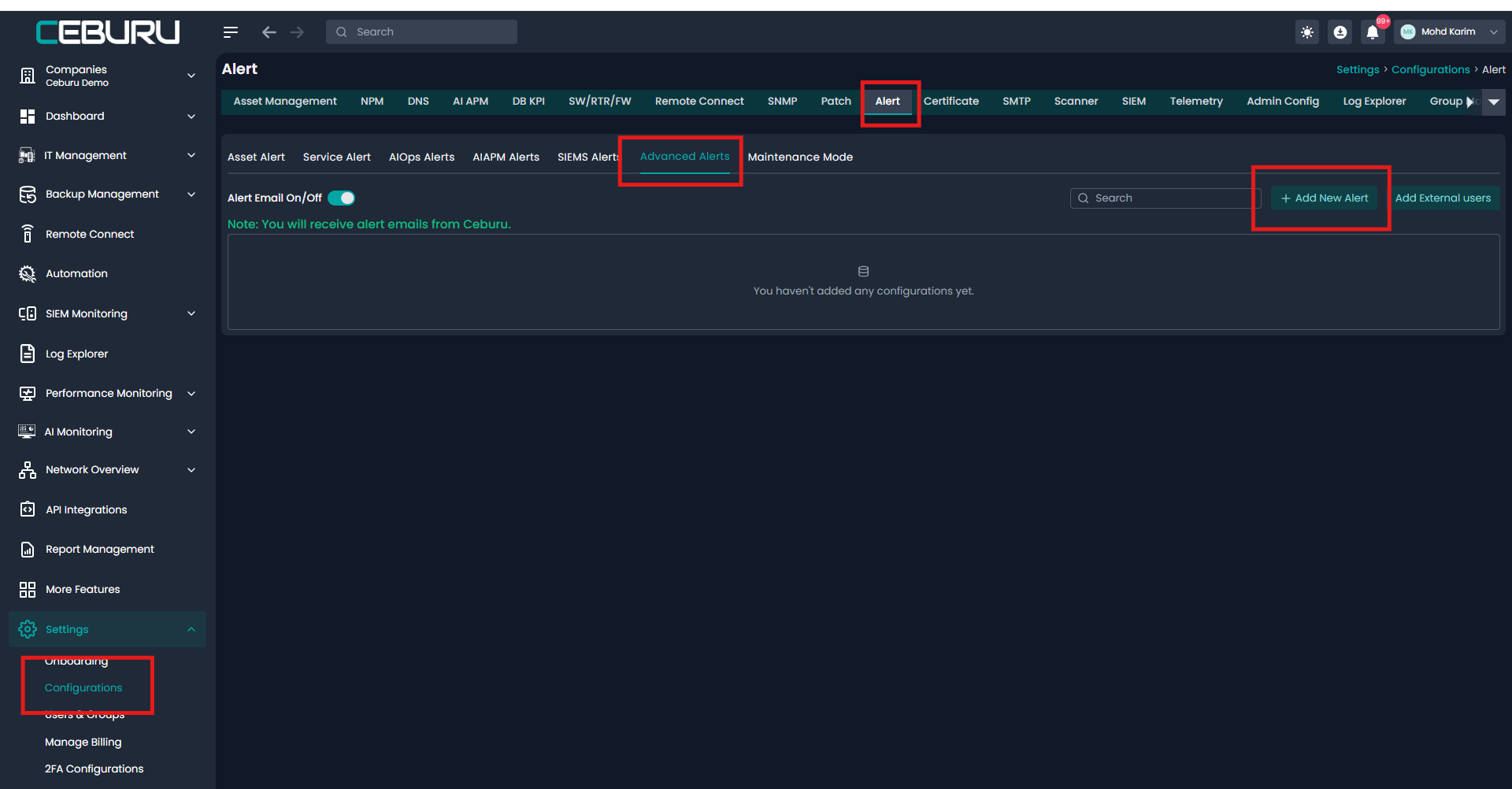
From the left navigation panel, click Settings
Select Configurations
Click on Alert
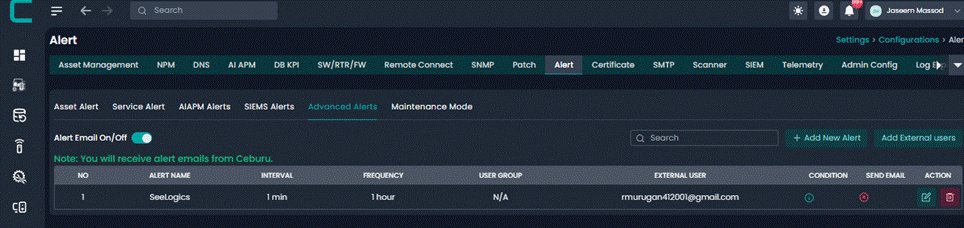
Navigate to the Advanced Alerts tab
Click Add New Alert
Creating a New Advanced Alert
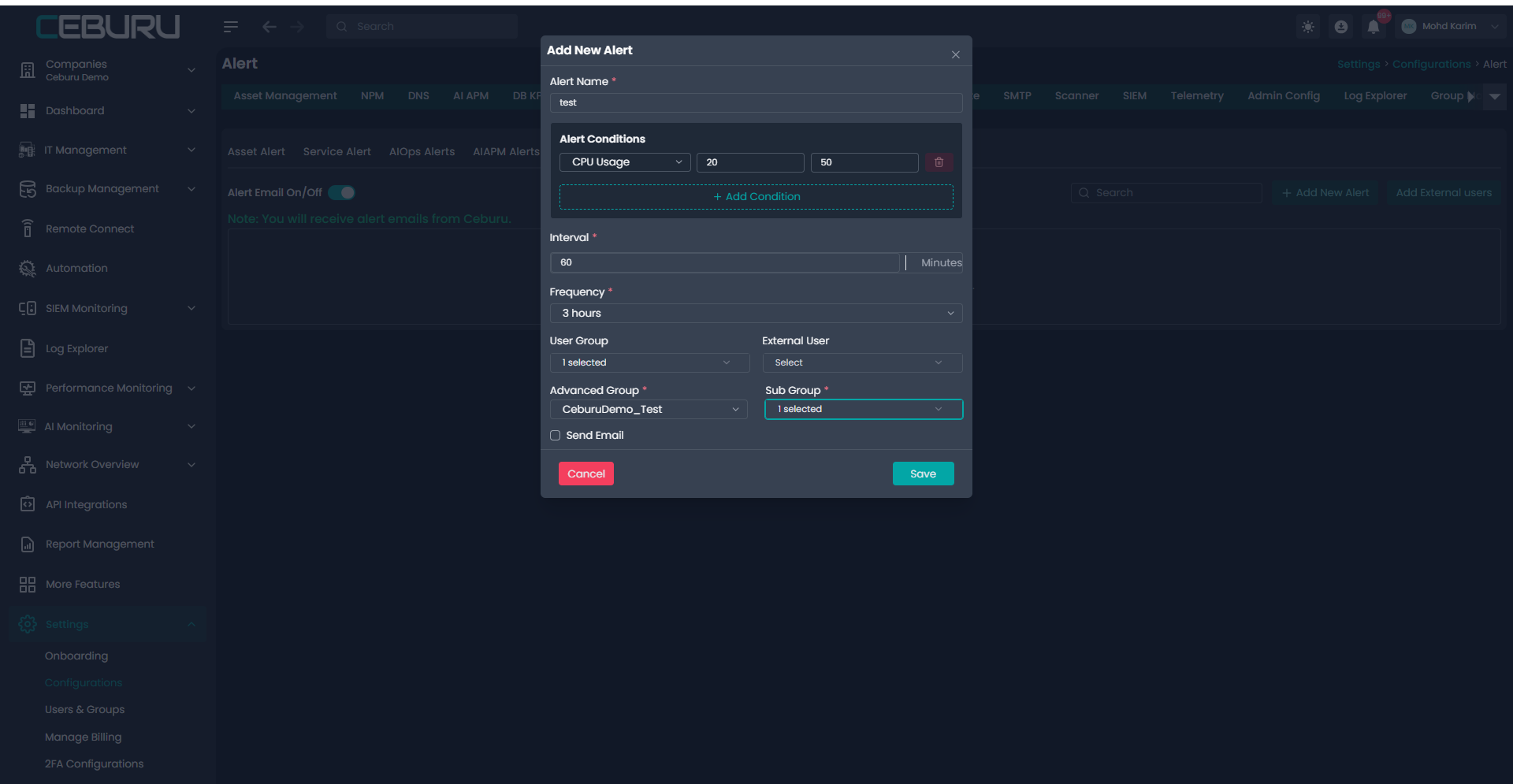
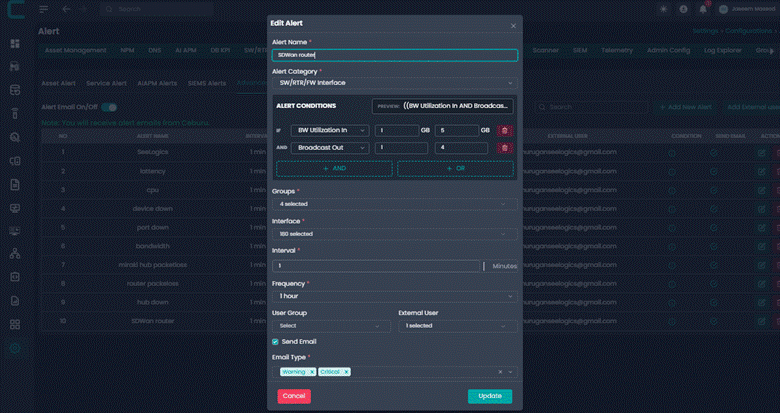
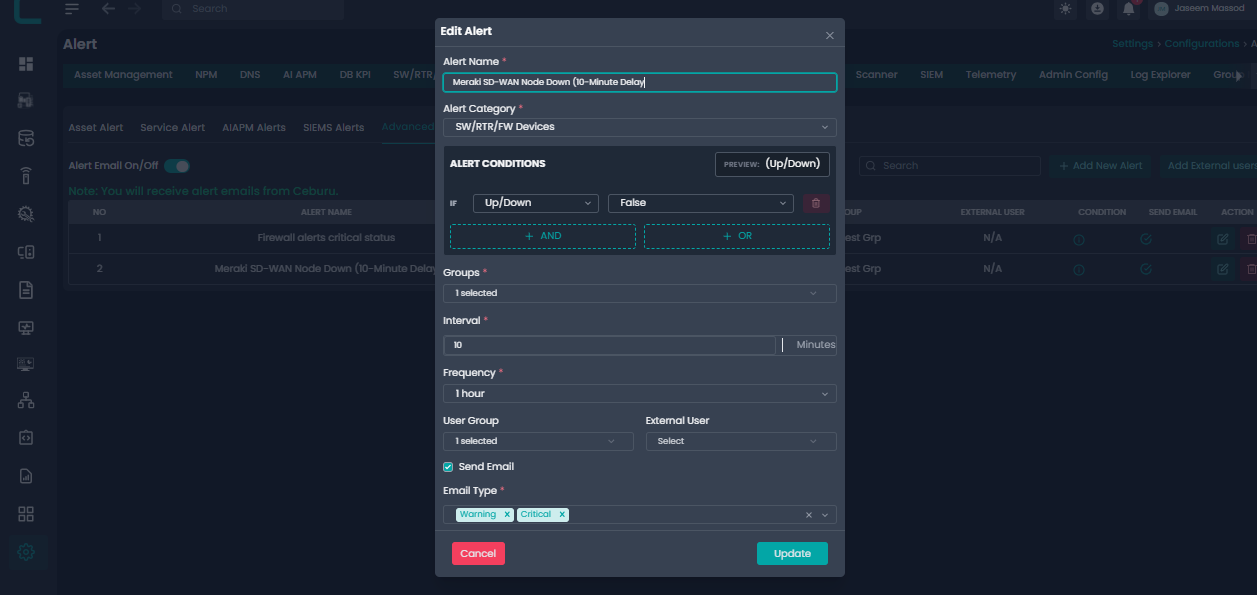
Clicking Add New Alert opens the Add New Alert configuration window.
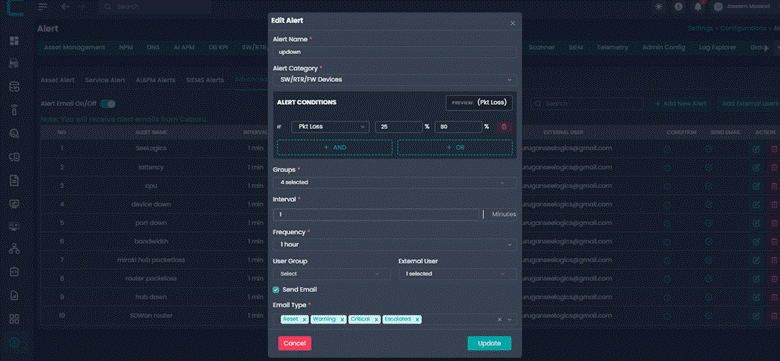
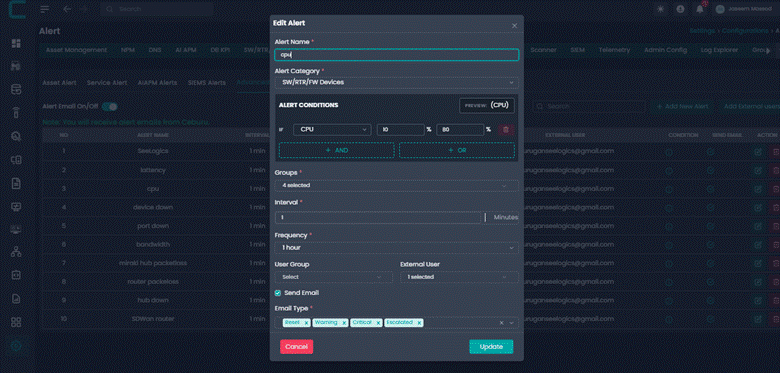
Alert Name: Enter a meaningful name for the alert. This field is mandatory and helps identify the alert later.
Alert Conditions:
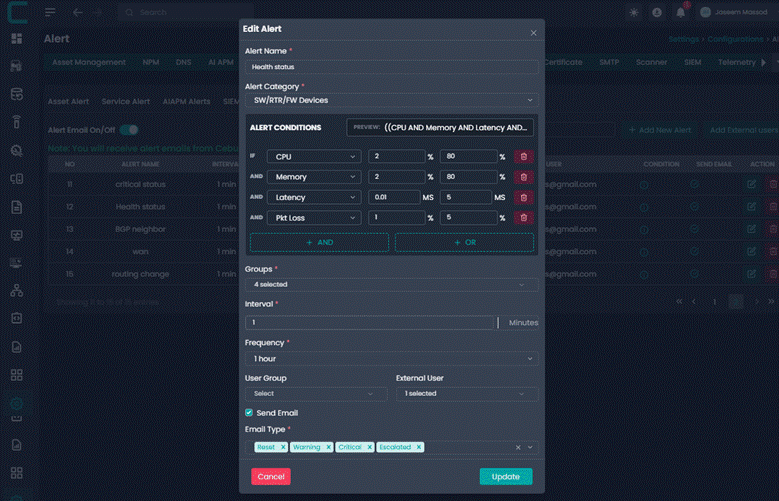
Alert Conditions define what metric is monitored and when the alert should trigger.
Select a condition type from the dropdown
Example CPU UsageEnter the minimum and maximum threshold values
To add multiple conditions, click Add Condition
To remove a condition, use the delete icon next to it
Multiple conditions can be combined to create more accurate alerts.
Interval: The Interval defines how often the system evaluates the alert conditions.
Frequency: Frequency controls how often notifications are sent once the alert is triggered.
User Group: Select the internal user group that should receive the alert. This allows alerts to be routed to the correct operational or administrative team.
External Users: External users are users outside the platform who can receive alert notifications via email.
Managing External Users:
Click Add External Users
Enter the email address
Click Save
Edit an existing email
Delete an external user
Once added, external users appear in the External User dropdown and can be selected for alerts.
Advanced Group: Select the relevant advanced group associated with this alert. Advanced Groups help logically group alerts based on environments, customers, or services.
Sub Group: Choose one or more sub groups under the selected Advanced Group. Sub Groups allow more granular targeting of alerts.
Send Email Option: Enable Send Email if email notifications are required. If disabled, alerts will still be logged within the system but no email notifications will be sent.
Saving the Alert
Review all entered details
Click Save
Once saved
The alert becomes active
It appears in the Advanced Alerts list
The system starts monitoring based on the defined configuration
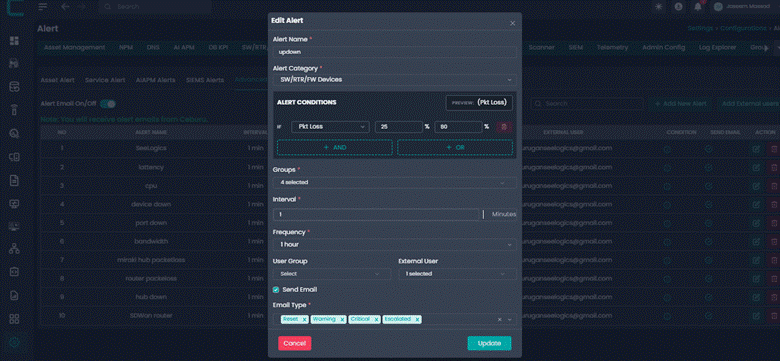
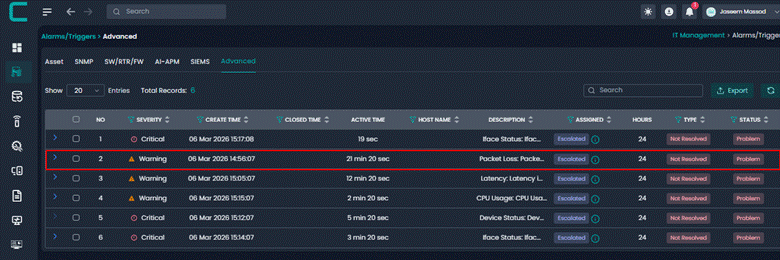
Alerts we Support:
1. Datacenter Routers & Switches Packet Loss - 1%
This alert triggers when packet loss on datacenter routers or switches reaches 1%. It indicates that packets are being dropped during transmission, which may cause network performance degradation, slow application response, or intermittent connectivity issues within the datacenter network.
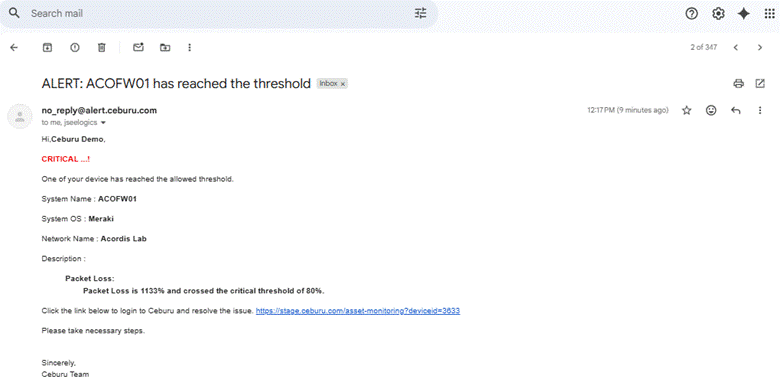
2. Meraki Hub Packet Loss
This alert monitors packet loss on Meraki hub devices. Packet loss on the hub can affect multiple branch connections in the SD-WAN network and may indicate WAN connectivity issues, congestion, or device health problems.
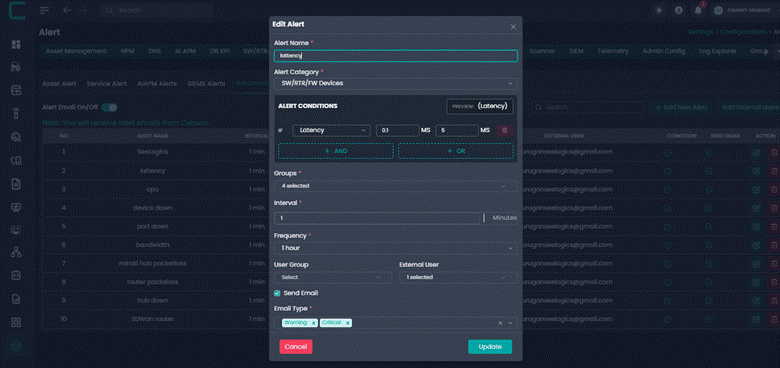
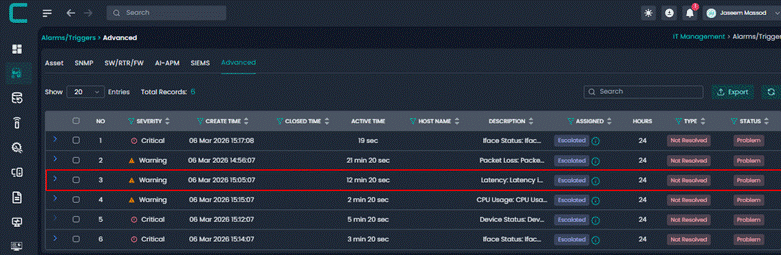
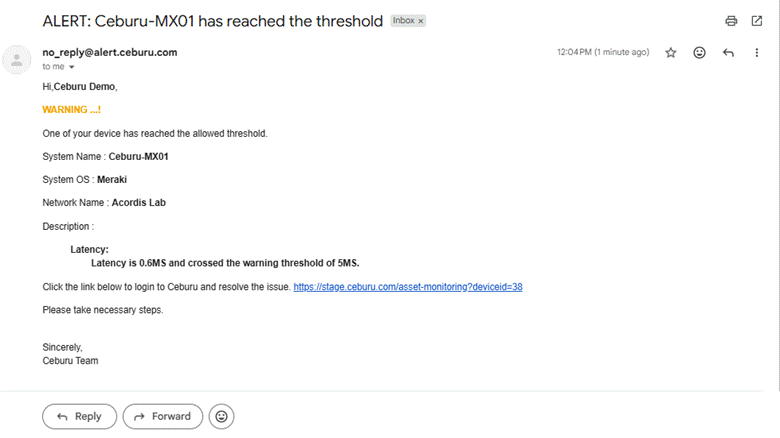
3. High Latency Alerts with Escalation
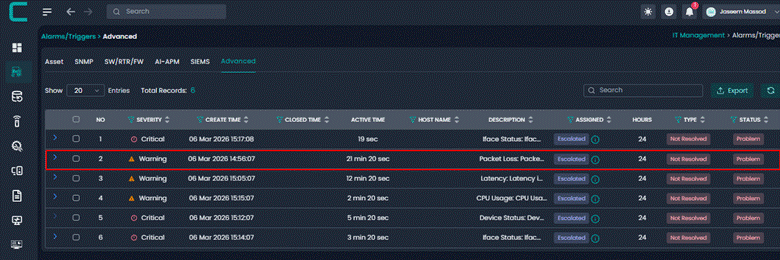
This alert is triggered when network latency exceeds predefined thresholds. High latency can cause slow application performance, delays in communication, and degraded user experience. Escalation occurs if the latency persists or increases.
4. High Bandwidth Utilization - 80%
This alert triggers when bandwidth utilization reaches 80% of the available capacity. This indicates that the network link is approaching its maximum capacity and may soon experience congestion if traffic increases further.
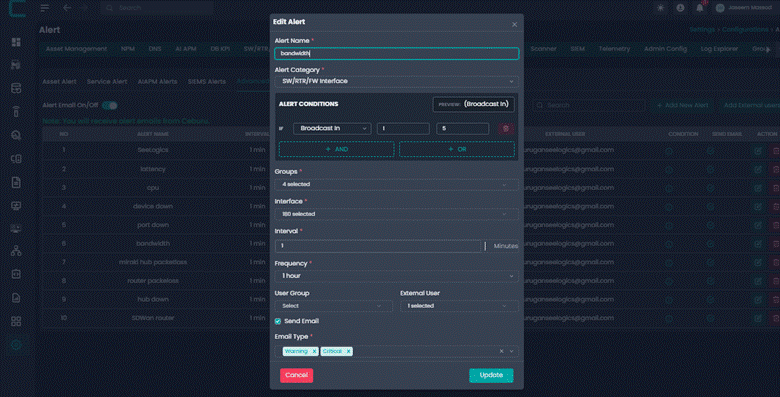
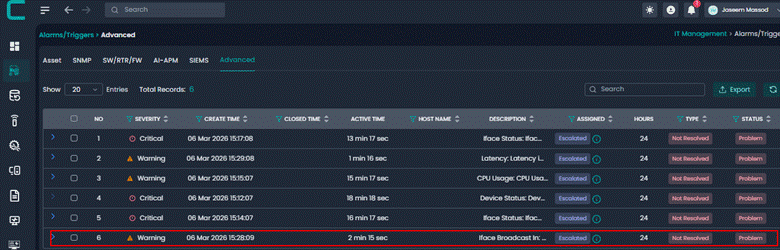
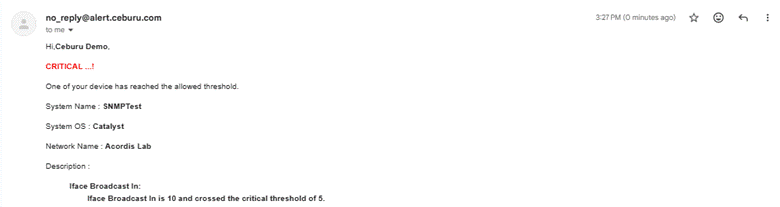
5. High Bandwidth Utilization - 90%
This alert triggers when bandwidth utilization reaches 90%, indicating that the network link is close to full capacity. At this level, the link may start experiencing packet drops, latency, and reduced performance.
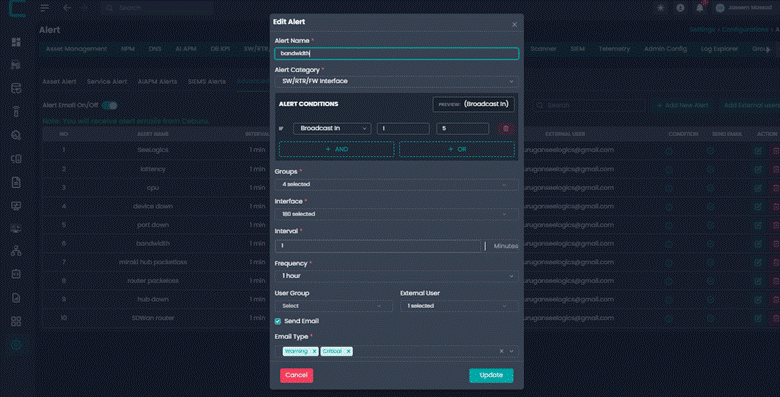
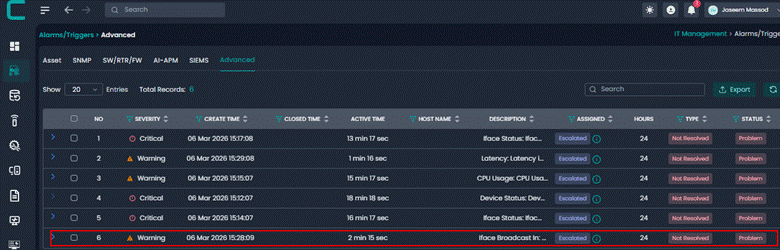
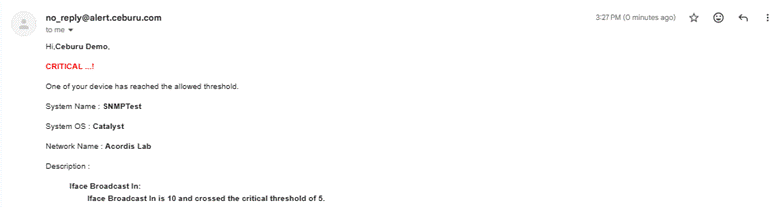
6. Datacenter Router Interface Port Down
This alert is generated when a router interface port in the datacenter goes down. This may indicate link failure, cable disconnection, hardware failure, or upstream network outage affecting connectivity.
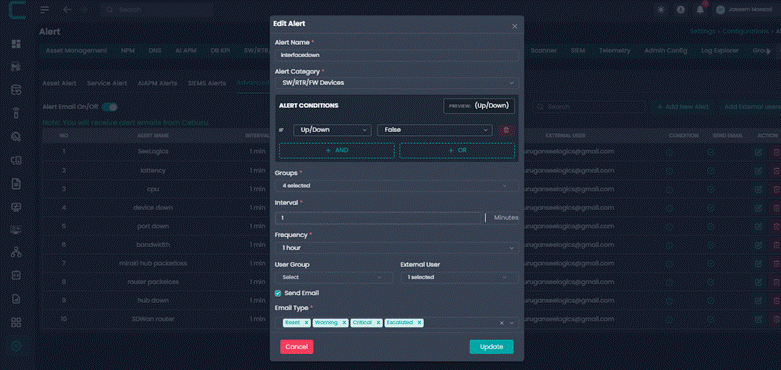
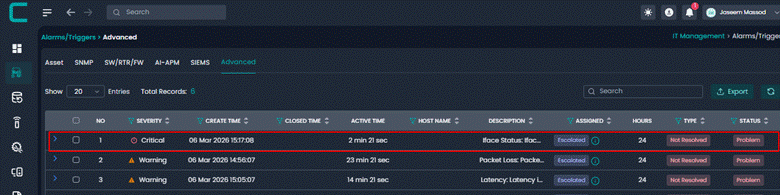
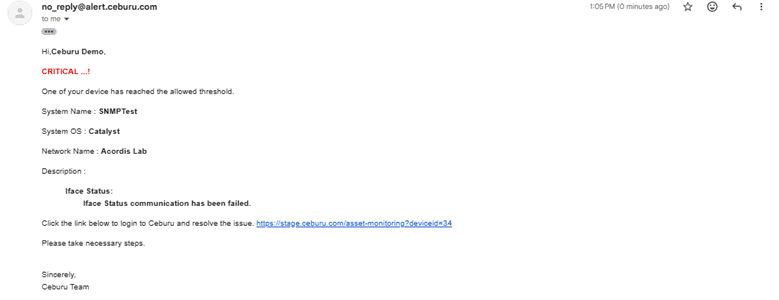
7. Critical Node Down for 15 Minutes
This alert is triggered when a critical node remains unreachable for 15 minutes. The duration ensures that temporary network fluctuations do not generate false alerts while still detecting sustained outages.
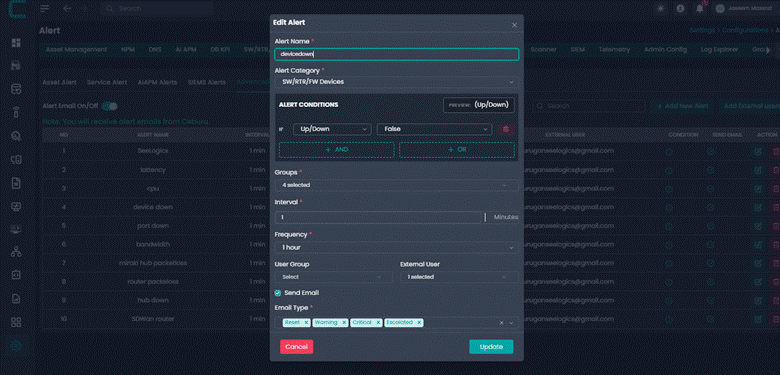
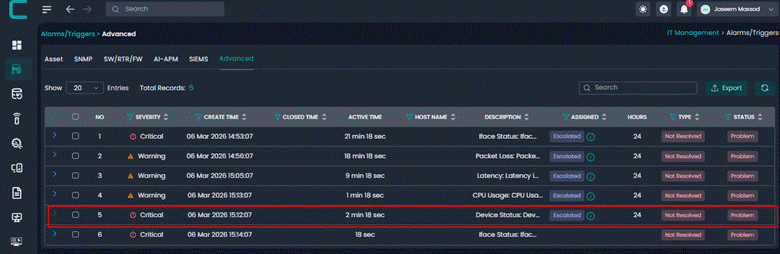
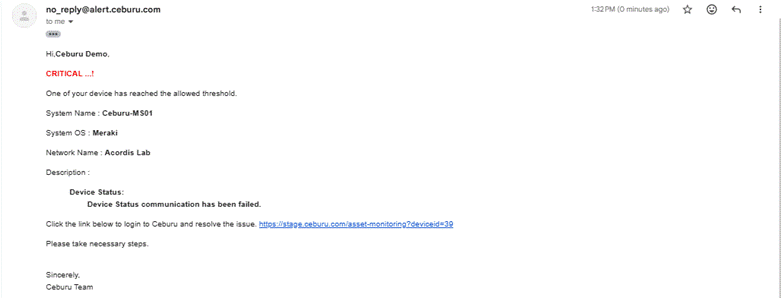
8. Normal Severity Node Down
This alert occurs when a standard or non critical node becomes unavailable. Although not classified as critical infrastructure, monitoring ensures visibility of device availability and network health.
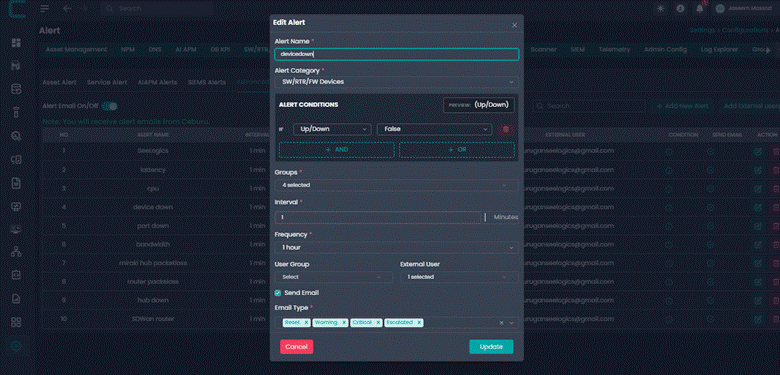
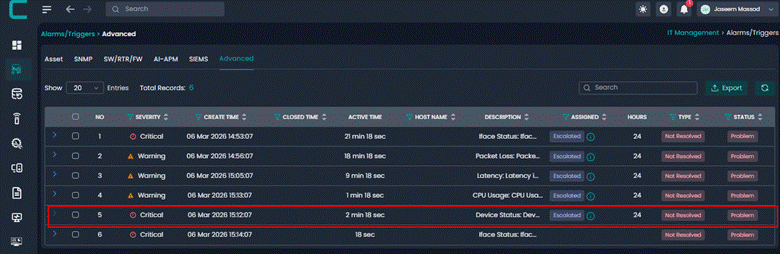
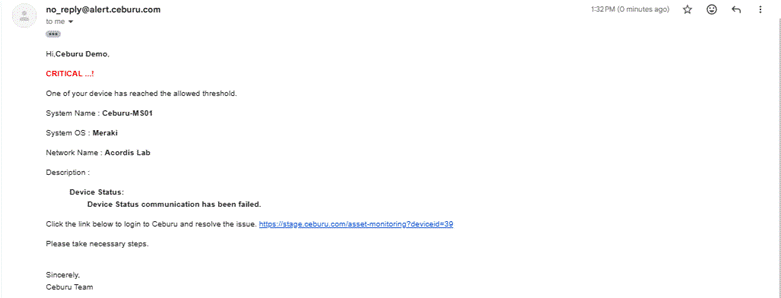
9. CPU Above 90% on Critical Nodes
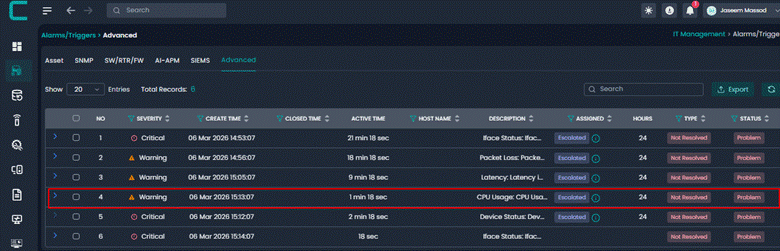
This alert sends a notification when CPU utilization exceeds 90% on critical nodes. High CPU usage can lead to performance degradation, delayed processing, or potential system instability.
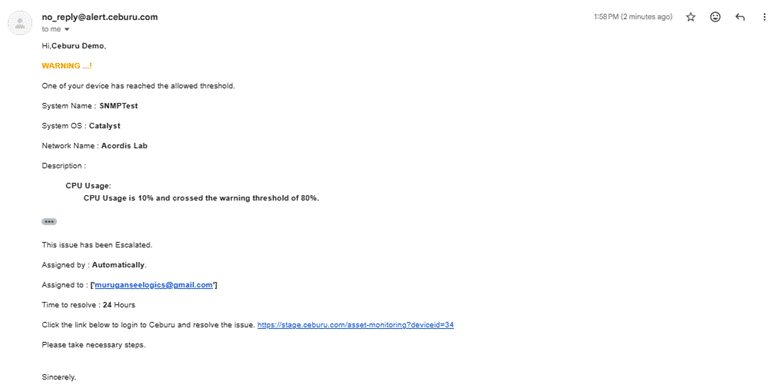
10. Meraki Hub Packet Loss
This rule monitors packet loss on Meraki hub devices and generates an alert if the hub begins experiencing packet transmission issues that may affect SD-WAN connectivity.
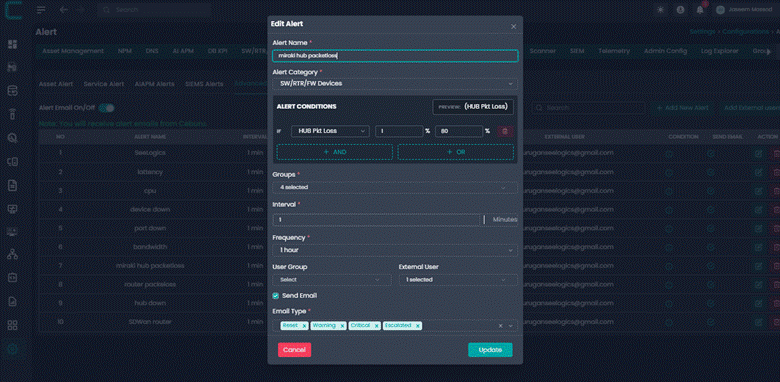
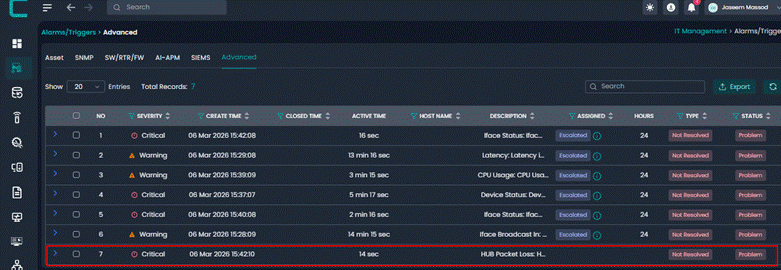
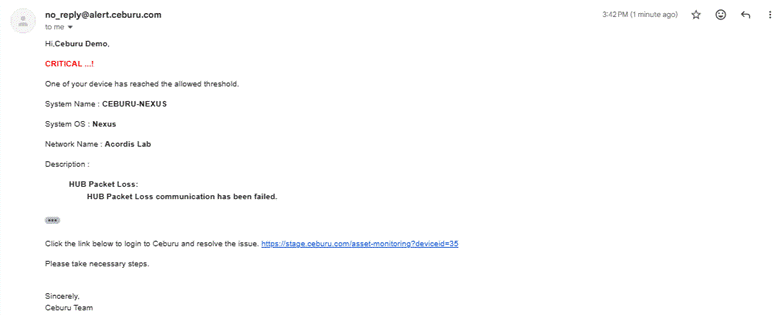
11. Device Packet Loss 15% for 30 Minutes - P3
This alert triggers when a device experiences 15% packet loss continuously for 30 minutes. The sustained duration ensures that only persistent network issues generate alerts and it is classified as a Priority 3 incident.
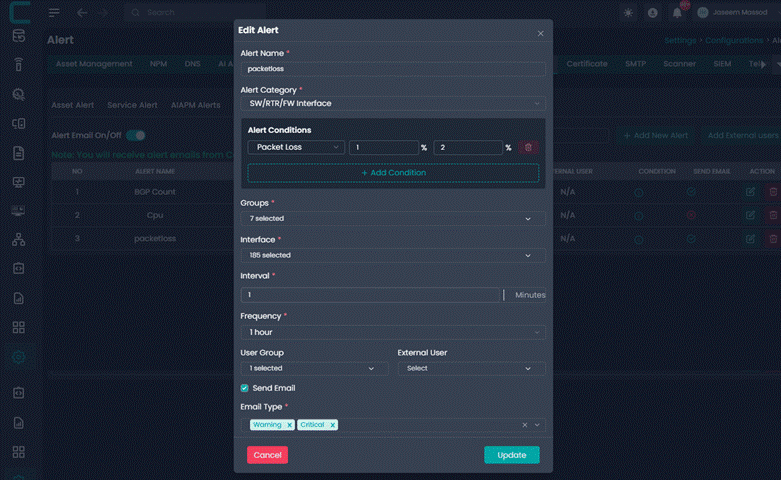
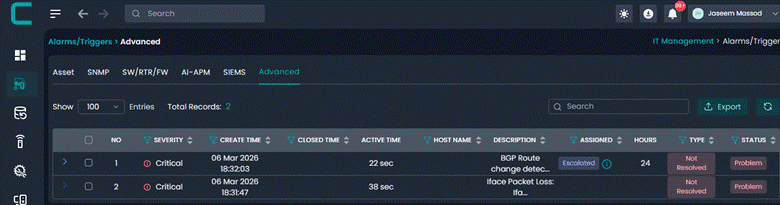
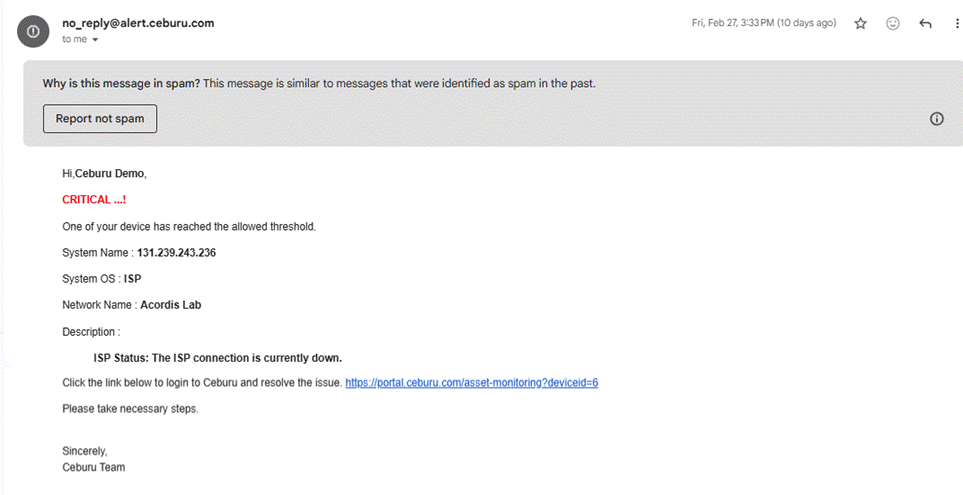
12. Device Packet Loss 25% for 45 Minutes - P2
This alert is triggered when packet loss reaches 25% for 45 minutes on a device. Such high packet loss indicates severe connectivity issues and is classified as a Priority 2 incident requiring immediate investigation.
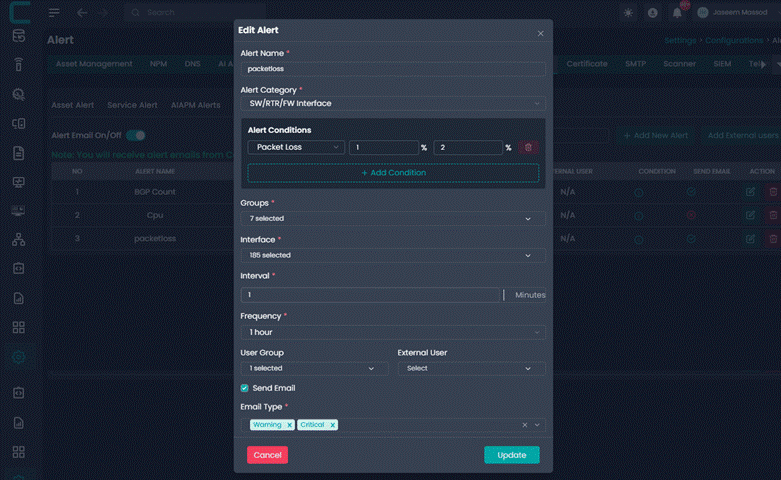
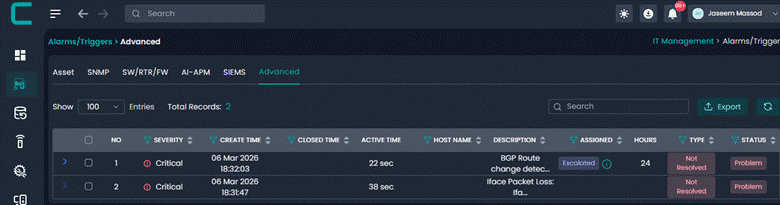
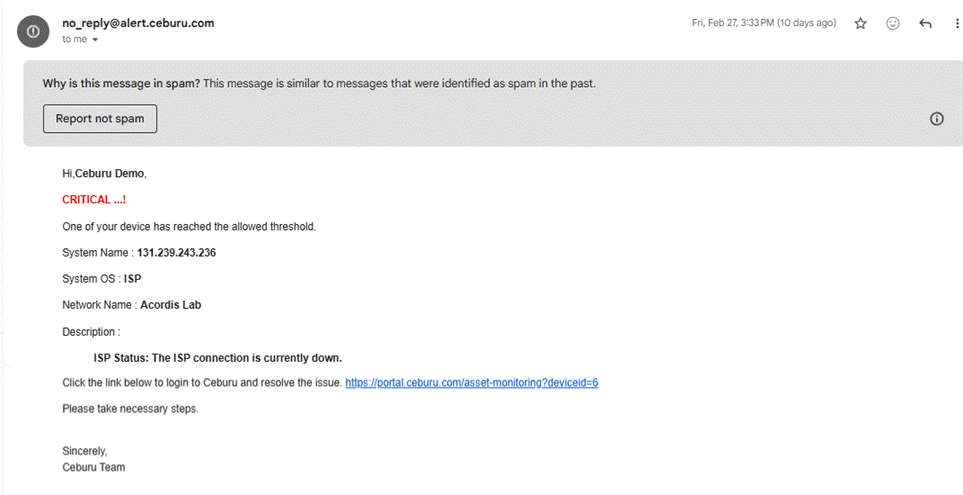
13. Meraki Hub Down Detected
This alert is generated when a Meraki hub device becomes unreachable or stops responding. Because hubs are central points in SD-WAN architecture, this may affect multiple branch locations.
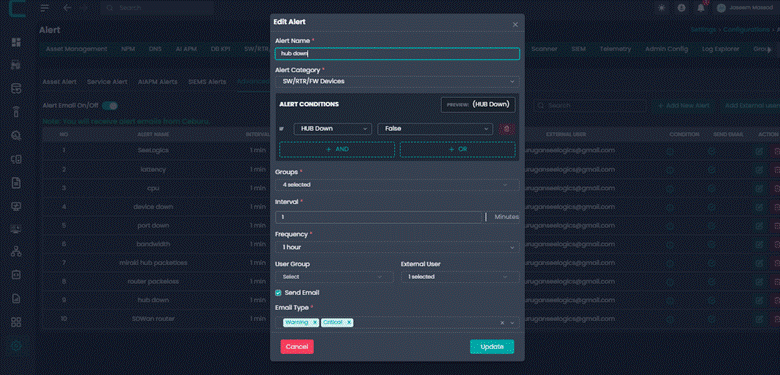
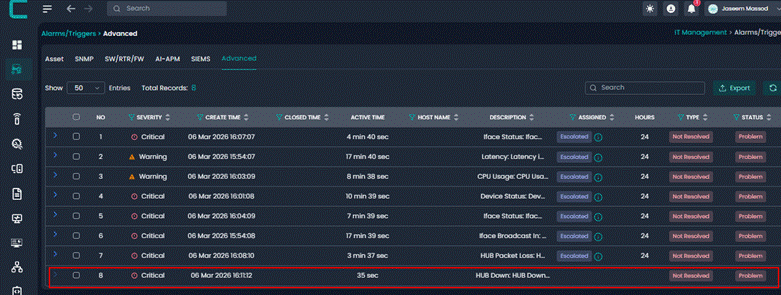
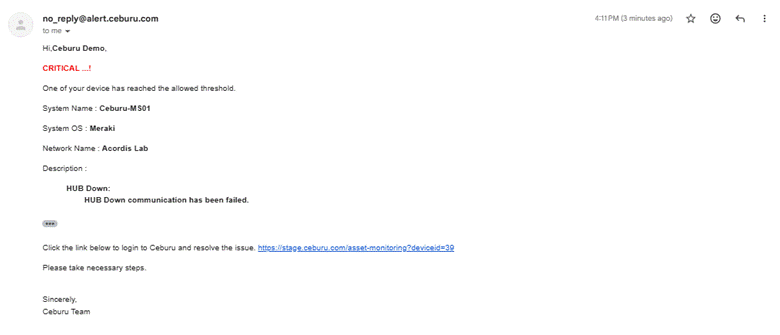
14. SCS Bandwidth Utilization - 80%
This alert is triggered when SCS network links reach 80% bandwidth utilization, indicating increasing traffic levels and potential capacity limitations.
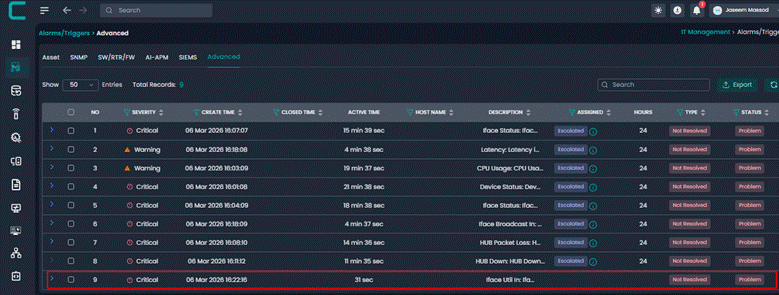
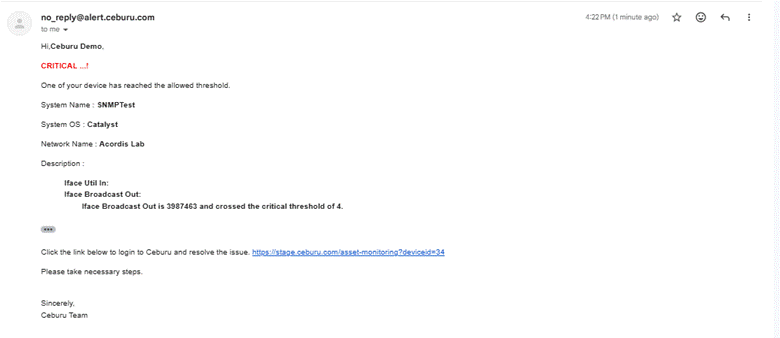
15. SCS Bandwidth Utilization - 90%
This alert is triggered when SCS network links reach 90% bandwidth utilization, indicating the network link is nearing saturation and performance degradation may occur.
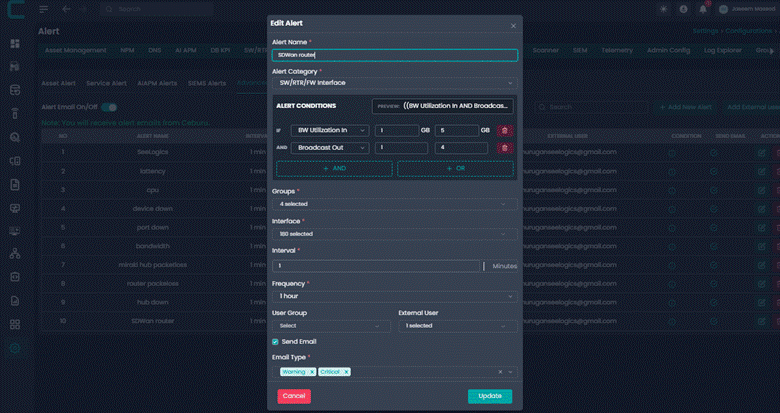
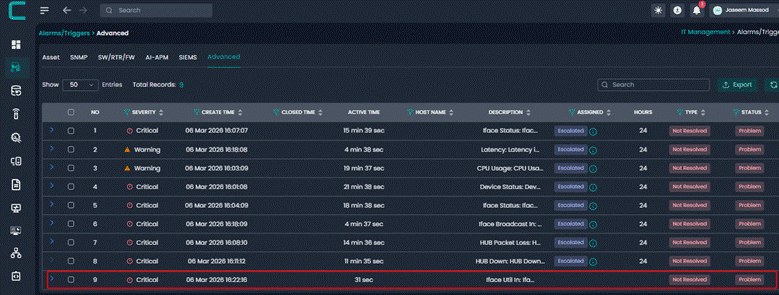
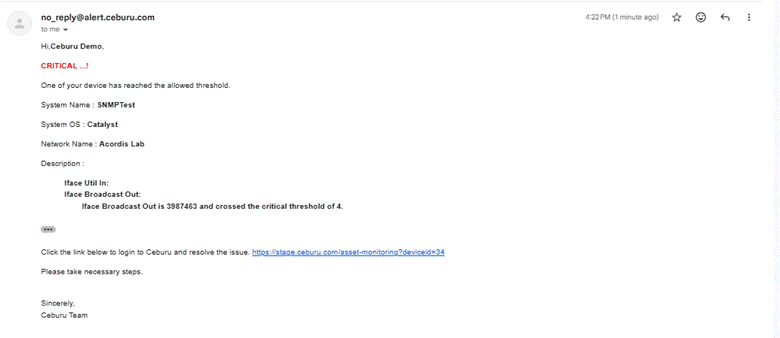
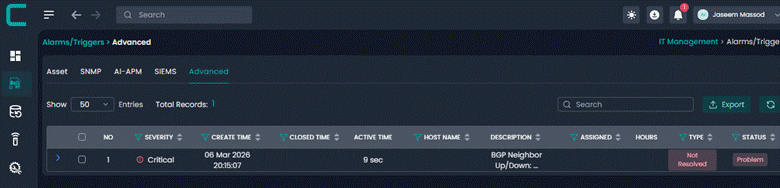
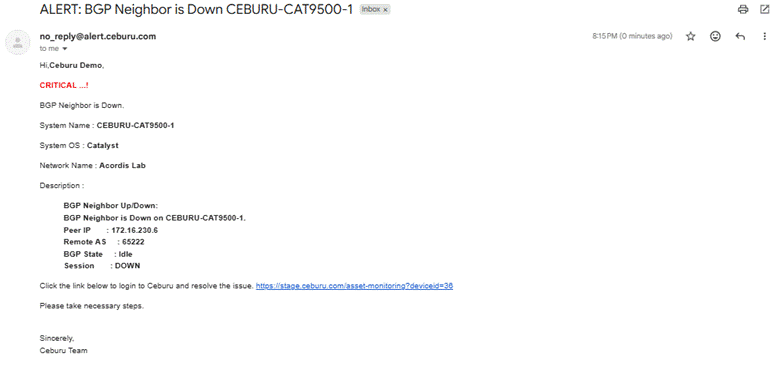
16. BGP Neighbor Down
This alert detects when a BGP neighbor session if network goes down. Loss of a BGP session may cause routing instability and affect external network connectivity.
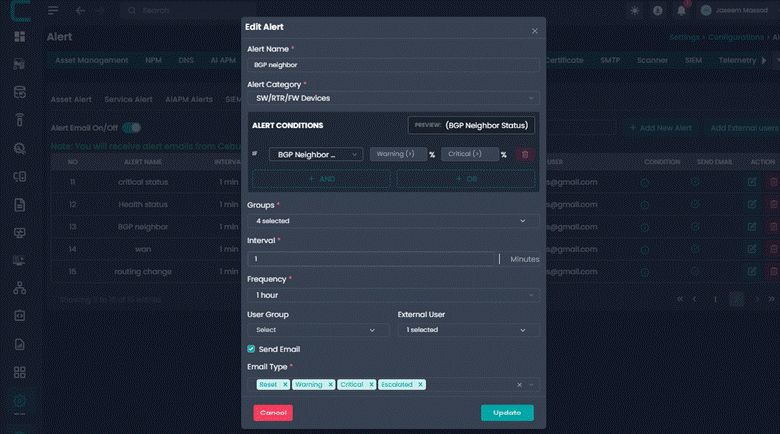
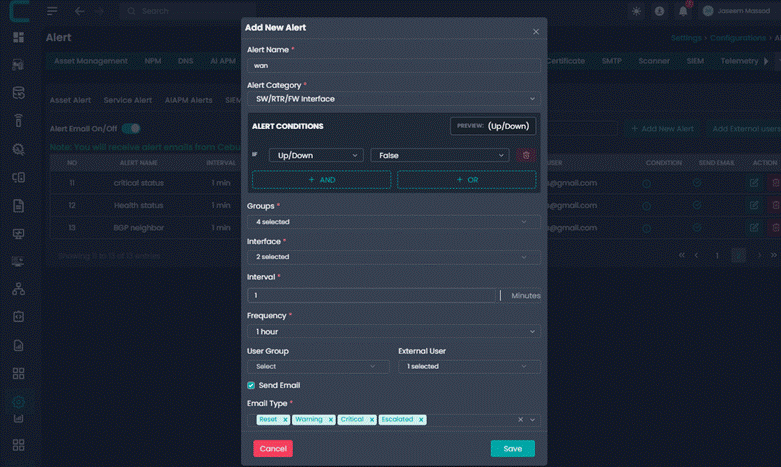
17. P2 Alert - WAN Port Down on Meraki Interface
This alert is triggered when a WAN port on a Meraki interface goes down. Because WAN ports connect to external networks, this condition is classified as a Priority 2 alert and includes reset detection if the port recovers.
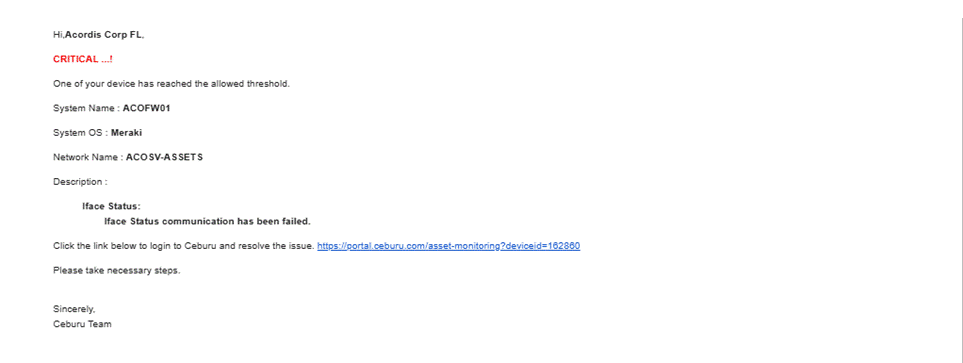
18. Datacenter BGP Protocol Route Down
This alert is generated when BGP routing data becomes unavailable or routes are no longer received in the datacenter environment, which may indicate routing failure or protocol issues.
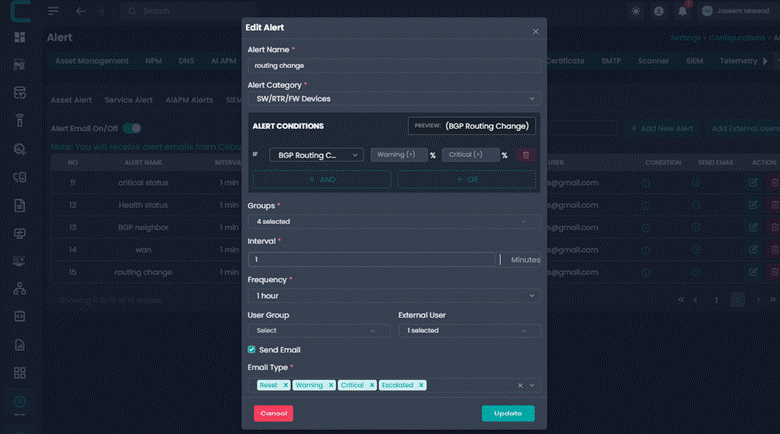
19. P2 Alert - Non Critical Node in Critical State
This alert is triggered when a non critical node enters a critical operational state. Even though the device is not classified as critical infrastructure, the alert ensures visibility into major issues affecting device functionality.
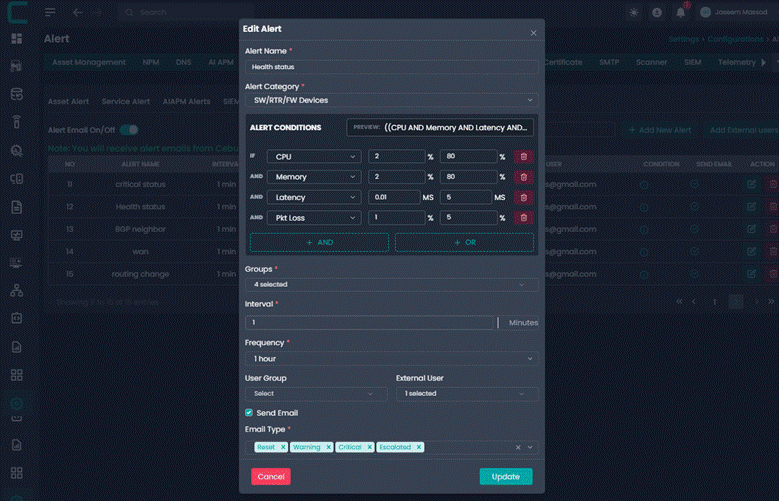
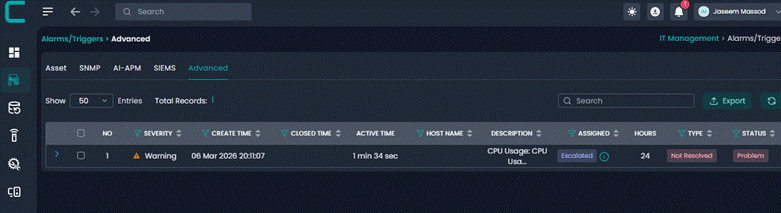
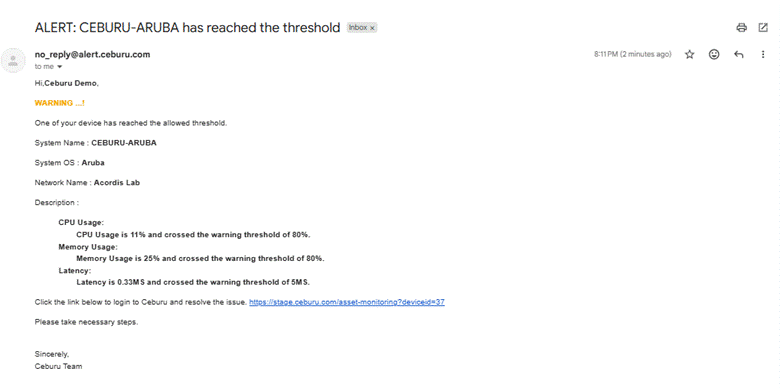
20. P3 Alert - Non Critical Node in Warning Status
This alert occurs when a non critical node enters a warning state. This indicates potential issues that may escalate if not addressed and is classified as a Priority 3 alert.
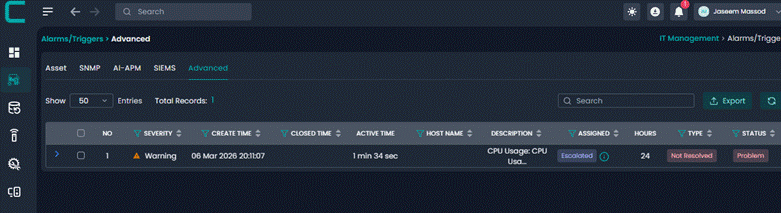
21. P2 Alert - High Severity Node Down
This alert is triggered when high severity nodes become unavailable, sometimes indicated by packet loss metrics reporting zero values due to device inactivity or failure.
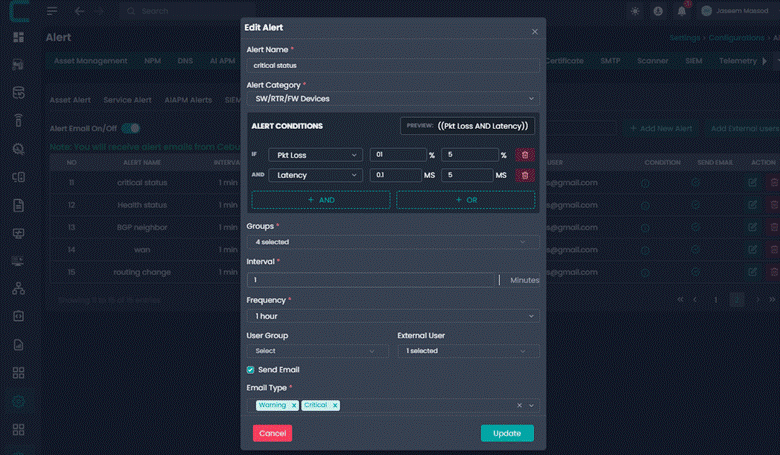
22. Firewall Critical Status Alert
This alert occurs when a firewall device reports a critical status condition. Firewall failures can affect network security, traffic filtering, and connectivity across protected segments.
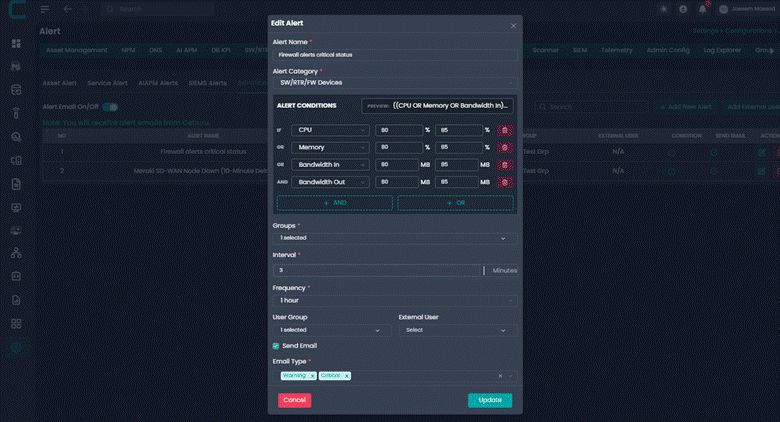
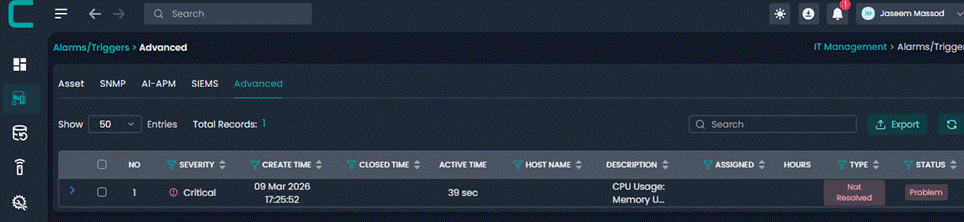
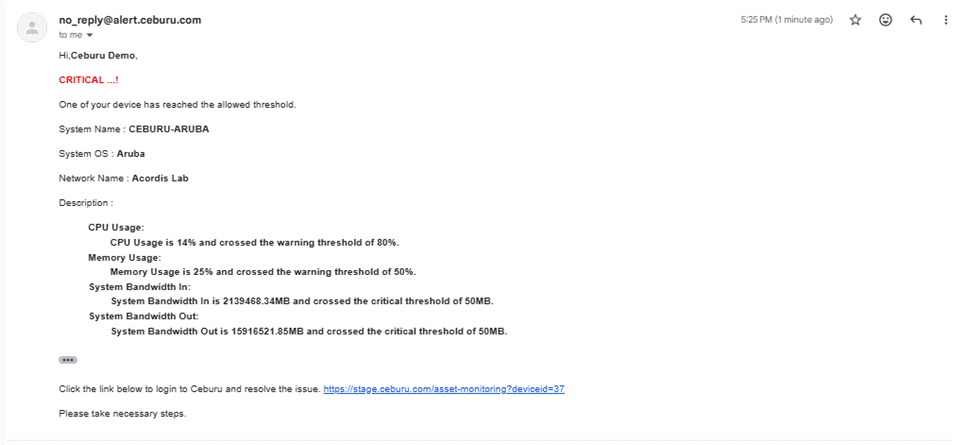
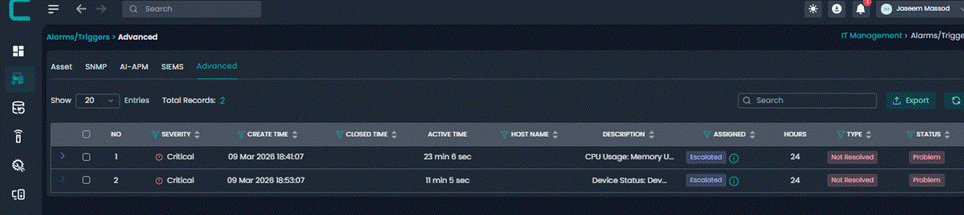
23. P2 Alert - Meraki SD-WAN Node Down for 10 Minutes
This alert is generated when a Meraki SD-WAN node remains down for more than 10 minutes. The delay ensures transient network interruptions do not trigger alerts while still detecting sustained outages.
Was this article helpful?
That’s Great!
Thank you for your feedback
Sorry! We couldn't be helpful
Thank you for your feedback
Feedback sent
We appreciate your effort and will try to fix the article