CeburuAI – Probe Installation and Setup
Ceburu supports both WinRM and non-WinRM configurations.
This flexibility allows seamless integration in varied environments and supports multi-probe (dual probe) architectures for redundancy and scalability.
System Requirements:
Component | Minimum |
CPU | 8 cores, 16 threads |
RAM | 32 GB |
Network | Public Internet connectivity |
- Windows Server 2019, 2022, or later
Network and Firewall Requirements:
Outbound HTTPS traffic TCP 443 must be allowed to the following endpoints based on the selected region.
Exclude all subdirectories within the following folders from the firewall:
Installedpath\CeburuAI
WinRM must be enabled for the systems (for WinRM-based setup).
Network connectivity is available between these components.
Administrator privileges are available on the installation machine.
- Go to
https://portal.ceburu.com/and log in - On the left-hand menu, scroll down and click More Features
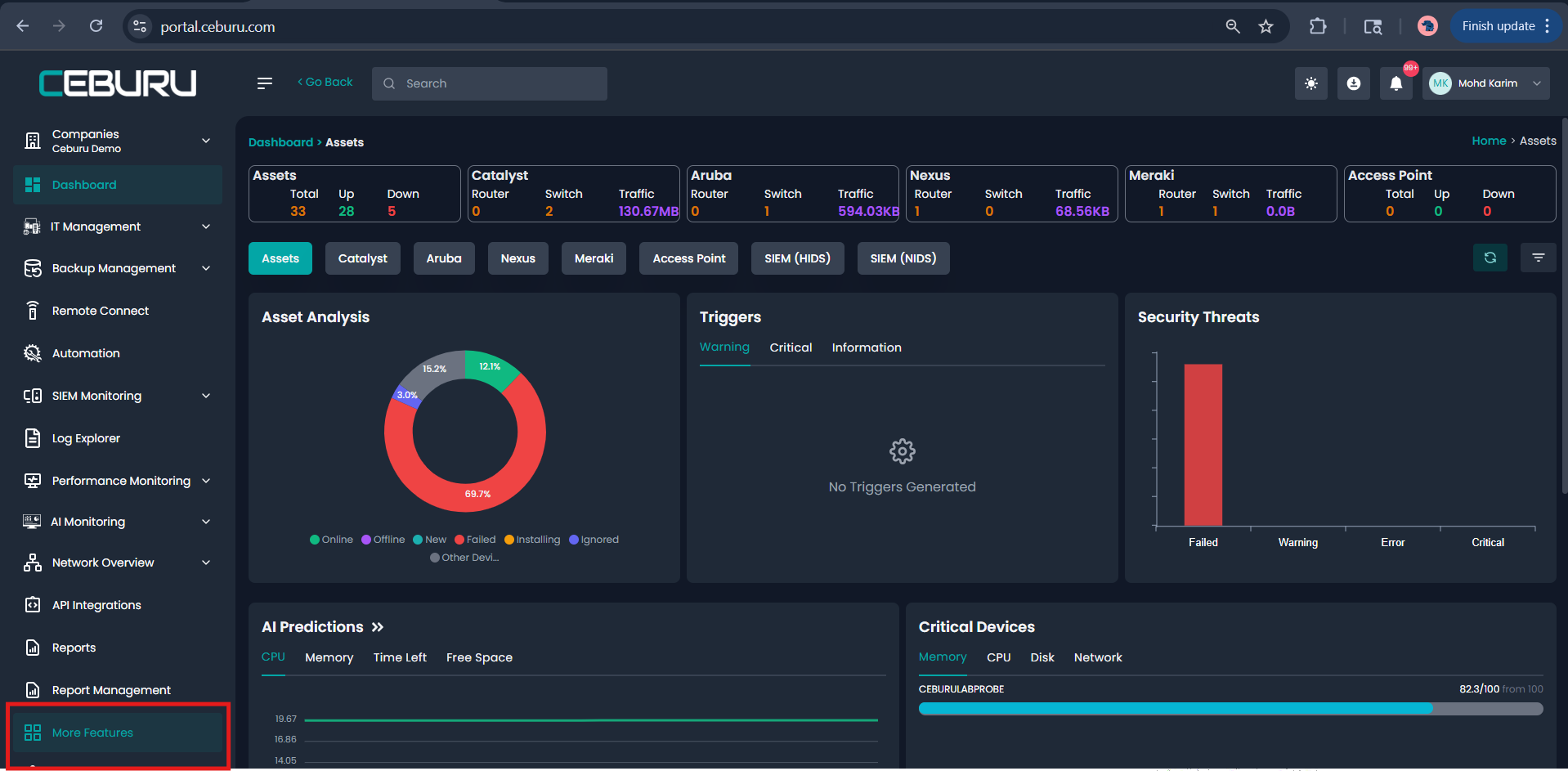
3. You will be redirected to https://portal.ceburuai.com
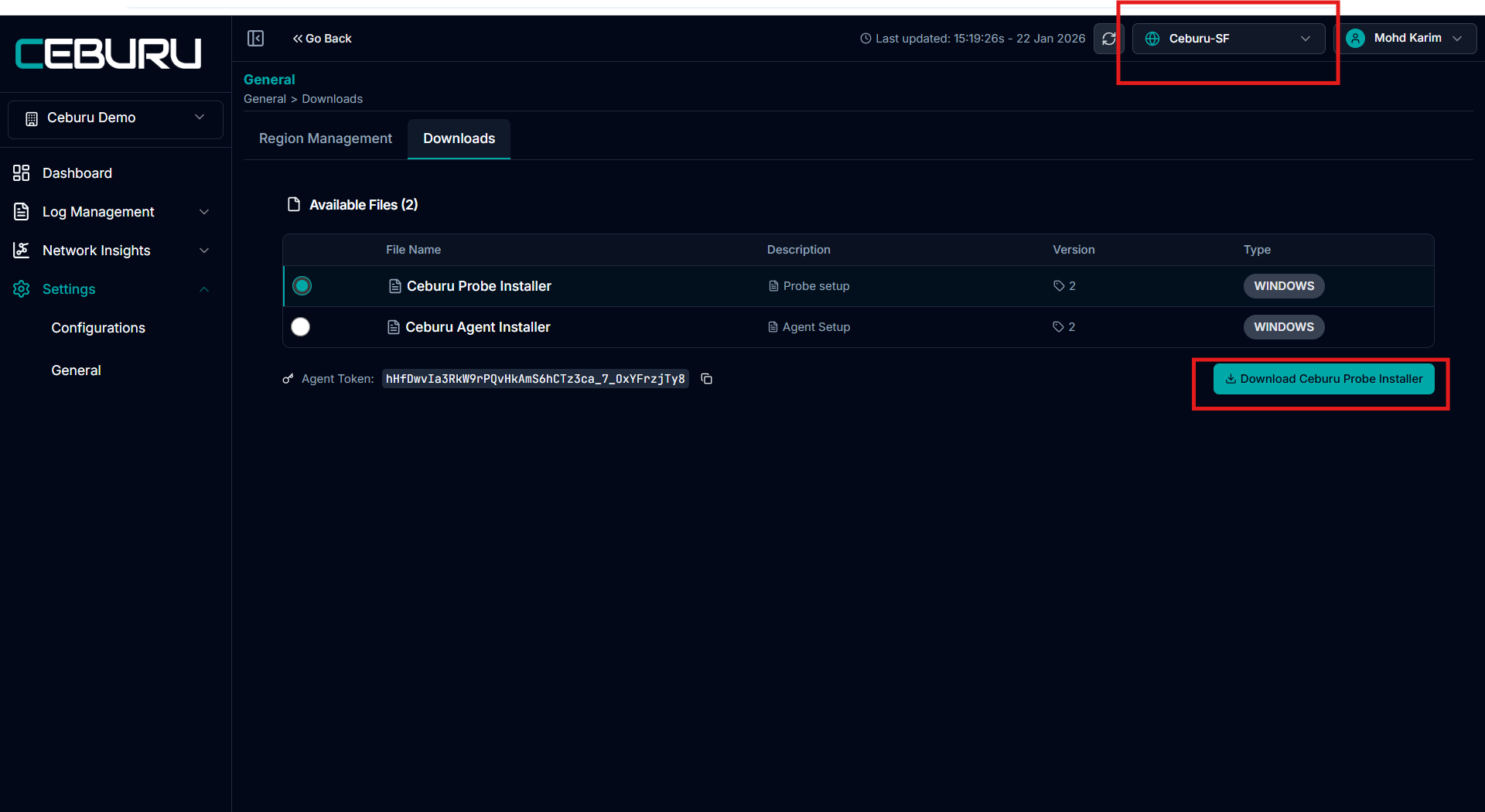
4. From the top right corner, click on the Region Selector and select the appropriate region where the probe will be deployed. Ensure the correct region is selected before proceeding, as the probe will be registered and associated with this region.
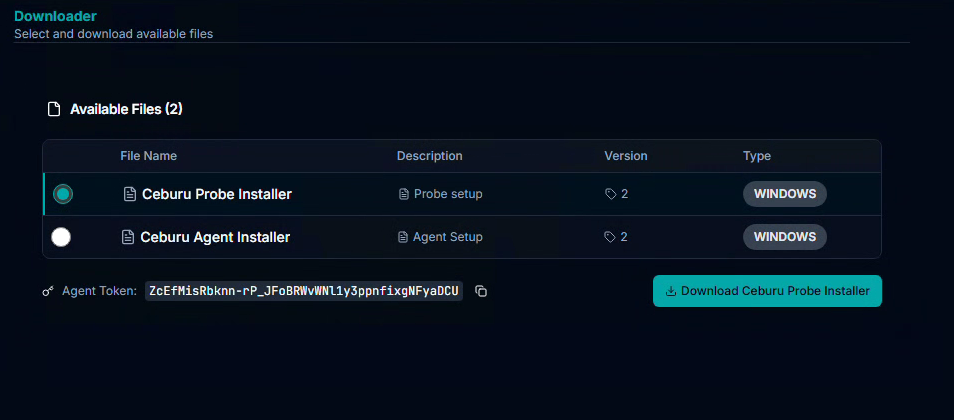
5. Click on the Download icon located in the dashboard.
6. Download and install the Ceburu Probe on the designated probe machine by following the on-screen installation instructions.
Note: Ensure the probe machine meets the minimum system requirements and has internet access for successful installation.
After downloading the installer, follow these steps:
Locate the Installer: Go to your Downloads folder and double-click the CeburuProbeInstaller.exe file.
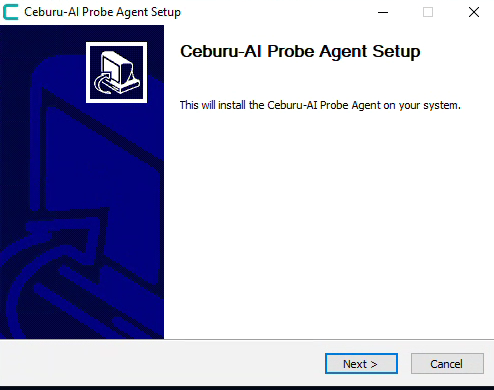
Accept the License Agreement: Review the license terms and click I Agree to continue.

Configure Settings: Enter any required configuration details, such as the Portal URL or Authentication Key provided in the portal.
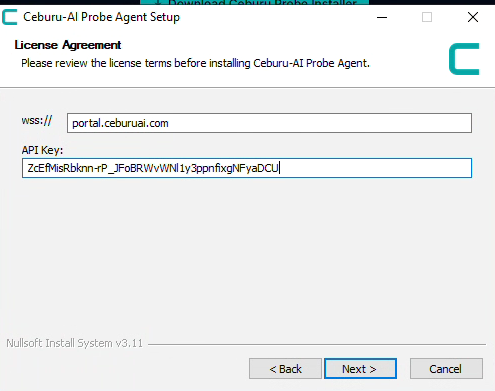
Provide the Probe Listening Port and click Install.
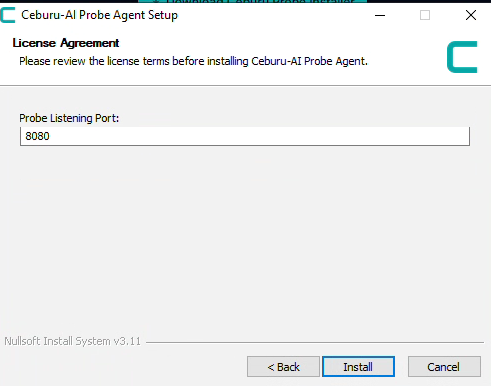
Complete the Installation: Click Install to begin the installation process. Once complete, click Finish to exit the setup.
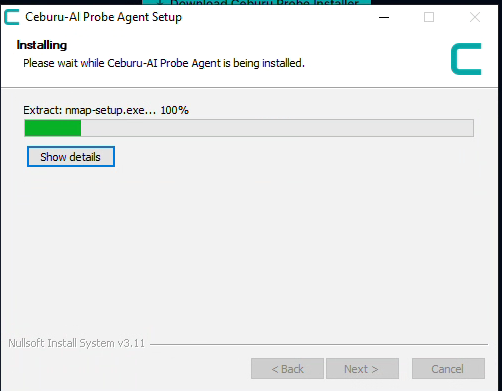
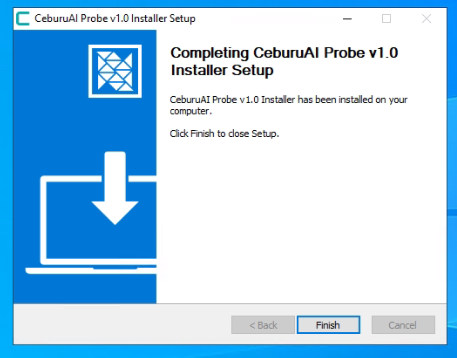
Verify Installation: After installation, the probe service should start automatically. You can verify this in the Services panel by checking for Ceburu Probe Service status.
After installation:
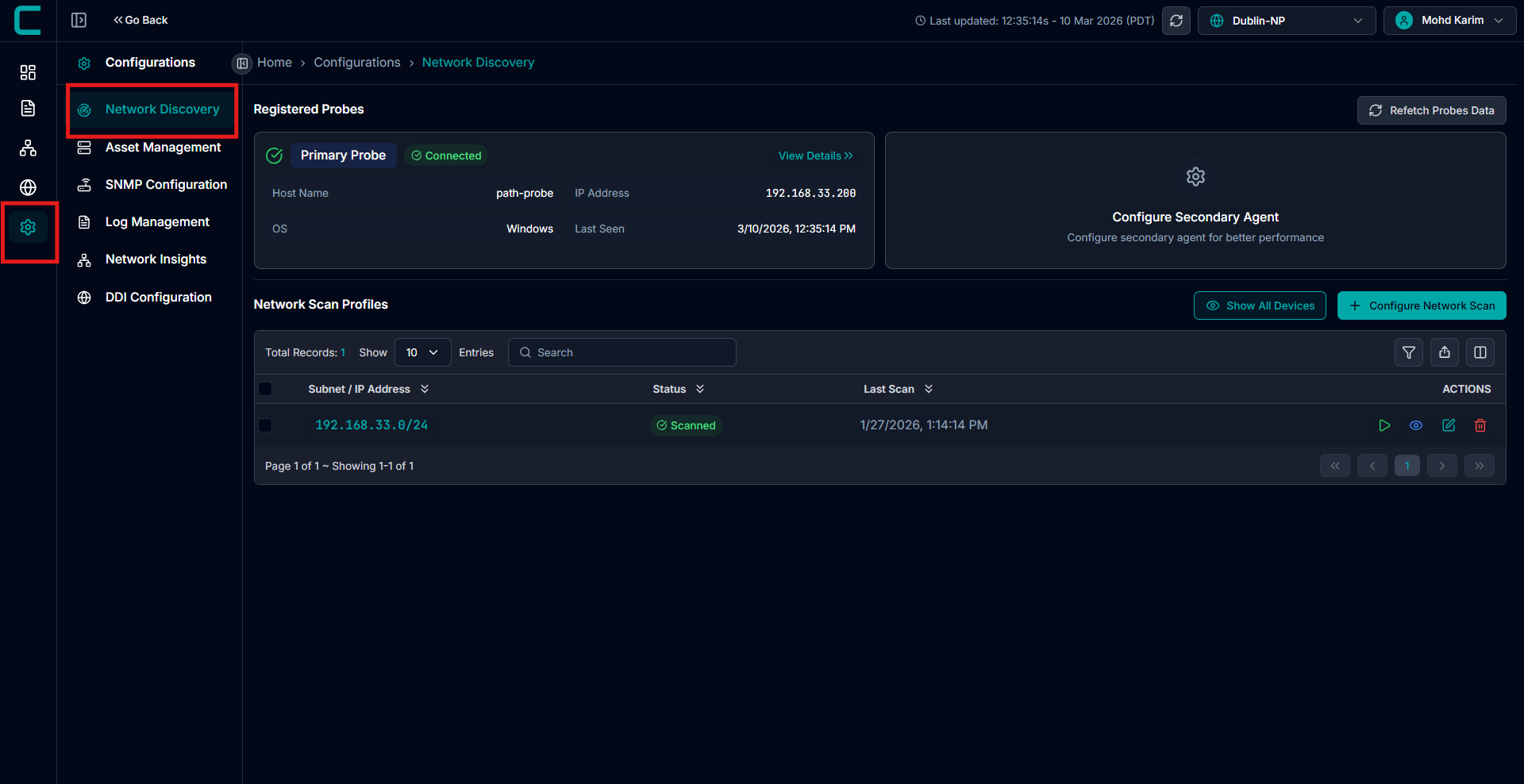
Navigate to Configurations → Network Discovery in the Ceburu Portal.
You will see the registered probes listed under Registered Probes:
Primary Probe - Main discovery node responsible for initiating network scans and device communication.
Secondary Probe - Optional backup or extended discovery node used for redundancy or distributed scanning.
Both probes should display a Connected status once communication is successfully established.
Note: Adding a Secondary Probe is optional. It can be used to improve coverage or provide failover capabilities but is not mandatory for the setup to function.
If the Primary Probe (and optional Secondary Probe, if configured) is connected, the setup is complete.
Configure Network Scan
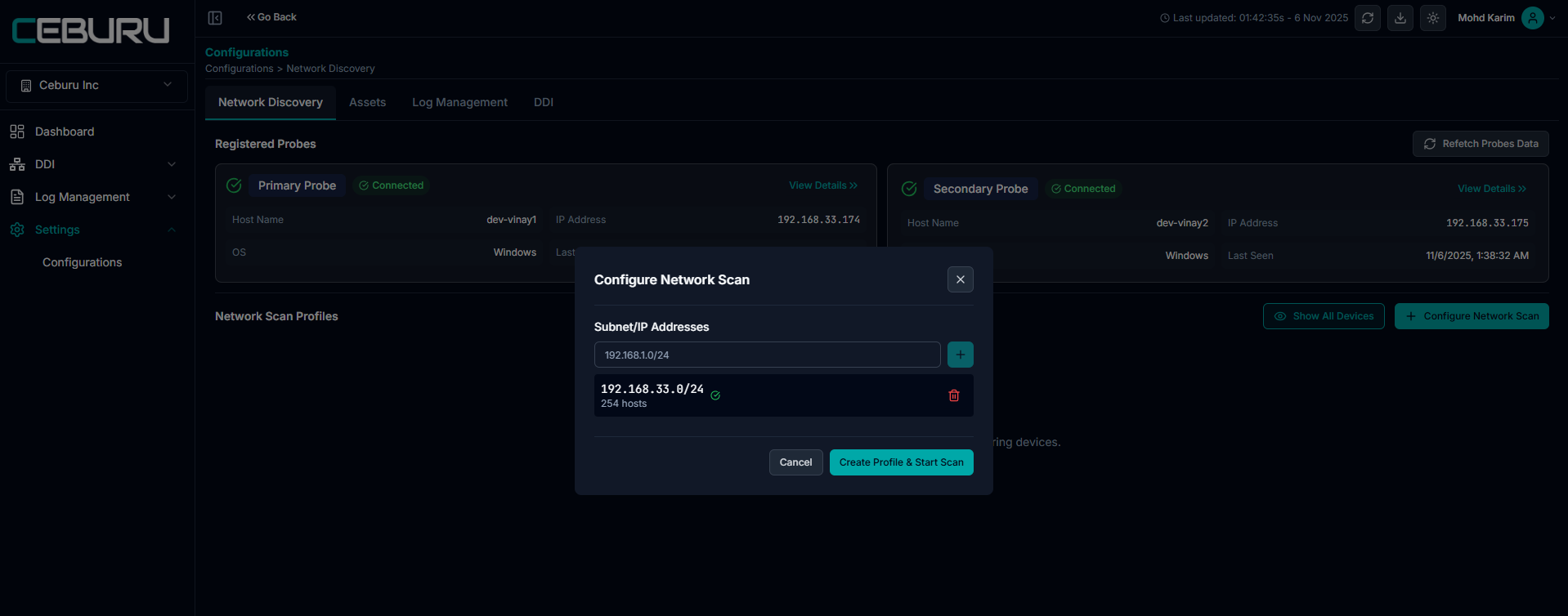
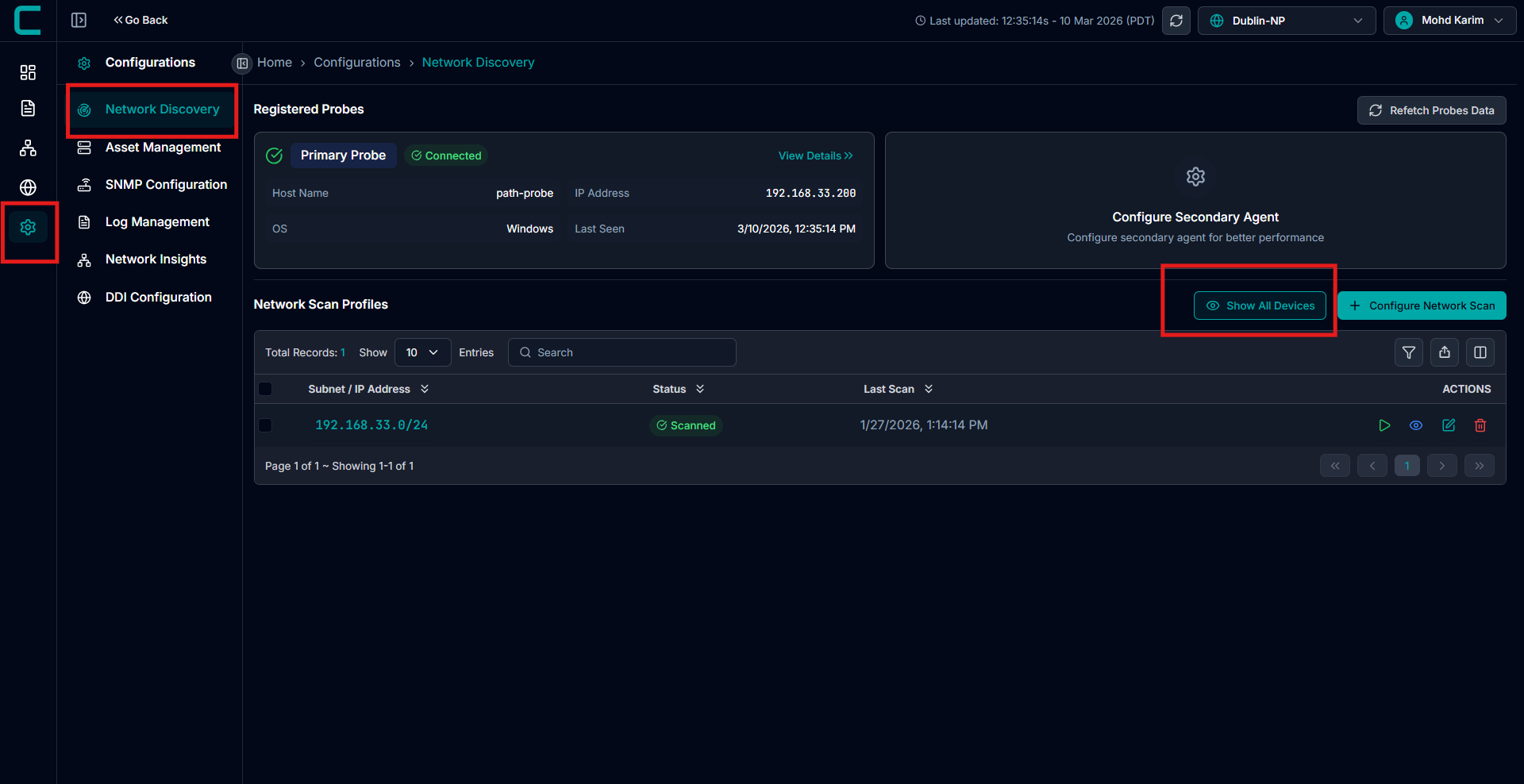
Go to Configurations → Network Discovery in the Ceburu Portal.
Click Configure Network Scan.
In the popup window, enter the Subnet/IP Address (for example:
192.168.33.0/24).Click Add to include the subnet, then select Create Profile & Start Scan.
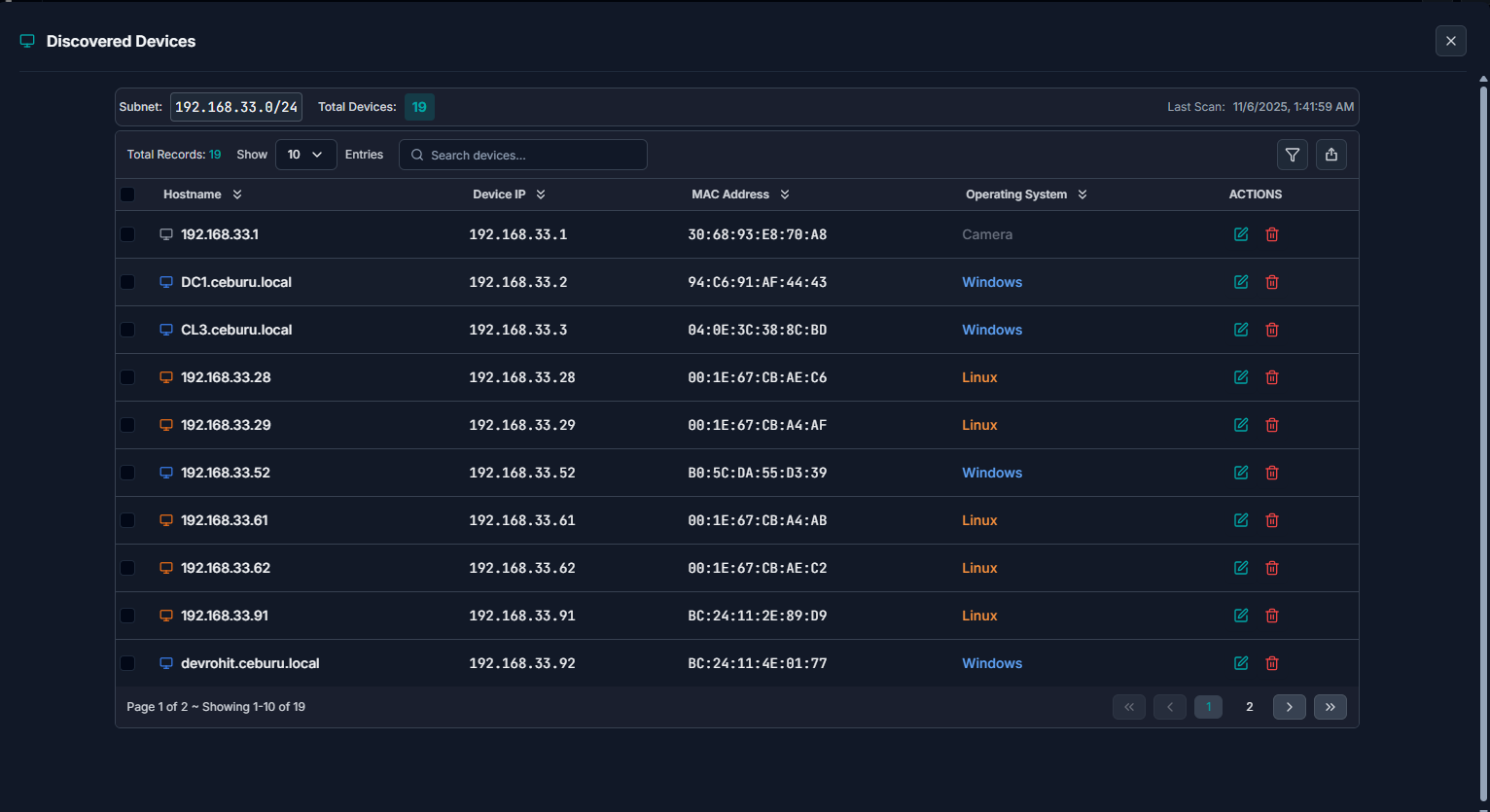
The system will start scanning the provided subnet. Once completed, the scan results will display the total number of detected devices along with their IP addresses and hostnames.
Viewing Discovered Devices
After a successful scan, click the eye icon next to the scan profile to view the discovered devices.
To add the devices to your managed inventory, select the desired devices and click Add to Assets.
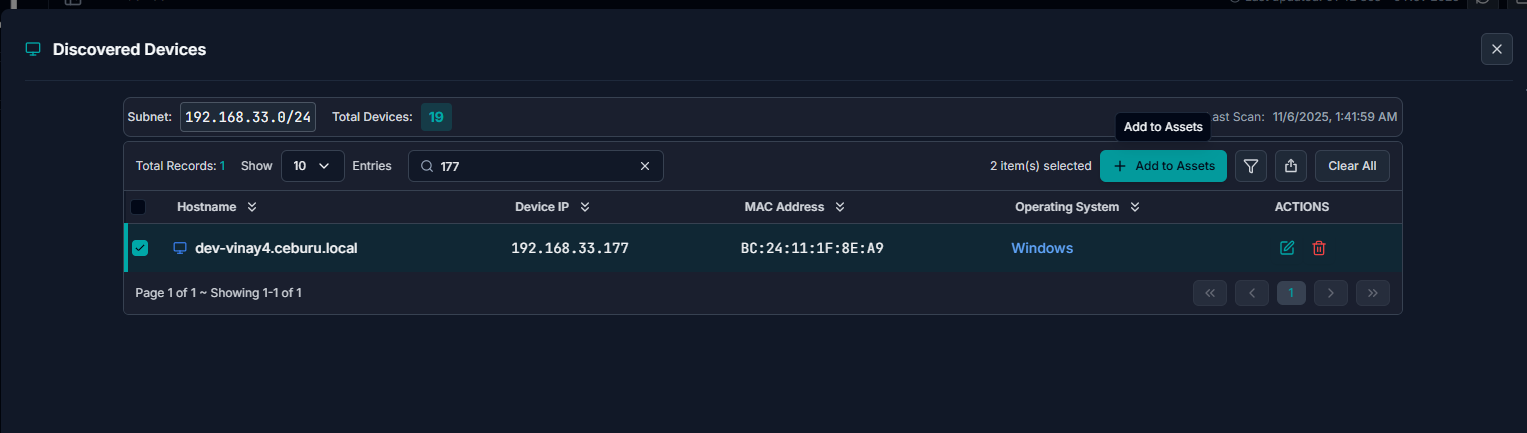
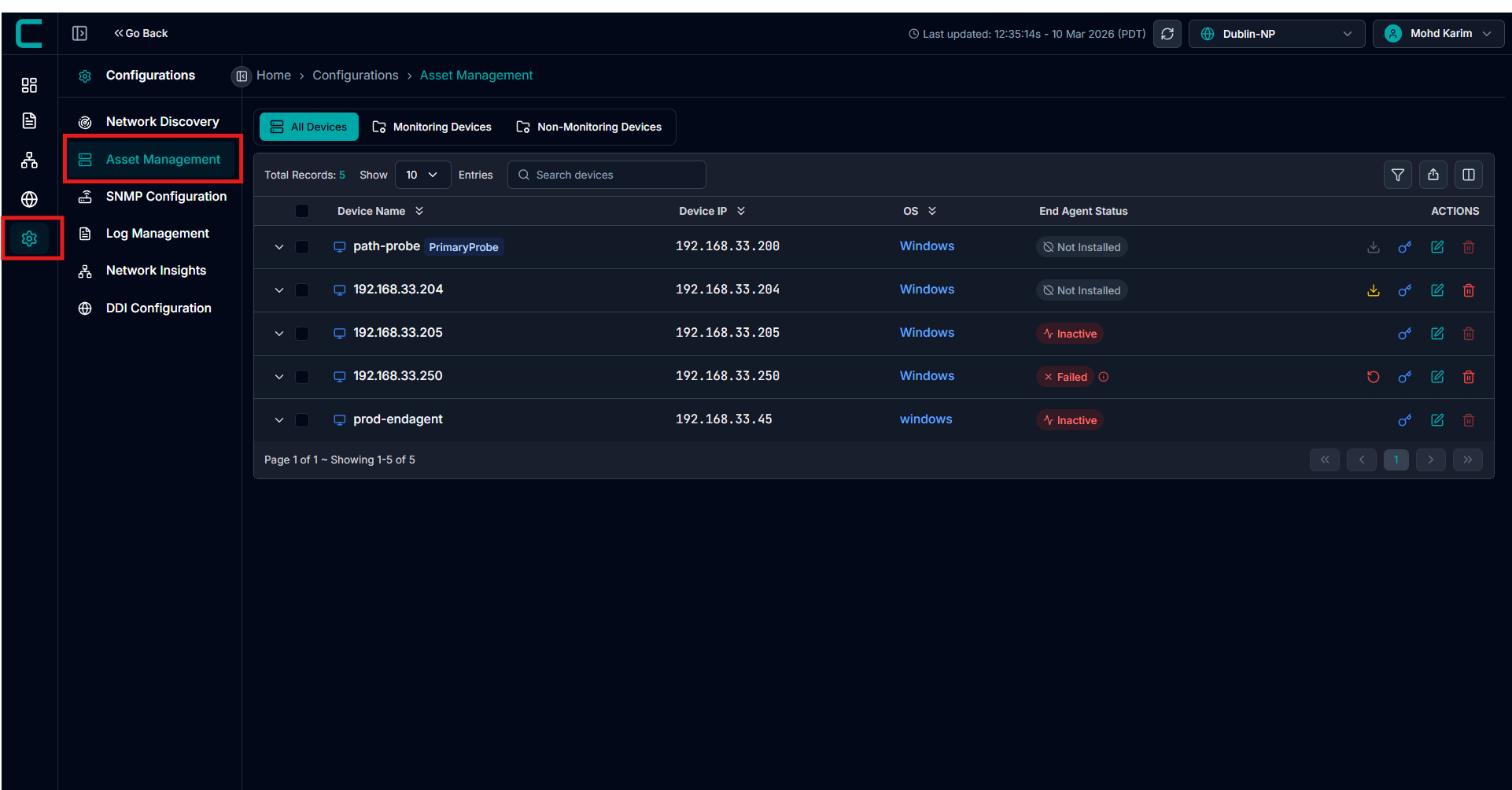
Once added, devices will appear under Configurations → Assets.
Setting Device Credentials
Before deploying the End Agents, credentials must be set for the target devices:
In the Assets tab, select the devices you want to configure.
Click the Key icon or select Set Credentials from the top-right dropdown.
Enter:
Domain
Username
Password and Confirm Password
Click Set Credentials to apply the credentials to the selected devices.
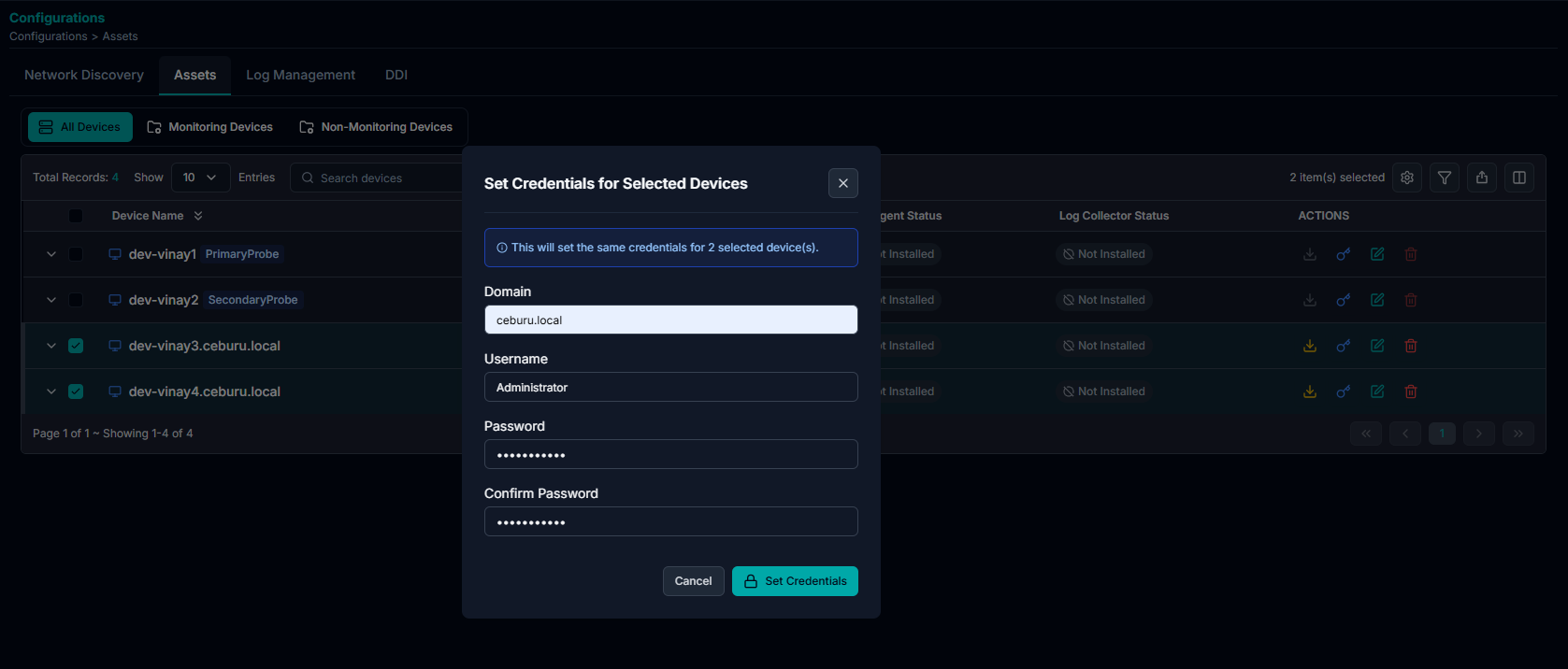
Once devices are added under Assets and credentials are configured, you can install the Ceburu End Agent.
Ceburu supports installation with WinRM enabled as well as without WinRM, offering flexibility for different network environments.
Installing End Agent
If WinRM is enabled, deploying the End Agent is optional, as data can be collected directly through WinRM.
However, if WinRM is not supported or disabled, you can install the Ceburu End Agent manually to enable communication between the endpoint and the Ceburu Probe.
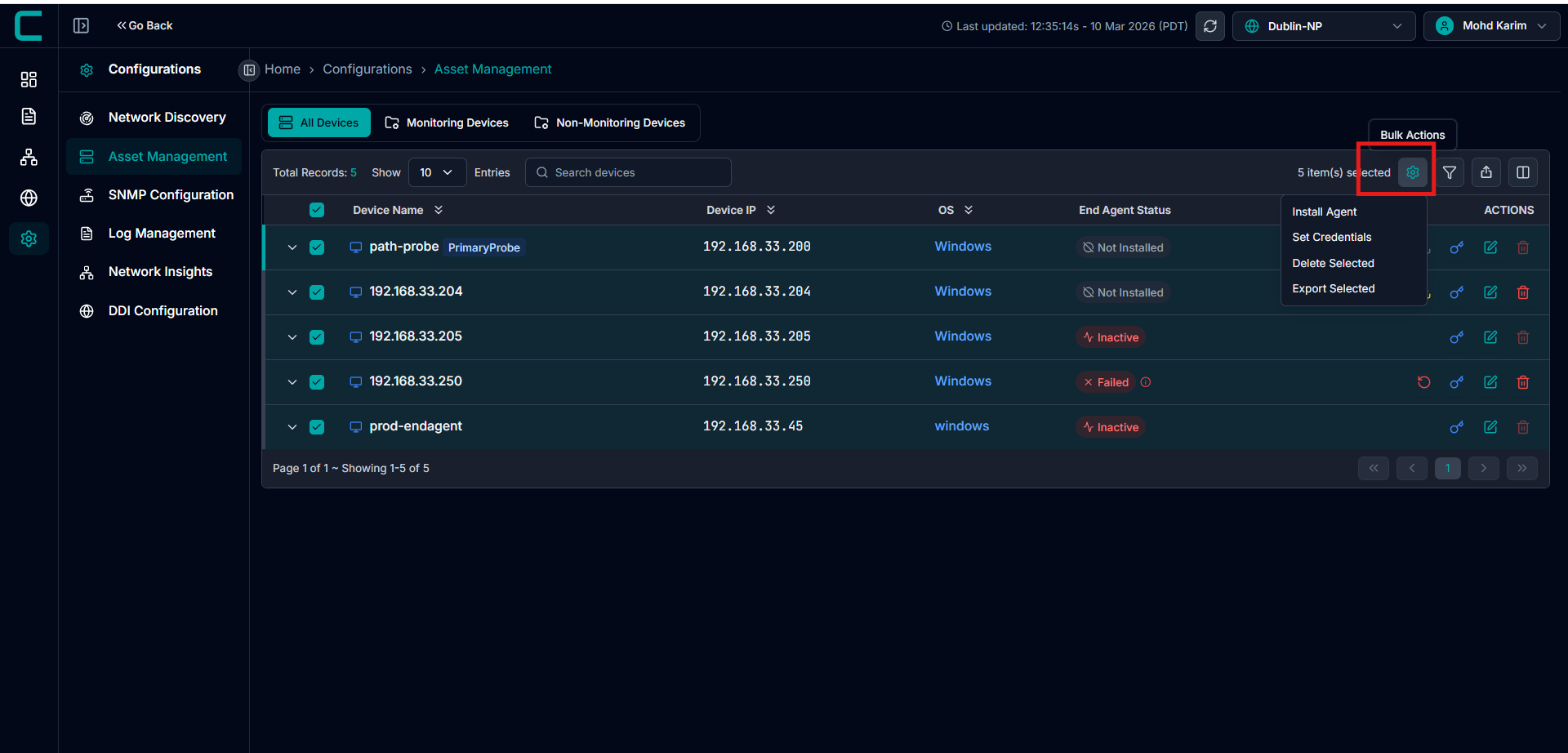
1. Installing with WinRM Enabled
Go to Configurations → Assets in the Ceburu Portal.
Select the devices where you want to install the End Agent.
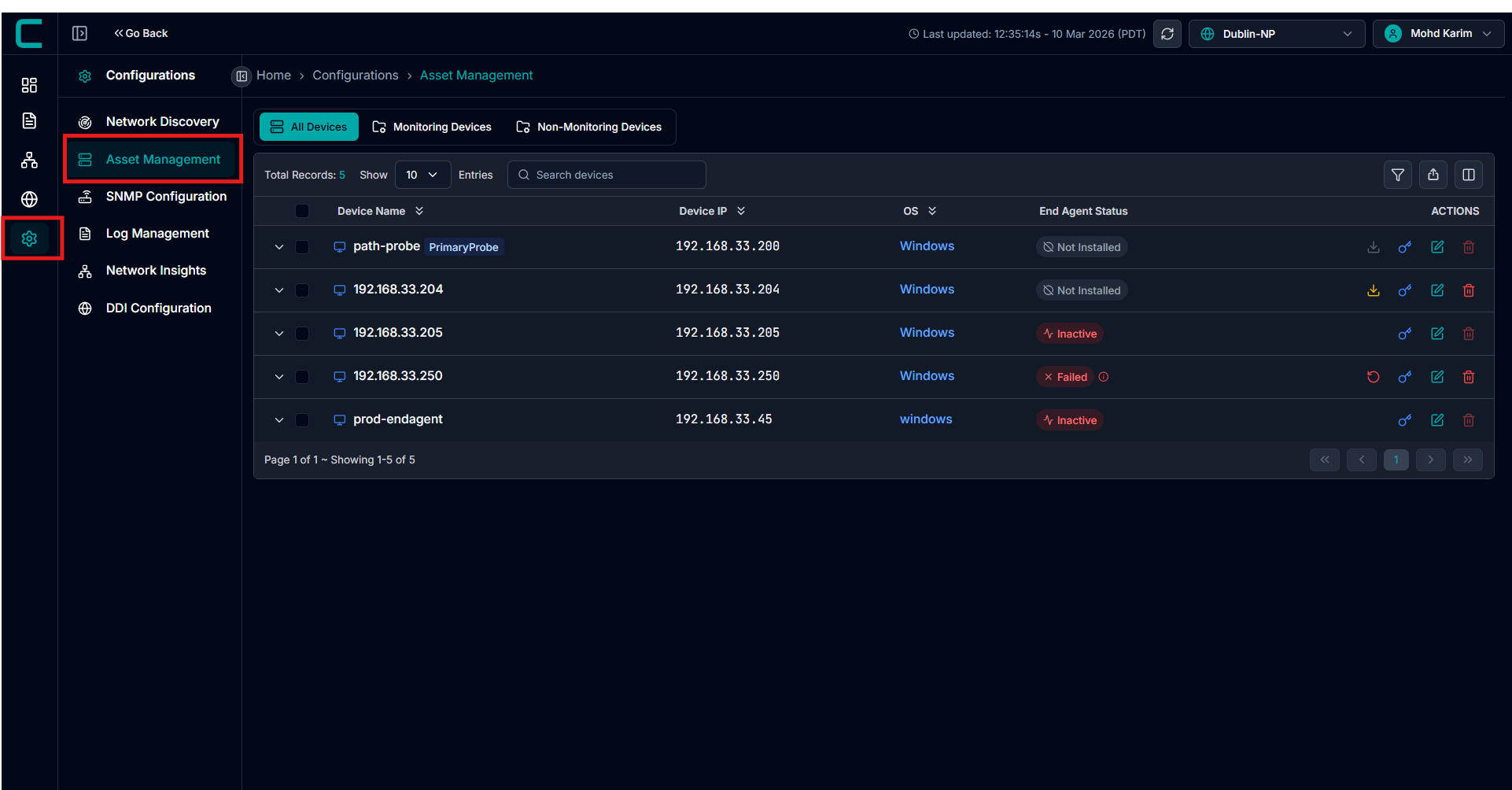
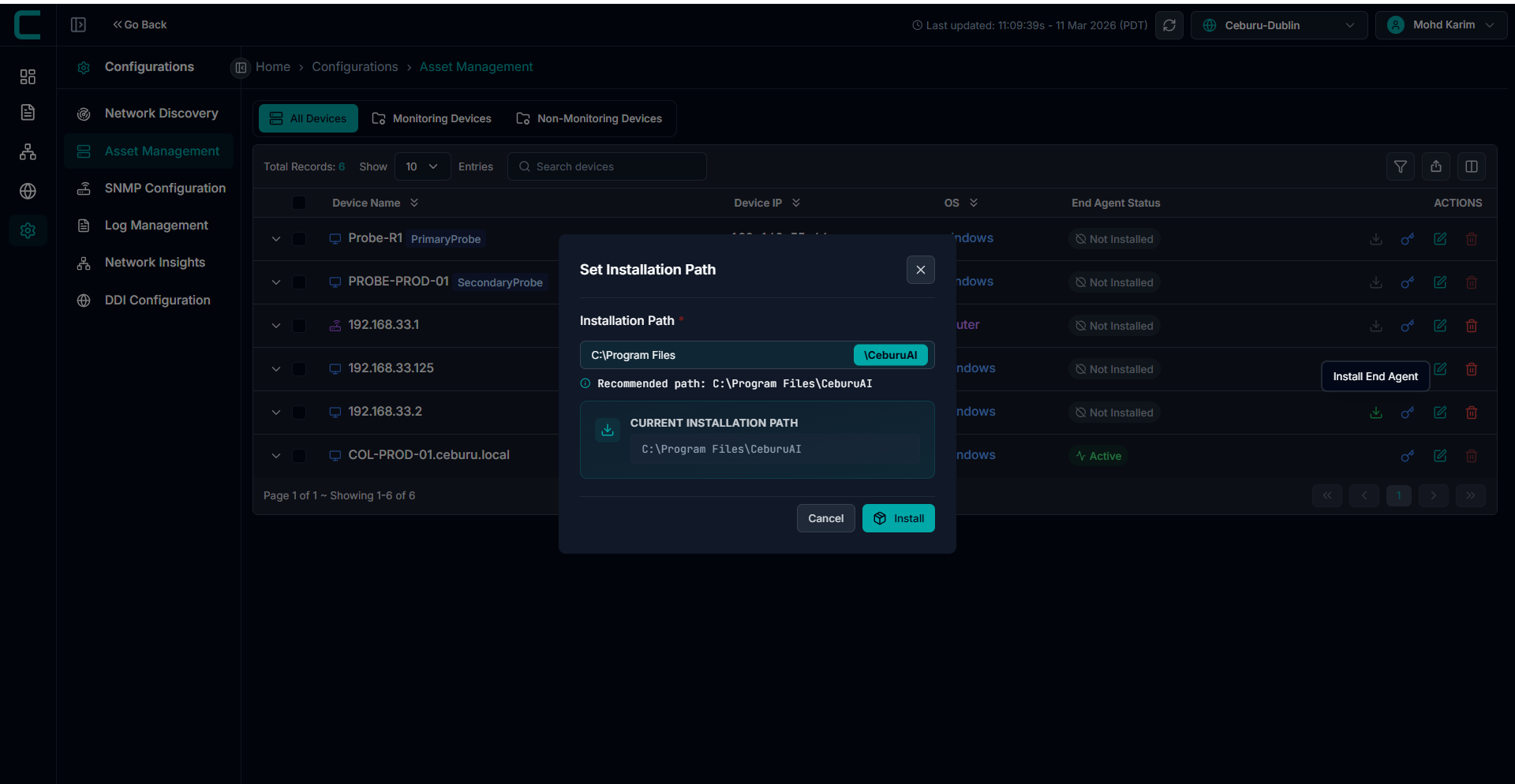
Click the dropdown menu in the top right corner and select “Install Agent” to perform abulk installation. Alternatively, click the download icon in the table to install the agent individually
After starting the installation, you will be prompted to choose the file path where you want the agent to be installed. The system will also display a recommended installation path, which you can select if preferred.
The installation will automatically begin on the selected devices through WinRM communication.
Once the installation completes successfully, the End Agent Status will update to Active.
Note: WinRM must be enabled on the devices and accessible from the Ceburu Probe for the agent to deploy remotely.
2. Installing without WinRM Enabled
If WinRM is not enabled in your environment, you can perform a manual installation using the downloadable installer.
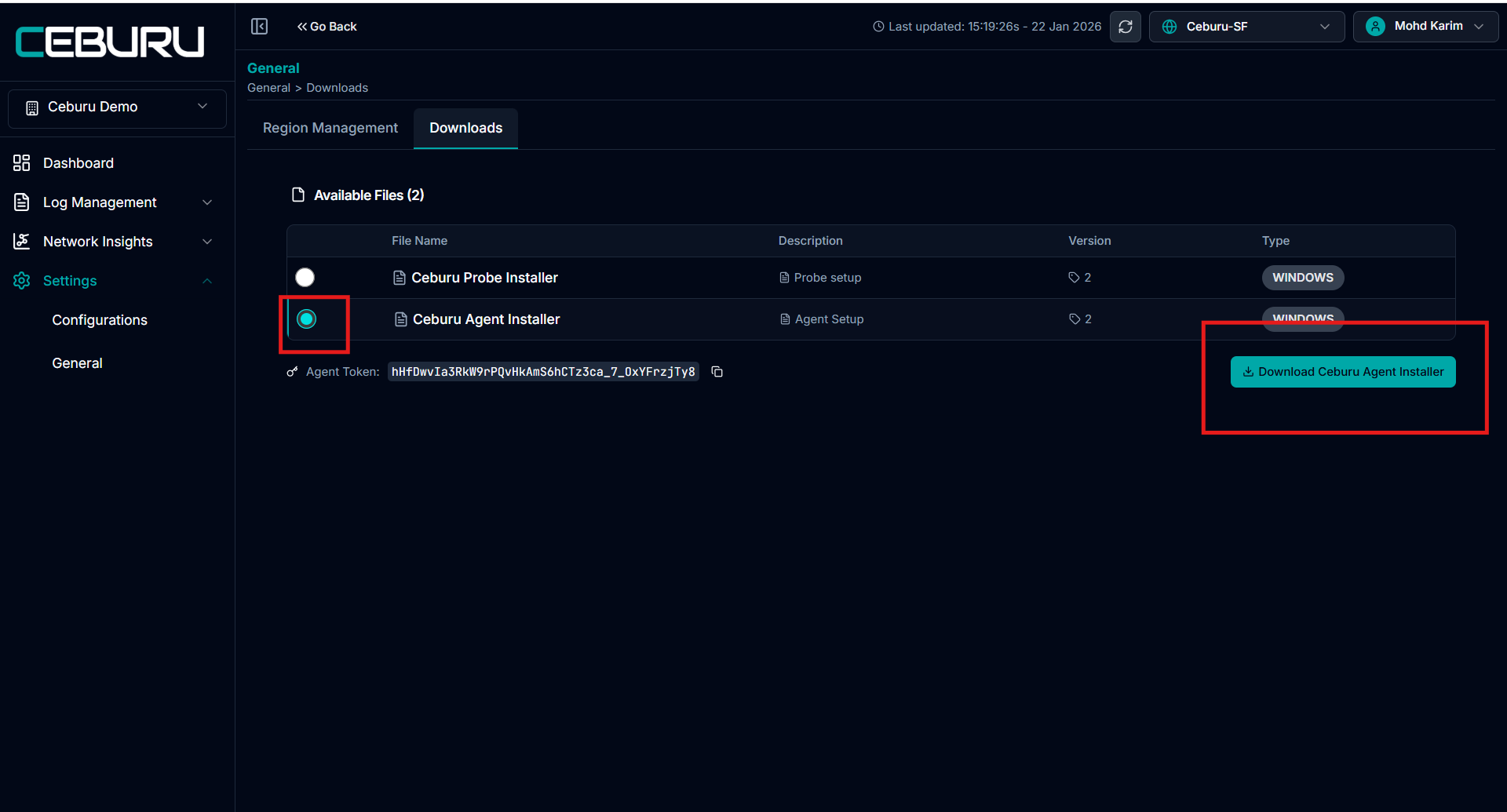
Go to Configurations → Downloader.
Under Available Files, select Ceburu Agent Installer.
Click Download to obtain the setup file
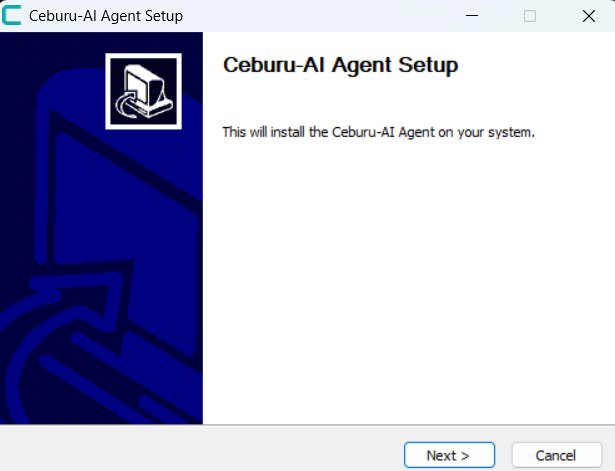
Run the installer (
Ceburu-Agent-Setup.exe) on the target device.The Ceburu-AI Agent Setup wizard will open.
- Click Next to begin the setup
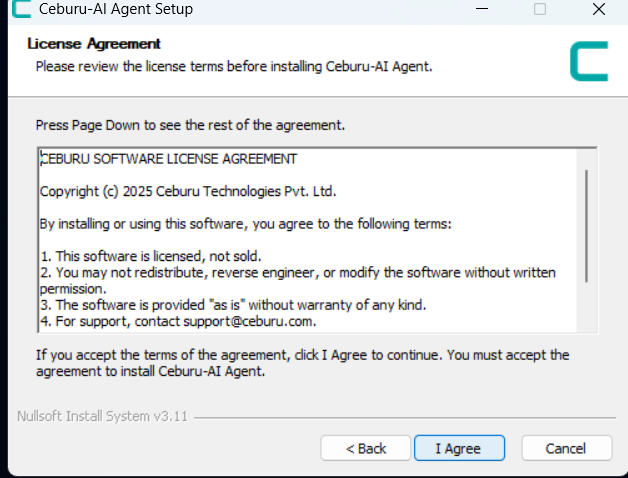
Accept the License Agreement
Read through the Ceburu Software License Agreement.
Click I Agree to continue the installation process.
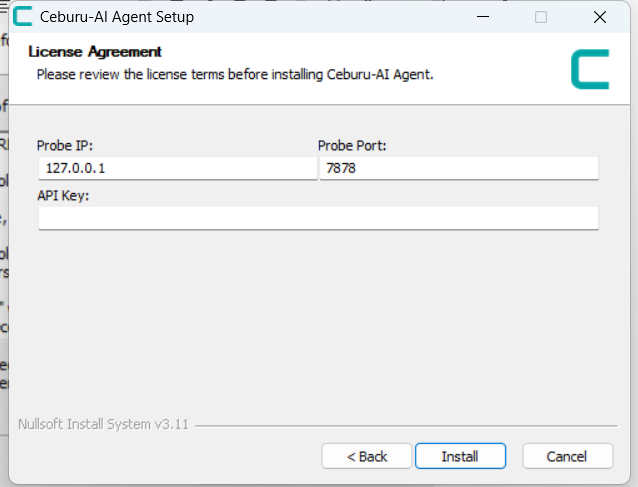
In this step, you’ll provide connection parameters for the agent to communicate with the probe.
Probe IP: Enter the IP address of the registered Ceburu Probe (for example:
192.168.33.174).Probe Port: Enter the listening port configured during the probe setup (default:
808).API Key: Paste the Agent Token from the Downloader page in the Ceburu Portal. Make sure the token is correct with respect to the region.
After filling in the details, click Install to begin the deployment.
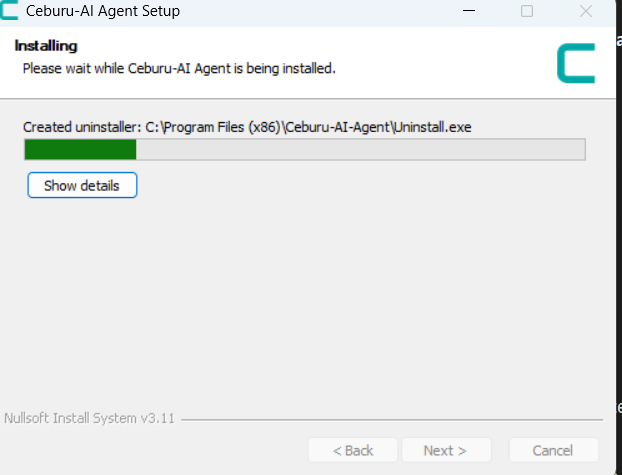
The installer will extract and copy the required files to your system directory.
Wait until the progress bar completes.
When installation finishes, click Finish to close the wizard.
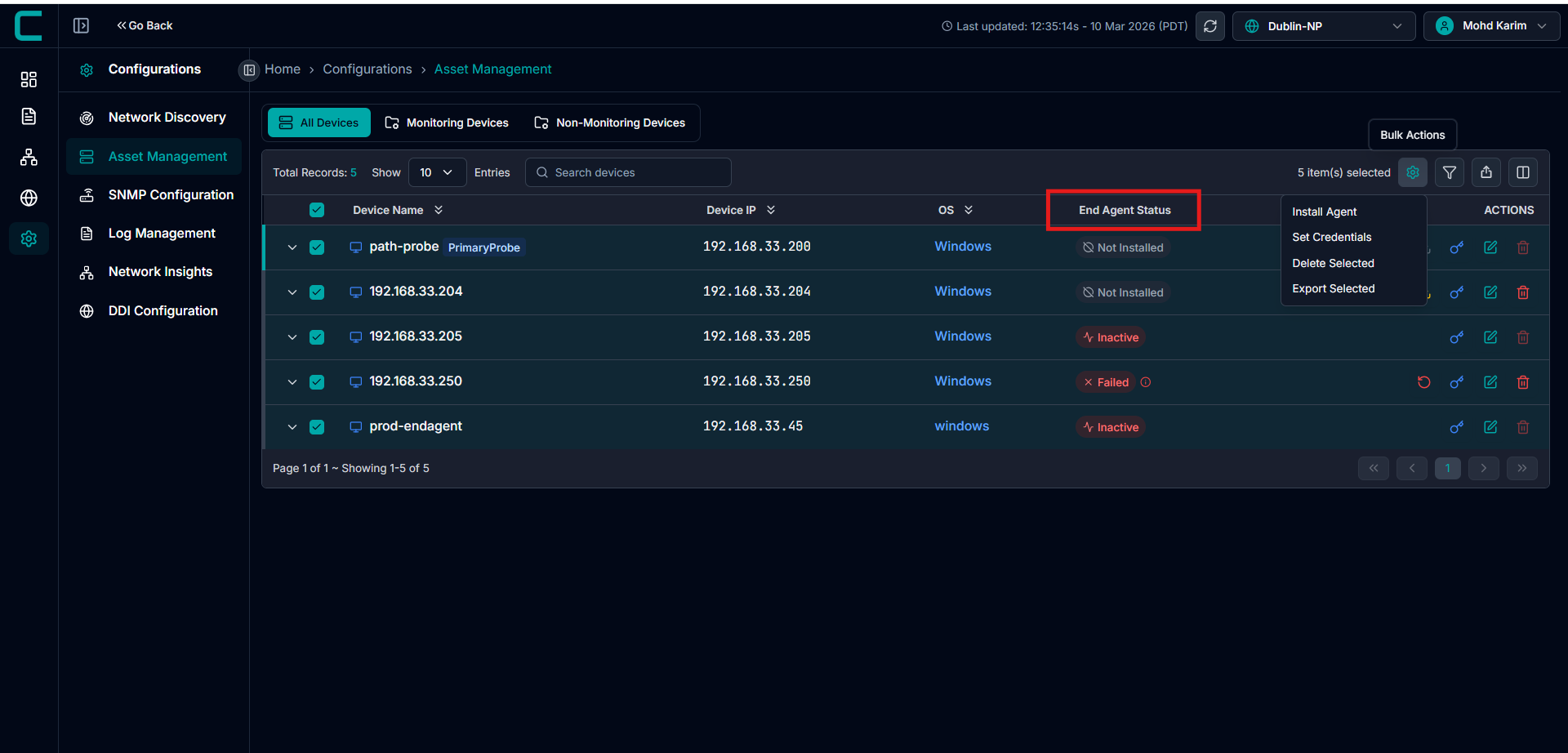
After installation:
Go to the Ceburu Portal → Configurations → Assets.
The installed device will automatically appear in the Assets list.
The End Agent Status will update to Active once communication with the probe is established.
For Log Management Installation & Configuration follow the below link:
Log Management Installation & Configuration
For IPAM Installation & Configuration follow the below link:
For Network Insights Installation & Configuration follow the below link:
NetPath & NetMap Configuration
Was this article helpful?
That’s Great!
Thank you for your feedback
Sorry! We couldn't be helpful
Thank you for your feedback
Feedback sent
We appreciate your effort and will try to fix the article