Search Your Logs in Plain English
Semantic Search lets you find logs by describing what you’re looking for — no query language needed. CeburuAI turns your question into a search and also matches logs by meaning, so you’ll find what you’re after even when the log text uses different words than you do.
Semantic Search works in the KQL explorer view of Log Explorer. If you’re in ES|QL mode, enabling it switches you back automatically. It isn’t available for App Monitoring logs.
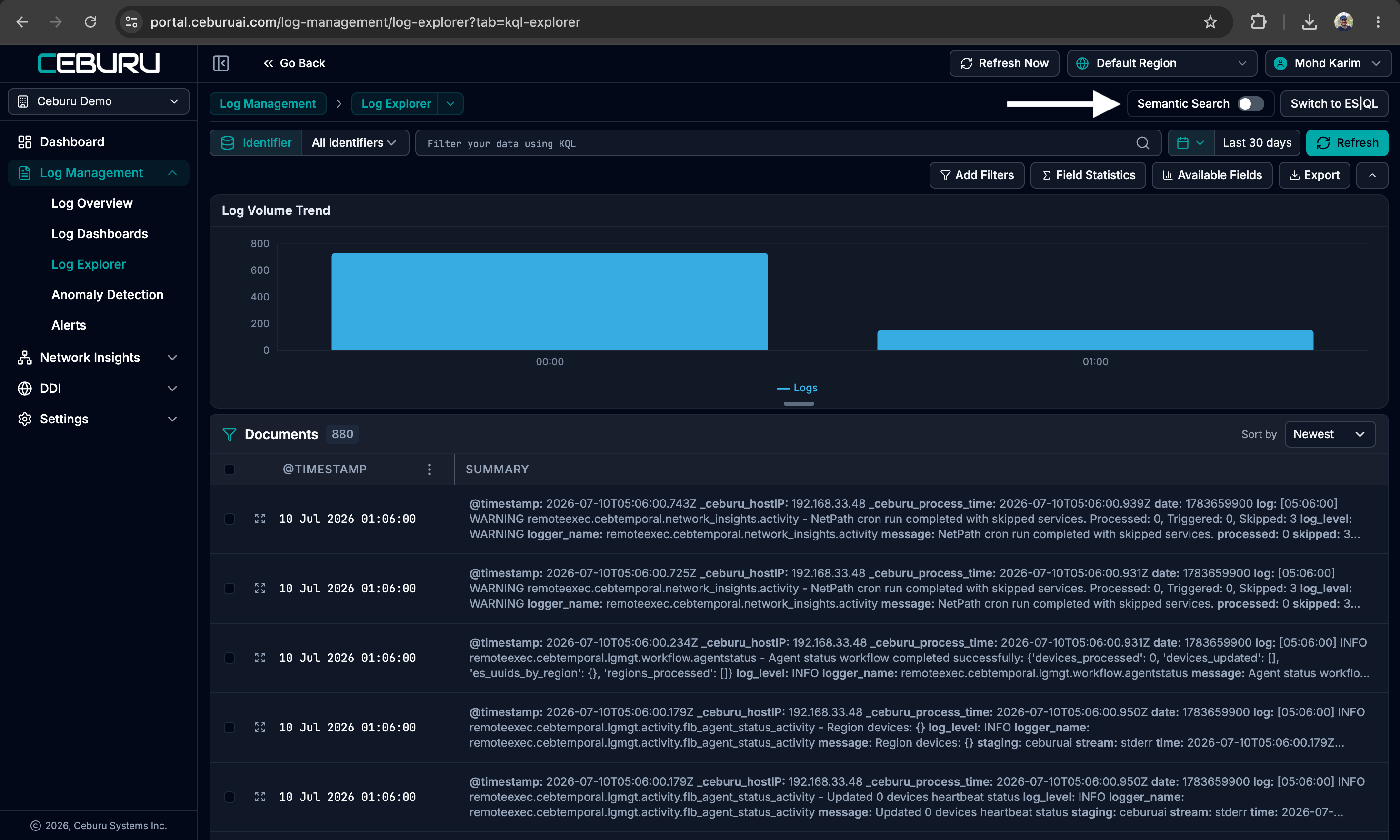
Step 1 — Turn on Semantic Search
Open Log Management → Log Explorer and switch on the Semantic Search toggle in the top-right corner.
Step 1 — The Semantic Search toggle in Log Explorer
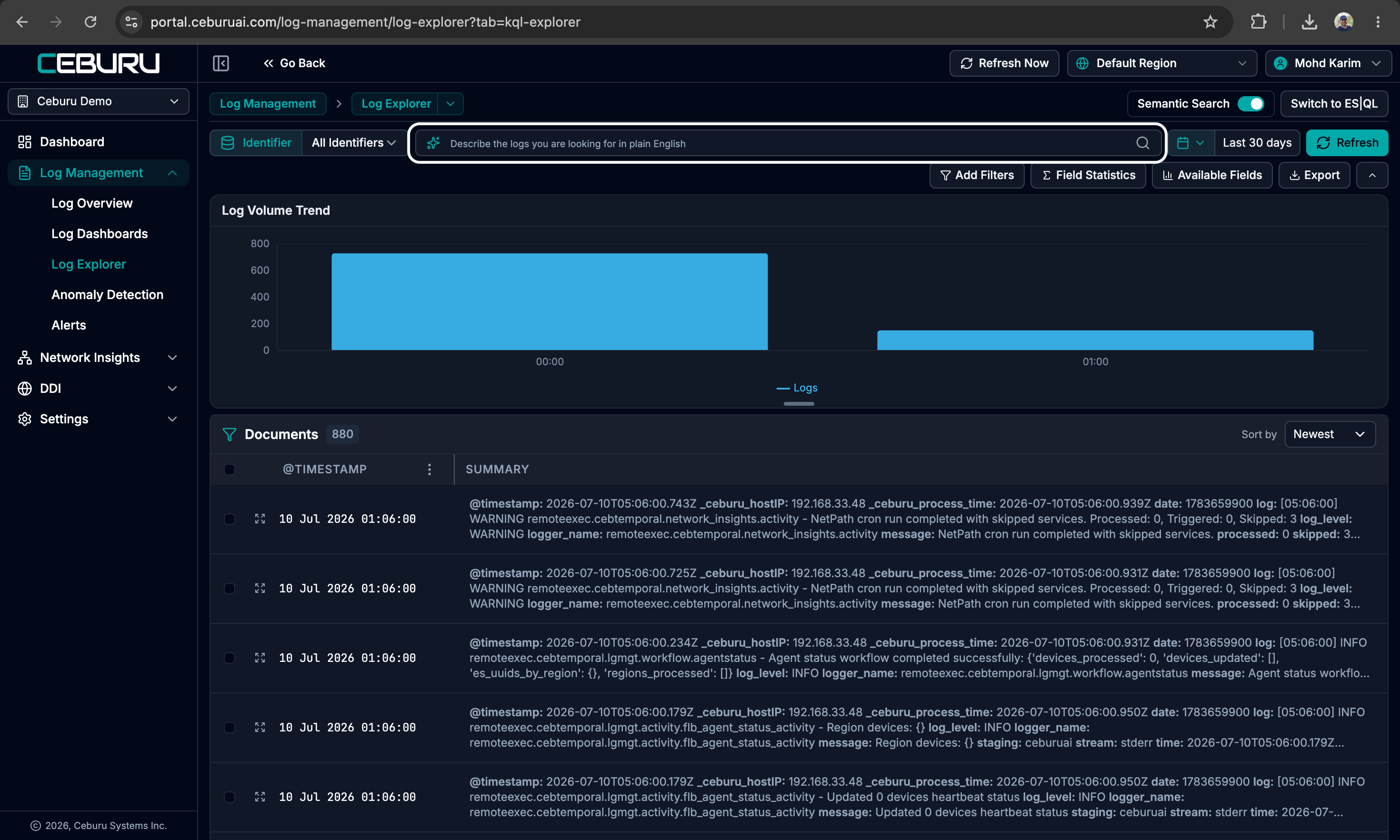
Step 2 — The search bar changes to plain English
Once enabled, the search bar becomes a plain-language input: “Describe the logs you are looking for in plain English.”
Step 2 — The plain-English search input
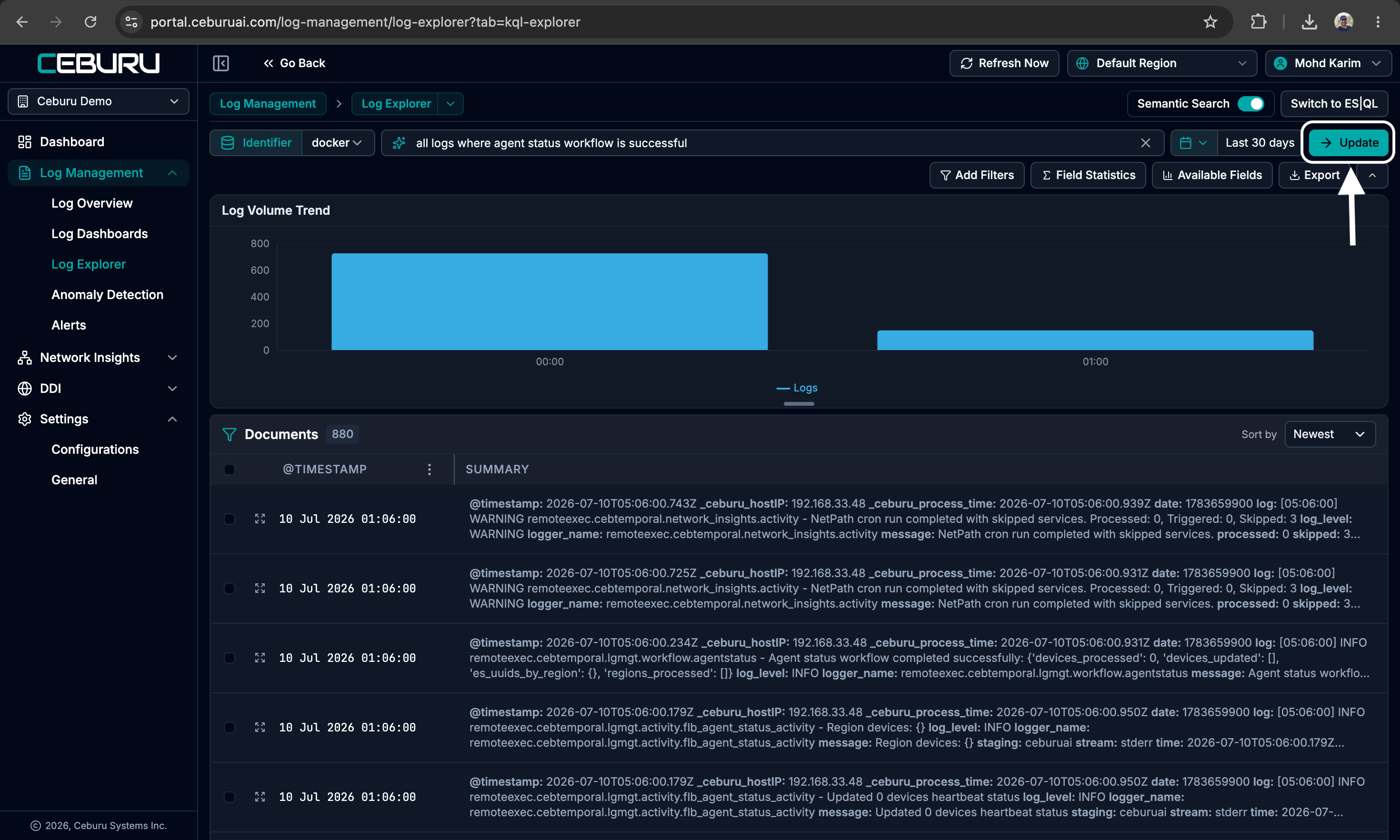
Step 3 — Ask your question
Type what you’re looking for and click Update (or press Enter):
- “all logs where agent status workflow is successful”
- “payment failures sent to the finance team last week”
- “authentication logs excluding expiring tokens”
Translation takes a couple of seconds.
Step 3 — Type a question and click Update
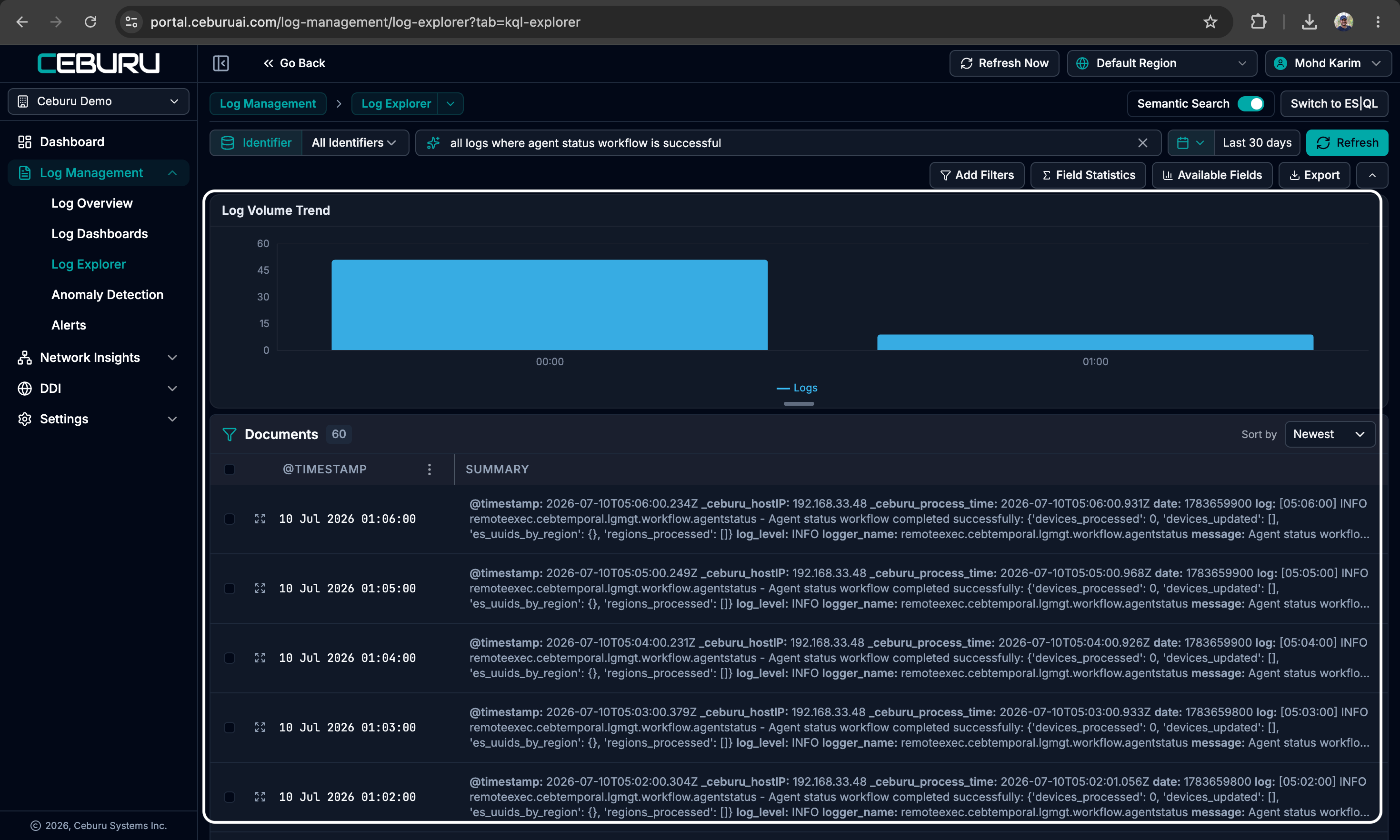
Step 4 — Review your results
The generated query is applied and the chart and document list update to match.
Step 4 — Results filtered by your question
A few things happen automatically:
- Time phrases set the time picker. “last 2 hours” or “yesterday” adjusts the date range for you. No time phrase? Your current picker selection is kept.
- Meaning-based matching. Results can include logs that match your question’s concept, not just its words — searching “expiring tokens” can surface “verification code” logs, because both are about short-lived credentials.
- Matched patterns appear under the search bar, showing which log patterns your question matched — hover to see the full list. If the meaning-based filter finds nothing, a notice tells you results are keyword-only.
- Recent questions are saved — click into the input to reuse one.
Tips for better questions
- Name the things you know. Usernames, hostnames, teams, and IPs sharpen results: “failed logins on auth-prod-01”.
- Exclusions work. “messages not sent to the Ops team” filters them out.
- Describe, don’t count. Questions like “how many errors per host” aren’t log searches — use the aggregations view for counts.
Troubleshooting
| You see | What it means |
|---|---|
| “Couldn’t build a search from this question…” | Try rephrasing — describe the logs you want, e.g. “failed logins in the last 2 hours”. |
| Zero results | Widen the time range, or check your region and identifier tag selection — searches are scoped to them. |
| A surprising result | Check the Matched patterns line — it shows the pattern that pulled it in. |
Switching the toggle off returns you to the regular KQL search bar — your own queries are never overwritten.
Was this article helpful?
That’s Great!
Thank you for your feedback
Sorry! We couldn't be helpful
Thank you for your feedback
Feedback sent
We appreciate your effort and will try to fix the article