Maintenance Mode allows administrators to temporarily suppress alerts for selected assets during planned maintenance activities. This prevents unnecessary alert notifications while systems are intentionally offline or undergoing changes.
Navigation Path
From the left navigation menu, click Settings
Select Configurations
Click Alert
Navigate to the Maintenance Mode tab
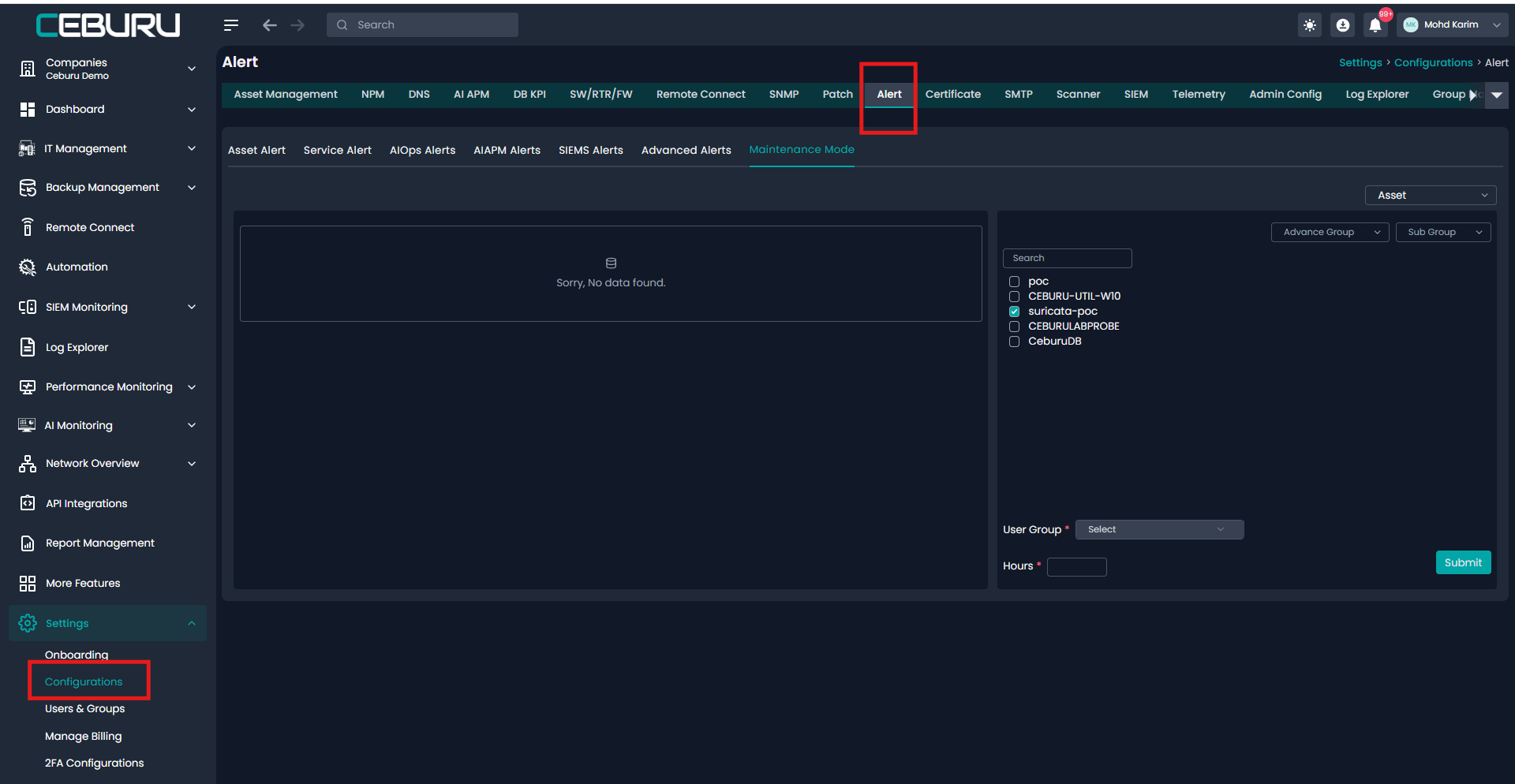
The Maintenance Mode screen is divided into two main sections
Left panel: Displays existing maintenance configurations. Shows message when no maintenance rules are configured
Right panel: Used to configure new maintenance windows. Includes asset selection and time duration
Creating a Maintenance Mode Configuration
Step 1 Select Asset Type: From the top right dropdown, select the asset type
Step 2 Select Advance Group and Sub Group:
Use the dropdowns to filter assets by
Advance Group
Sub Group
This helps narrow down the asset list.
Step 3 Select Assets: From the asset list search for the required asset and select one or multiple assets using checkboxes.
Step 4 Select User Group: Choose the user group responsible for the maintenance activity. This field is mandatory.
Step 5 Set Maintenance Duration: Enter the duration in Hours. All alerts related to the selected assets are suppressed.
Step 6 Submit:
Click Submit to enable Maintenance Mode.
Once submitted
Maintenance Mode becomes active immediately
Alerts are paused for the selected assets
The configuration is listed in the maintenance dashboard
Behavior During Maintenance Mode
- While Maintenance Mode is active.
- No alert notifications are sent
- Alert conditions are not evaluated
- Email and external notifications are suppressed
- After the configured time expires
- Maintenance Mode is automatically disabled
- Normal alert monitoring resumes
Was this article helpful?
That’s Great!
Thank you for your feedback
Sorry! We couldn't be helpful
Thank you for your feedback
Feedback sent
We appreciate your effort and will try to fix the article