Region Management allows a customer to logically group infrastructure, probes, and agents by geographic or operational regions. A single customer can create and manage any number of regions based on their deployment needs.
Each region can have its own set of probes, agents, and public IP addresses. This enables better organization, isolation, monitoring, and control across different locations or environments such as data centers, cloud regions, offices, or test environments.
Navigating to Region Management
To access Region Management:
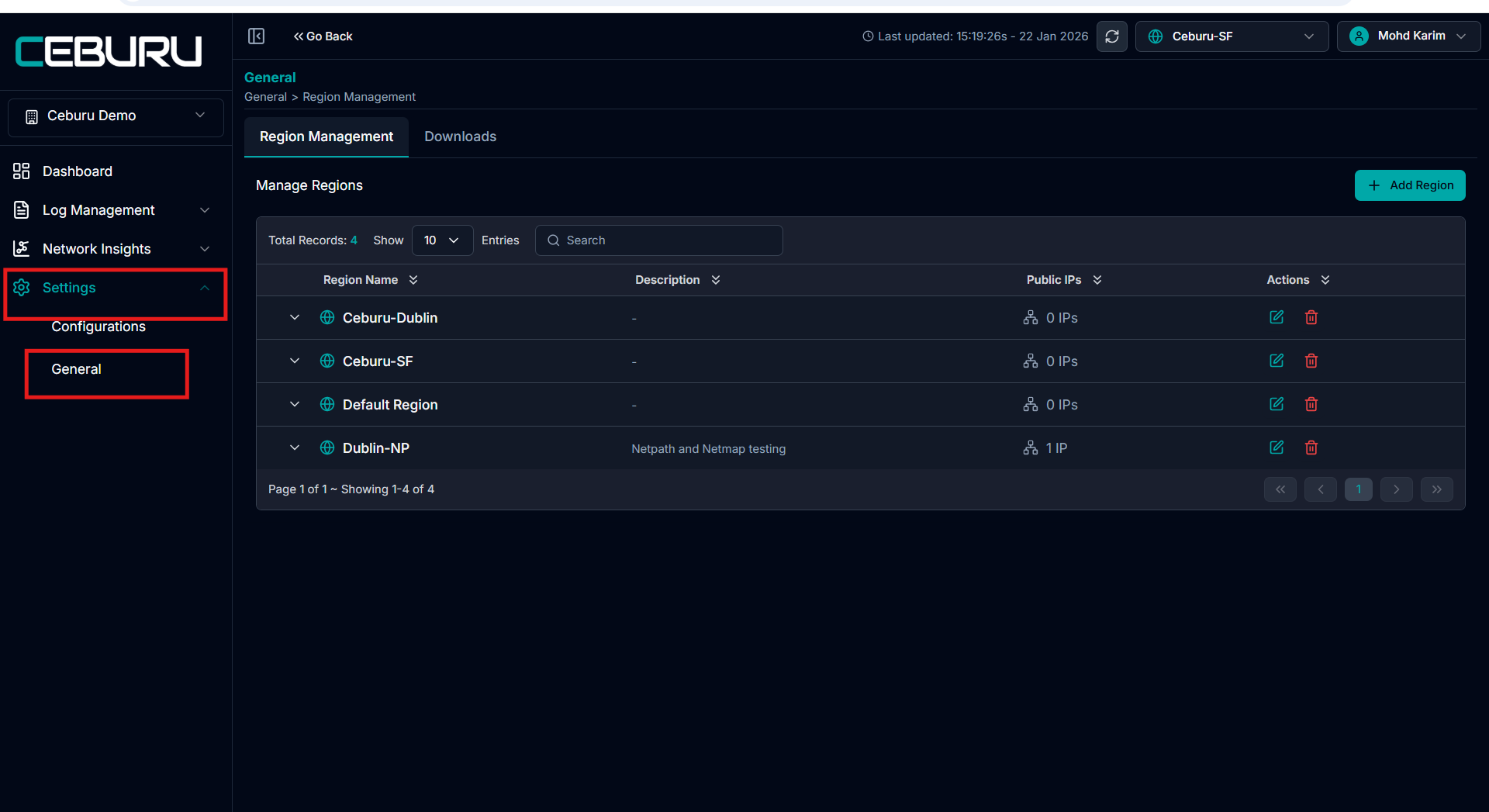
From the left navigation menu, click Settings
Under Settings, select General
Click on Region Management
This opens the Region Management dashboard.
The Region Management dashboard displays:
• Region Name
• Description
• Number of Public IPs associated with the region
• Actions to edit or delete a region
From this dashboard, you can view, manage, and maintain all configured regions for the customer.
Creating a New Region
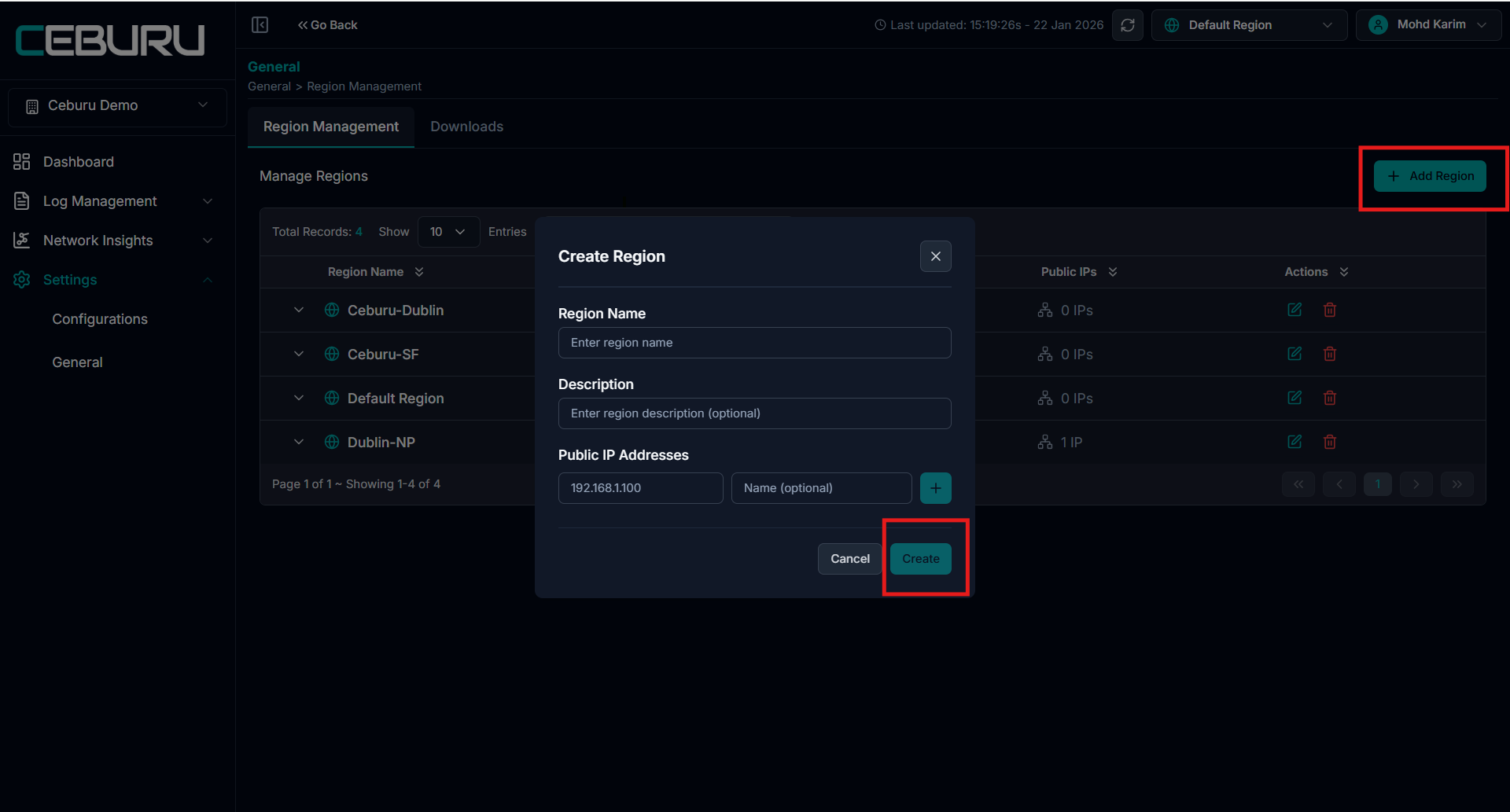
Click the Add Region button
In the Create Region dialog, enter the following details
Region Name: Provide a unique and meaningful name for the region.
Example: Dublin, US West, Data Center EastDescription(Optional): Add a short description to explain the purpose of the region.
Example: Netpath and Netmap testing regionPublic IP Addresses(optional): Enter one or more public IP addresses associated with this region. An optional name can be provided for each IP for easier identification.
Click Create
Once the region is created:
- The region appears immediately in the Region Management dashboard. It becomes available for assigning probes and agents. Public IPs are linked to the region for monitoring and insights
- Edit region details such as name, description, or IP addresses
- Delete a region when it is no longer needed
Note: Ensure that probes or agents are not actively in use before deleting a region.
After a region is created, it is automatically added to the Region Selector located in the top right corner of the application.
The Region Selector allows users to quickly switch between regions without navigating back to the Region Management page.
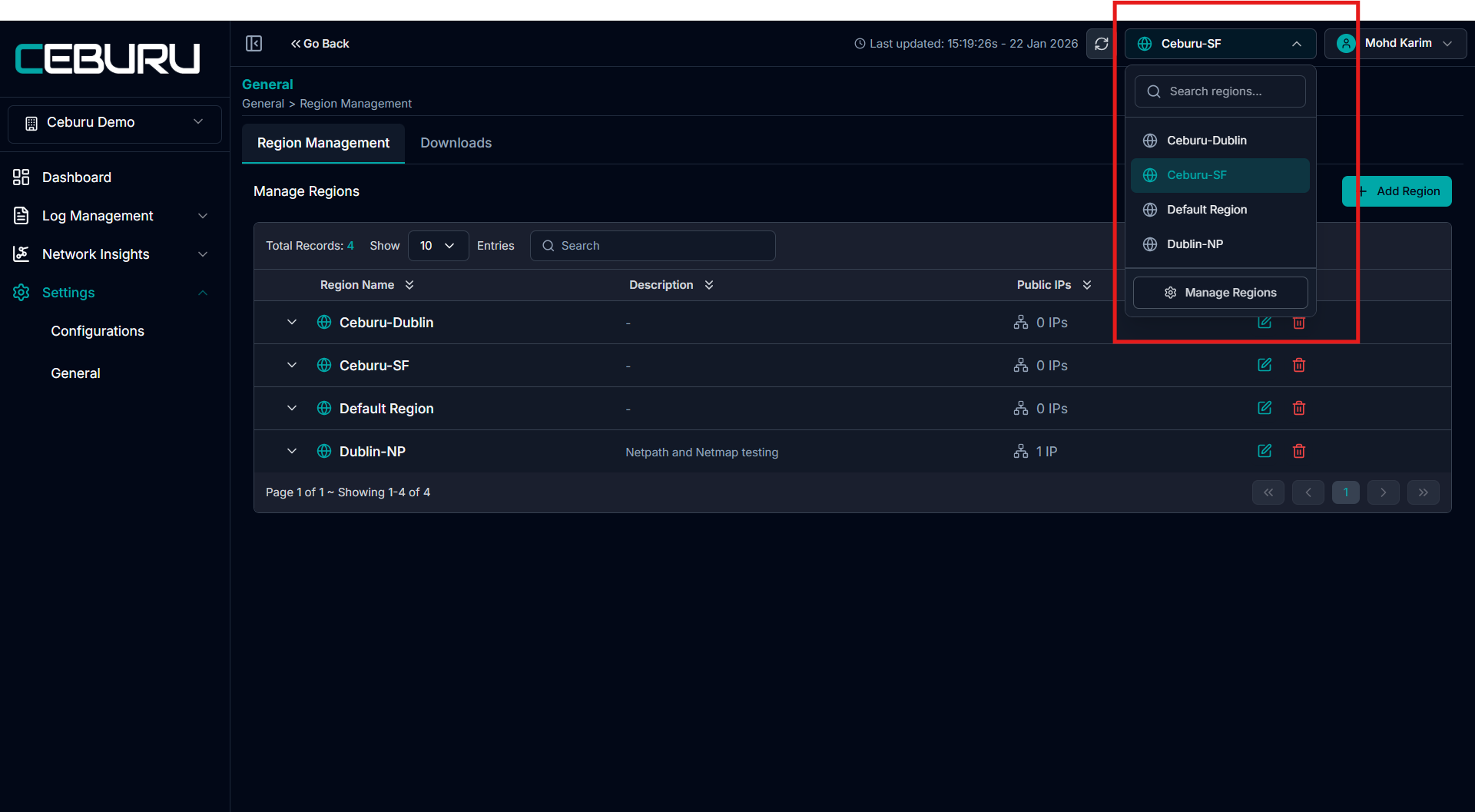
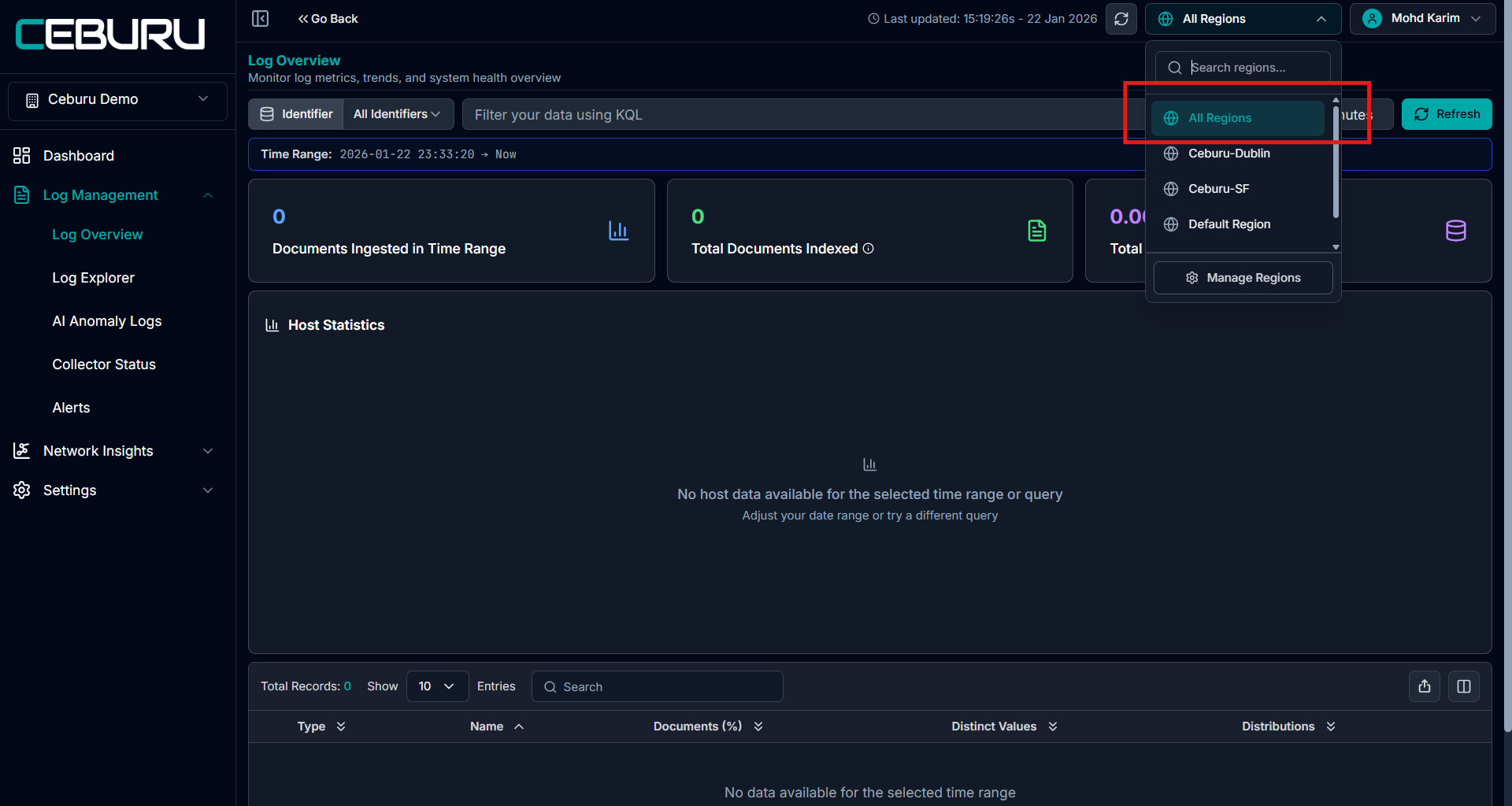
Ceburu allows you to view log data for a single region or across all regions using the Region Selector in the top right corner.
All Regions Option
The All Regions option lets you view aggregated data from every region created under the customer account.
Was this article helpful?
That’s Great!
Thank you for your feedback
Sorry! We couldn't be helpful
Thank you for your feedback
Feedback sent
We appreciate your effort and will try to fix the article