The AI Anomaly Logs feature in Ceburu helps users identify, analyze, and investigate unusual log patterns detected by the AI model. Any log entry identified as anomalous is surfaced in this along with contextual insights, root cause analysis, and configuration controls.
Purpose of AI Anomaly Logs
Automatically detect abnormal or unusual log behavior
Visualize anomaly trends over time
Drill down into individual anomalous log events
Provide AI-generated root cause analysis
Allow users to configure model behavior using keywords
Navigate to: Log Management - AI Anomaly Logs
This page displays:
A time-series graph of log activity
A detailed anomaly table
An anomaly details panel
Model configuration options
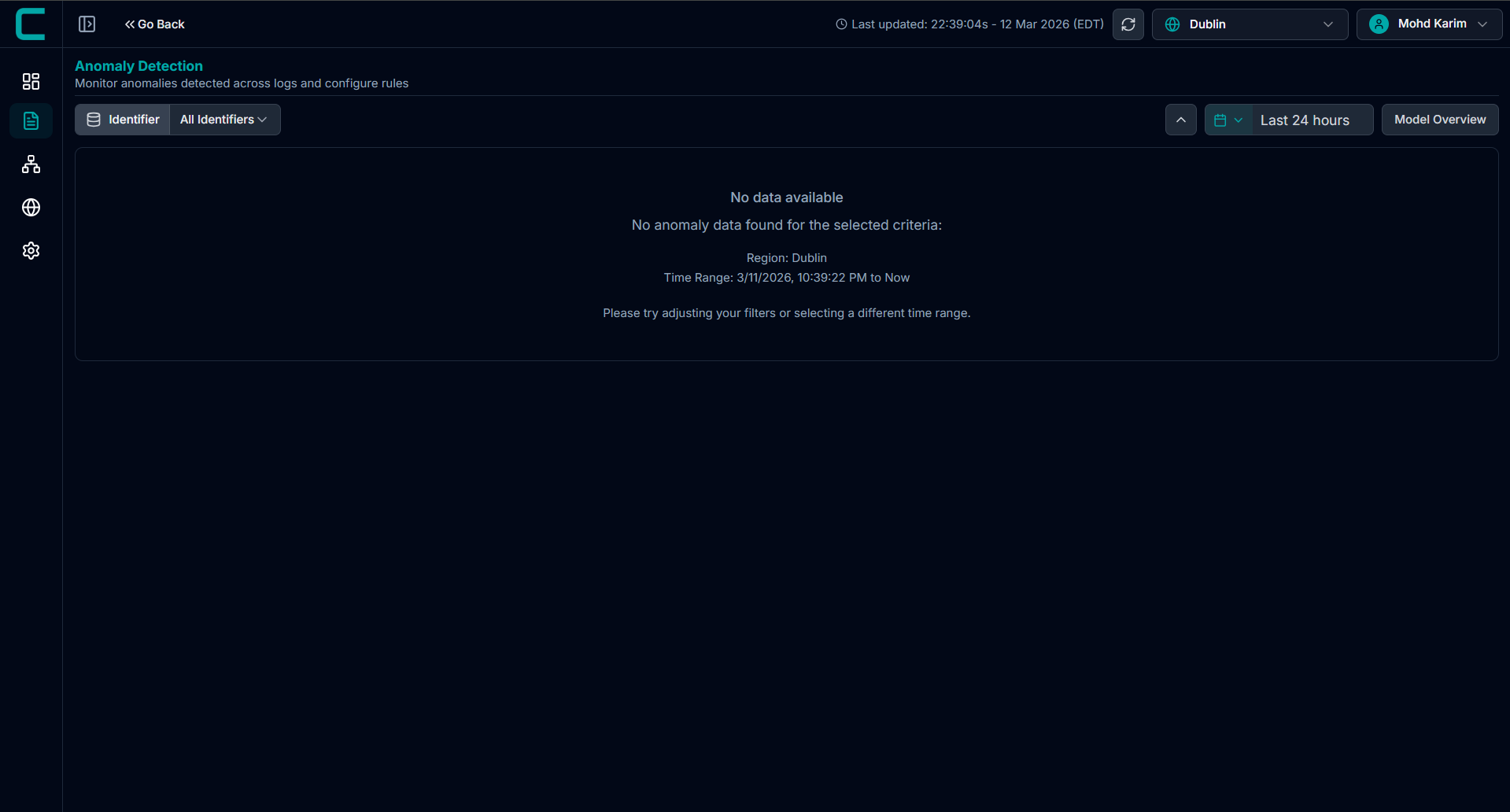
Log Activity Graph
The graph at the top provides a visual comparison of:
Total Logs
Anomaly Count (red line)
Each data point represents a specific timestamp.
What this shows:
Spikes in total logs
Corresponding increases in anomalies
Time periods with unusual behavior
Hovering over a data point displays:
Timestamp
Total log count
Number of detected anomalies
You can filter anomalies using Identifier tags, such as:
Folder
Source
Custom identifiers
This helps isolate anomalies related to specific services, folders, or sources.
Anomalies Table
The Anomalies table lists all detected anomalous log entries.
log level anomalies
filed level anomalies
Table Columns
Timestamp - When the anomaly occurred
Summary - A preview of the log message
View Anomaly Details
Clicking the View icon on any anomaly opens the Anomaly Details panel on the right.
This panel provides three tabs:
1. Root Cause Analysis
The Root Cause Analysis tab explains why the log was classified as anomalous.
What it includes:
AI-generated explanation of the anomaly
Possible causes (e.g., missing fields, logging changes, abnormal patterns)
Contextual interpretation of the log deviation
Remediation Steps
The system also provides recommended remediation actions, such as:
Reviewing logging configuration
Verifying required fields
Checking recent code or framework changes
Monitoring logging behavior in real time
2. Document JSON
The Document JSON tab displays the raw log document in JSON format.
Features:
Full structured log payload
Searchable fields and values
Copy JSON option for external analysis
Useful for debugging, exports, and integrations
3. Document Table
The Document Table tab converts the JSON into a readable field-value table.
Benefits:
Easier inspection of log attributes
Clear visibility into key fields
Model Overview
The Model Overview section provides configuration and monitoring controls for the AI model used in Log Management to detect anomalies in log data. It allows administrators to define which log fields are analyzed, create rules to ignore known benign patterns, and review model training activity. The anomaly detection model analyzes log events and identifies unusual patterns based on historical data patterns from each individual customer environment.
The Model Overview panel contains three sections:
• Field Mappings
• Exclusion Rules
• Training
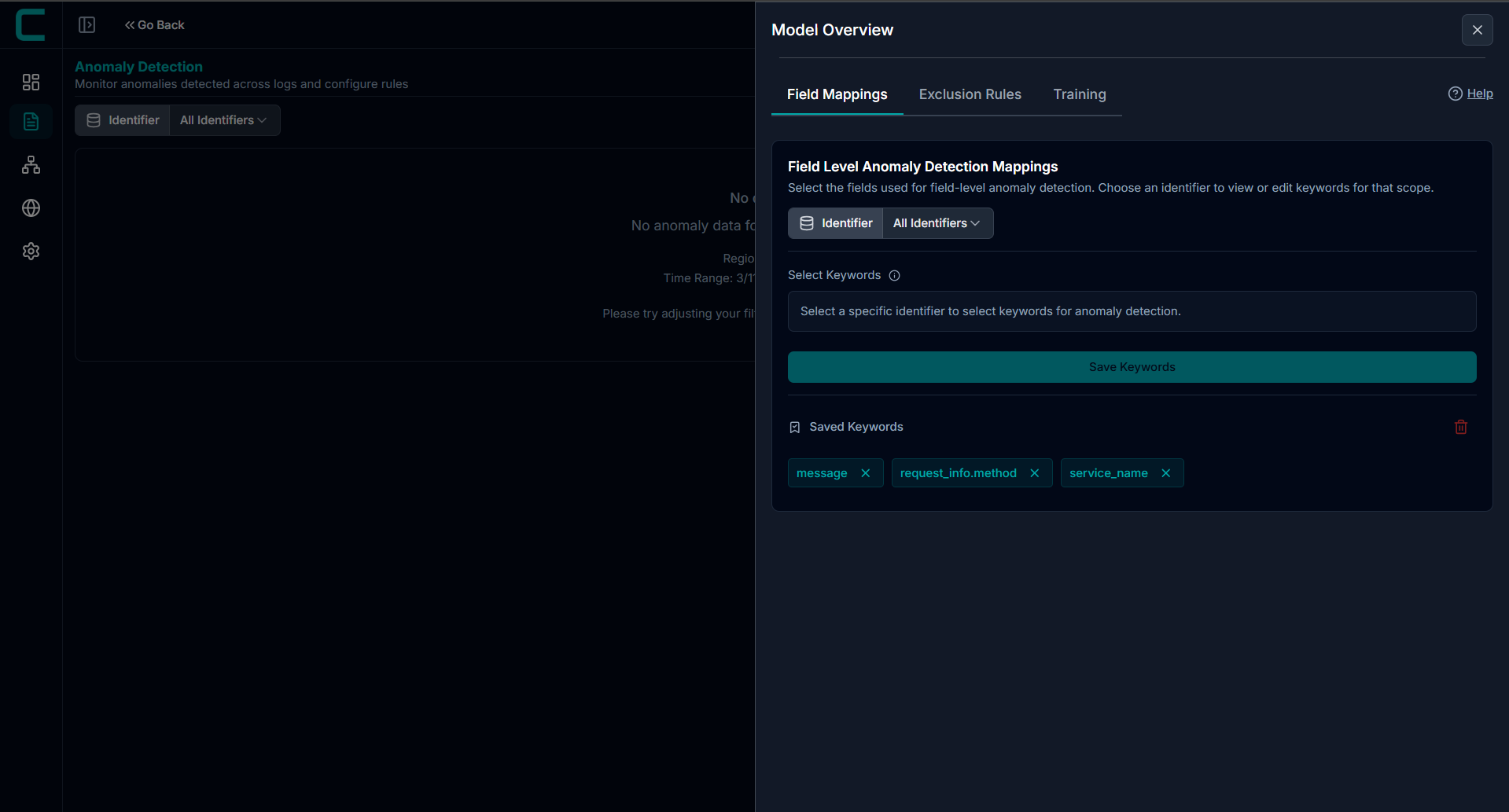
Field Mappings
Field Mappings define which log attributes are used by the AI engine for field-level anomaly detection. These mappings determine which fields from incoming logs are evaluated when the system analyzes patterns and detects abnormal behavior.
Administrators can configure mappings for a specific Identifier. Identifiers represent logical groupings of log events, allowing the anomaly model to evaluate patterns within a defined scope.
How Field Mapping Works
The system examines the selected keywords (fields) in log records and builds behavioral baselines based on those values. Any deviation from the learned baseline may be flagged as a potential anomaly.
Configuring Field Mappings
Select an Identifier from the dropdown menu.
Use the Select Keywords multi-select field to choose log attributes used for anomaly detection.
Selected fields appear as pills inside the selection area.
Hover over a truncated keyword to view the full field name.
Remove a selected keyword using the X icon on the pill.
Click Save Keywords to store the configuration for the selected identifier.
Managing Saved Keywords
The Saved Keywords section displays all active field mappings for the selected identifier.
Administrators can:
• Remove a single keyword using the X icon
• Remove all keywords using the trash icon
• Confirm deletion when prompted
Removing keywords changes how the anomaly model evaluates log patterns.
Typical fields used for anomaly detection include:
• message
• request_info.method
• service_name
• http.response.status_code
• duration
• source_ip
• user_agent
Selecting meaningful fields improves detection accuracy.
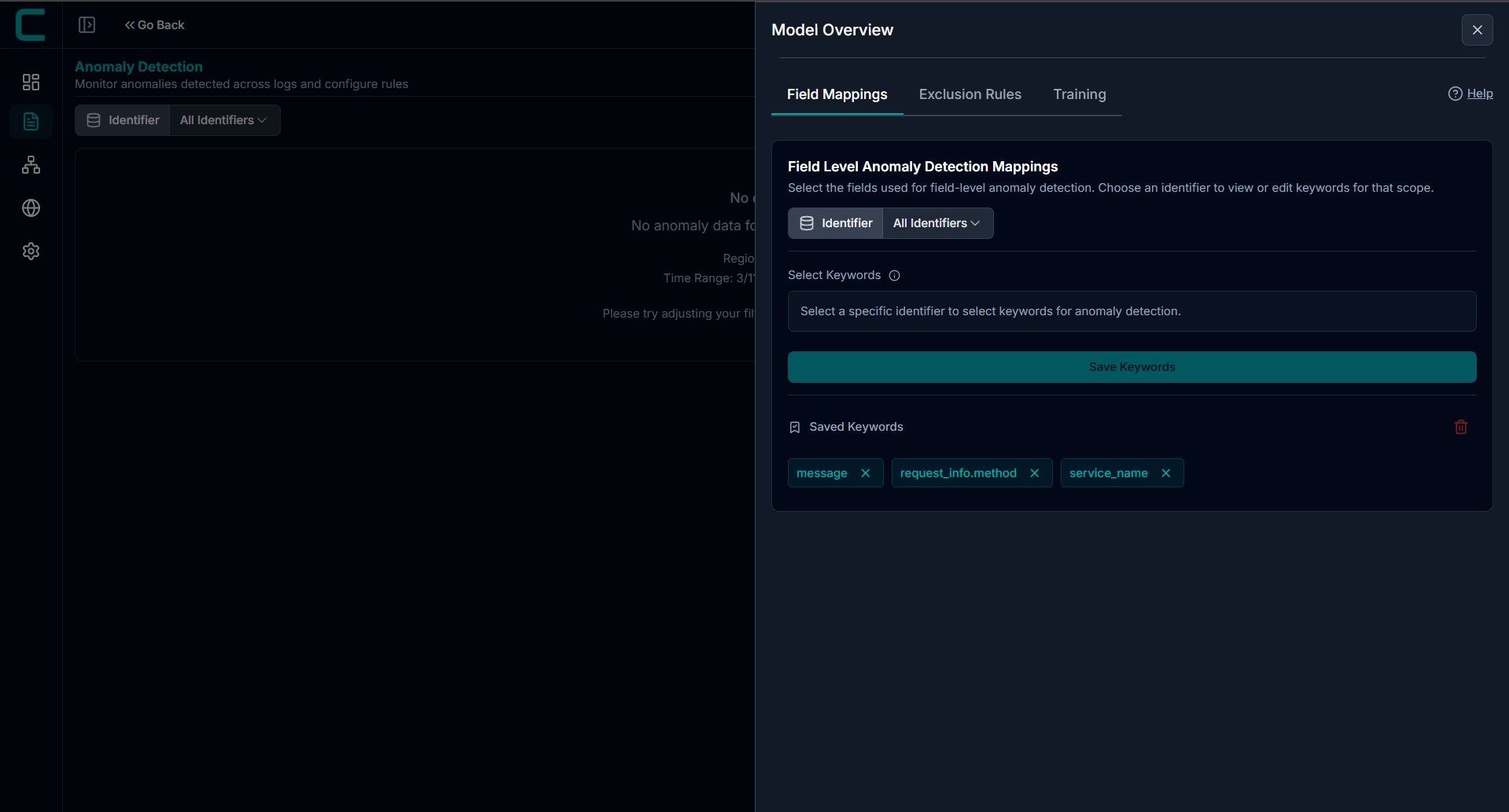
Exclusion Rules:
Exclusion Rules allow administrators to define conditions that prevent certain log events from being flagged as anomalies. This helps reduce noise and ensures that expected or benign patterns do not trigger alerts.
Exclusion rules are particularly useful for:
• Expected HTTP status responses
• Known service behavior
• Health check requests
• Automated system activity
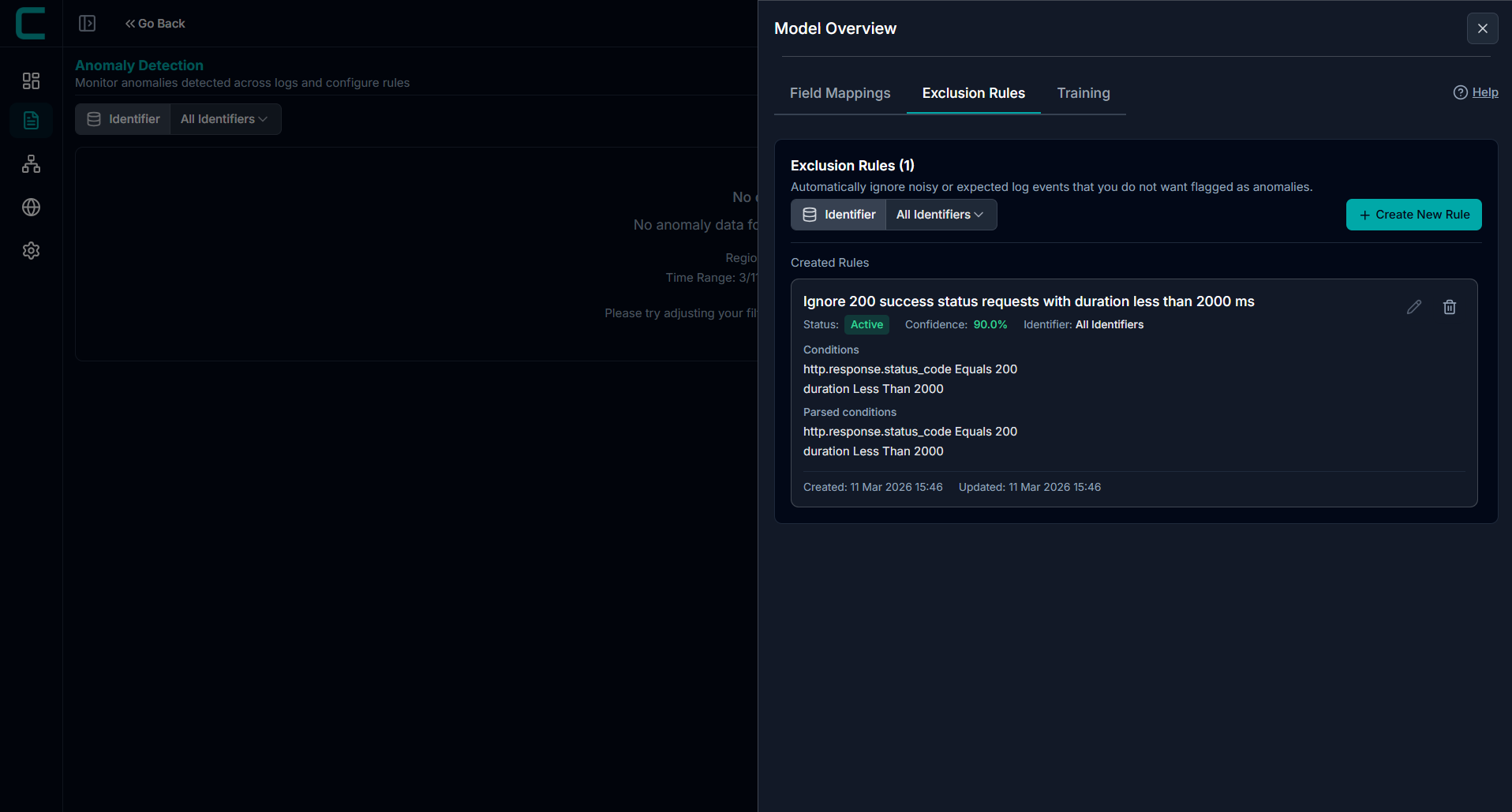
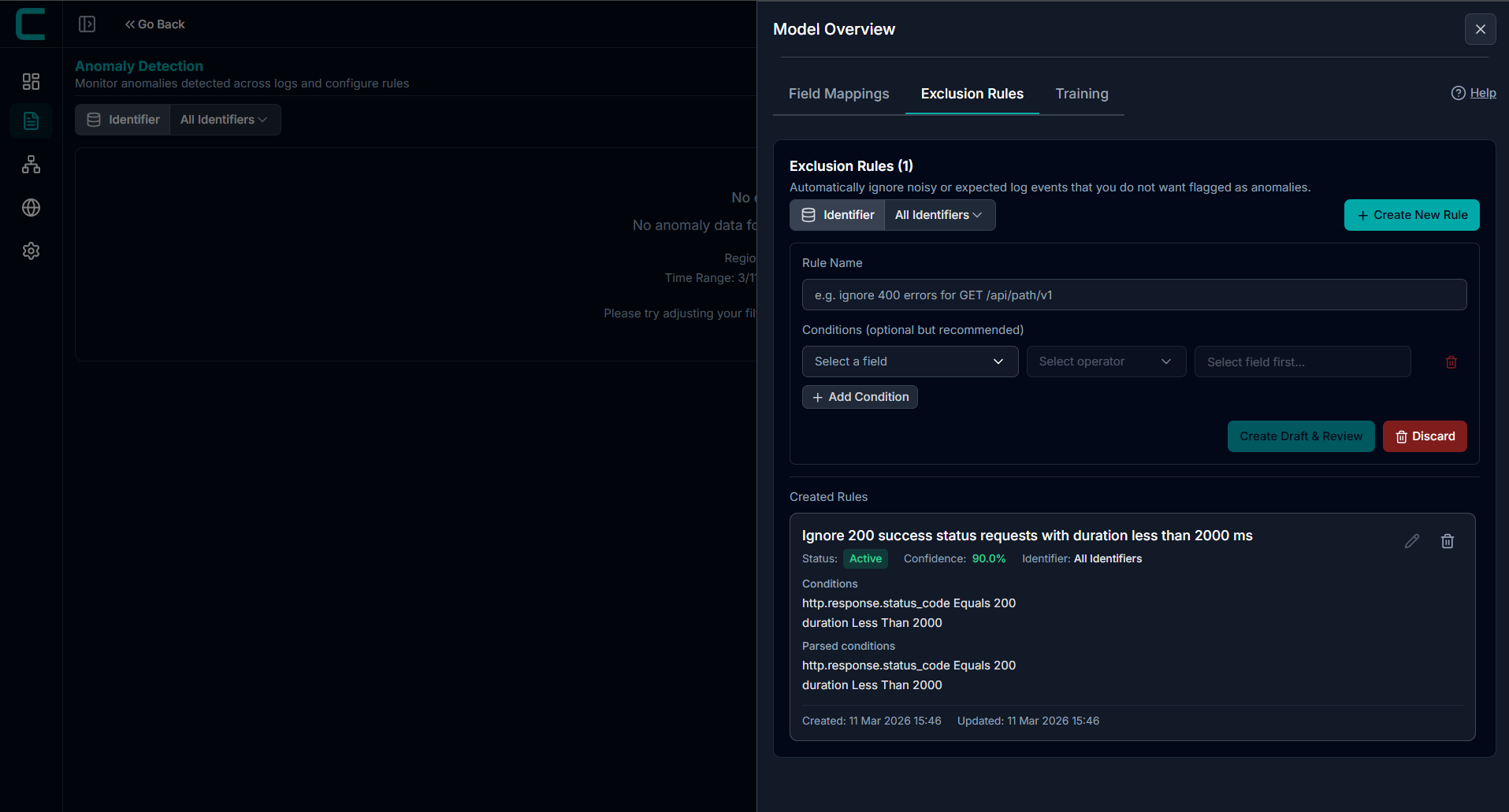
Creating an Exclusion Rule:
Select an Identifier scope (or choose All Identifiers).
Enter a Rule Name describing the pattern to ignore.
Optionally define Conditions using:
Field
Operator
Value
Click Create Draft & Review.
If conditions are not specified, the AI system attempts to generate suggested conditions based on the rule name.
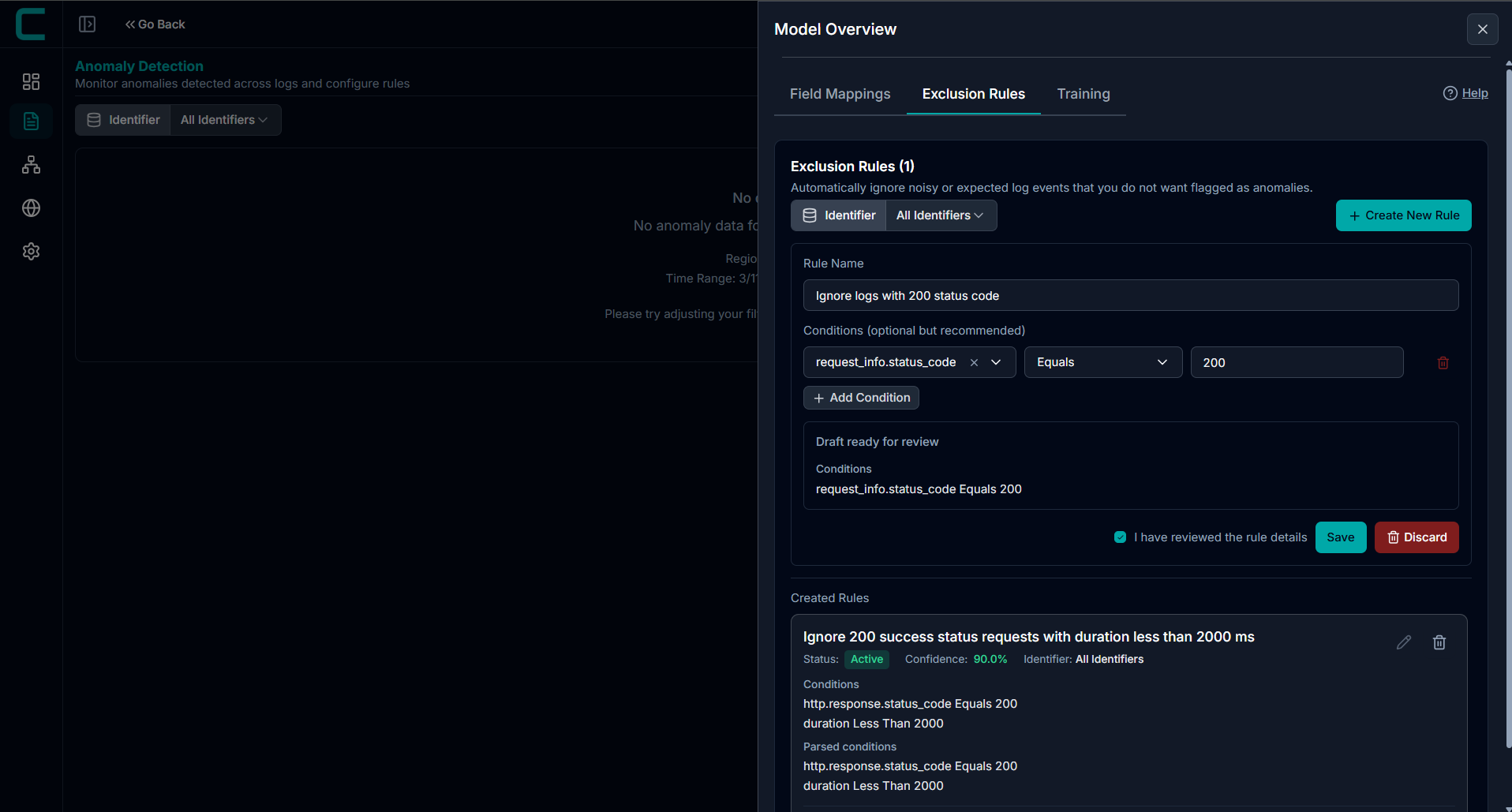
Draft Review Process
After creating a draft:
• The system generates parsed conditions
• A confidence score is displayed
• Review the suggested logic before saving
To finalize the rule:
Check I have reviewed the rule details.
Click Save.
Alternatively:
• Click Discard to remove the draft.
Rule Status:
Pending Review
• The rule has been created but not yet approved.
• Click Edit to review the parsed conditions.
• Confirm and click Save to activate.
After activating the rule is currently applied during anomaly detection.
Editing Rules:
Some rules generated automatically from rule names may have auto-parsed conditions. These rules cannot be modified and can only be deleted.
For editable rules:
Click Edit.
Modify the rule name or conditions.
Click Update Rule.
Hovering over the confidence score displays additional details about the rule generation accuracy.
Training:
The Training section displays the status of anomaly model training runs.
The anomaly detection model is trained using historical log data from each individual customer environment. This ensures that anomaly detection reflects the normal operational patterns of that specific customer, rather than using a global baseline.
Because each customer environment has unique log behavior, the model continuously learns patterns such as:
• Normal request frequency
• Typical response times
• Expected status codes
• Service communication patterns
This customer-specific training improves detection accuracy and reduces false positives.
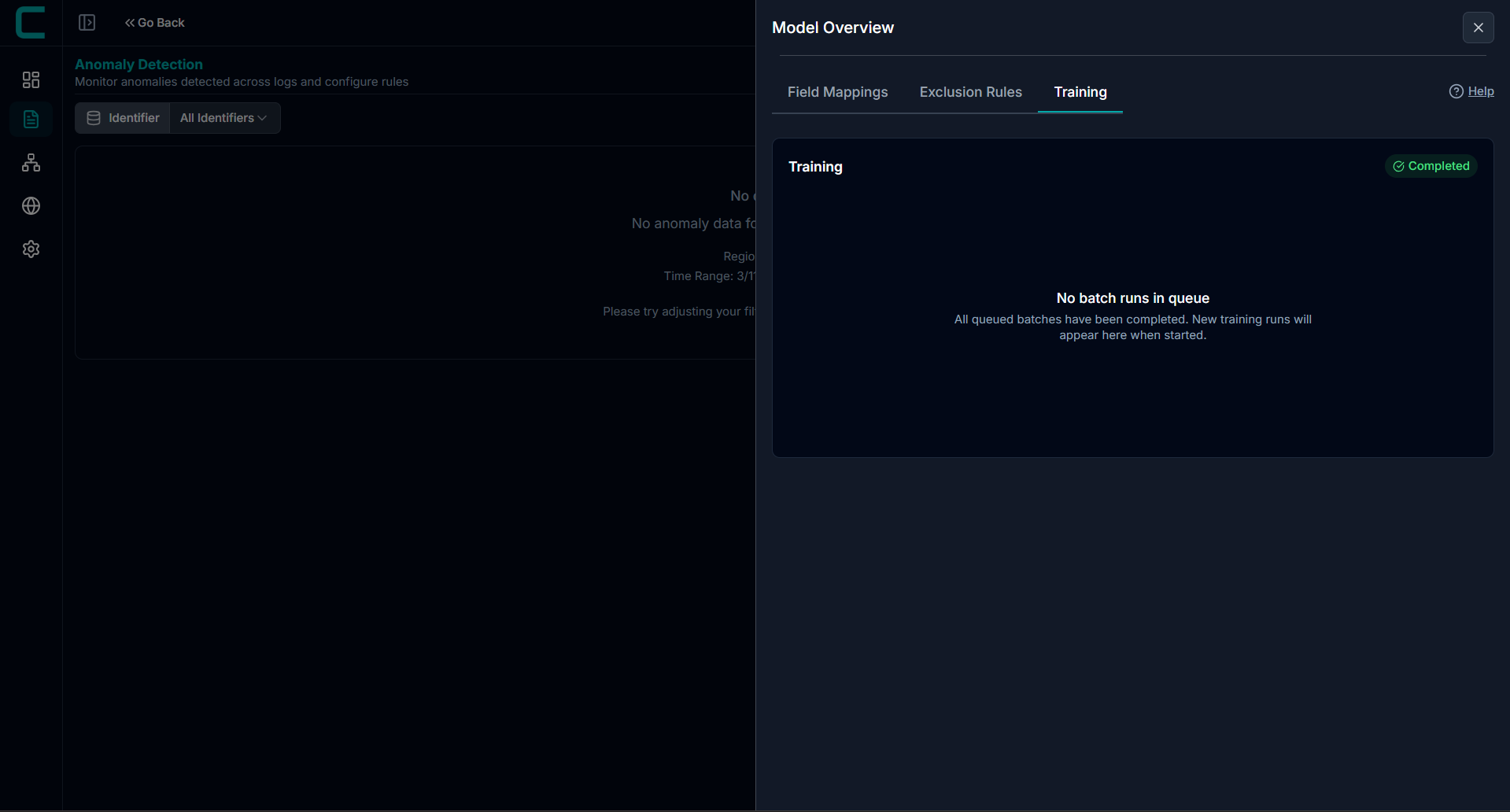
Training Queue Status
The header indicates the training queue state:
In Progress: Training jobs are currently running.
Completed: All queued training jobs have finished.
Viewing Training Runs:
Each training batch can be expanded to display metrics including:
• Total Rows - Number of log records used in the training batch
• Anomaly Count - Number of anomalies detected during training
• Anomaly Ratio -Percentage of anomalous events in the dataset
• Elapsed Time - Duration of the training run
These metrics provide insight into model performance and dataset characteristics.
Empty Queue Behavior:
When no training runs exist, the interface displays a message indicating that the queue is empty. New batch runs will appear in this section once a training job is initiated.
Was this article helpful?
That’s Great!
Thank you for your feedback
Sorry! We couldn't be helpful
Thank you for your feedback
Feedback sent
We appreciate your effort and will try to fix the article