After successfully configuring AI Application Performance Monitoring (AI APM), Ceburu provides a comprehensive Application Monitoring Dashboard under AI Monitoring.
This dashboard offers real-time visibility into application health, service performance, transactions, latency, errors, and AI-detected anomalies.
The AI APM dashboard helps teams:
Monitor application behavior in real time
Identify performance bottlenecks
Detect anomalies automatically
Troubleshoot errors faster
Understand service and route-level performance
Navigation Path
Applications → AI Monitoring → Application Monitoring
Once navigated, the Application Monitoring Dashboard will be displayed.
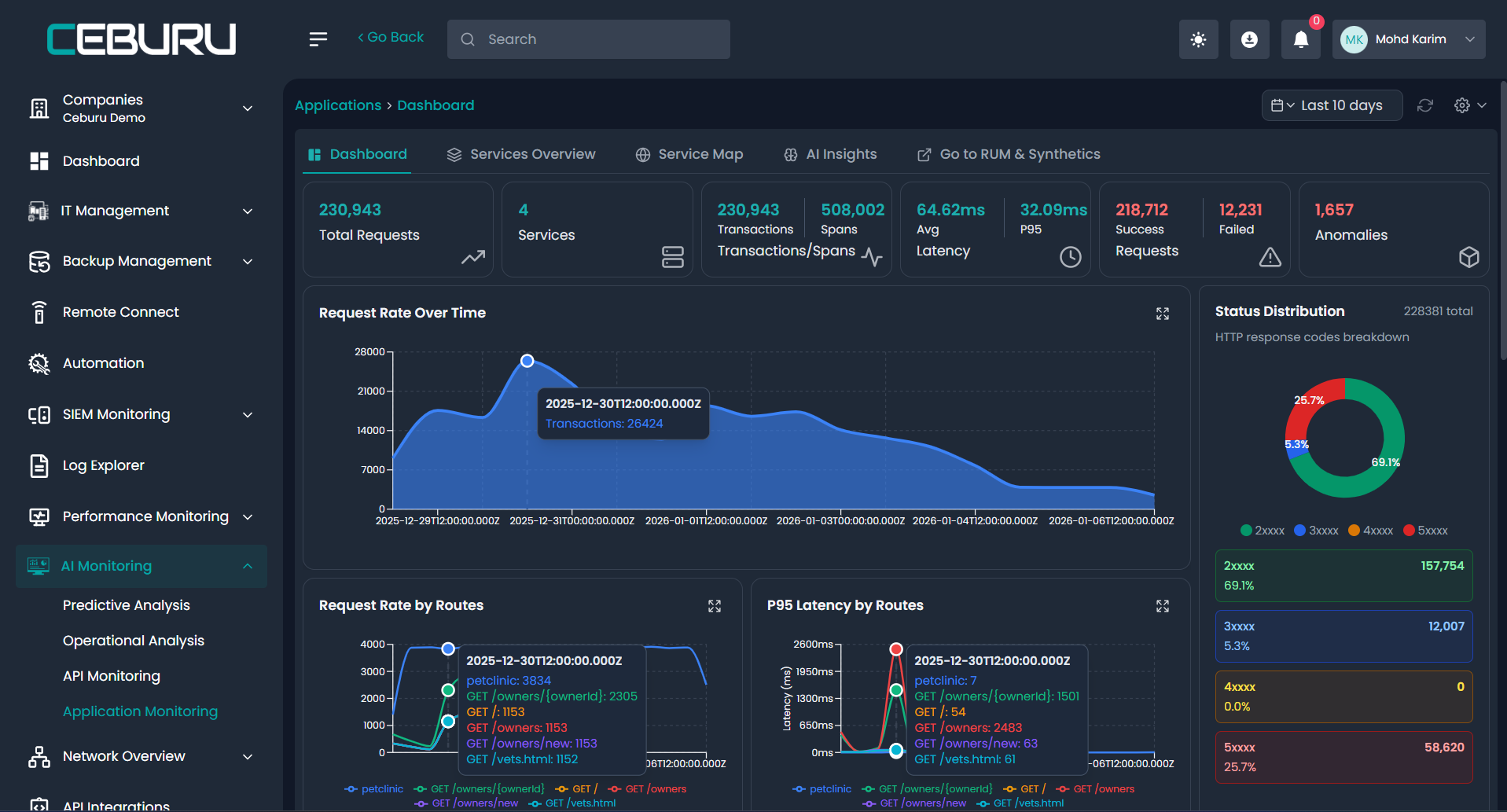
Application Monitoring Dashboard Overview:
The dashboard provides a high-level summary of application activity for the selected time range.
| Metric | Description |
|---|---|
| Total Requests | Total number of requests processed |
| Services | Number of monitored services |
| Transactions / Spans | Tracked transactions and spans |
| Average Latency | Mean response time |
| P95 Latency | 95th percentile latency |
| Successful Requests | Count of successful requests |
| Failed Requests | Count of failed requests |
| Anomalies | AI-detected abnormal behaviors |
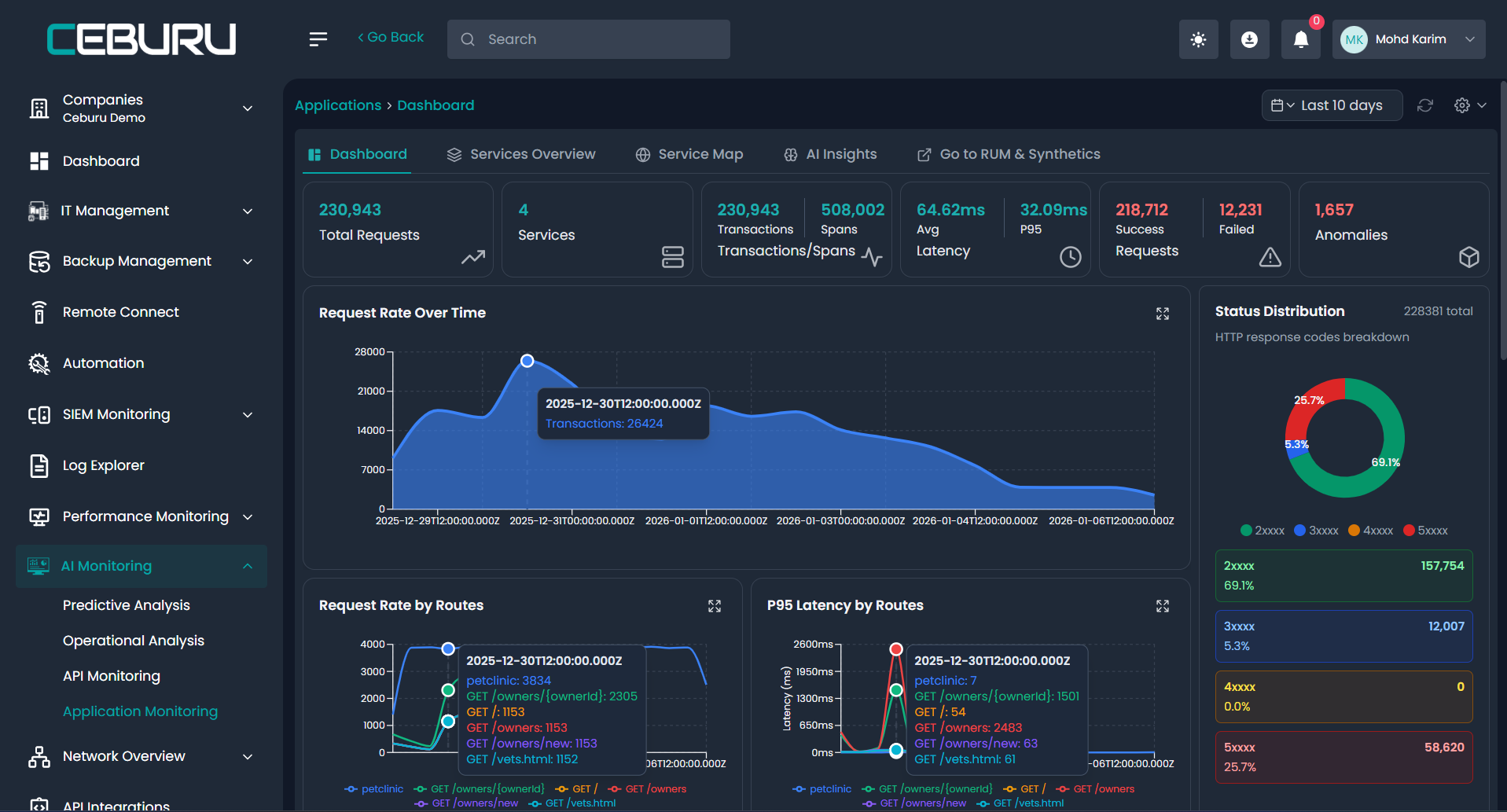
Request Rate Over Time: Displays request volume trends over the selected time range, helping identify spikes or drops in traffic.
Status Distribution: Breaks down HTTP response codes (2xx, 3xx, 4xx, 5xx) to quickly assess error patterns.
Request Rate by Routes: Shows traffic volume per API route or endpoint.
P95 Latency by Routes: Identifies slow-performing routes using 95th percentile latency.
This allows teams to:
Pinpoint slow APIs
Compare route performance
Detect latency regressions
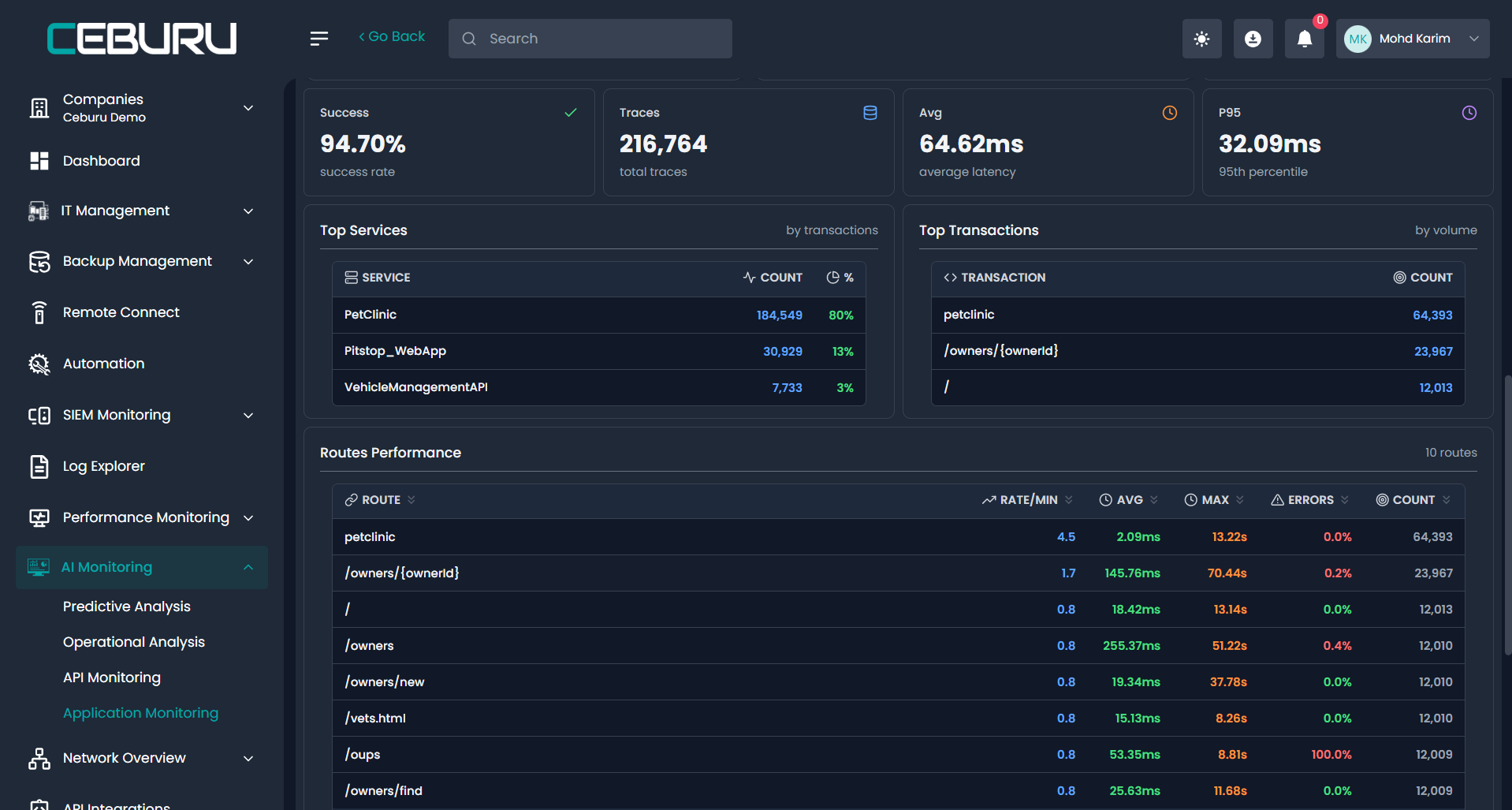
Top Services: Displays services ranked by transaction count.
Top Transactions: Shows the most frequently executed transactions or endpoints.
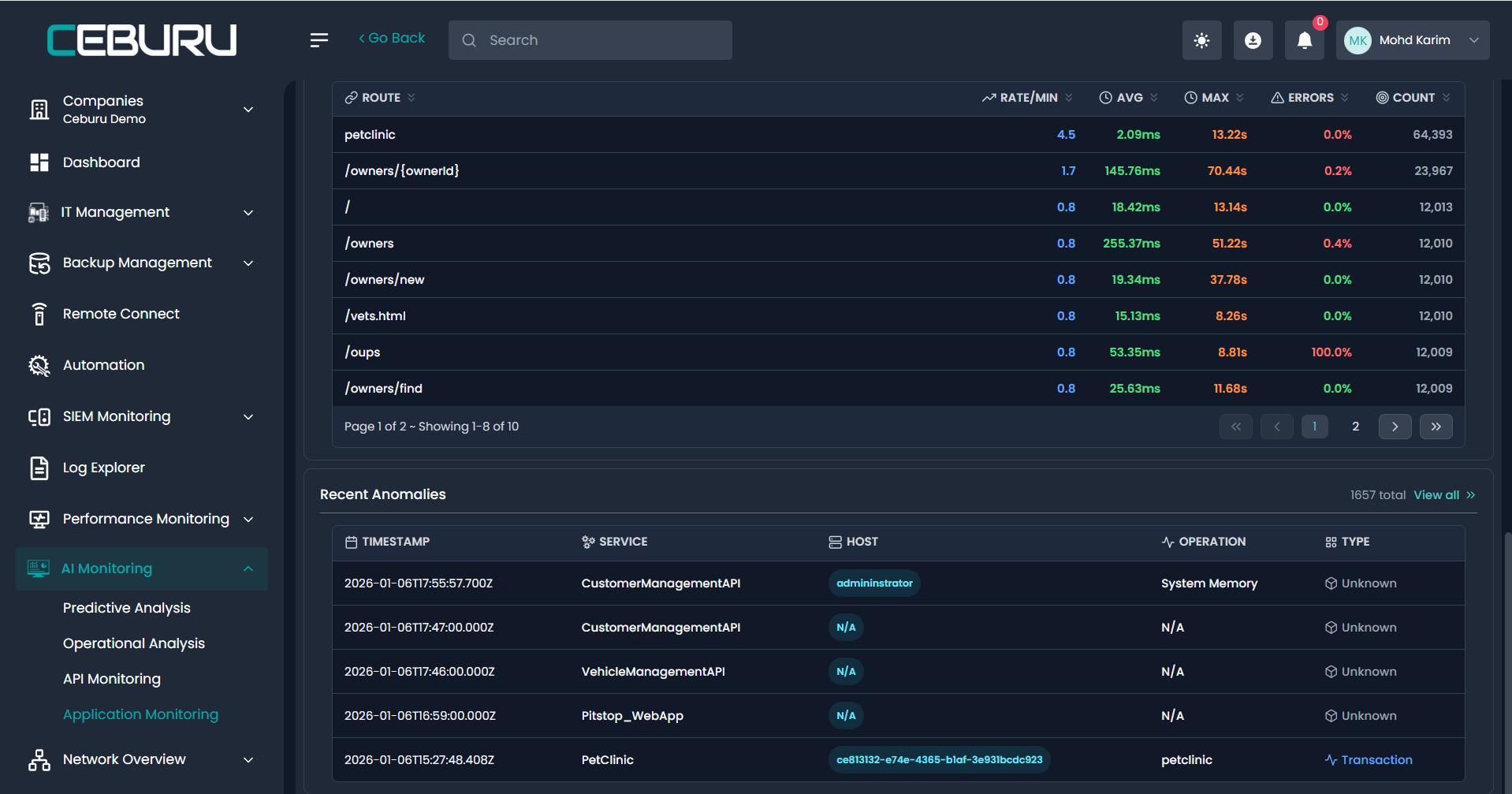
Recent Anomalies: AI automatically detects anomalies based on historical behavior.
Anomaly Details Include:
Timestamp
Service name
Host
Operation
Anomaly type (CPU, Memory, Transaction, System, etc.)
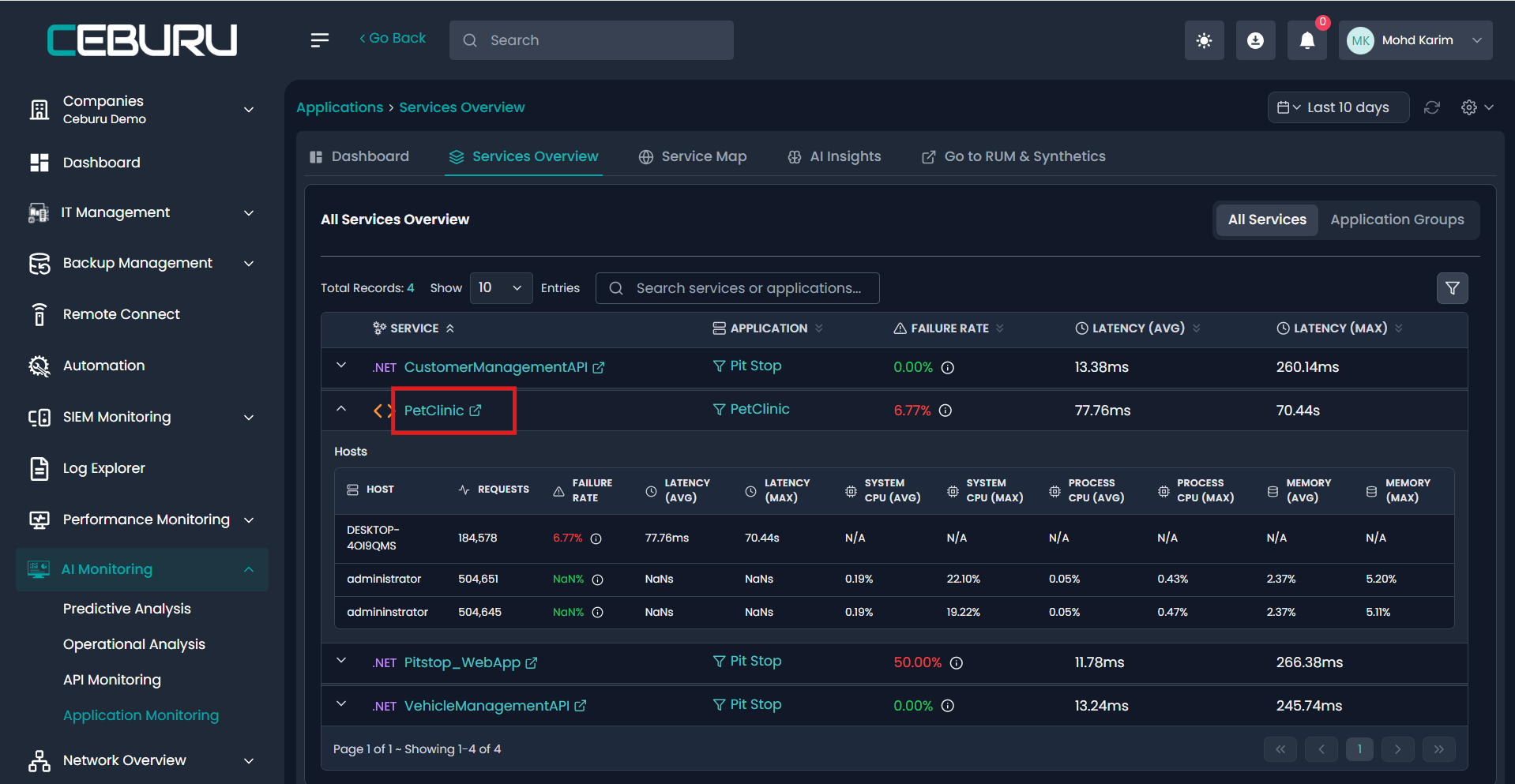
Services Overview
Applications → Services Overview
This view lists all monitored services with aggregated performance metrics.
Metrics Shown
Failure rate
Average latency
Maximum latency
Application association
Viewing Service-Level Details
How to View Service Details
Navigate to Services Overview
Click on a specific Service Name (e.g., PetClinic, Pitstop_WebApp)
The Service Details Page opens
Service Details – Overview Tab
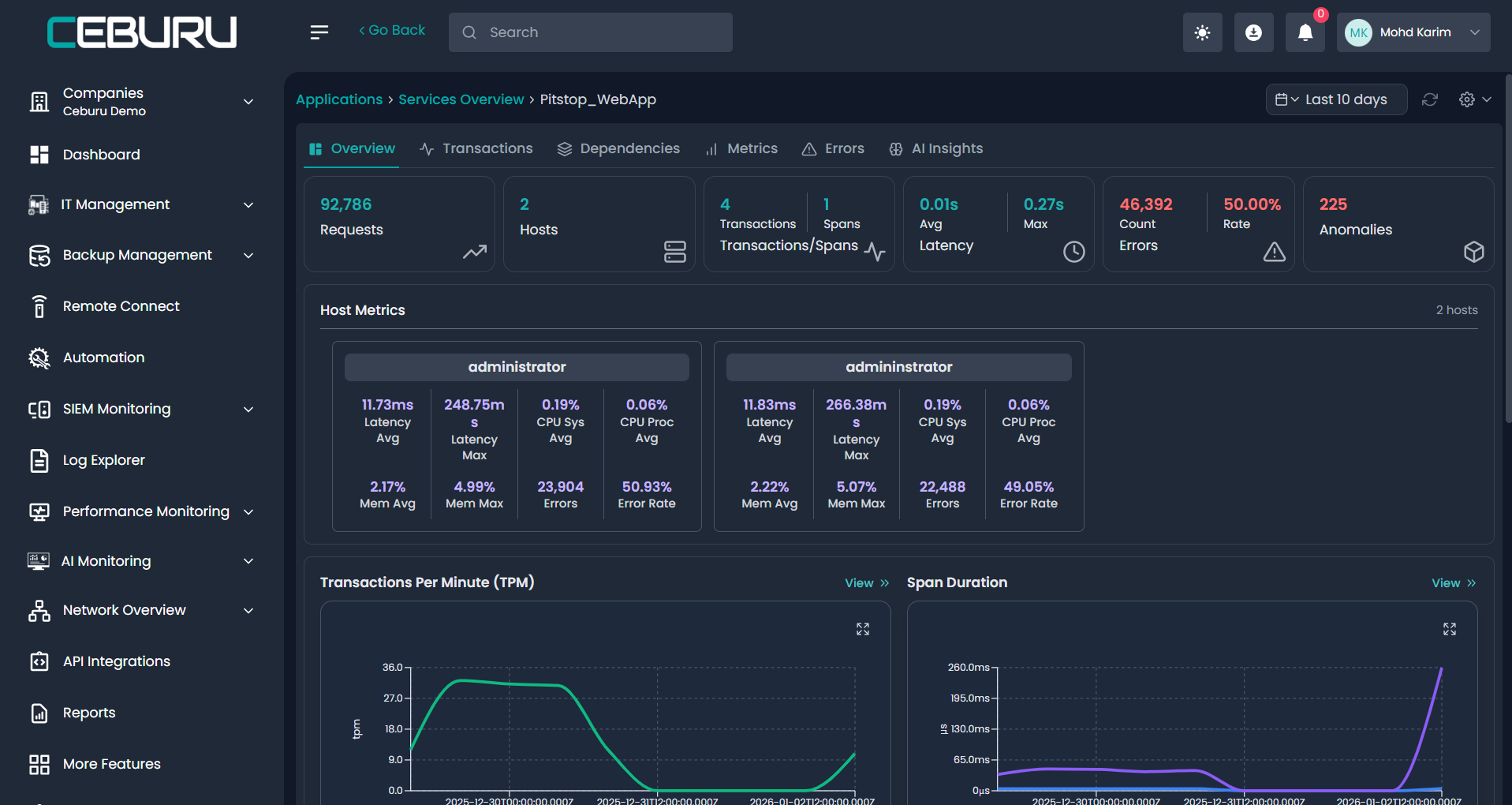
The service details page provides deep insights into a selected service.
Key Metrics
Total Requests
Hosts
Transactions & Spans
Average & Max Latency
Error Count & Error Rate
Anomaly Count
Host Metrics
Shows per-host performance metrics including:
CPU usage (avg & max)
Memory usage (avg & max)
Latency per host
Error distribution per host
Transactions Per Minute (TPM)
Tracks service load over time.
Span Duration
Visualizes execution duration of spans.
Resource Metrics
CPU Usage
Process CPU Usage
Memory Usage
These insights help correlate performance issues with resource constraints.
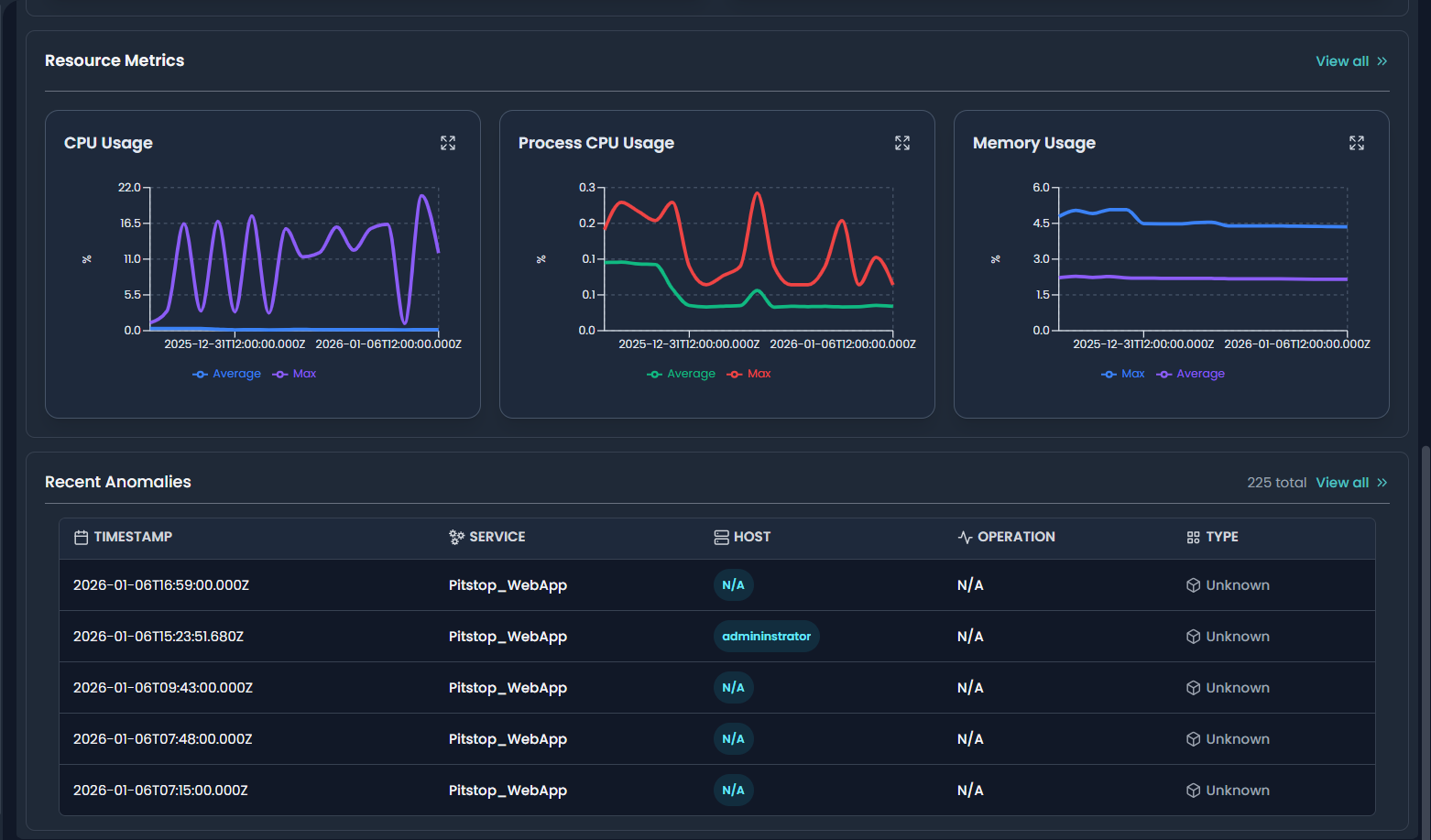
Service-Level Anomalies
Lists AI-detected anomalies specific to the selected service, allowing faster root cause analysis.
Identify slow or failing services
Detect abnormal CPU or memory usage
Troubleshoot API latency issues
Analyze transaction performance
Monitor application health proactively using AI
Transactions:
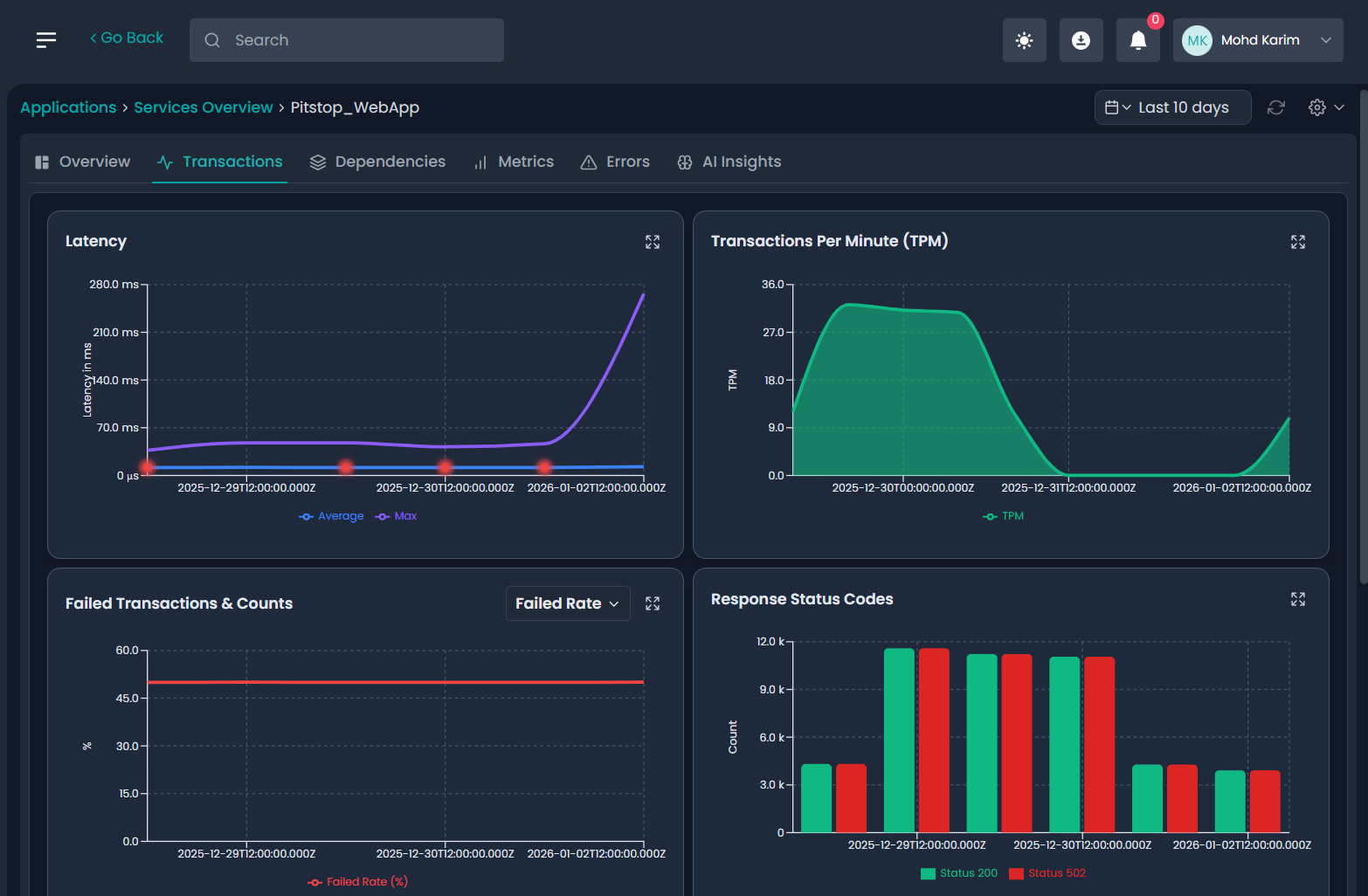
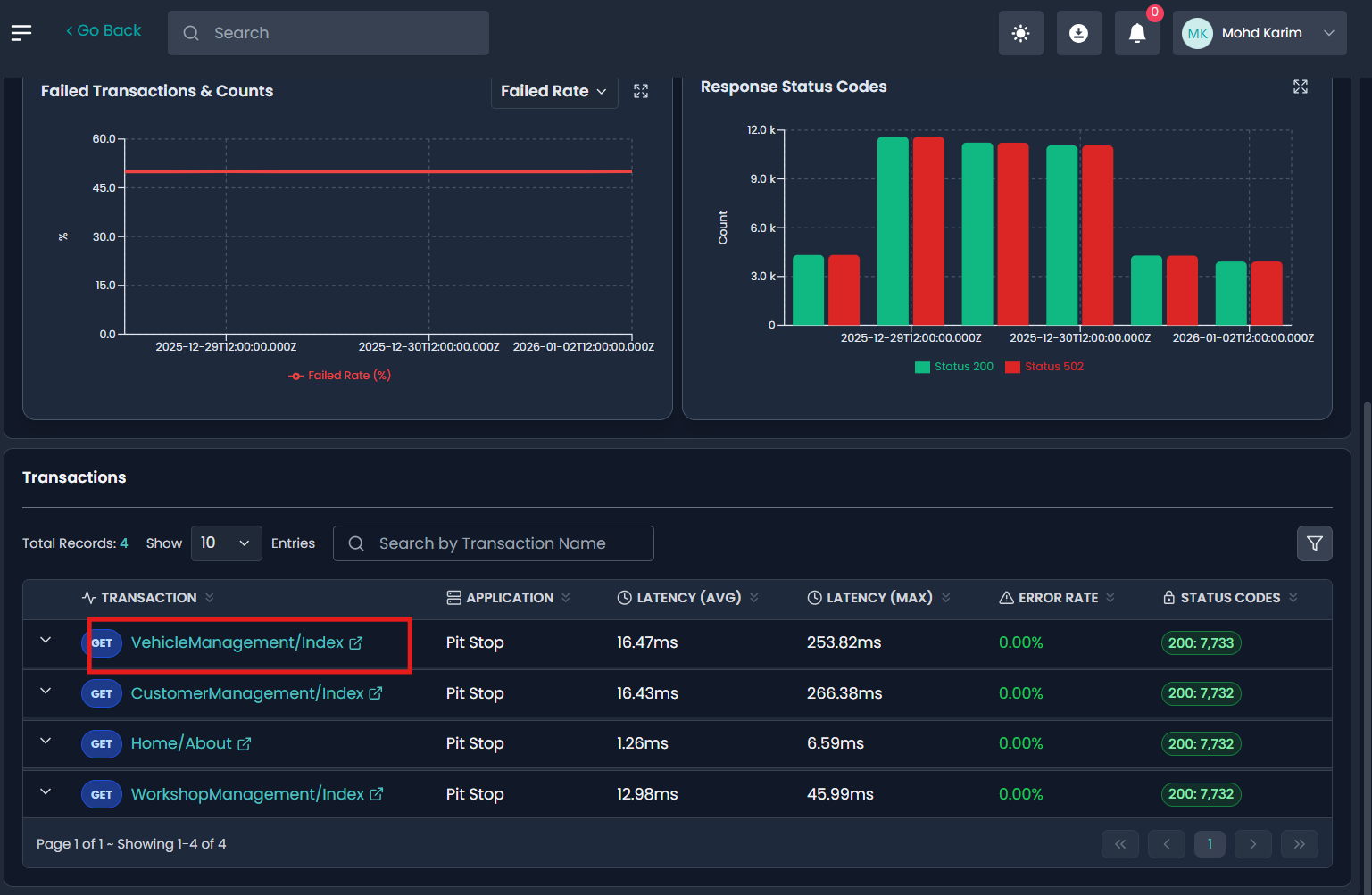
Once inside a service (e.g., Pitstop_WebApp), the Transactions tab displays multiple visual panels summarizing request behavior.
Key Panels
1. Latency
Shows Average and Maximum latency over time for transactions.
Helps identify latency spikes
Red markers indicate potential anomaly points
2. Transactions Per Minute (TPM)
Displays transaction throughput trends.
Useful for traffic pattern analysis
Correlates load with latency and errors
Failed Transactions & Counts
Displays the failed rate (%) or failed count, depending on selection.
Helps track persistent or sudden failure patterns
Response Status Codes
Breakdown of HTTP responses such as:
200 (Success)
502 (Bad Gateway)
This enables quick visibility into error-heavy periods.
Transactions List View:
Below the charts, the Transactions table lists all monitored endpoints for the selected service.
| Column | Description |
|---|---|
| Transaction | HTTP method and endpoint |
| Application | Associated application |
| Latency (Avg) | Average response time |
| Latency (Max) | Maximum observed latency |
| Error Rate | Percentage of failed requests |
| Status Codes | Response code distribution |
Viewing Transaction Details
How to Drill Down
Click on a Transaction name (e.g.,
GET VehicleManagement/Index)The Transaction Details view opens
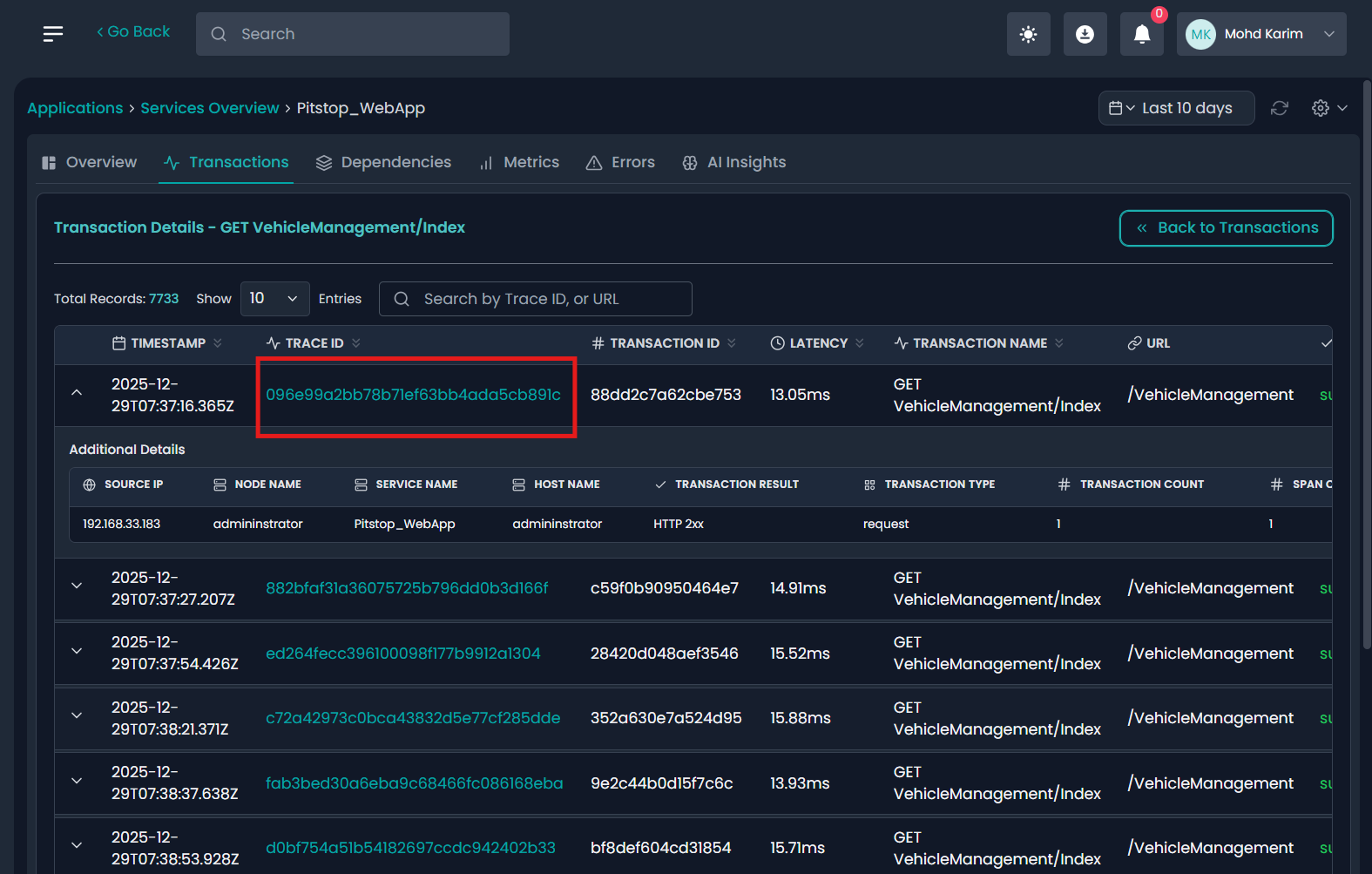
Transaction Details View
This view shows individual request executions for the selected transaction.
Information Displayed
Timestamp
Trace ID
Transaction ID
Latency per request
URL
Transaction result (HTTP status)
Trace ID & Request Breakdown
Clicking a Trace ID expands the request and reveals:
Additional Details
Source IP
Node name
Service name
Host name
Transaction type
Span count
This allows you to trace exactly where time is spent during request execution.
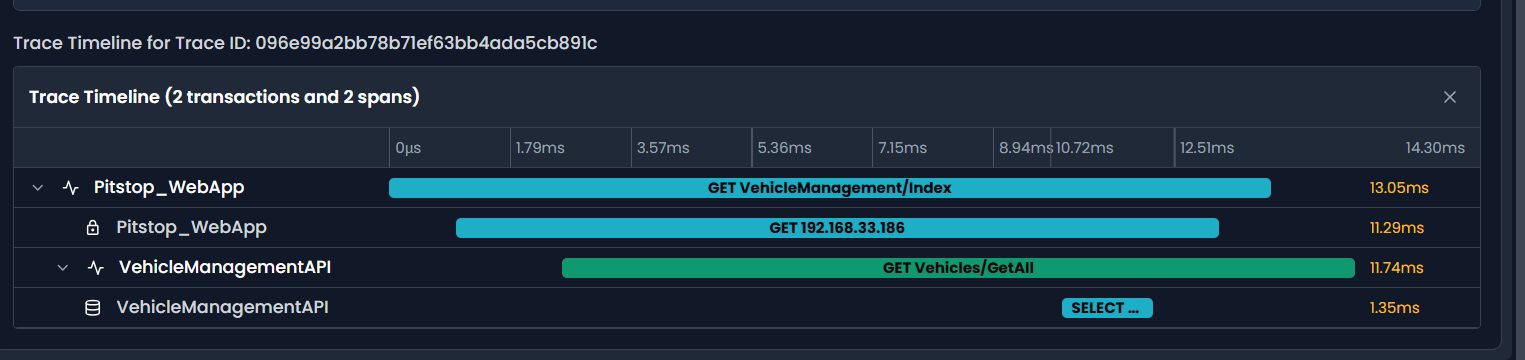
Trace Timeline (Distributed Tracing)
The Trace Timeline visualizes the full request path across services.
Parent and child spans
Service-to-service calls
Database queries
Exact execution time per span
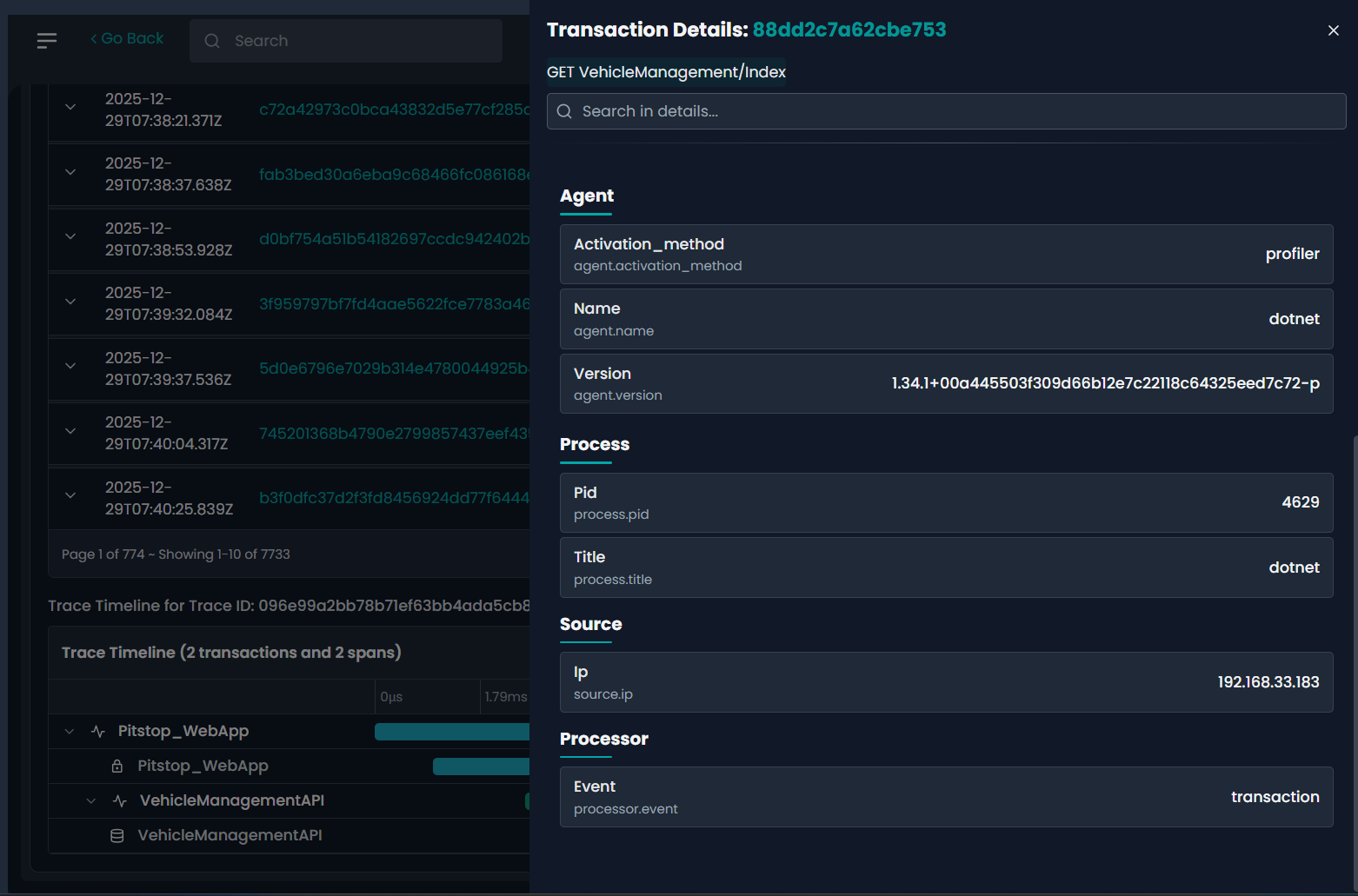
Selecting a transaction / Span opens a detailed side panel. which provides a detailed view.
Dependencies:
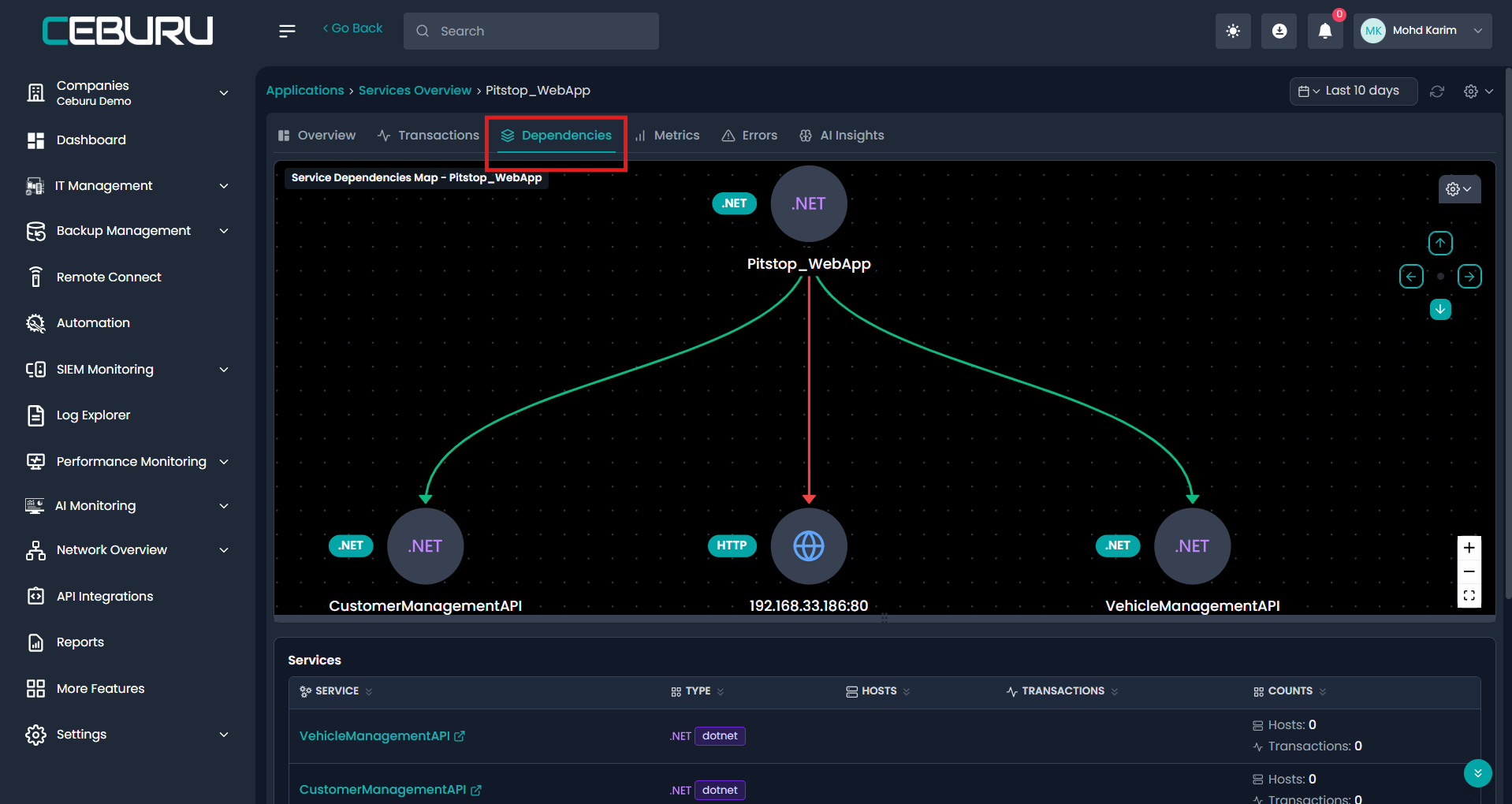
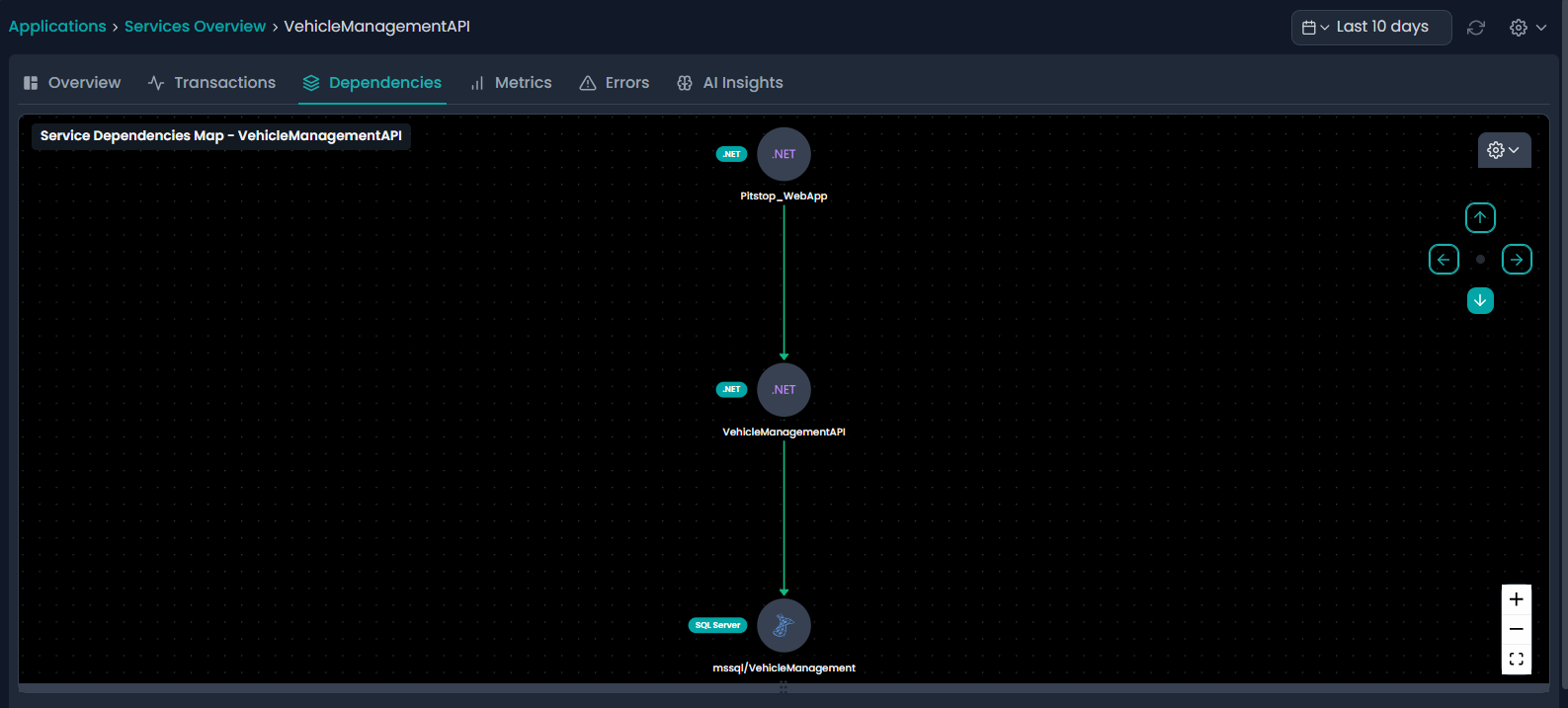
The Dependencies tab provides a visual service dependency map that shows how an application or service communicates with other internal services and external resources.
Service Dependency Map
The dependency map visually represents:
Upstream services (callers)
Downstream services (dependencies)
External dependencies (HTTP, databases, APIs)
Example (Pitstop_WebApp)
Calls CustomerManagementAPI
Calls VehicleManagementAPI
Connects to an external HTTP endpoint (IP:Port)
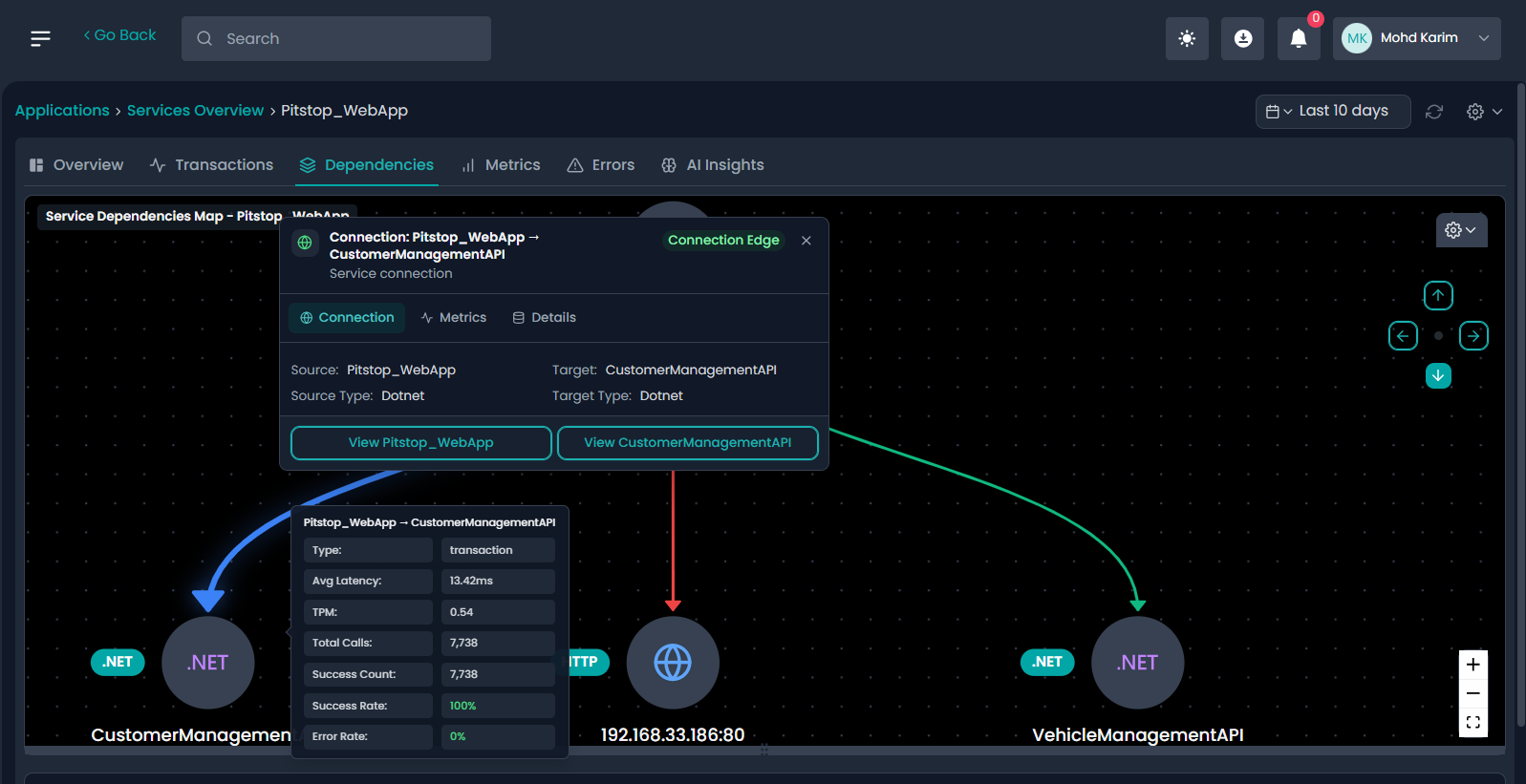
Dependency Edge Details
Clicking on a connection edge between services opens detailed metrics.
Average latency
Transactions per minute (TPM)
Total calls
Success count & success rate
Error rate
This helps identify slow or unreliable dependencies.
Service Node Details
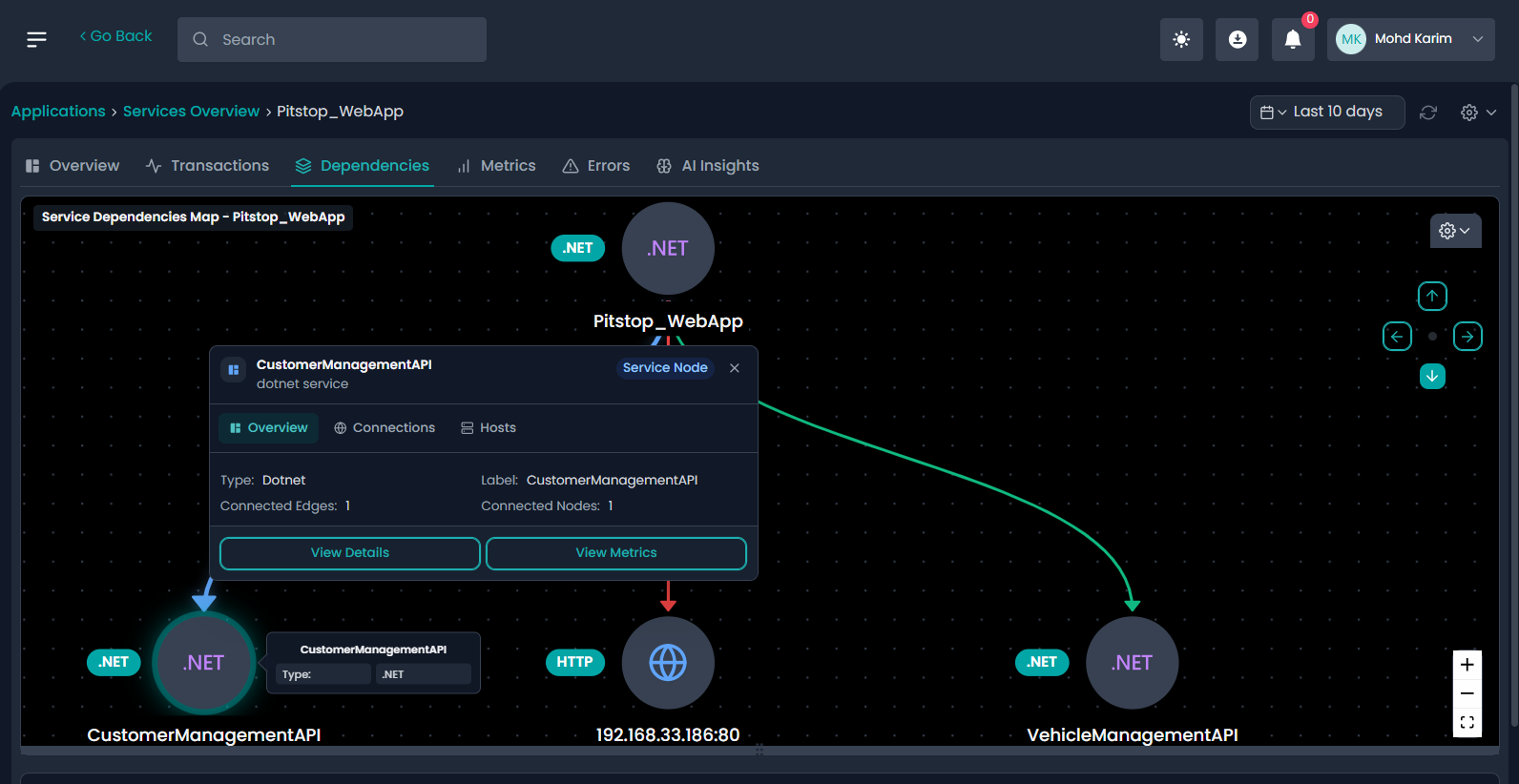
Clicking on a service node opens a contextual panel.
Service Node Information
Service type (e.g., .NET)
Connected nodes
Connected edges
Quick navigation to:
Service details
Service metrics
Services & Dependencies Tables
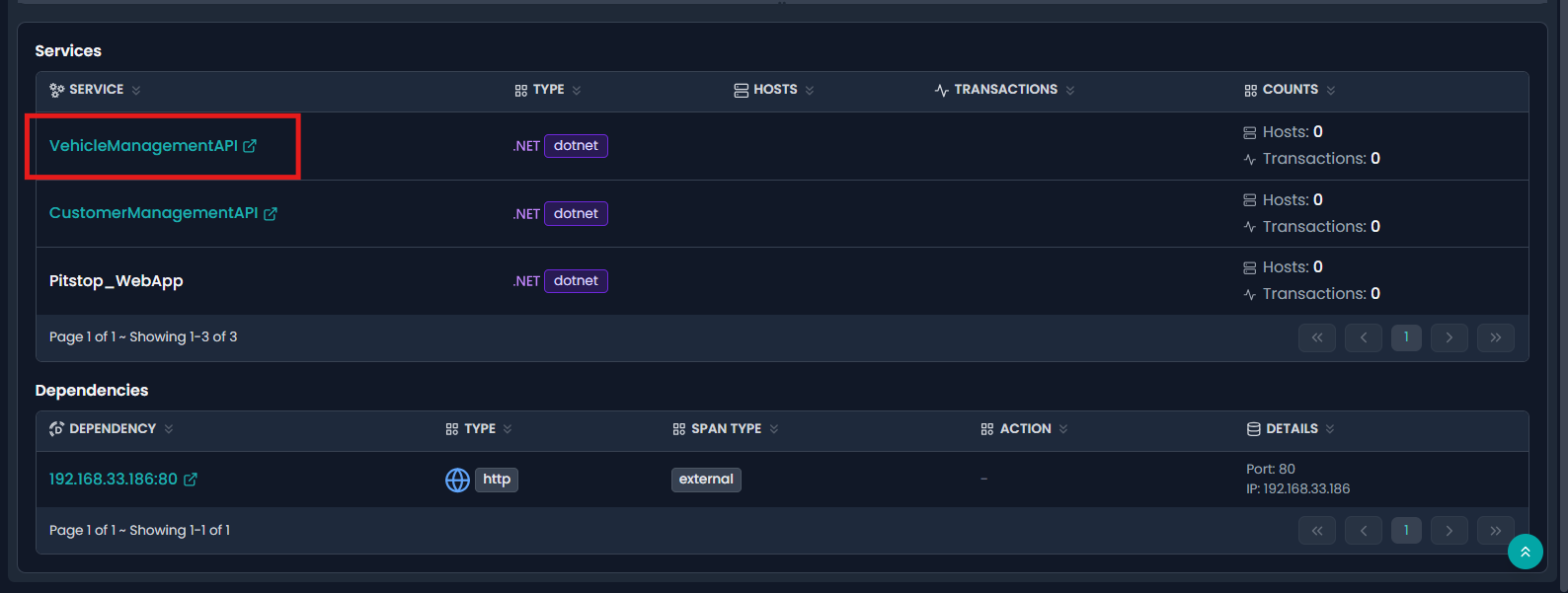
Below the map, tabular views summarize all detected relationships.
Services Table
Shows:
Service name
Type
Hosts
Transaction counts
Dependencies Table
Shows:
Dependency endpoint
Type (HTTP / Database)
Span type
Port and IP details
Database Dependencies
For API services, database dependencies are automatically detected.
Example:
VehicleManagementAPI → MSSQL (VehicleManagement)
This enables visibility into backend bottlenecks and database-driven latency.
Metrics Overview:
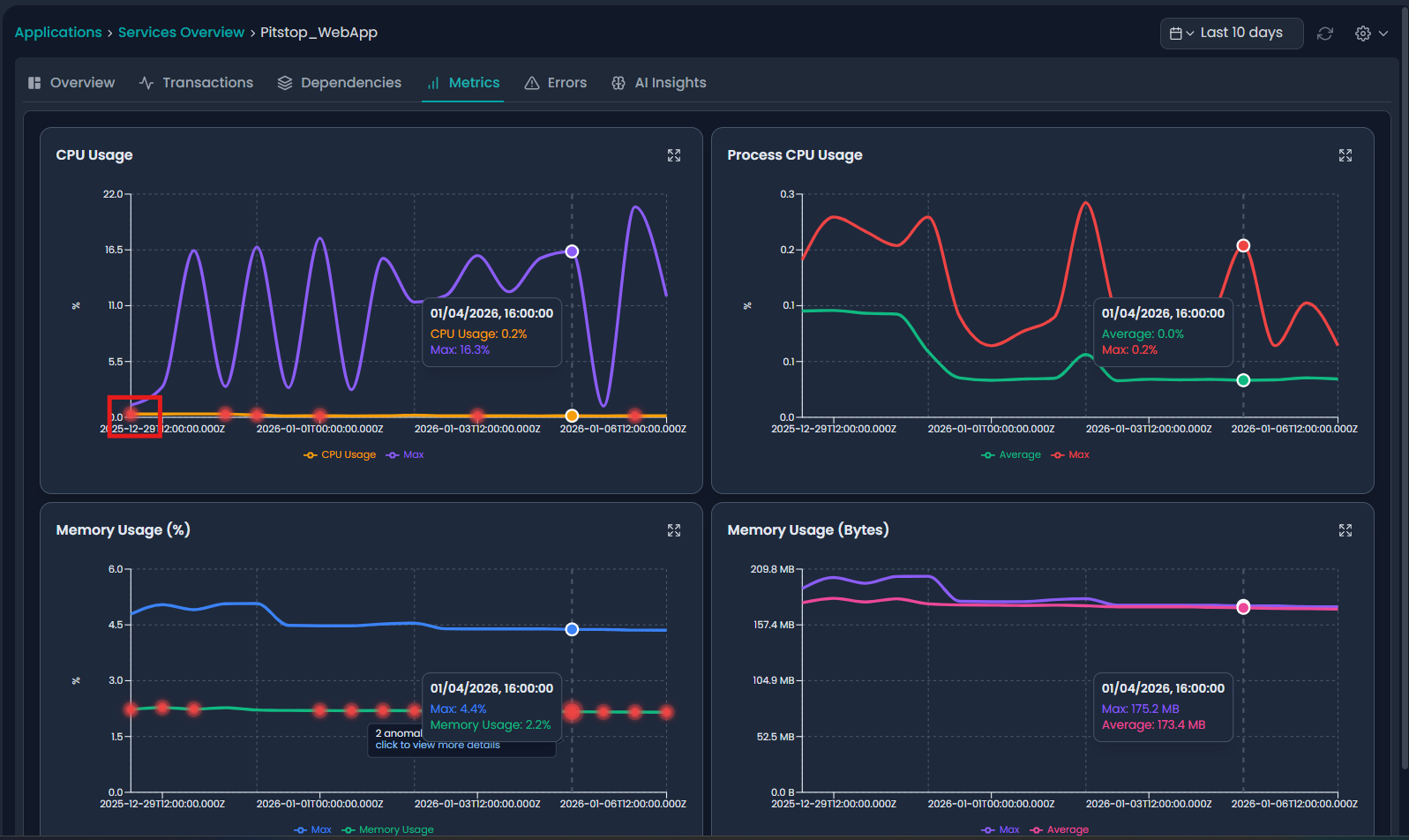
The Metrics tab provides real-time and historical resource utilization insights.
CPU Usage
Average CPU usage
Maximum CPU usage
Anomaly markers shown as red indicators
Process CPU Usage
CPU usage by application process
Helps detect inefficient code or background loops
Memory Usage (%)
Memory consumption as a percentage
Detects gradual memory leaks
Memory Usage (Bytes)
Absolute memory usage values
Useful for capacity planning
Anomaly Indicators in Metrics
Red dots on graphs indicate AI-detected anomalies.
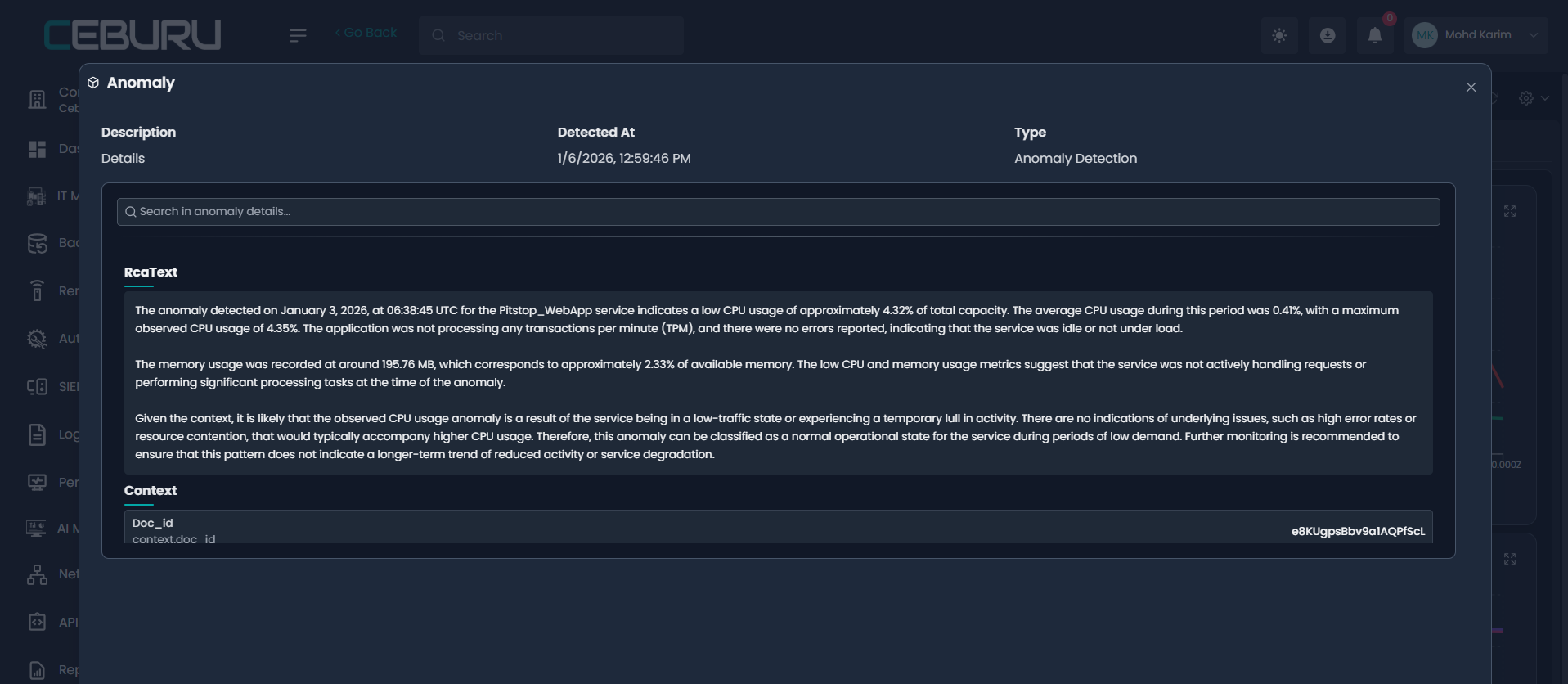
Clicking these opens detailed anomaly explanations.
AI Insights – Anomalies:
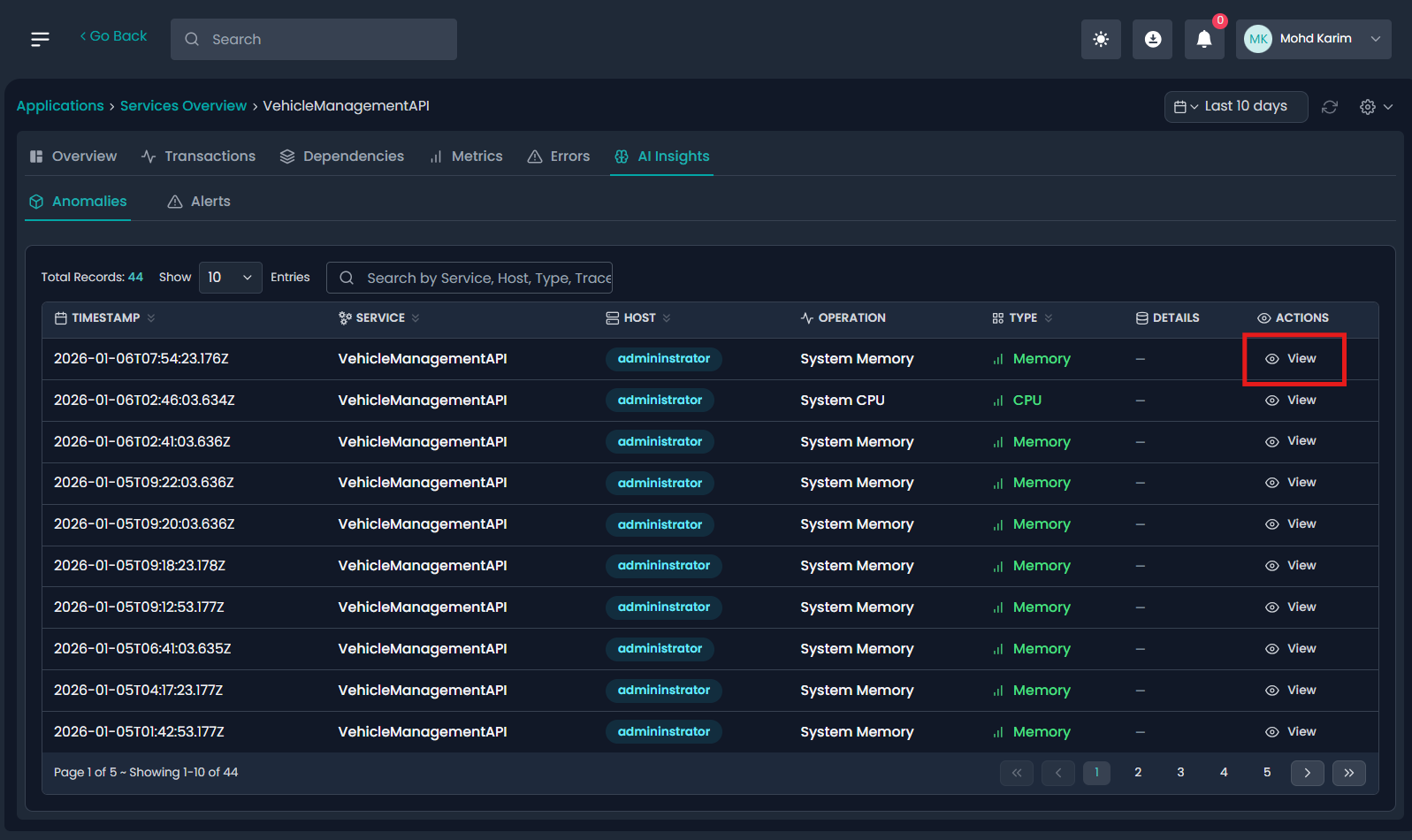
The AI Insights tab automatically detects abnormal behavior using machine learning.
Anomalies List View
Each anomaly includes:
Timestamp
Service
Host
Operation (CPU / Memory)
Type
Action to View details
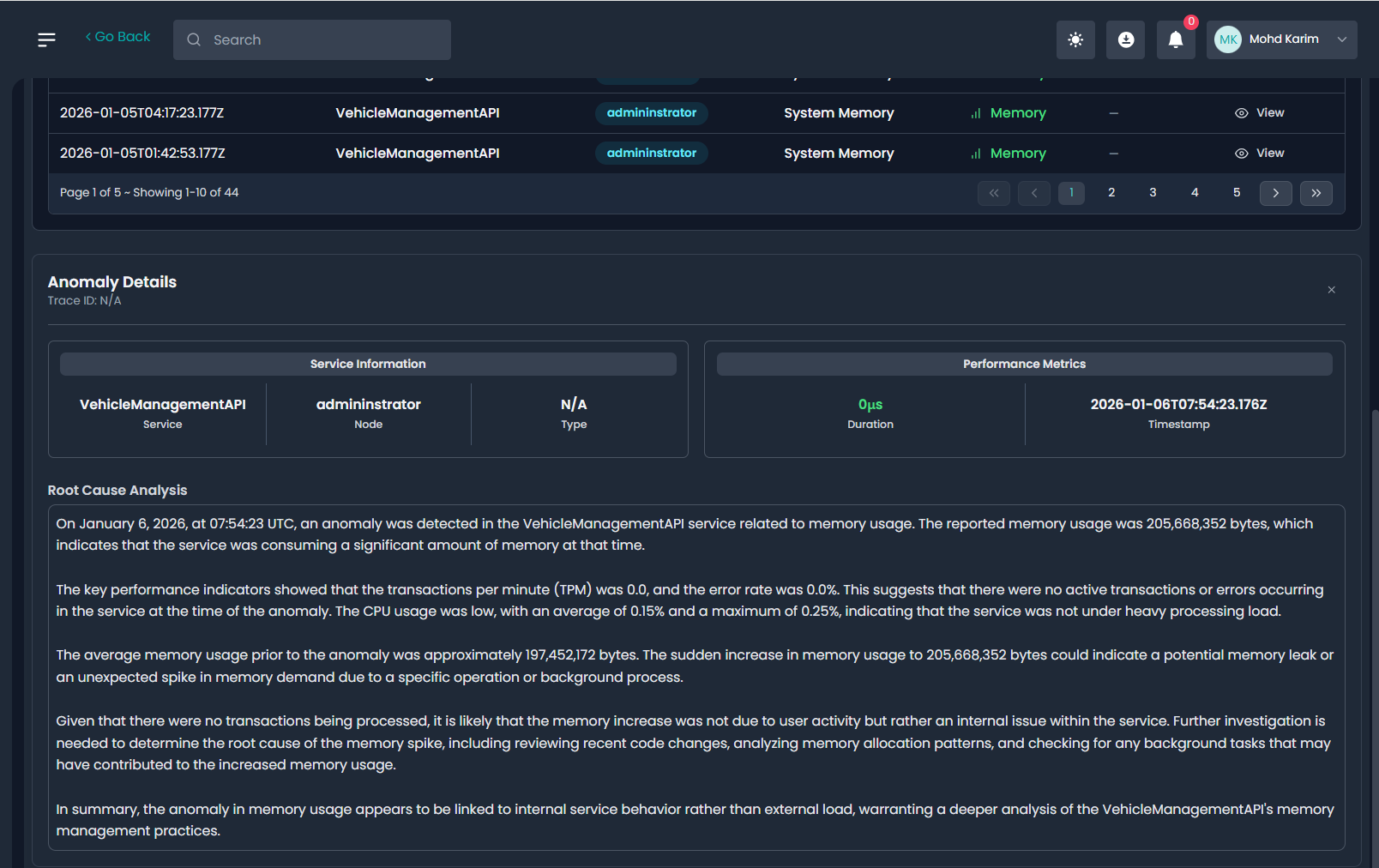
Anomaly Details & Root Cause Analysis
Click View on any anomaly to see detailed AI analysis.
Information Provided
Detection time
Metric involved
Duration
Service and node
Performance metrics at detection time
AI RCA (Root Cause Analysis)
AI explains:
What happened
Why it likely occurred
Whether it was load-related or internal
Recommended next steps
Example:
Memory spike without traffic
Low CPU & zero TPM
Potential background process or memory leak
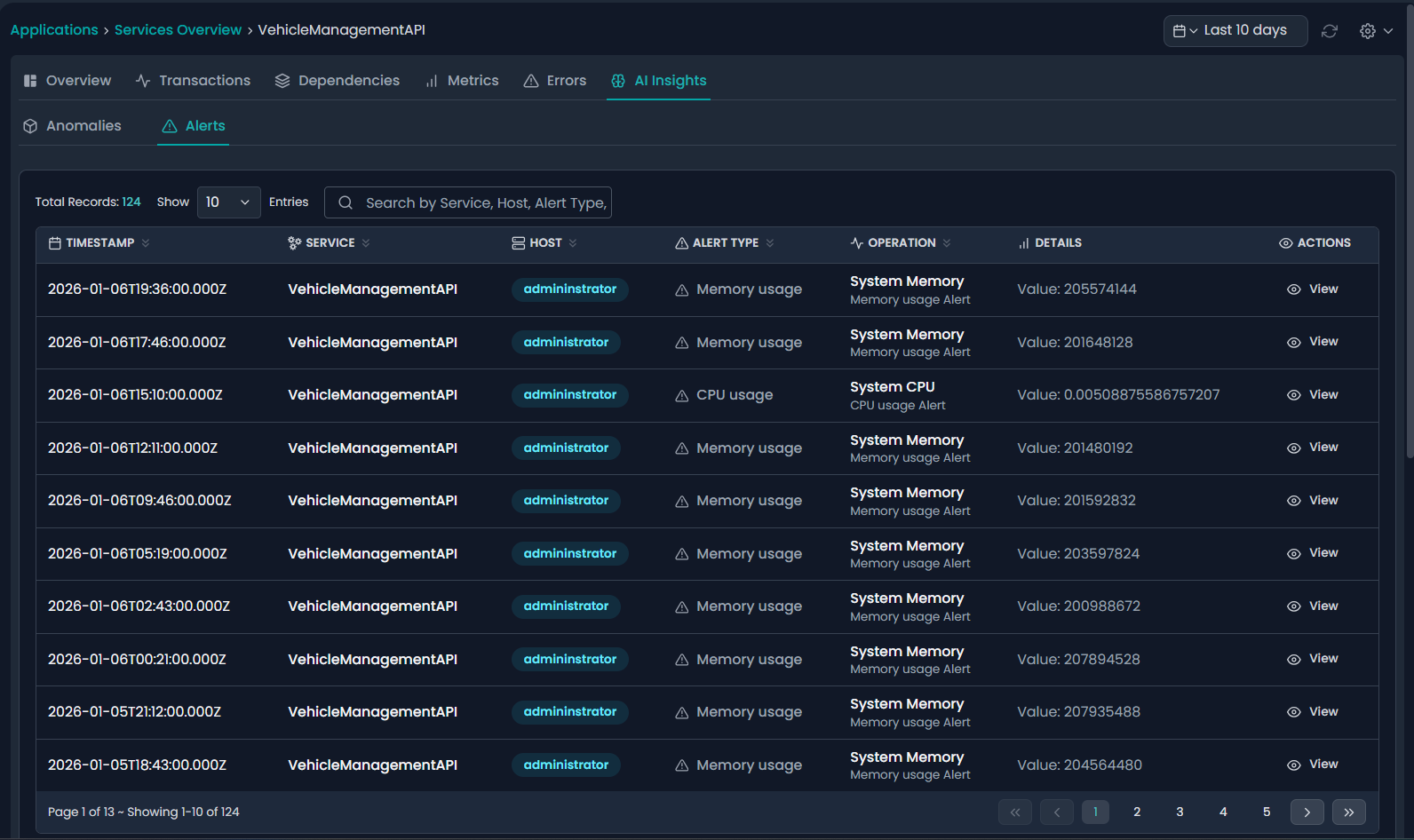
AI Insights – Alerts
The Alerts section lists threshold-based or AI-generated alerts.
Alerts List
Each alert includes:
Timestamp
Service
Host
Alert type (CPU / Memory)
Operation
Observed value
Action to View details
Alert Details
Clicking View opens:
Alert type and metric
Threshold breach value
Timestamp
Associated service and host
Alerts enable proactive remediation before service degradation occurs.
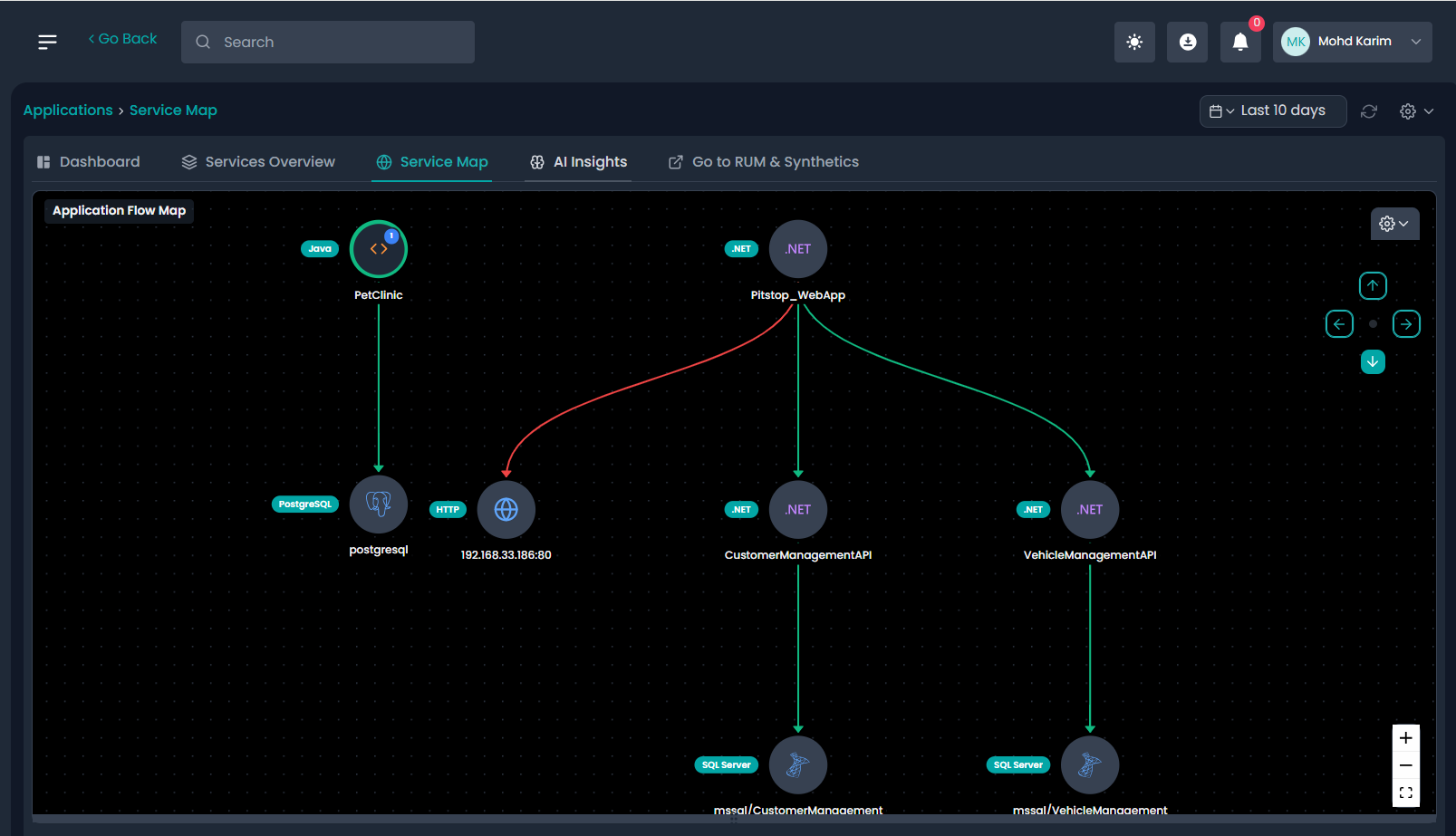
Service Map Overview
The Service Map provides a global, real-time visual representation of all monitored applications, services, APIs, databases, and external dependencies within the environment.
It helps teams quickly understand:
Application-to-application flow
Upstream and downstream dependencies
Cross-technology interactions (Java, .NET, HTTP, Databases)
End-to-end architecture visibility
Application Flow Map
The Application Flow Map visually displays how requests flow across services.
Example Flow
PetClinic (Java)
→ PostgreSQL Database
→ External HTTP Endpoint (IP:Port)Pitstop_WebApp (.NET)
→ CustomerManagementAPI
→ VehicleManagementAPI
→ MSSQL Databases
Visual Indicators
Green arrows – Healthy / successful traffic
Red arrows – Error-prone or failing dependencies
Node labels – Technology stack (.NET, Java, SQL Server, PostgreSQL)
This allows teams to instantly identify problematic paths and critical dependencies.
Interacting with the Service Map
You can:
Click on any service node to navigate to service details
Click on connections to analyze dependency health
Zoom, pan, and reposition nodes for clarity
View both internal services and external dependencies
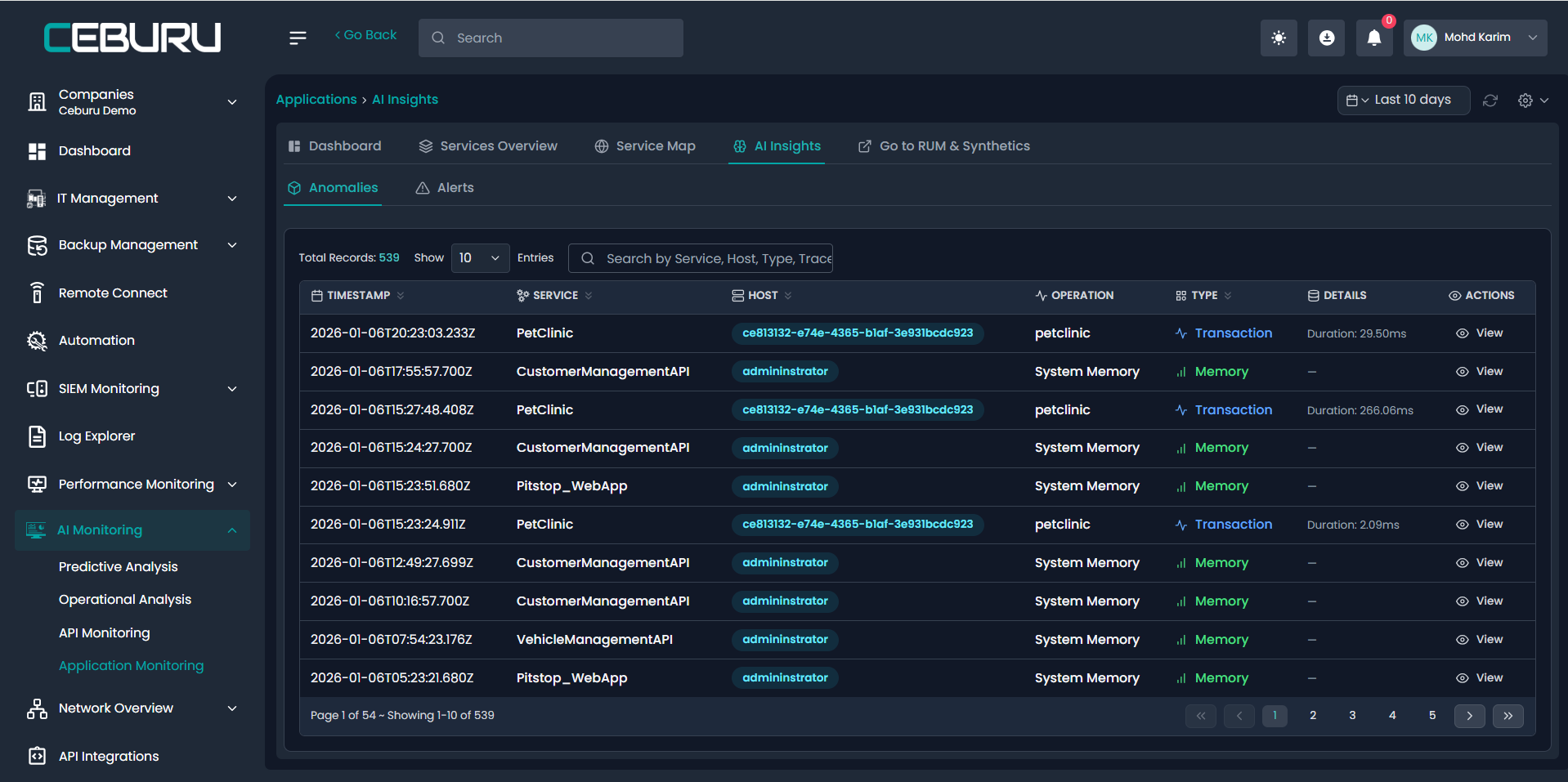
AI Insights from Applications View:
From the Applications section, the AI Insights tab provides centralized visibility into anomalies and alerts across all applications.
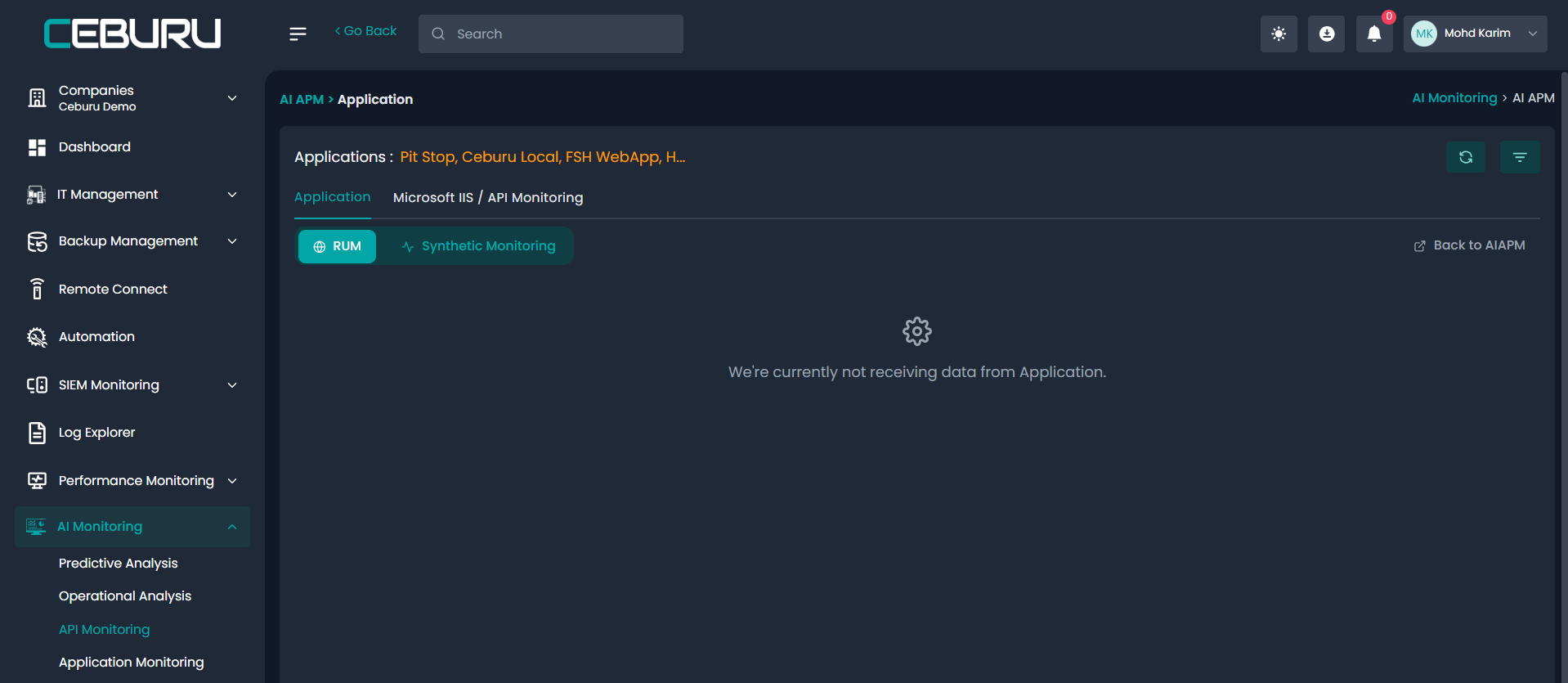
Go to RUM & Synthetics:
From the Applications Monitoring users can navigate directly to RUM & Synthetic Monitoring.
Navigation Option
Clicking Go to RUM & Synthetics redirects users to:
AI Monitoring → AI APM → Application Monitoring

Available Monitoring Types
RUM (Real User Monitoring)
Tracks real end-user experience such as page load time, response time, and client-side performance.Synthetic Monitoring
Simulates user transactions and availability checks for proactive monitoring.
Was this article helpful?
That’s Great!
Thank you for your feedback
Sorry! We couldn't be helpful
Thank you for your feedback
Feedback sent
We appreciate your effort and will try to fix the article